
STC Q30-06
STC My Home Q30 User Manual
мадэль: Q30-06
Марка: STC
1. Уводзіны
Welcome to the user manual for the STC My Home Q30, a versatile home internet device designed to provide seamless connectivity and entertainment. This device integrates a 4G LTE router with an Android TV box, featuring built-in Chromecast and Google Assistant. It serves as your central hub for internet access and smart home entertainment, offering high-speed wireless connectivity and access to a world of apps and content.
This manual will guide you through the setup, operation, maintenance, and troubleshooting of your STC My Home Q30 device, ensuring you get the most out of its features.
2. Змесціва ўпакоўкі
Калі ласка, пастаўце галачку для наступных пунктаў:
- STC My Home Q30 Device
- Адаптар сілкавання
- Кабель Ethernet
- Кабель HDMI
- Кароткае кіраўніцтва

Figure 2.1: The STC My Home Q30 device packaging, showing the purple box with the device image and STC branding.
3. Прылада скончанаview
Familiarize yourself with the physical components and ports of your STC My Home Q30 device.
3.1 Пярэдняя і бакавая часткі Views

Малюнак 3.1: Спераду view of the STC My Home Q30 device, showcasing its sleek white and black design with the STC logo.
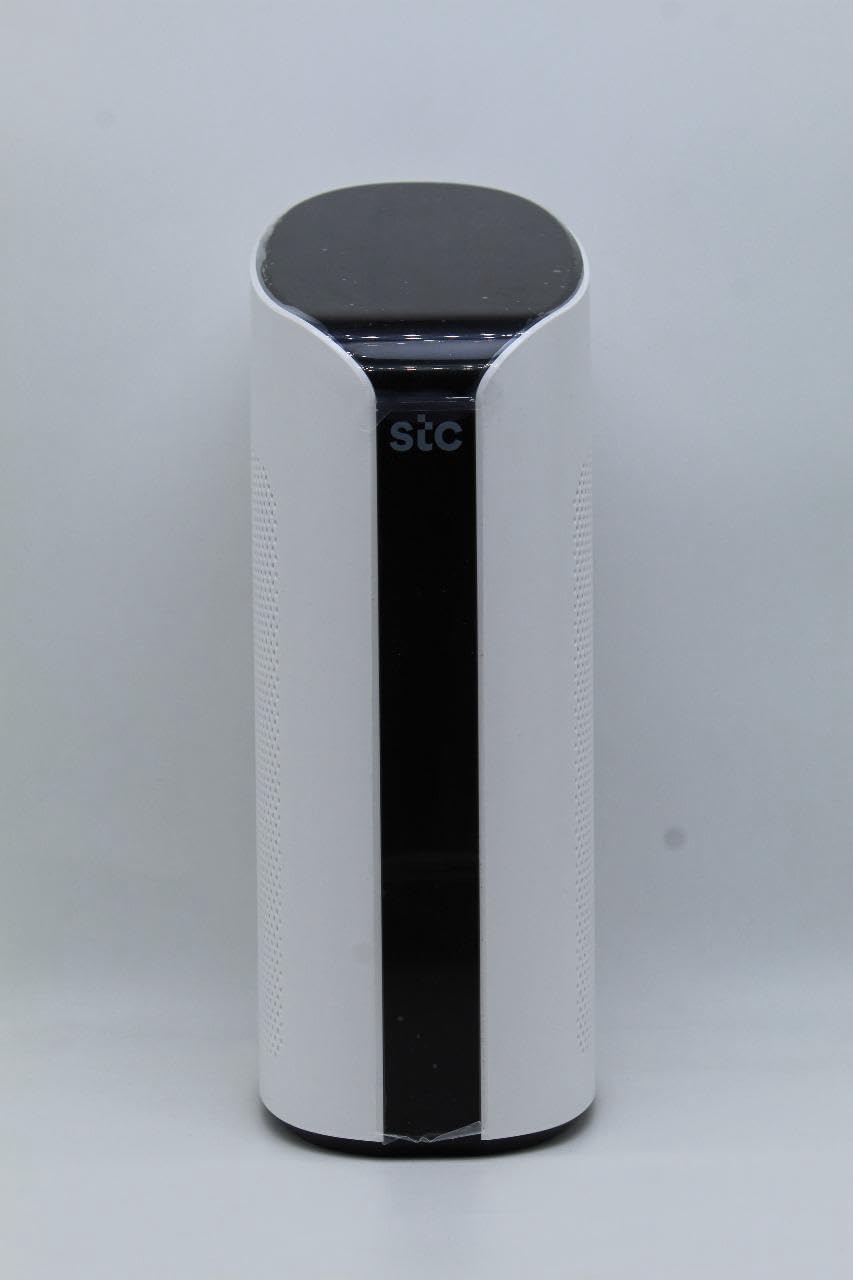
Малюнак 3.2: Пад вуглом view of the STC My Home Q30, highlighting its curved edges and perforated side panels for ventilation.
3.2 Задняя панэль і парты
The rear panel of the device contains all the necessary ports for connectivity.
Малюнак 3.3: Задняя частка view of the STC My Home Q30, displaying all input/output ports and buttons.
- PWR: Індыкатар харчавання.
- Router Reset: Button to reset the router settings to factory defaults.
- 4G/LTE Reset: Button to reset the 4G/LTE modem.
- WAN: Ethernet port for connecting to an external modem or internet source.
- Лакальная сетка 1, лакальная сетка 2: Парты Ethernet для падключэння правадных прылад, такіх як кампутары або гульнявыя прыстаўкі.
- HDMI: Port for connecting to a TV or display for Android TV functionality.
- USB 2.0, USB 3.0: USB ports for connecting external storage or peripherals.
- Micro SD: Slot for a Micro SD card for expanded storage.
- 12 В пастаяннага току: Порт ўводу харчавання.
- ВКЛ/ВЫКЛ: Выключальнік харчавання для прылады.
- Micro SIM only: Slot for inserting a Micro SIM card for 4G LTE connectivity.
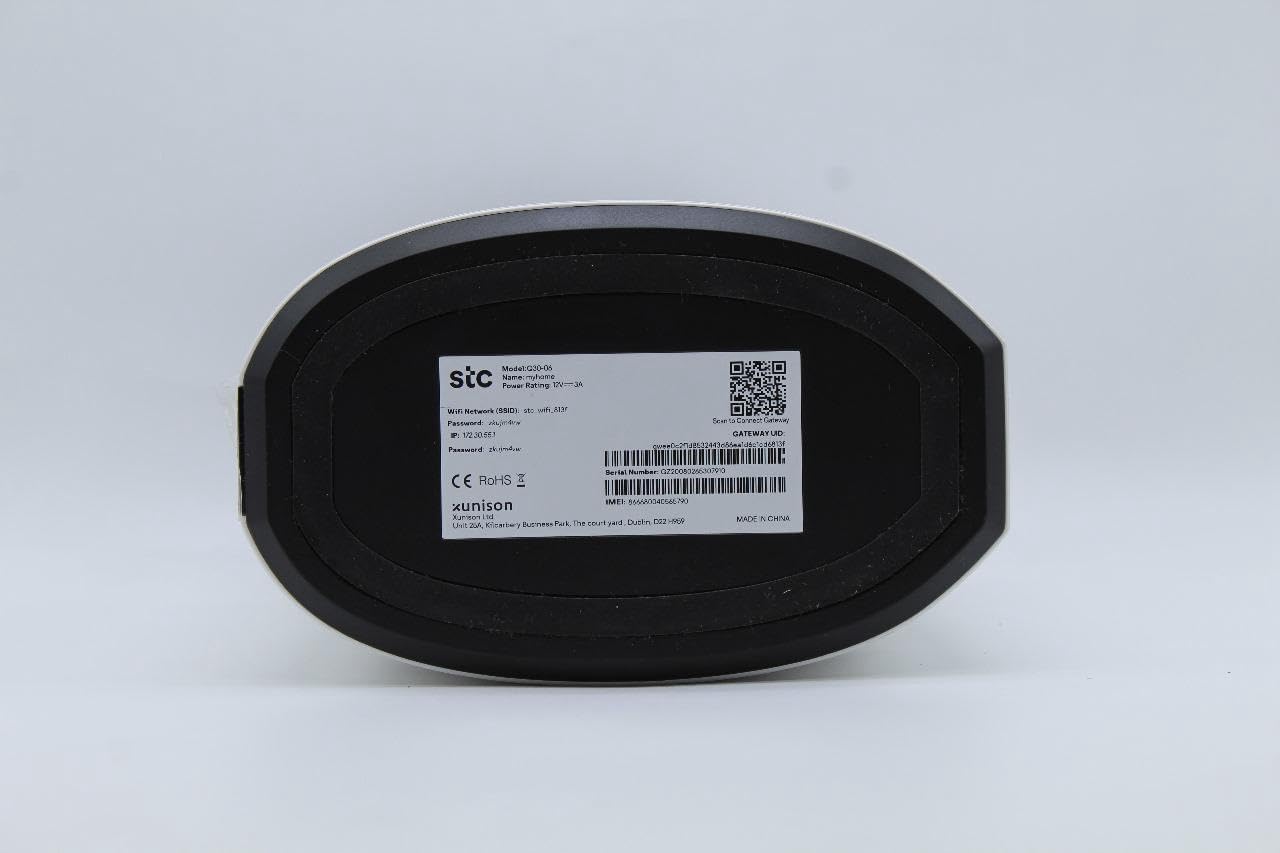
3.3 Bottom Label
The bottom of the device contains important network information and device details.

Малюнак 3.4: унізе view of the STC My Home Q30, showing the product label with model number, network SSID, password, IP address, serial number, IMEI, and QR code.
- мадэль: Q30-06
- Імя: Мой дом
- STC Network SSID: Your default Wi-Fi network name.
- Пароль: Your default Wi-Fi password.
- IP: Default IP address for accessing the device's web interface (e.g., 192.168.1.1).
- Серыйны нумар: Unique identifier for your device.
- IMEI: International Mobile Equipment Identity for the 4G modem.
- Ідэнтыфікатар шлюза: Unique identifier for the gateway.
- вытворца: SEI Robotics / XUNISON
- Зроблена ў: Кітай
4. Інструкцыі па ўсталёўцы
Follow these steps to set up your STC My Home Q30 device for the first time.
- Устаўце SIM-карту: Locate the Micro SIM slot on the rear panel. Gently insert your active Micro SIM card into the slot until it clicks into place. Ensure the SIM card is oriented correctly as indicated on the device.
- Падключыце харчаванне: Connect the provided power adapter to the DC 12V port on the rear panel of the device, then plug the adapter into a power outlet.
- Уключэнне: Flip the ON/OFF switch on the rear panel to the 'ON' position. The device will begin to power up. Wait for the indicator lights (e.g., PWR, 4G/LTE) to stabilize.
- Connect to TV (Optional for Android TV): If you plan to use the Android TV features, connect one end of the HDMI cable to the HDMI port on the STC My Home Q30 and the other end to an HDMI input on your television. Select the corresponding HDMI input on your TV.
- Пачатковае падключэнне да Wi-Fi: On your smartphone, tablet, or computer, search for available Wi-Fi networks. Select the network name (SSID) found on the bottom label of your device (e.g., 'stc_wifi_XXXX') and enter the password provided on the label.
- Complete Android TV Setup (if connected to TV): Follow the on-screen instructions on your TV to complete the Android TV setup, including connecting to your Google account, setting up Google Assistant, and installing desired apps.
- Правадное падключэнне (неабавязкова): For wired devices, connect an Ethernet cable from the LAN 1 or LAN 2 port on the STC My Home Q30 to the Ethernet port on your computer, gaming console, or other network device.
5. Інструкцыя па эксплуатацыі
This section covers the basic operation of your STC My Home Q30 device.
5.1 Падключэнне да Інтэрнэту
- 4G LTE: Once the SIM card is inserted and the device is powered on, it will automatically connect to the 4G LTE network. The 4G/LTE indicator light will show the connection status.
- WAN (Wired Internet): If you prefer to use a wired internet connection, connect an Ethernet cable from your external modem or router to the WAN port on the STC My Home Q30. The device will prioritize the WAN connection if available.
5.2 Сетка Wi-Fi
The device broadcasts a Wi-Fi network for your wireless devices. You can find the default SSID and password on the bottom label. For advanced settings, such as changing the Wi-Fi name or password, access the device's web interface by typing its IP address (e.g., 192.168.1.1) into a web браўзер на падключанай прыладзе.
5.3 Функцыі Android TV
- Убудаваны Chromecast: Cast content (videos, music, photos) from your compatible smartphone, tablet, or computer directly to your TV. Look for the Cast icon within supported apps.
- Памочнік Google: Use voice commands to search for content, control smart home devices, get answers, and more. Press the Google Assistant button on your remote (if applicable) or say "Hey Google" if voice activation is enabled.
- Праграмы: Download and install a wide range of apps from the Google Play Store directly on your TV.
6. Тэхнічнае абслугоўванне
Правільнае абслугоўванне забяспечвае даўгавечнасць і аптымальную працу вашай прылады.
- Уборка: Для чысткі вонкавых паверхняў прылады выкарыстоўвайце мяккую сухую тканіну. Не выкарыстоўвайце вадкія ачышчальнікі або абразіўныя матэрыялы.
- Вентыляцыя: Ensure the device is placed in a well-ventilated area. Do not block the ventilation holes on the sides of the device. Avoid placing it in enclosed spaces or on soft surfaces that may obstruct airflow.
- Абнаўленні прашыўкі: Periodically check for firmware updates through the device's settings menu (if available) or the manufacturer's webсайт. Абнаўленні могуць палепшыць прадукцыйнасць, дадаць новыя функцыі і выправіць памылкі.
- Цыкл харчавання: If you experience minor issues, try power cycling the device by turning it off, unplugging the power adapter for 30 seconds, then plugging it back in and turning it on.
7. Выпраўленне непаладак
У гэтым раздзеле прадстаўлены рашэнні распаўсюджаных праблем, з якімі вы можаце сутыкнуцца.
7.1 Няма харчавання
- Пераканайцеся, што адаптар сілкавання надзейна падключаны да прылады і разеткі.
- Праверце працаздольнасць разеткі, падключыўшы да яе іншую прыладу.
- Праверце, ці знаходзіцца выключальнік ON/OFF на задняй панэлі ў становішчы «ON».
7.2 Няма падключэння да Інтэрнэту
- For 4G LTE: Ensure your SIM card is active and has data. Check the 4G/LTE indicator light; if it's off or blinking, there might be a network issue or SIM card problem. Try reinserting the SIM card.
- For WAN: Verify that the Ethernet cable is securely connected to the WAN port and your external modem/router. Ensure your external internet source is working correctly.
- Restart the STC My Home Q30 device.
- If issues persist, try pressing the '4G/LTE Reset' or 'Router Reset' button on the rear panel (use a paperclip for a momentary press). Note that 'Router Reset' will restore factory settings.
7.3 Праблемы з падключэннем да Wi-Fi
- Ensure your device is within the Wi-Fi range of the STC My Home Q30.
- Verify that you are entering the correct Wi-Fi password (case-sensitive).
- Restart both the STC My Home Q30 and your Wi-Fi client device (smartphone, laptop).
- If many devices are connected, some older devices might experience slower speeds.
7.4 Android TV Not Displaying on TV
- Ensure the HDMI cable is securely connected to both the STC My Home Q30 and your TV.
- Пераканайцеся, што ваш тэлевізар настроены на правільную крыніцу ўваходнага сігналу HDMI.
- Паспрабуйце іншы кабель HDMI або іншы порт HDMI на вашым тэлевізары.
8. Тэхнічныя характарыстыкі
Detailed technical specifications for the STC My Home Q30 (Model: Q30-06).
| Асаблівасць | Спецыфікацыя |
|---|---|
| Назва мадэлі | My Home Q30-06 |
| Вытворца | STC (SEI Robotics) |
| Аперацыйная сістэма | Android TV 10 |
| працэсар | Quad-core 1.8 GHz (ARM Cortex-A53) |
| АЗП | 2 ГБ |
| Захоўванне | 8 ГБ |
| Аператар бесправадной сувязі | STC |
| Сотавая тэхналогія | 4G LTE |
| Тэхналогія падлучэння | Wi-Fi, Ethernet |
| Асаблівасці | Убудаваны Chromecast, Памочнік Google |
| Парты | WAN, 2x LAN, HDMI, USB 2.0, USB 3.0, Micro SD, Micro SIM slot, DC 12V |
| Памеры | 34.5 х 17.5 х 14.5 см |
| Вага | 600 г |
| Краіна паходжання | Кітай |
9. Гарантыя і падтрымка
Your STC My Home Q30 device comes with standard manufacturer warranty. For specific warranty terms and conditions, please refer to the documentation included with your purchase or contact STC customer support.
Extended warranty and accidental damage protection plans may be available for purchase separately. For example, options such as a 1-Year Extended Warranty Plan, 2-Years Extended Warranty Plan, and 1-Year Accidental Damage Protection Plan might be offered.
For technical support, troubleshooting assistance beyond this manual, or warranty claims, please contact your service provider (STC) or the seller from whom you purchased the device. Have your device's model number (Q30-06) and serial number ready when contacting support.