
1. Уводзіны і большview
The JSAUX FlipGo Touchscreen 16" Dual Portable Monitor (Model PM0204) is designed to expand your workspace with dual 2.5K IPS displays and 10-point touch functionality. This portable monitor is compatible with Windows and Linux operating systems, offering enhanced productivity for various tasks. It features a magnetic design, a built-in USB hub, and supports multiple display modes.

Figure 1: JSAUX FlipGo Touchscreen 16" Dual Portable Monitor highlighting its portable design and features.
2. Што ў скрынцы
Пераканайцеся, што ў камплекце ёсць усе наступныя прадметы:
- FlipGo 16'' Touchscreen Portable Monitor
- USB 4.0 USB C Full-function Data Cable (1m/3.3ft)
- Folio (Leather Protective Case)
- HDMI-Mini HDMI Video Cable (1.2m)
- Трымальнік падстаўкі
- Зарадная прылада 65 Вт

Figure 2: Package contents of the JSAUX FlipGo Touchscreen 16" Dual Portable Monitor.
3. Налада і падключэнне
3.1 Фізічная ўстаноўка
The FlipGo monitor can be set up using the included stand holder or a magnetic stand (sold separately).
Video 1: Instructions on how to use the stand holder with the JSAUX FlipGo monitor.
Video 2: Instructions on how to use the FlipGo Snap Stand for monitor setup.
3.2 Падключэнне
The FlipGo Touchscreen monitor offers versatile connectivity options. Ensure your laptop has a full-featured USB-C port for optimal performance, especially for touch functionality and single-cable operation.

Figure 3: Port layout and functions on the JSAUX FlipGo Touchscreen monitor.
One Cable Connection: Use the included full-featured USB-C cable to connect the FlipGo's USB-C2 port to your computer's USB-C port. This single cable can power the monitor and transmit display signals. When an external power supply is connected to the monitor, it can also charge your laptop.
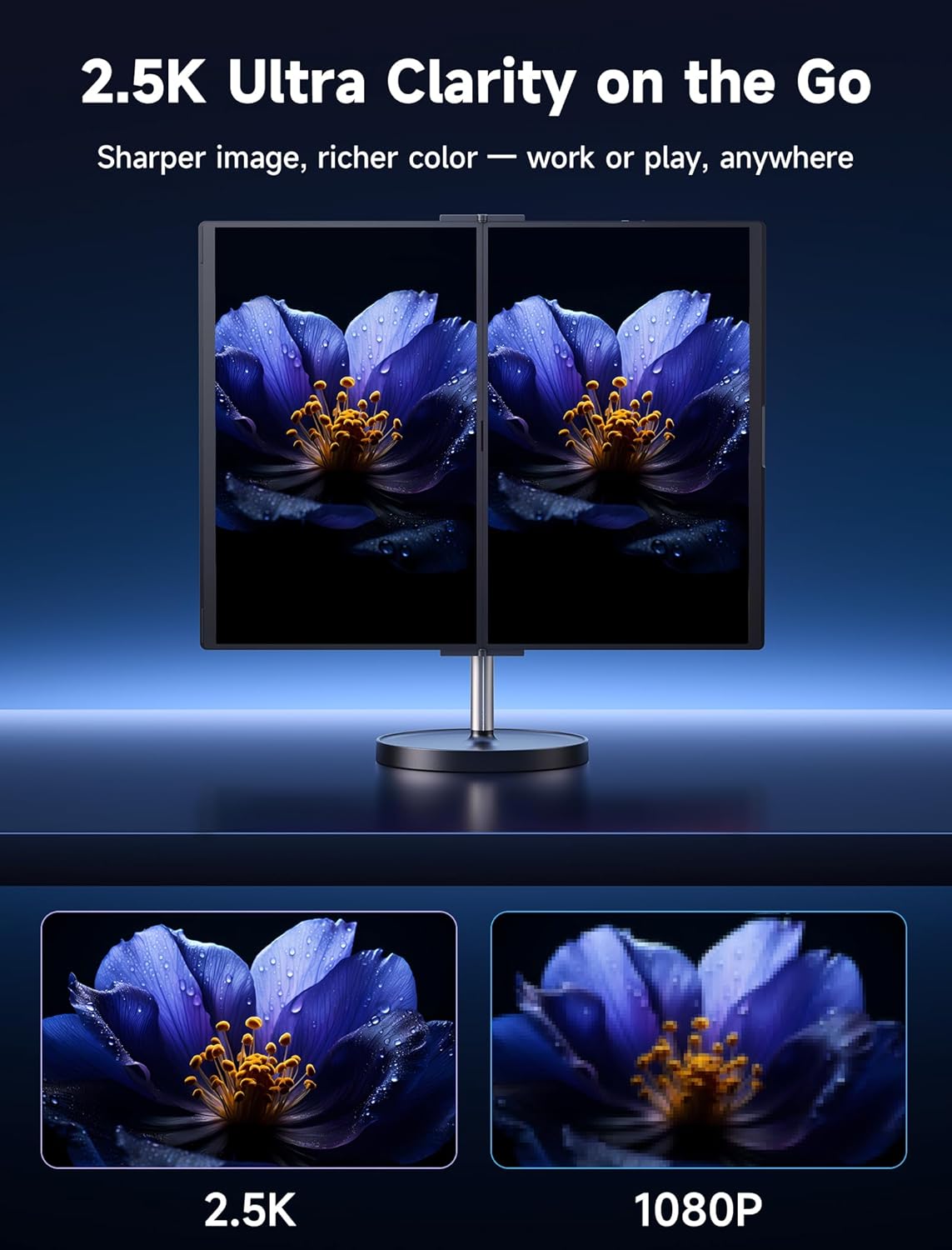
Figure 4: Single cable connection for dual display setup.
Important USB-C Port Compatibility:
- Сумяшчальны: Thunderbolt 3/4 Full function, Support Data + Video Transfer, Data + DisplayPort Alt.
- Несумяшчальны: Only Data Transfer, Only Charging.

Figure 5: USB-C port compatibility guide.
4. Кіраванне маніторам
4.1 Рэжымы адлюстравання
The FlipGo Touchscreen monitor supports various display modes to enhance your productivity:
- Extended (ABC) Mode: Extends your desktop across three screens (laptop + two FlipGo screens). This mode is supported on Windows and Linux via USB-C. macOS does not support extended mode (ABC).
- Люстэркавы рэжым: Duplicates your laptop screen onto the FlipGo displays.

Figure 6: Multiple display modes and compatibility.

Малюнак 7: Выпample of a triple display setup with Windows 11.
4.2 Функцыянальнасць сэнсарнага экрана
The FlipGo Touchscreen monitor features 10-point touch capability, enhancing interaction with your device. Touch functionality works only via USB-C and requires support for USB 3.2 or higher. It is not supported via Mini HDMI.

Figure 8: 10-Point Touch Screen interaction.
Video 3: Guide on setting up touch functionality for the JSAUX FlipGo TouchScreen Monitor.
Touch Functionality Compatibility:
- Commonly Supported Systems: Windows 10/11 (Full Version), Latest Linux distributions (e.g., Ubuntu 22.04 or others with HID support), Android 9.0 and above (device-dependent).
- Unsupported or Partially Compatible Systems: Windows 10 LTSC/LTSB, Windows 7 and earlier, Windows PE, Windows Server Editions, Ubuntu 20.04 and earlier, CentOS/RedHat.

Figure 9: Touch function compatibility details.
Usage Notes for Touch Version:
- The FlipGo touch version does not support UltraView рэжым.
- HDMI port only provides video signal transmission and does not support touch function. Touch function only works via USB-C and requires USB 3.2 or higher.
- The FlipGo touch version has a glossy screen material.
- Reverse charging is supported but requires a 65W or higher power adapter (original laptop charger recommended). Ensure the laptop's USB port supports power input.
- The touch version is usable on macOS, but macOS does not natively support touch input, resulting in a suboptimal user experience. It is not recommended for Mac users (no UltraView mode and Extend mode on macOS).

Figure 10: FlipGo Touch 16" Usage Notes.
5. Тэхнічныя характарыстыкі
Key technical specifications for the JSAUX FlipGo Touchscreen 16" Dual Portable Monitor (Model PM0204):
| Асаблівасць | Спецыфікацыя |
|---|---|
| Нумар мадэлі | PM0204 |
| Памер экрана | 16 Inches (Dual Screens) |
| дазвол | 2.5K (2560 x 1600 пікселяў) |
| Суадносіны бакоў | 16:10 |
| Колеравая гама | 100% sRGB |
| Яркасць выявы | 500 гнід |
| Каэфіцыент кантраснасці | 1200:1 |
| Паверхня экрана | Глянцавы |
| Touch Capability | 10-Point Touch (USB-C only, requires USB 3.2+) |
| Памеры прадукту | 0.35 х 14.46 х 18.53 цалі |
| Вага прадмета | 7.19 фунта |
| Усяго партоў USB | 1 (USB-C for display/power, plus 2x USB-A 2.0, 1x USB-C 2.0 on hub) |
| Відэа ўваходы | USB-C, Mini HDMI (x2) |
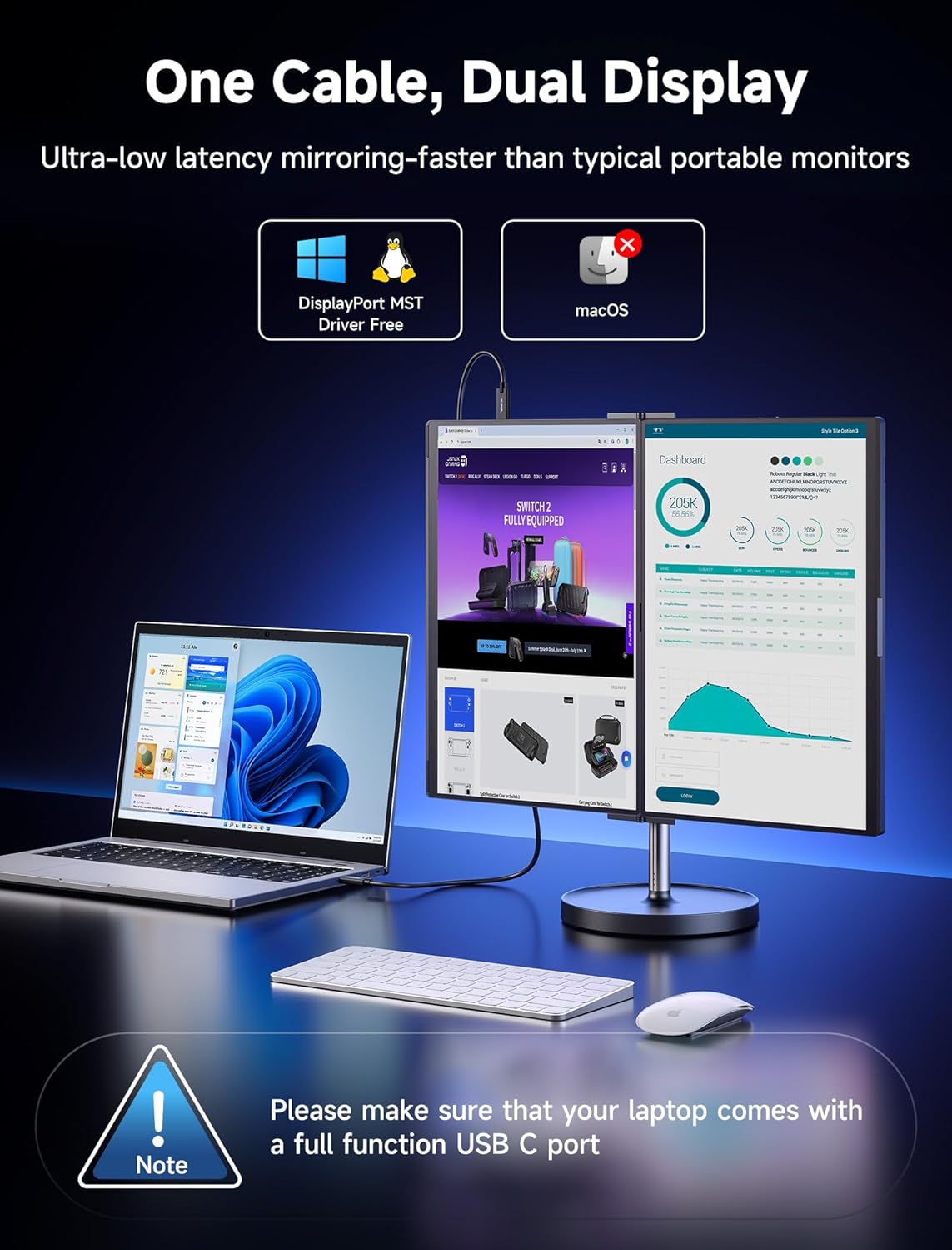
Figure 11: Visual comparison of 2.5K vs 1080P resolution.
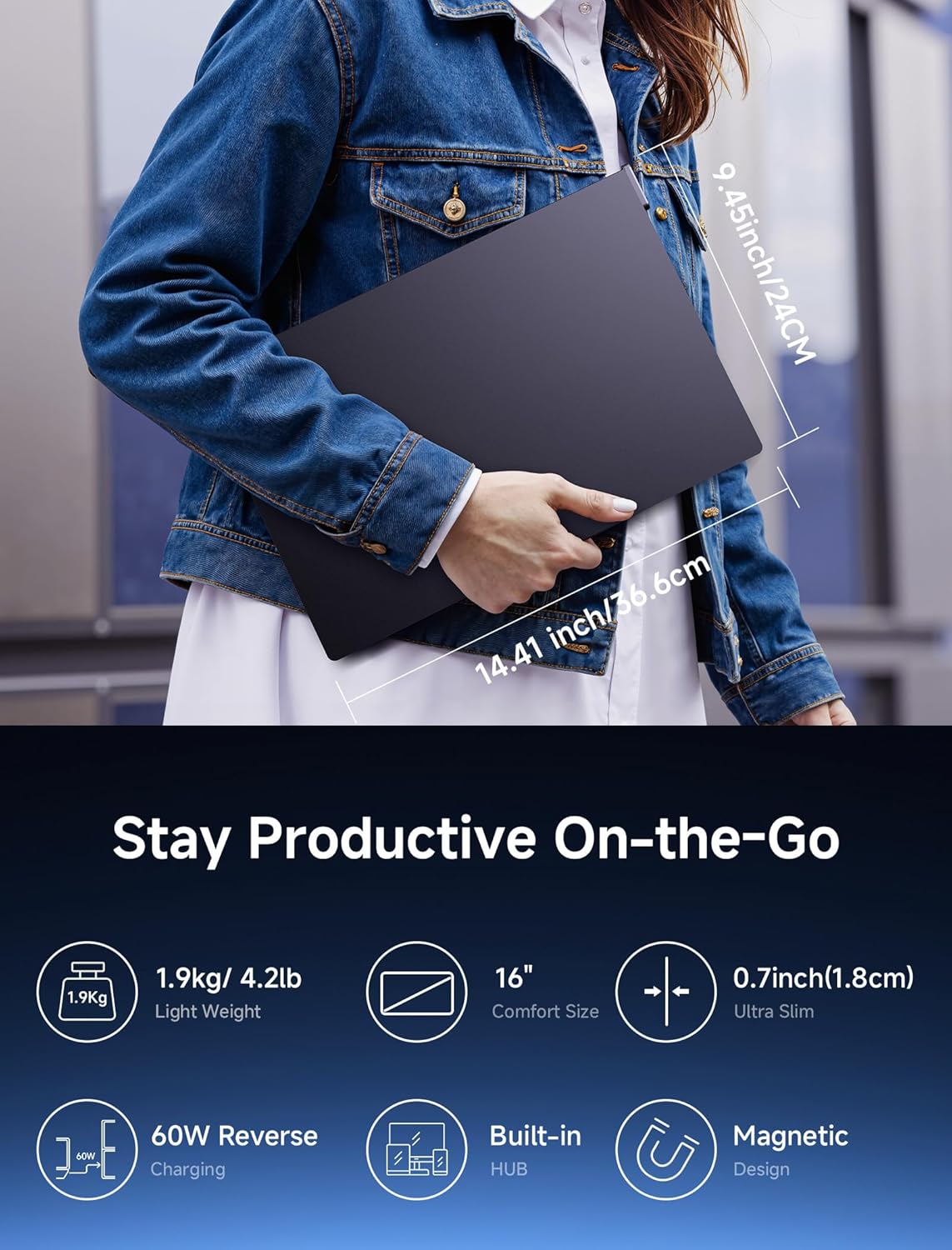
Figure 12: Display clarity and color specifications.
6. Выпраўленне непаладак
This section addresses common issues you might encounter with your JSAUX FlipGo Touchscreen monitor.
6.1 Display Not Turning On or No Signal
- Праверце падключэнне кабеля: Ensure the USB-C cable is fully inserted into both the monitor and your laptop. If using Mini HDMI, ensure both HDMI and a separate USB-C power cable are connected.
- крыніца харчавання: Confirm the monitor is receiving sufficient power. If using a single USB-C cable, ensure your laptop's USB-C port supports power delivery. If not, connect the included 65W charger to the monitor's power input.
- Laptop Output: Verify your laptop's display output settings. Try pressing Windows Key + P (on Windows) to cycle through display modes (Duplicate, Extend, Second screen only).
- USB-C Port Functionality: Refer to Figure 5 to ensure your laptop's USB-C port is full-featured (supports data, video, and power).
6.2 Touch Function Not Working
- Падключэнне USB-C: Touch functionality requires a USB-C connection (USB 3.2 or higher). It will not work with Mini HDMI connections.
- Сумяшчальнасць з аперацыйнай сістэмай: Confirm your operating system is listed as 'Commonly Supported' in Figure 9. macOS does not natively support touch input.
- Driver/Settings: For Windows, ensure touch input is calibrated. Follow the steps in Video 3 to set up touch input.
- Выкарыстанне адаптара: Touch functionality will not work with DP to USB-C adapters as touch signals are transmitted via USB.
6.3 Display Mode Issues (e.g., Extended Mode on macOS)
- Абмежаванні macOS: macOS does not support Extended (ABC) mode for this monitor. Only Mirror Mode is typically available.
- УльтраView рэжым: The FlipGo Touchscreen model does not support UltraView рэжым.
- Налады сістэмы: Adjust display settings within your operating system to configure extended or mirrored displays as desired.
7. Тэхнічнае абслугоўванне
To ensure the longevity and optimal performance of your JSAUX FlipGo monitor, follow these maintenance guidelines:
- Уборка: Выкарыстоўвайце мяккую безворсовую тканіну, злёгку dampened with water or a screen cleaner specifically designed for electronics. Avoid harsh chemicals, abrasive materials, or excessive moisture.
- захоўванне: When not in use, store the monitor in its protective folio to prevent scratches and dust accumulation. Avoid placing heavy objects on top of the monitor.
- Апрацоўка: Асцярожна звяртайцеся з маніторам. Пазбягайце яго падзення і моцных удараў.
- Тэмпература і вільготнасць: Operate and store the monitor within recommended temperature and humidity ranges to prevent damage to internal components.
8. Гарантыя і падтрымка
JSAUX products come with a manufacturer's warranty. For specific warranty details, including duration and coverage, please refer to the warranty card included with your product or visit the official JSAUX webсайт.
For technical support, troubleshooting assistance, or any inquiries regarding your FlipGo Touchscreen monitor, please contact JSAUX customer service through their official channels. You can often find contact information on the product packaging, the JSAUX webсайт або праз прадаўца, у якога вы набылі тавар.
When contacting support, please have your product model number (PM0204) and purchase information readily available.