
1. Уводзіны
This manual provides instructions for the installation, operation, and maintenance of your Unitek DiskGuard Raiden 2.5" USB-C to SATA III Hard Disk Enclosure. This enclosure is designed to convert a 2.5-inch SATA I/II/III HDD or SSD into an external USB-C storage device, offering convenient data transfer and portability.
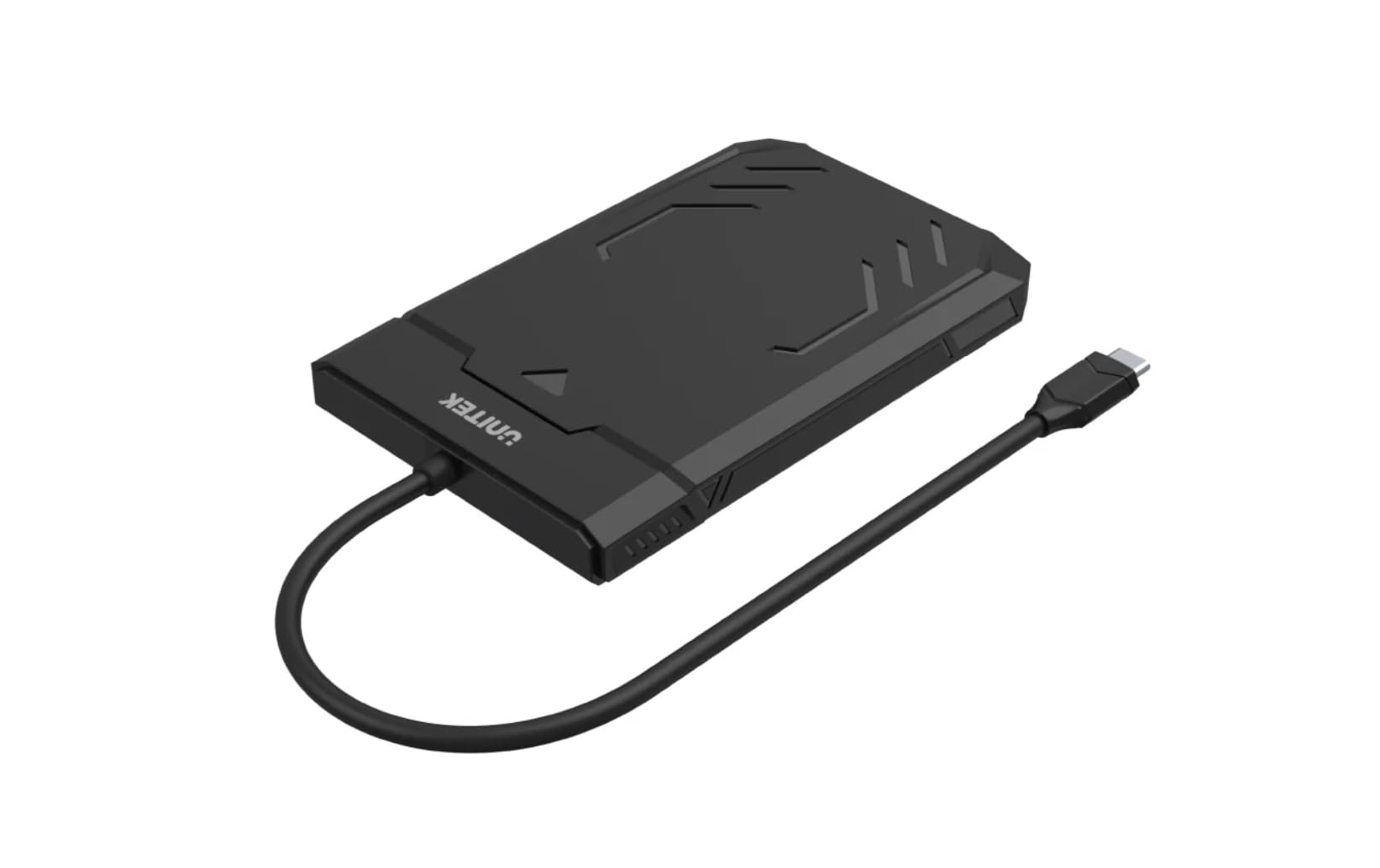
Figure 1: Unitek DiskGuard Raiden 2.5" USB-C to SATA III Hard Disk Enclosure. This image shows the compact, black enclosure with its integrated USB-C cable.
2. Змесціва ўпакоўкі
Калі ласка, пераканайцеся, што ўсе прадметы прысутнічаюць у камплекце:
- 1 x Unitek DiskGuard Raiden 2.5" USB-C to SATA III Hard Disk Enclosure
- 1 х Кіраўніцтва карыстальніка
3. Асаблівасці прадукту
- Supports most 7mm/9.5mm 2.5-inch SATA I/II/III HDDs and SSDs.
- USB 3.0 specification for data transfer rates up to 5Gbps.
- Зваротная сумяшчальнасць з USB 2.0.
- Features a sleep mode function for energy saving during idle periods.
- Tool-free installation for quick and easy setup.
- Supports hot-swap functionality.
- Plug and Play operation, requiring no driver installation.
- Durable ABS housing.
4. Інструкцыі па ўсталёўцы
Follow these steps to install your 2.5-inch SATA HDD or SSD into the enclosure:
4.1 Адкрыццё корпуса
- Gently slide the top cover of the enclosure to open it. The enclosure is designed for tool-free access.

Figure 2: The enclosure features a tool-free design, allowing the top cover to slide open for drive installation.
4.2 Installing the HDD/SSD
- Align your 2.5-inch SATA HDD or SSD with the SATA connector inside the enclosure.
- Gently push the drive into the connector until it is firmly seated. Ensure the drive is flush with the enclosure's internal tray.
4.3 Closing the Enclosure
- Засуньце верхнюю крышку назад на месца, пакуль яна надзейна не зашчоўкне.
4.4 Падключэнне да кампутара
- Connect the integrated USB-C cable from the enclosure to an available USB-C port on your computer.
- The enclosure is plug-and-play; your operating system should automatically detect the new storage device.
- If this is a new HDD/SSD, it may need to be initialized and formatted before use. Refer to your operating system's documentation for instructions on disk management.
5. Інструкцыя па эксплуатацыі
5.1 Перадача дадзеных
Once connected, the enclosure will appear as an external drive on your computer. You can drag and drop files, copy, paste, and perform other standard file operations as you would with any other storage device. The USB 3.0 interface supports data transfer speeds up to 5Gbps.

Figure 3: The enclosure supports fast data transfer speeds up to 5Gbps, significantly faster than USB 2.0.
5.2 Святлодыёдныя індыкатары
The enclosure features two LED indicators:
- Зялёны святлодыёд: Indicates power status. It will turn on when the enclosure is connected to a power source (via USB-C).
- Сіні святлодыёдны святло: Indicates read and write status. It will flash when data is being transferred to or from the drive.

Figure 4: The enclosure's LED lights provide visual feedback on power and data activity. The green light indicates power, and the blue light flashes during data transfer.
5.3 Рэжым сну
The enclosure is equipped with a sleep mode function. If the drive is idle for a period (typically 10-15 minutes, depending on the operating system and drive settings), it will enter sleep mode to conserve energy and extend the life of the drive. The drive will automatically wake up when accessed.
6. Тэхнічнае абслугоўванне
- Трымайце корпус у чысціні і без пылу. Выкарыстоўвайце для чысткі мяккую сухую тканіну.
- Пазбягайце ўздзеяння экстрэмальных тэмператур, вільготнасці або прамых сонечных прамянёў на корпус.
- Do not drop or subject the enclosure to strong impacts.
- Ensure proper ventilation around the enclosure during operation.
- Always safely eject the drive from your operating system before disconnecting the USB-C cable to prevent data corruption.
7. Выпраўленне непаладак
7.1 Дыск не выяўлены
- Праверце злучэнні: Ensure the USB-C cable is securely connected to both the enclosure and your computer.
- Паспрабуйце іншы порт USB: Connect the enclosure to a different USB-C port on your computer.
- Verify Drive Installation: Open the enclosure and ensure the HDD/SSD is correctly seated in the SATA connector.
- Check Drive Status: Для новых дыскаў пераканайцеся, што яны ініцыялізаваны і адфарматаваны ў праграме «Кіраванне дыскамі» (Windows) або «Дыскавай утыліце» (macOS) вашай аперацыйнай сістэмы.
- Test with Another Drive/Computer: If possible, test the enclosure with a different 2.5-inch SATA drive or connect it to another computer to isolate the issue.
7.2 Павольная хуткасць перадачы дадзеных
- Порт USB 3.0: Ensure the enclosure is connected to a USB 3.0 (or higher) port on your computer. Connecting to a USB 2.0 port will limit speeds to USB 2.0 performance.
- Прадукцыйнасць дыска: The actual transfer speed is also limited by the speed of the installed HDD/SSD.
- Якасць кабеля: While the enclosure has an integrated cable, ensure no other factors are affecting USB performance.
7.3 Enclosure Gets Warm
It is normal for the enclosure to become warm during extended use, especially during heavy data transfer. This is due to heat generated by the internal HDD/SSD. Ensure adequate airflow around the enclosure.
8. Тэхнічныя характарыстыкі
| Назва мадэлі | DiskGuard Raiden 2.5" USB-C to SATA III Hard Disk Enclosure |
| Марка | Юнітэк |
| Абсталяванне інтэрфейсу | USB4 Type C (Note: Product description states USB3.0, please refer to product packaging for exact USB version.) |
| Сумяшчальныя дыскі | 2.5-inch SATA I/II/III HDD & SSD (7mm/9.5mm thickness) |
| Максімальная ёмістасць памяці | 20 ТБ |
| Хуткасць перадачы даных | Up to 5 Gigabits Per Second (USB 3.0) |
| Матэрыял корпуса | Корпус з АБС |
| Колер | Чорны |
| Supported Devices Quantity | 1 |
| ASIN | B0D4XQVFDM |
| GTIN | 04894160044570 |
Заўвага: тэхнічныя характарыстыкі могуць быць зменены без папярэдняга паведамлення.
9. Гарантыя і падтрымка
Unitek products are covered by a limited warranty. For detailed warranty information, technical support, or customer service, please refer to the official Unitek website or contact your local retailer. Please retain your proof of purchase for warranty claims.
Каб атрымаць дадатковую дапамогу, наведайце: Unitek Official Store on Amazon