
1. Уводзіны
The HUMZOR NP716 is an advanced bidirectional automotive diagnostic scan tool designed for comprehensive vehicle system analysis and maintenance. This device features ECU coding capabilities, all-system diagnostics, and over 17 special reset functions. Equipped with an Android 11.0 operating system and a 5.5-inch screen, it provides a user-friendly interface for efficient vehicle servicing. This manual provides detailed instructions for setting up, operating, maintaining, and troubleshooting your NP716 device.
2. Прадукт скончыўсяview
2.1 Асноўныя магчымасці
- Двунакіраванае кіраванне: Perform active tests to control vehicle components and systems.
- Кадаванне ЭБУ: Customize vehicle settings and perform module replacement functions.
- Уся дыягностыка сістэмы: Read and clear fault codes, view live data, and retrieve ECU information for all available vehicle systems.
- 17+ Special Reset Functions: Includes ABS Bleeding, Oil Reset, SAS Reset, TPMS Reset, EPB Reset, DPF Reset, Battery Reset, Injector Code, Throttle Learning, Gear Learning, CVT Learning, Windows, Suspension, Light, and Seat Reset.
- Аперацыйная сістэма: Android 11.0 for a smooth and intuitive user experience.
- Дысплей: 5.5-цалевы сэнсарны экран.
- Падключэнне: Built-in Wi-Fi module.
- Абнаўленні праграмнага забеспячэння: Includes 3 years of free software updates.
2.2 Змест пакета
The NP716 package typically includes the following components:
- HUMZOR NP716 Diagnostic Tablet
- VCI (Vehicle Communication Interface) Connector
- USB-кабель для зарадкі
- Адаптар сілкавання
- Ахоўны футляр для пераноскі
- Quick Start Guide (refer to this manual for full instructions)

Image 2.2.1: The HUMZOR NP716 diagnostic tablet, VCI module, and protective carrying case.

Image 2.2.2: A visual representation of the items included in the NP716 product package.
2.3 Памеры прылады
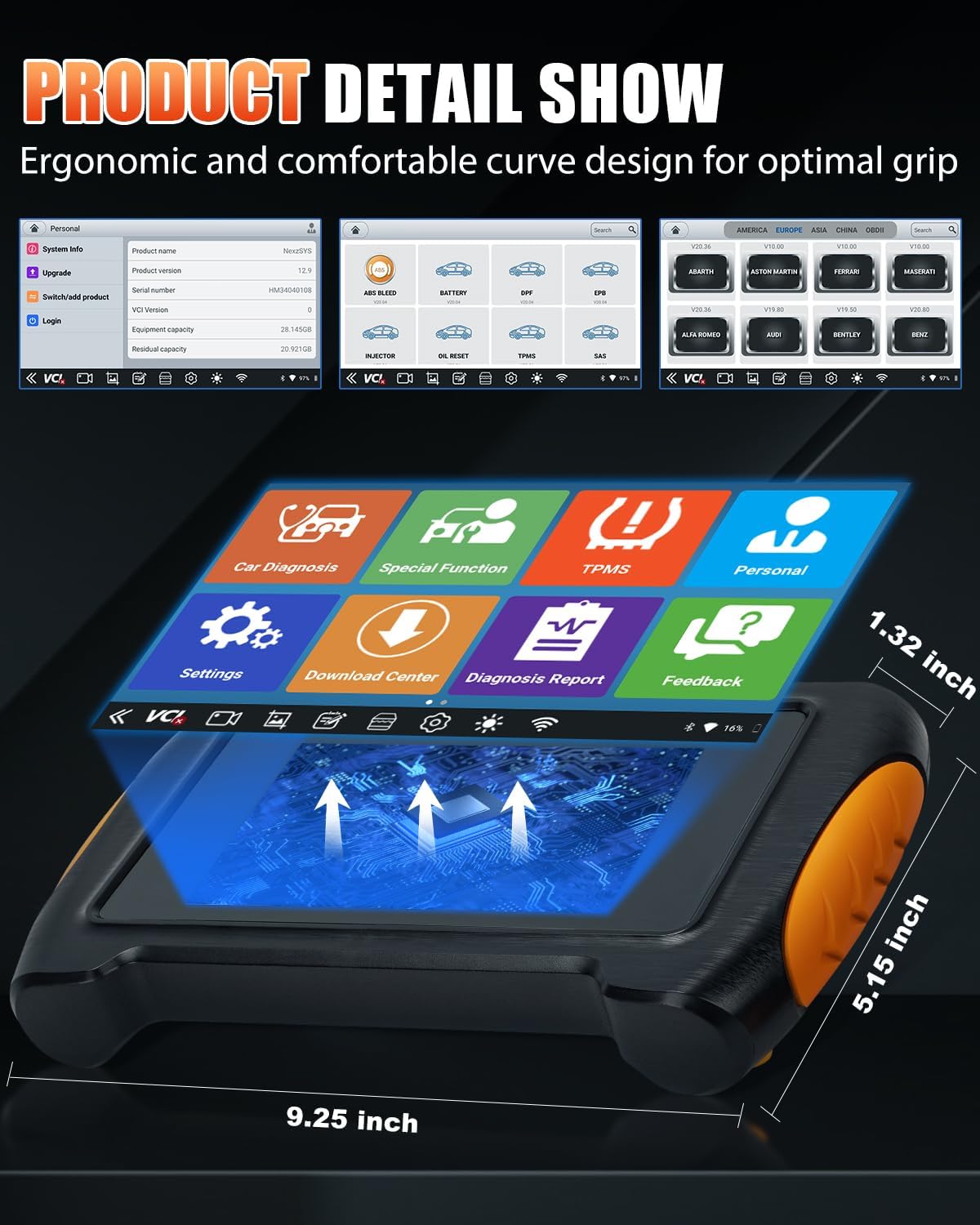
Image 2.3.1: The NP716 tablet showing approximate dimensions: 9.25 inches length, 5.15 inches width, and 1.32 inches thickness.
3. Настройка
3.1 Першапачатковая зарадка
Before first use, ensure the NP716 tablet is fully charged. Connect the provided USB charging cable to the tablet and the power adapter, then plug the adapter into a standard electrical outlet. The charging indicator will illuminate.
3.2 Уключэнне/выключэнне
- Уключэнне: Націсніце і ўтрымлівайце кнопку харчавання, размешчаную на бакавой панэлі планшэта, пакуль не ўключыцца экран.
- Выключэнне: Націсніце і ўтрымлівайце кнопку харчавання, затым абярыце «Выключыць харчаванне» з опцый, якія з'явяцца на экране.
3.3 Падключэнне VCI
The VCI (Vehicle Communication Interface) module connects the NP716 tablet to your vehicle's OBD-II port.
- Locate the vehicle's OBD-II port, typically under the dashboard on the driver's side.
- Plug the VCI module firmly into the OBD-II port. The VCI indicator lights should illuminate.
- The NP716 tablet will automatically attempt to establish a wireless connection with the VCI module. Ensure Bluetooth and Wi-Fi are enabled on the tablet.
3.4 Wi-Fi and Software Updates
Connect the NP716 to a stable Wi-Fi network to download vehicle software and system updates.
- From the main menu, tap 'Settings'.
- Select 'Wi-Fi' and choose your desired network. Enter the password if prompted.
- Once connected, navigate to the 'Download Center' or 'Upgrade' section on the main menu to download and install available software updates. Regular updates ensure compatibility with newer vehicles and improved functionality.
4. Інструкцыя па эксплуатацыі
4.1 Main Interface Navigation
The NP716 operates on Android 11.0, providing a familiar tablet-like interface. The main screen features icons for various functions:
- Car Diagnosis: For standard OBD-II and full system diagnostics.
- Спецыяльныя функцыі: Access to various reset and service functions.
- TPMS: Dedicated functions for Tire Pressure Monitoring Systems.
- Асабісты: Карыстальнік праfile і налады.
- Налады: Канфігурацыя прылады.
- Цэнтр загрузкі: Manage software downloads and updates.
- Diagnosis Report: View and manage saved diagnostic reports.
- Зваротная сувязь: Provide feedback to the manufacturer.
4.2 Car Diagnosis (OE-Level Full System Diagnostic)
This function allows for comprehensive scanning of all available electronic control units (ECUs) in the vehicle.

Image 4.2.1: The diagnostic interface displaying various vehicle systems such as ENG (Engine), SRS (Airbag), ABS (Anti-lock Braking System), AFS (Adaptive Front-lighting System), and Battery.
- Tap 'Car Diagnosis' on the main menu.
- Select the vehicle make, model, and year. The tool can often identify the VIN automatically.
- Choose 'Auto Scan' for a full system scan or select specific systems (e.g., Engine, ABS, SRS, Transmission).
- The tool will display diagnostic trouble codes (DTCs), live data streams, and freeze frame data.
- Прачытайце коды: Retrieve current, pending, and permanent DTCs.
- Ачысціць коды: Erase DTCs after repairs have been made. Заўвага: Clearing codes does not fix the underlying problem.
- View Жывыя даныя: Monitor real-time sensor data and operating parameters.
4.3 Двунакіраванае кіраванне (актыўныя тэсты)
Bidirectional control allows the diagnostic tool to send commands to vehicle ECUs to perform specific tests and functions, verifying component integrity.
- Within the 'Car Diagnosis' section, after selecting the vehicle, navigate to 'Active Test' or 'Bidirectional Control'.
- Select the component or system you wish to test (e.g., fuel pump, ABS motor, window motor).
- Follow the on-screen prompts to activate or deactivate the component and observe its response.
4.4 Спецыяльныя функцыі (больш за 17 сэрвісаў скіду)
The NP716 offers a wide range of service and reset functions for common maintenance tasks.

Image 4.4.1: A visual representation of the various special functions, including ABS Bleeding, Battery Reset, DPF Reset, EPB Reset, Injector Code, Oil Reset, TPMS Reset, SAS Reset, Throttle Learning, Gear Learning, CVT Learning, Windows, Suspension, Light, and Seat Reset.
To access these functions:
- Tap 'Special Function' on the main menu.
- Select the desired reset or service function from the list.
- Follow the on-screen instructions carefully, as specific procedures may vary by vehicle make and model.
Common special functions include:
- Крывацёк з АБС: Bleeds air from the ABS system after brake component replacement.
- Скід алею: Скідае індыкатар замены алею і разлічвае аптымальны інтэрвал замены алею.
- Скід SAS: Calibrates the Steering Angle Sensor after replacement or alignment.
- Скід TPMS: Resets Tire Pressure Monitoring System sensors.
- Скід EPB: Resets the Electronic Parking Brake after brake pad replacement.
- DPF Reset: Performs Diesel Particulate Filter regeneration and reset.
- Скід батарэі: Registers new battery replacement with the vehicle's ECU.
- Injector Code: Programs new injector codes into the ECU.
- Throttle Learning: Adapts the throttle body to its new position after cleaning or replacement.
4.5 Кадаванне ЭБУ
ECU Coding allows for advanced customization and adaptation of vehicle modules. This function should only be performed by experienced technicians.
- Access 'ECU Coding' through the 'Car Diagnosis' menu after vehicle identification.
- Select the specific control module for coding.
- Follow the on-screen instructions to perform coding, adaptations, or module replacement procedures.
- Папярэджанне: Incorrect ECU coding can lead to vehicle malfunctions. Always ensure you have the correct procedures and data before proceeding.
5. Тэхнічнае абслугоўванне
5.1 Сыход за прыладай
- Keep the device clean using a soft, dry cloth. Avoid abrasive cleaners or solvents.
- Store the device in its protective carrying case when not in use to prevent damage.
- Пазбягайце ўздзеяння на прыладу экстрэмальных тэмператур, прамых сонечных прамянёў або высокай вільготнасці.
5.2 Кіраванне батарэяй
The NP716 is equipped with a Lithium Ion battery. To prolong battery life:
- Рэгулярна зараджайце прыладу, не дапускаючы поўнай разрадкі.
- If storing the device for an extended period, ensure it is charged to approximately 50-70%.
5.3 Абнаўленне праграмнага забеспячэння
Regularly check for and install software updates via the 'Download Center' to ensure optimal performance, expanded vehicle coverage, and new features.
6. Выпраўленне непаладак
6.1 Прылада не ўключаецца
- Пераканайцеся, што акумулятар зараджаны. Падключыце прыладу да адаптара харчавання і паспрабуйце яшчэ раз.
- If the device is unresponsive, perform a hard reset by holding the power button for approximately 10-15 seconds.
6.2 VCI Connection Issues
- Verify the VCI module is securely plugged into the vehicle's OBD-II port.
- Check if the VCI indicator lights are on.
- Ensure Bluetooth and Wi-Fi are enabled on the NP716 tablet.
- Restart both the NP716 tablet and the vehicle's ignition.
6.3 Unable to Communicate with Vehicle
- Confirm the vehicle's ignition is in the 'ON' position (engine off).
- Ensure the VCI is properly connected and communicating with the tablet.
- Verify that the correct vehicle make, model, and year have been selected in the diagnostic software.
- Check for any blown fuses in the vehicle's OBD-II circuit.
6.4 Software Update Failures
- Забяспечце стабільнае і моцнае злучэнне Wi-Fi.
- Check for sufficient storage space on the device.
- Try restarting the device and attempting the update again.
7. Тэхнічныя характарыстыкі
| Асаблівасць | Спецыфікацыя |
|---|---|
| Марка | ГУМЗОР |
| мадэль | NexzPad (NP716) |
| Аперацыйная сістэма | Android 11.0 |
| Памер экрана | 5.5 цалі |
| Крыніца харчавання | Працуе ад акумулятара (1 літый-іённы акумулятар уключаны) |
| Вага прадмета | 907 г |
| Памеры ўпакоўкі | 38.1 х 30.48 х 10.16 см |
| Нумар дэталі вытворцы | NP716-HZ02 |
8. Гарантыя і падтрымка
For warranty information and technical support, please refer to the documentation provided with your purchase or contact HUMZOR customer service directly. Keep your purchase receipt as proof of purchase for warranty claims.
For the latest software updates and additional resources, visit the official HUMZOR webсайт.