
1. Уводзіны
This manual provides essential information for using your new Tecno Spark 20C smartphone. It covers device setup, basic operations, maintenance tips, and troubleshooting common issues. Please read this manual carefully to ensure proper and safe use of your device.
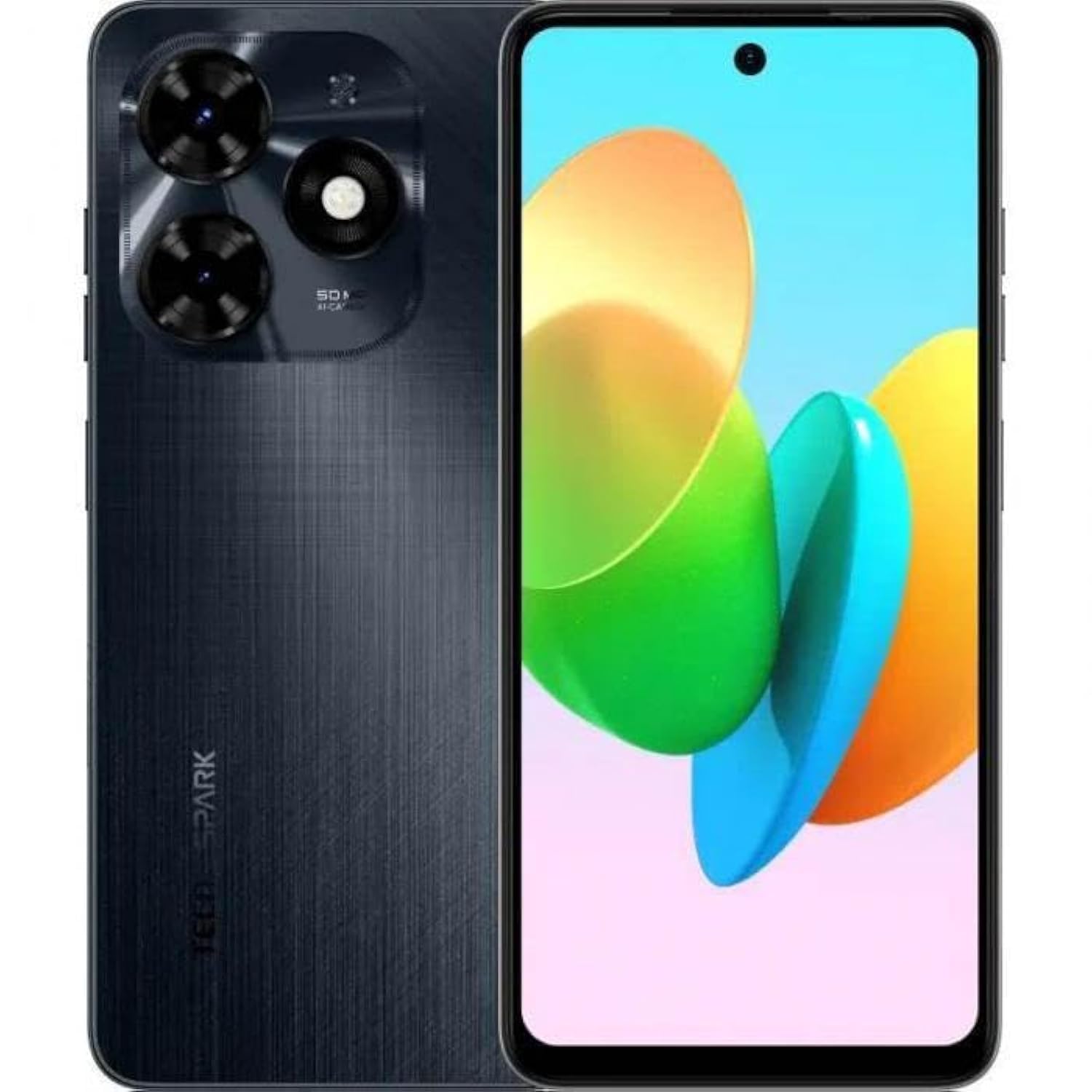
Выява 1.1: Спераду view of the Tecno Spark 20C smartphone.
2. Змесціва ўпакоўкі
Upon unboxing your Tecno Spark 20C, please verify that the following items are included:
- Tecno Spark 20C Smartphone
- Адаптар сілкавання
- USB-кабель для зарадкі
- Інструмент выцягвання SIM-карты
- Кароткае кіраўніцтва
- Гарантыйны талон
3. Прылада скончанаview
The Tecno Spark 20C features a 6.6-inch HD+ display. The device is equipped with a 50-megapixel main camera on the rear and an 8-megapixel front camera. Physical buttons typically include power/lock and volume controls. Ports usually include a USB charging port and a 3.5mm audio jack.
4. Настройка
4.1. Installing SIM and MicroSD Cards
- Знайдзіце латок для SIM-карты на бакавой частцы прылады.
- Устаўце інструмент для выцягвання SIM-карты ў невялікую адтуліну побач з латком і акуратна націсніце, пакуль латок не выскочыць.
- Устаўце карту(ы) Nano-SIM і/або карту MicroSD у прызначаныя слоты на латку. Пераканайцеся, што залатыя кантакты накіраваны ўніз.
- Акуратна ўстаўце латок у прыладу.
4.2. Пачатковае ўключэнне і канфігурацыя
- Націсніце і ўтрымлівайце кнопку харчавання, пакуль не з'явіцца лагатып Tecno.
- Выконвайце падказкі на экране, каб выбраць мову, рэгіён, падключыцца да сеткі Wi-Fi і наладзіць свой уліковы запіс Google.
- You may also be prompted to set up a screen lock (PIN, pattern, or fingerprint).
4.3. Зарадка прылады
Connect the USB cable to the charging port on your phone and the other end to the power adapter. Plug the adapter into a wall outlet. The battery icon on the screen will indicate charging status. For optimal battery life, use the provided charger and cable.
5. Аперацыйная
5.1. Базавая навігацыя
Your Tecno Spark 20C uses a touchscreen interface. Common gestures include:
- Націсніце: To open apps, select items, or confirm actions.
- Правядзіце пальцам: To scroll through screens, lists, or pages.
- Дробка: Каб павялічыць або паменшыць маштаб малюнкаў і web старонкі.
- Доўгі націск: Каб атрымаць доступ да кантэкстных меню або перамясціць значкі праграм.
5.2. Здзяйсненне званкоў і адпраўка паведамленняў
Каб зрабіць званок, адкрыйце Тэлефон увядзіце нумар і націсніце значок выкліку. Каб адправіць паведамленне, адкрыйце Паведамленні app, tap the new message icon, enter the recipient's number or select from contacts, and type your message.
5.3. Выкарыстанне камеры
Адкрыйце Камера app. The Tecno Spark 20C features a 50-megapixel main camera with AI image processing algorithms and an 8-megapixel front camera. Tap the shutter button to take a photo. Swipe to switch between photo, video, and other modes like panorama. AI features can automatically optimize settings for different scenes.
5.4. Падключэнне да Інтэрнэту
Access the internet via Wi-Fi or mobile data (4G). To connect to Wi-Fi, go to Налады > Сетка і інтэрнэт > Wi-Fi, turn Wi-Fi on, and select your desired network. To enable mobile data, go to Налады > Сетка і Інтэрнэт > Мабільная сетка and toggle Mobile data on.
5.5. NFC for Contactless Payments
The Tecno Spark 20C includes an NFC module. To use contactless payments, ensure NFC is enabled in Налады > Падлучаныя прылады > NFC. Set up your preferred payment app and hold your phone near a compatible payment terminal.
6. Тэхнічнае абслугоўванне
6.1. Ачыстка прылады
Use a soft, lint-free cloth to gently wipe the screen and body of your phone. Avoid using harsh chemicals or abrasive materials, which can damage the device's finish or screen coating.
6.2. Сыход за батарэяй
To prolong battery life, avoid exposing your phone to extreme temperatures. It is recommended to keep the battery charge between 20% and 80% for daily use. Avoid completely draining the battery frequently.
6.3. Абнаўленне праграмнага забеспячэння
Рэгулярна правярайце наяўнасць абнаўленняў праграмнага забеспячэння, каб пераканацца, што ваша прылада мае найноўшыя функцыі, патчы бяспекі і паляпшэнні прадукцыйнасці. Перайдзіце па спасылцы Налады > Сістэма > Абнаўленне сістэмы каб праверыць і ўсталяваць даступныя абнаўленні.
7. Выпраўленне непаладак
This section addresses common issues you might encounter with your Tecno Spark 20C.
- Прылада не ўключаецца: Ensure the battery is charged. Connect the charger and wait a few minutes before attempting to power on again. If it still doesn't turn on, try a forced restart by holding the Power button for about 10-15 seconds.
- Экран не рэагуе: If the screen is frozen, perform a forced restart. If the issue persists, ensure your hands are clean and dry, and the screen is free of debris.
- Праблемы з сеткай (няма сігналу/Wi-Fi): Check if Airplane mode is off. For mobile data, ensure your SIM card is properly inserted and mobile data is enabled in settings. For Wi-Fi, try forgetting the network and reconnecting, or restart your router.
- Збоі або завісанні праграм: Паспрабуйце ачысціць кэш і дадзеныя праграмы ў Налады > Праграмы > [Назва праграмы] > Сховішча і кэш. If the problem continues, uninstall and reinstall the app. Ensure your device's software is up to date.
8. Тэхнічныя характарыстыкі
Key technical specifications for the Tecno Spark 20C:
| Аперацыйная сістэма | Android T |
| Працэсар | Васьмі'ядравы |
| Сетка | 4G |
| Памер экрана | 6.6 цалі HD+ |
| дазвол | 720*1612 |
| Усталяваная аператыўная памяць | 4 ГБ |
| Унутраная памяць | 256 ГБ |
| Ёмістасць батарэі | 5000 мАг (згодна з апісаннем прадукту) |
| Тэхналогія падлучэння | 4G, GSM |
| Аператар бесправадной сувязі | Разблакіравана для ўсіх аператараў |
| Памеры прадукту | 16.3 х 8 х 0.8 см; 410 г |
9. Гарантыя і падтрымка
Your Tecno Spark 20C smartphone comes with a limited warranty. Please refer to the warranty card included in your package for detailed terms and conditions, including coverage period and service procedures. For technical support or further assistance, please visit the official Tecno webсайт або звярніцеся ў службу падтрымкі кліентаў.