
Уводзіны
This manual provides detailed instructions for the Keychron K10 Max Wireless Custom Mechanical Keyboard. It covers initial setup, operational procedures, maintenance, and troubleshooting to ensure optimal performance and user experience.
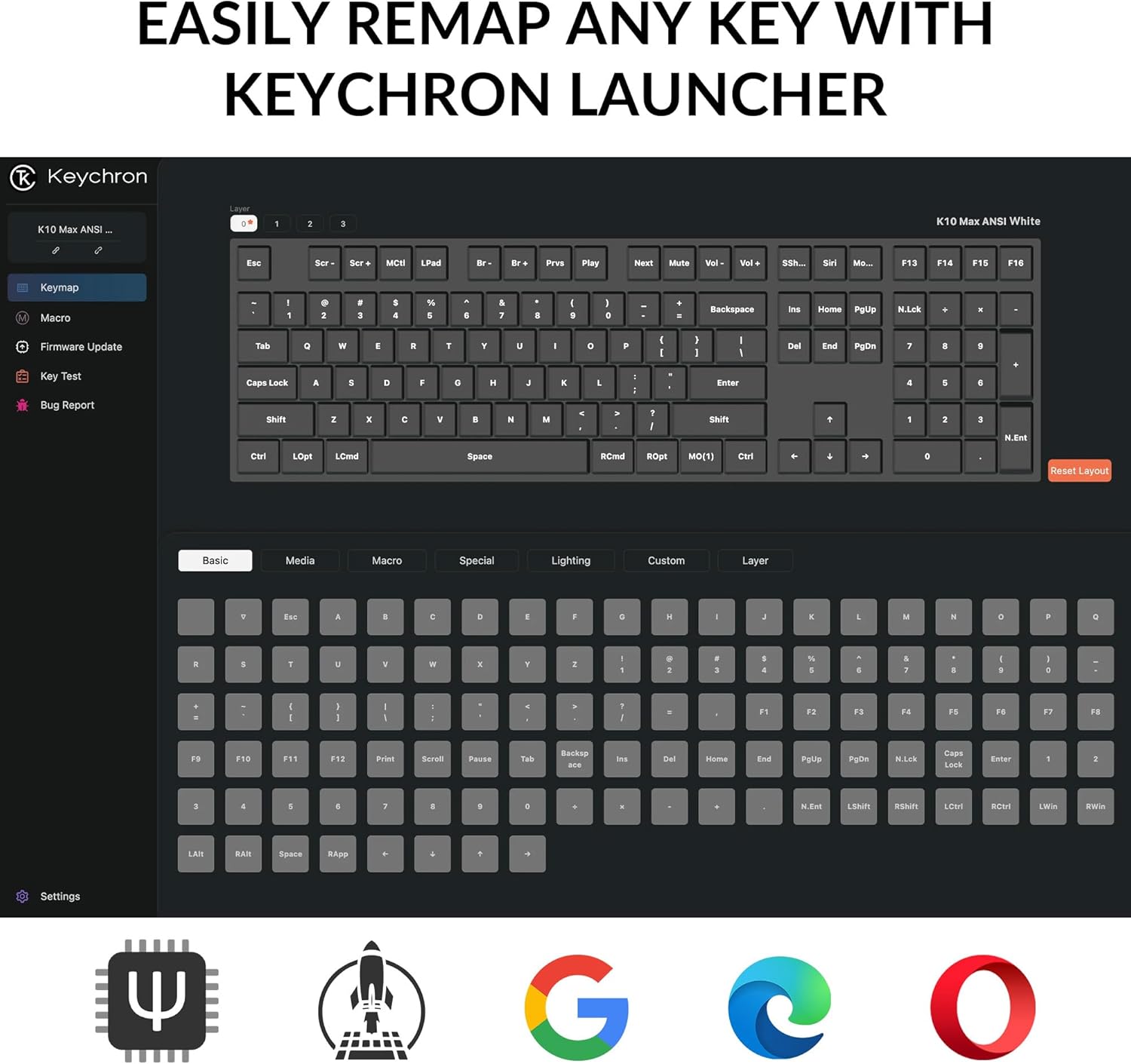
Image: The Keychron K10 Max keyboard positioned on a desk, demonstrating its full-size layout in a typical workspace setup with a laptop and tablet.
Настройка
Змест пакета
Праверце наяўнасць усіх прадметаў у камплекце:
- Бесправадная механічная клавіятура Keychron K10 Max
- Кабель тыпу A да тыпу C
- Прыёмнік тыпу А 2.4 ГГц
- Адаптар падаўжэння для рэсівера
- Здымнік вечка-выключальніка
- Hex Key & Screwdriver
- Extra Keycaps for Windows OS

Image: An illustration detailing the contents of the Keychron K10 Max package, including the keyboard, cables, receiver, tools, and extra keycaps.
Першапачатковае злучэнне
The K10 Max supports three connection modes: 2.4 GHz wireless, Bluetooth 5.1, and wired USB-C.
- Правадное злучэнне: Connect the keyboard to your device using the provided Type-A to Type-C cable. The keyboard will automatically switch to wired mode.
- Бесправадное злучэнне 2.4 ГГц:
- Plug the Type-A 2.4GHz receiver into an available USB port on your computer.
- Ensure the keyboard's mode switch (located on the back/side) is set to 2.4 GHz.
- The keyboard should connect automatically. This mode offers a fast 1000 Hz polling rate for gaming.
- Злучэнне Bluetooth:
- Set the keyboard's mode switch to Bluetooth.
- On your device (computer, phone, tablet), search for Bluetooth devices and select "Keychron K10 Max".
- The keyboard can connect to up to three devices via Bluetooth 5.1. Use Fn + 1, Fn + 2, or Fn + 3 to switch between paired devices.

Image: The Keychron K10 Max keyboard highlighting its versatile connectivity options: USB Wired, 2.4GHz wireless, and Bluetooth 5.1.
Сумяшчальнасць аперацыйнай сістэмы
The K10 Max is fully optimized for both macOS and Windows. A toggle switch is located on the back/side of the keyboard to select the appropriate operating system mode. Extra keycaps for Windows are included for a seamless experience.

Выява: Падрабязны view of the keyboard's side switch, indicating settings for Windows and macOS compatibility, along with the USB-C port.
Інструкцыя па эксплуатацыі
QMK Firmware and Keychron Launcher
The K10 Max utilizes QMK open-source firmware, allowing for extensive customization. The Keychron Launcher is a web-based application that enables key remapping, macro creation, and firmware updates. Access the Keychron Launcher via your web browser to personalize your keyboard settings.

Image: A visual representation of the Keychron Launcher application, demonstrating its key remapping functionality for customizing keyboard layouts.
Пераключальнікі з магчымасцю гарачай замены
The keyboard features hot-swappable Keychron Super Banana switches, allowing you to change switches without soldering. This enables customization of typing feel and sound. The switches are designed with a transparent top housing for enhanced backlight effects.

Image: A close-up shot illustrating the hot-swappable feature, with a keycap and switch removed to show the underlying mechanism.
PBT Keycaps and Backlighting
The K10 Max comes with double-shot PBT keycaps, offering a comfortable feel and excellent oil resistance for durability. The keyboard features south-facing white LED backlighting, which enhances visibility and ensures compatibility with most aftermarket keycaps.

Выява: Падрабязны view of the OSA Profile Double-Shot PBT Keycaps, highlighting their texture and design on the keyboard.

Image: The Keychron K10 Max keyboard with its south-facing white backlight activated, showcasing the illumination of the keys.
Тэхнічнае абслугоўванне
Чыстка клавіятуры
To clean your keyboard, first disconnect it from all power sources. Use a soft, lint-free cloth lightly dampened with water or a mild cleaning solution. For cleaning between keycaps, a can of compressed air can be used to remove dust and debris. Avoid spraying liquids directly onto the keyboard.
Замена перамыкачоў і клавіш
The K10 Max features hot-swappable switches. Use the provided keycap-switch puller to carefully remove keycaps and switches. When inserting new switches, ensure the pins are straight and align correctly with the sockets to prevent damage. Apply gentle, even pressure until the switch is fully seated.

Image: An exploded diagram illustrating the internal layers and components of the Keychron K10 Max keyboard, from keycaps to the bottom case.
Ліквідацыю непаладак
Праблемы з падключэннем
- 2.4 GHz / Bluetooth Disconnection:
- Пераканайцеся, што клавіятура зараджана.
- Verify the mode switch on the keyboard is set to the correct connection type (2.4 GHz or Bluetooth).
- For 2.4 GHz, ensure the receiver is securely plugged into a USB port.
- Каб падключыць Bluetooth, пераканайцеся, што на вашай прыладзе ўключаны Bluetooth, а клавіятура спалучана. Пры неабходнасці паспрабуйце паўтарыць спалучэнне.
- Move the keyboard closer to the receiver or Bluetooth device to rule out interference.
- Правадное падключэнне не выяўлена:
- Ensure the USB-C cable is fully inserted into both the keyboard and your device.
- Паспрабуйце іншы USB-порт або кабель.
Key Not Registering
- If a specific key is not registering, it may indicate an issue with the switch.
- Carefully remove the keycap and then the switch using the provided puller.
- Inspect the switch pins for bends or damage. Straighten gently if bent.
- Reinsert the switch, ensuring it is properly seated.
- If the issue persists, try swapping the problematic switch with a known working switch from another key to determine if the switch itself is faulty.
Абнаўленне прашыўкі
Regularly check for firmware updates via the Keychron Launcher web application. Updates can resolve bugs and introduce new features. Follow the instructions provided within the Keychron Launcher for a safe update process.
Тэхнічныя характарыстыкі
| Асаблівасць | Дэталь |
|---|---|
| Назва мадэлі | Keychron K10 Max |
| Макет | 100% Full-Size (108 Keys) |
| Сувязь | 2.4 GHz Wireless, Bluetooth 5.1, USB-C Wired |
| Стаўка апытання | 1000 Hz (2.4 GHz and Wired) / 90 Hz (Bluetooth Mode) |
| Выключальнікі | Keychron Super Banana (Tactile), Hot-swappable (3-pin & 5-pin MX mechanical switches) |
| Клавішы | OSA Double-shot PBT Keycaps |
| Падсвятленне | South-facing White LED (Single Color) |
| N-Key Rollover (NKRO) | так |
| Сумяшчальная АС | macOS, Windows, Linux |
| Матэрыял каркаса | АБС |
| Памеры | 17.61 х 5.5 цалі (447.37 мм х 139.82 мм) |
| Вага | 1530 g ± 10 g (3.37 lb ± 0.02 lb) |
| MCU | ARM Cortex-M4 32-bit STM32F402 (256KB Flash) |
Інфармацыя аб гарантыі
Keychron products are covered by a manufacturer's warranty against defects in materials and workmanship. For specific warranty terms and conditions, please refer to the official Keychron webсайт або звярніцеся ў службу падтрымкі кліентаў. Захоўвайце пацвярджэнне пакупкі для прэтэнзій па гарантыі.
Падтрымка кліентаў
For further assistance, technical support, or to access the latest drivers and firmware, please visit the official Keychron support page:
You may also find helpful resources and community forums on the Keychron webсайт.