
1. Уводзіны
This manual provides comprehensive instructions for the setup, operation, maintenance, and troubleshooting of your Logitech Ergo M575S Wireless Trackball Mouse. Designed for comfort and precision, the ERGO M575S minimizes movement and maximizes comfort with its sculpted ergonomic shape and thumb control. It offers smooth, precise tracking and is compatible with both PC and Mac systems.
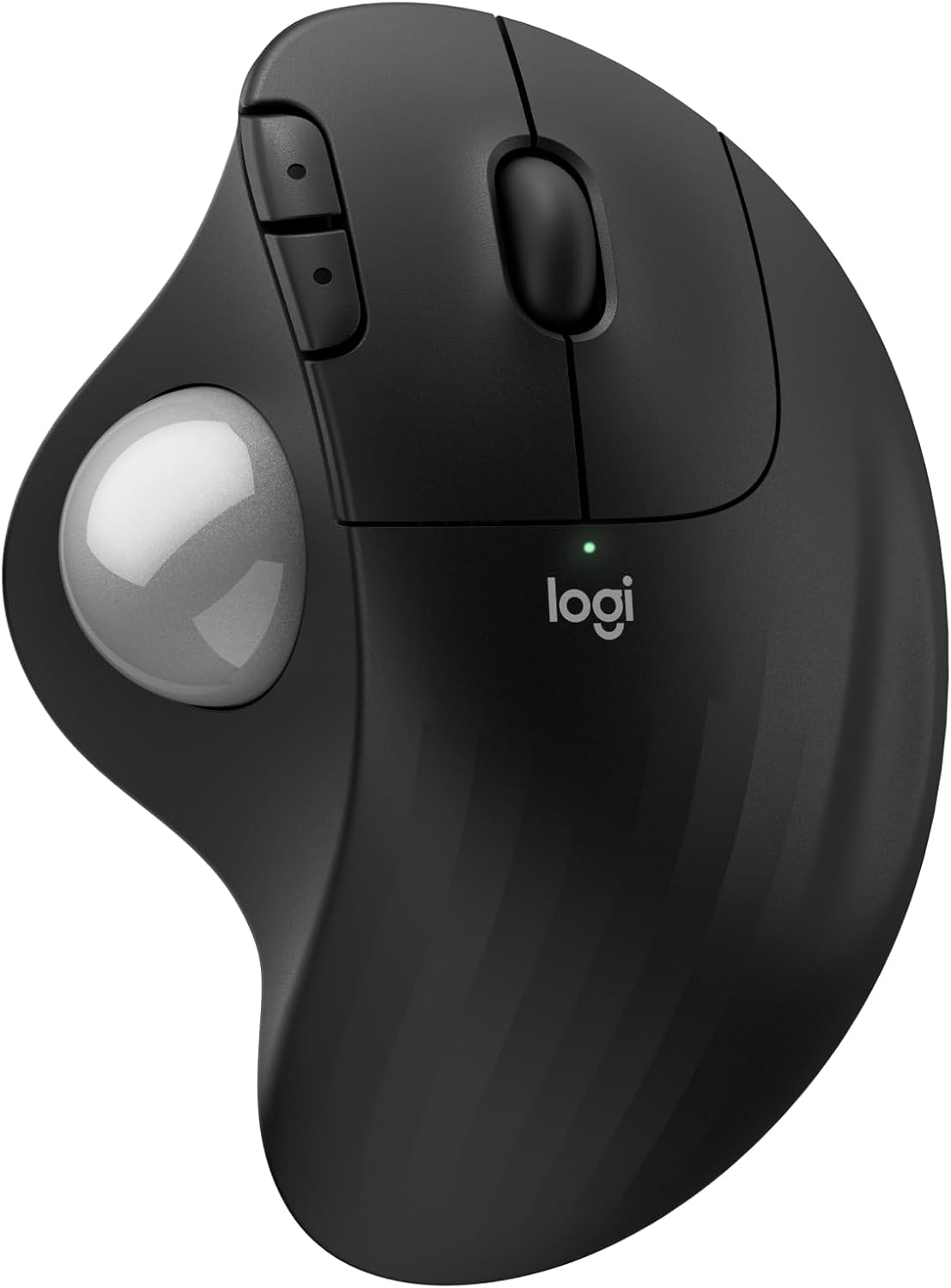
Выява: Уверсе view of the Logitech Ergo M575S Wireless Trackball Mouse, highlighting its ergonomic design and trackball.
Key features include 25% less muscle strain in the forearm compared to traditional mice, an improved forearm posture, customizable buttons via the Logi Options+ App, and long battery life. The mouse is also made with certified post-consumer recycled plastic, contributing to a lighter environmental footprint.
2. Настройка
2.1. Устаноўка батарэі
The Logitech Ergo M575S uses one AA battery. To install or replace the battery:
- Знайдзіце батарэйны адсек на ніжняй баку мышы.
- Адкрыйце крышку батарэйнага адсека.
- Устаўце батарэйку тыпу АА, сачыце за правільнай палярнасцю (+/-).
- Надзейна зачыніце крышку батарэі.

Выява: Ніжні бок view of the mouse, illustrating the battery compartment and the slot for the Logi Bolt USB receiver.
2.2. Параметры падключэння
The ERGO M575S offers two ways to connect to your computer:
- USB-прыёмнік Logi Bolt: Plug the included Logi Bolt USB receiver into an available USB port on your computer. The mouse should connect automatically.
- Bluetooth:
- Уключыце мыш з дапамогай выключальніка харчавання на ніжняй панэлі.
- Press and hold the Easy-Switch button (usually on the underside or side) until the LED indicator starts blinking rapidly, indicating pairing mode.
- On your computer, go to Bluetooth settings and select "Logitech ERGO M575S" from the list of available devices to pair.
For optimal performance and customization, download and install the Logi Options+ App from the official Logitech website. This software allows you to personalize button functions, adjust cursor speed, and create application-specific settings.
3. Кіраванне мышшу
3.1. Асноўныя функцыі
- Пстрычка левай кнопкай мышы: Primary button for selecting items and interacting with software.
- Пстрыкніце правай кнопкай мышы: Дадатковая кнопка для кантэкстных меню і дадатковых опцый.
- Кола пракруткі: Scroll up and down through documents and web старонкі. Кола пракруткі таксама выконвае функцыю сярэдняй кнопкі мышы.
- трэкбол: Use your thumb to control the cursor movement on the screen. This eliminates the need to move the entire mouse, reducing arm and wrist strain.

Image: A hand demonstrating the smooth, effortless thumb control of the trackball for precise tracking.
3.2. Наладжвальныя кнопкі
The ERGO M575S features additional buttons that can be customized using the Logi Options+ App. These typically include forward and back buttons located near the thumb trackball.
- Кнопкі «Наперад»/«Назад»: By default, these navigate forward and backward in web браўзэры або file даследчыкі.
- Настройка: Through the Logi Options+ App, you can reassign these buttons to perform various functions, such as media controls, application switching, or custom keystrokes, enhancing your workflow efficiency.

Image: A laptop displaying the Logi Options+ App interface, demonstrating how to customize the mouse buttons for personalized use.
4. Тэхнічнае абслугоўванне
4.1. Чыстка трэкбола
З часам вакол трэкбола могуць назапашвацца пыл і смецце, што ўплывае на яго бесперабойную працу. Рэкамендуецца рэгулярная чыстка.
- Gently push the trackball from the underside of the mouse to pop it out.
- Выкарыстоўвайце мяккую тканіну без ворса, каб праціраць трэкбол.
- Use a cotton swab or compressed air to clean the three small support bearings inside the trackball cavity. Ensure no debris remains.
- Place the trackball back into its socket, ensuring it clicks into place.
Заўвага: Avoid using harsh chemicals or abrasive materials, as these can damage the trackball or the mouse surface.
4.2. Генеральная ўборка
Wipe the exterior of the mouse with a soft, damp тканінай па меры неабходнасці, каб падтрымліваць яго ў чысціні.
5. Выпраўленне непаладак
5.1. Праблемы з падключэннем
- Мышка не рэагуе:
- Праверце, ці ўключана мыш.
- Пераканайцеся, што акумулятар правільна ўсталяваны і мае дастатковы зарад. Пры неабходнасці замяніце яго.
- Калі карыстаецеся USB-прыёмнікам, паспрабуйце падключыць яго да іншага USB-порта.
- If using Bluetooth, ensure Bluetooth is enabled on your computer and the mouse is paired. Try re-pairing the device.
- Перарывістае падключэнне:
- Move the mouse closer to the USB receiver or your computer (for Bluetooth) to reduce interference.
- Avoid placing the receiver near other electrical devices that might cause interference.
5.2. Праблемы з адсочваннем
- Erratic or no cursor movement:
- Clean the trackball and its internal support bearings as described in the Maintenance section.
- Пераканайцеся, што трэкбол правільна ўсталяваны ў гняздо.
- Check the surface the mouse is on; while trackballs are less sensitive to surfaces, extreme conditions might affect performance.
5.3. Button/Scroll Wheel Issues
- Кнопкі не рэагуюць:
- Verify that the Logi Options+ App is not causing conflicts with custom settings. Try resetting button assignments to default.
- Reinstall the Logi Options+ App if issues persist.
- Scroll wheel not working:
- Пераканайцеся, што вакол кола пракруткі няма смецця.
6. Тэхнічныя характарыстыкі
| Асаблівасць | Дэталь |
|---|---|
| Марка | Logitech |
| Нумар мадэлі | 910-007392 |
| Тэхналогія падлучэння | Bluetooth, USB (Logi Bolt Receiver) |
| Тэхналогія выяўлення руху | Аптычны |
| Дыяпазон DPI | 400-2000 DPI (Adjustable via Logi Options+ App) |
| Тэрмін службы батарэі | Up to 18 months (with AA battery) |
| Сумяшчальнасць аперацыйнай сістэмы | Windows, macOS |
| Вага прадмета | 7.4 унцыі |
| Памеры | 5.51 х 4.17 х 1.93 цаляў (памеры ўпакоўкі) |
| Матэрыял | Plastic parts made with certified post-consumer recycled plastic (Graphite: 52%, Off-White: 21%) |
7. Гарантыя і падтрымка
For detailed warranty information regarding your Logitech Ergo M575S Wireless Trackball Mouse, please refer to the warranty card included with your product or visit the official Logitech support webсайт.
Logitech provides customer support for product inquiries, technical assistance, and warranty claims.
- Інтэрнэт-падтрымка: Наведайце support.logi.com каб знайсці часта задаваныя пытанні, інструкцыі па ліквідацыі непаладак і спампаваць драйверы.
- Звязацца са службай падтрымкі: Information on contacting Logitech customer service via phone or chat can be found on their support webсайт.