
1. Уводзіны
Thank you for choosing the Vbestlife 4G Portable Router. This device provides high-speed 4G LTE mobile internet access, allowing you to stay connected on the go. It supports up to 10 users simultaneously and is equipped with a 2100mAh battery for extended use. This manual will guide you through the setup, operation, and maintenance of your router to ensure optimal performance.
2. Прадукт скончыўсяview
2.1 Змест пакета
- 1 x Vbestlife 4G Portable Router
- 1 літый-іённы акумулятар ёмістасцю 2100 мАг
- 1 х USB-кабель для зарадкі
- 1 х Кіраўніцтва карыстальніка

Image: The Vbestlife 4G Portable Router, its removable battery, and the included USB charging cable.
2.2 Характарыстыкі прылады
- Высакахуткаснае злучэнне: Supports 4G LTE with download speeds up to 150Mbps and upload speeds up to 50Mbps.
- Wide Band Support: Compatible with 4G LTE bands B1, B3, B5, B40 and 3G UMTS WCDMA bands B1, B3, suitable for regions including Asia, Southeast Asia, Africa, and the Middle East.
- Шматкарыстальніцкая падтрымка: Connects up to 10 devices simultaneously, including smartphones, laptops, and tablets.
- Працяглая батарэя: Integrated 2100mAh Lithium-ion battery provides reliable power, offering up to 50 hours of standby time.
- Партатыўны дызайн: Lightweight and compact, making it ideal for travel, remote work, and outdoor activities.
- Сумяшчальнасць з аперацыйнай сістэмай: Supports Windows 7, 8, 10, and Linux operating systems.
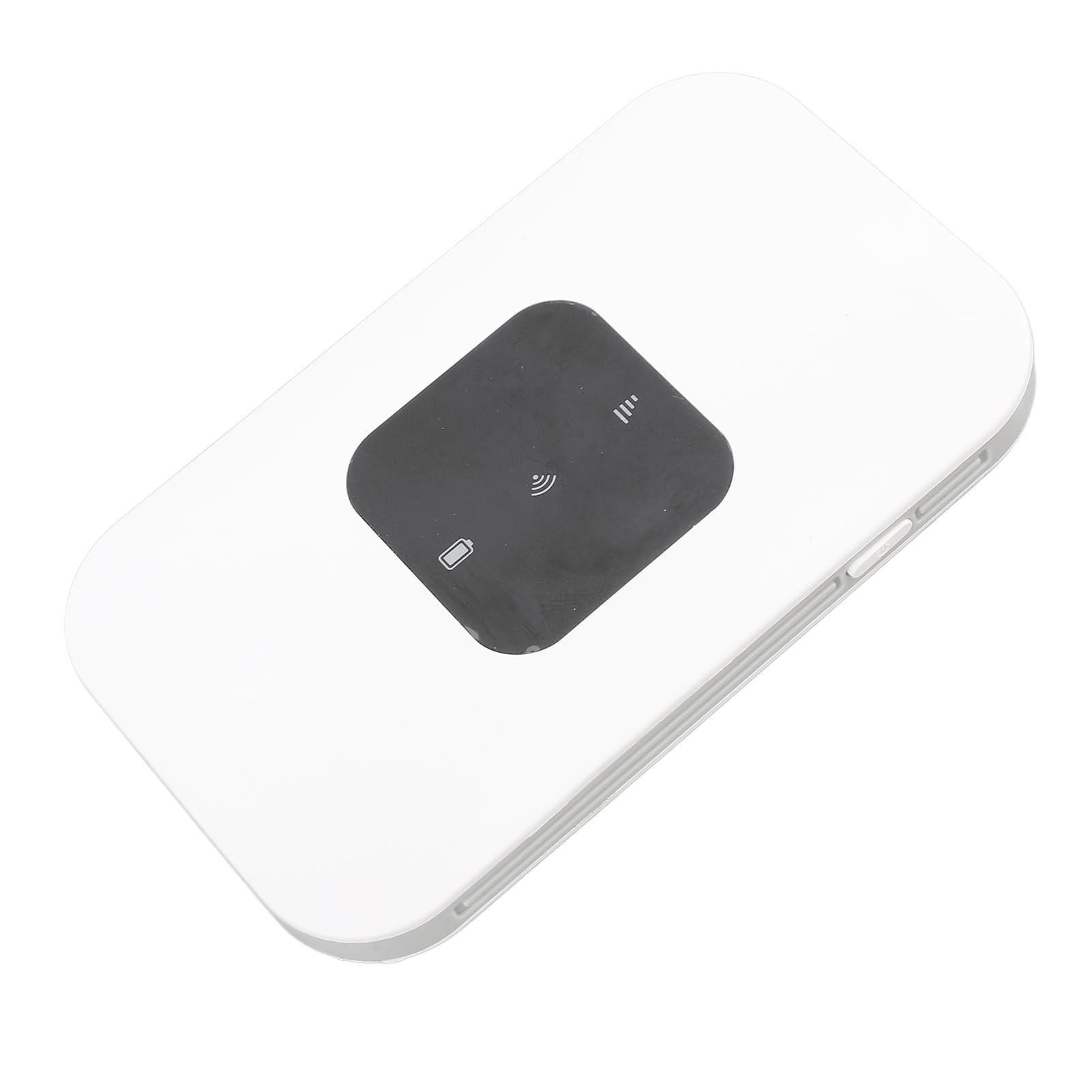
Выява: Ясна view of the Vbestlife 4G Portable Router, showing its compact white design and indicator lights.
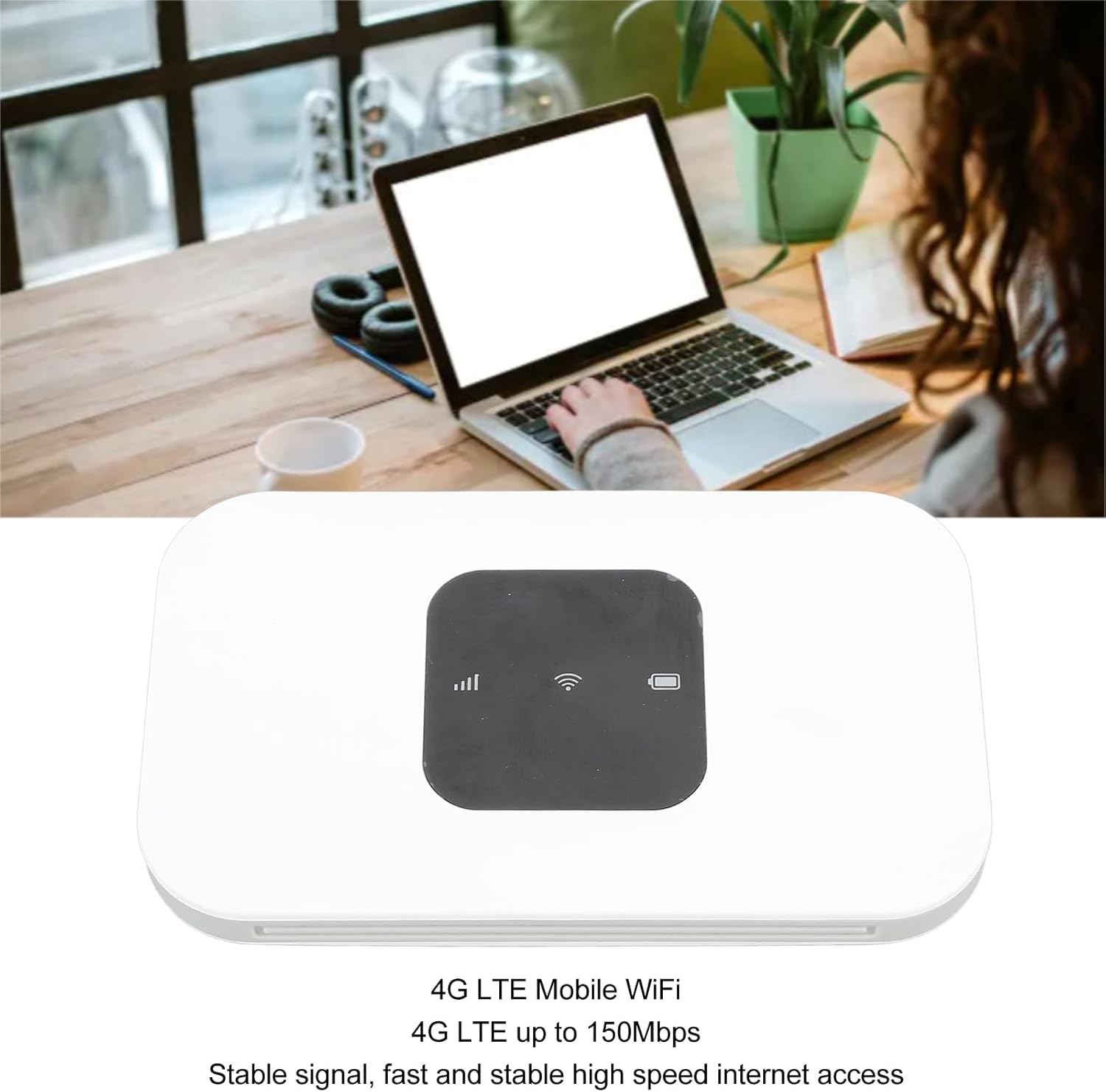
Image: The portable router highlighting its 4G LTE Mobile WiFi functionality and speed up to 150Mbps.

Image: The router indicating its ability to connect up to 10 devices, including mobile phones, laptops, and computers.
3. Кіраўніцтва па наладцы
3.1 Устаноўка батарэі
- Carefully remove the back cover of the router.
- Align the contacts of the 2100mAh Lithium-ion battery with the battery compartment terminals.
- Акуратна ўцісніце акумулятар, пакуль ён надзейна не зафіксуецца.
- Устаўце заднюю крышку на месца, пераканаўшыся, што яна зашчапілася.
3.2 Усталёўка SIM -карты
The router uses a Micro SIM card (sold separately). Ensure your SIM card is activated and has an active data plan.
- With the back cover removed (as in battery installation), locate the Micro SIM card slot.
- Insert the Micro SIM card into the slot with the gold contacts facing down and the notched corner aligned as shown in the diagram (if available on device).
- Push the SIM card gently until it locks into place. You may hear a small click.
- Усталюйце заднюю крышку.

Image: The rear of the router, illustrating the location for battery and Micro SIM card insertion.
3.3 Уключэнне/выключэнне
- Каб уключыць: Press and hold the Power button (usually located on the side or front) for a few seconds until the indicator lights illuminate.
- Каб выключыць: Зноў націсніце і ўтрымлівайце кнопку харчавання некалькі секунд, пакуль індыкатары не пагаснуць.
4. Інструкцыя па эксплуатацыі
4.1 Падключэнне прылад праз Wi-Fi
- Ensure your 4G Portable Router is powered on.
- On your device (smartphone, laptop, tablet), go to Wi-Fi settings.
- Пошук available Wi-Fi networks. The router's default Wi-Fi name (SSID) and password (KEY) are typically found on a sticker inside the battery compartment or on the device packaging.
- Выберыце SSID вашага маршрутызатара са спісу.
- Калі будзе прапанавана, увядзіце пароль Wi-Fi.
- Пасля падключэння ваша прылада павінна мець доступ да Інтэрнэту.

Image: A user enjoying mobile internet connectivity with the Vbestlife 4G Portable Router and a laptop.
4.2 Checking Status Indicators
The router features indicator lights to show its status:
- Індыкатар сігналу: Displays the strength of the 4G signal. More bars indicate a stronger signal.
- Індыкатар Wi-Fi: Lit when Wi-Fi is active and broadcasting.
- Індыкатар батарэі: Shows the current battery level. Refer to the device's specific light patterns for low battery warnings.
4.3 Charging the Router
When the battery indicator shows low power, charge the router using the provided USB cable.
- Connect the small end of the USB charging cable to the router's charging port.
- Падключыце другі канец USB-кабеля да сумяшчальнага адаптара харчавання USB (не ўваходзіць у камплект) або да USB-порта кампутара.
- The battery indicator light will show charging status (e.g., blinking while charging, solid when fully charged).
5. Тэхнічнае абслугоўванне
- Уборка: Выкарыстоўвайце мяккую сухую тканіну для чысткі вонкавай паверхні маршрутызатара. Не выкарыстоўвайце вадкія ачышчальнікі або аэразолі.
- Сыход за батарэяй: To prolong battery life, avoid exposing the router to extreme temperatures. If storing for a long period, charge the battery to about 50% and store in a cool, dry place.
- захоўванне: Store the router in a dry environment, away from direct sunlight and moisture.
6. Выпраўленне непаладак
If you encounter issues with your Vbestlife 4G Portable Router, please refer to the following common solutions:
| праблема | Магчымая прычына | Рашэнне |
|---|---|---|
| Няма падключэння да інтэрнэту | SIM card not installed correctly, no data plan, poor signal, incorrect APN settings. | 1. Ensure SIM card is properly inserted. 2. Verify your SIM card has an active data plan. 3. Move to an area with better 4G signal. 4. Check APN settings (refer to your SIM card provider for correct settings). |
| Павольная хуткасць інтэрнэту | Weak signal, too many connected devices, network congestion, limited band support in your region. | 1. Move to an area with stronger signal. 2. Disconnect unnecessary devices. 3. Try again during off-peak hours. 4. Ensure your SIM card's network bands are fully supported by the router in your location. |
| Router won't power on | Low battery, battery not installed, faulty power button. | 1. Charge the router for at least 30 minutes. 2. Ensure the battery is correctly installed. 3. If the issue persists, contact customer support. |
| Unstable Wi-Fi connection | Interference, distance from router, firmware issue. | 1. Reduce distance between device and router. 2. Avoid placing router near other electronic devices that may cause interference. 3. Restart the router. 4. Check for firmware updates (if available through a web інтэрфейс). |
7. Тэхнічныя характарыстыкі
| Асаблівасць | Дэталь |
|---|---|
| Марка | Vbestlife |
| Назва мадэлі | VBEST2pdg1om04w |
| Тып прадмета | Партатыўны маршрутызатар 4G |
| Матэрыял | АБС |
| Колер | Белы |
| Тып батарэі | Літый-іённая батарэя 2100mAh |
| Слот для SIM-карты | Micro SIM Card (sold separately) |
| Дыяпазоны 4G LTE | B1, B3, B5, B40 |
| 3G UMTS WCDMA Bands | В1, В3 |
| Peak Download Speed | 150 Мбіт/с |
| Peak Upload Speed | 50 Мбіт/с |
| Стандарт Wi-Fi | 802.11 b/g/n |
| Частата Wi-Fi | 2.4G |
| Падтрымка сістэмы | Windows, Linux |
| Максімальная колькасць карыстальнікаў | 10 |
| Паходжанне | Кітай |
8. Гарантыя і падтрымка
For warranty information and technical support, please refer to the documentation included with your purchase or visit the official Vbestlife brand store. You can find the brand store at: Vbestlife Store on Amazon.
Please note that the warranty terms may vary by region and retailer.