
1. Уводзіны
Thank you for choosing the Baseus 12-in-1 Laptop Docking Station. This versatile hub is designed to expand the connectivity of your laptop, providing a comprehensive solution for multitasking, data transfer, and charging. Please read this manual carefully to ensure proper installation and optimal performance of your device.
2. Прадукт скончыўсяview
The Baseus 12-in-1 Laptop Docking Station is an all-in-one expansion device that transforms your laptop into a powerful workstation. It features multiple ports including USB-A, USB-C, HDMI, DisplayPort, Gigabit Ethernet, and card readers, allowing for seamless connectivity and enhanced productivity. Its ergonomic design also serves as a laptop stand, promoting better posture and improved heat dissipation.

Image: The Baseus 12-in-1 Laptop Docking Station in use, connected to a laptop and various peripherals.
3. Асноўныя магчымасці
- 12-in-1 All-in-One Expansion: Equipped with 3 USB-A 3.0 ports, 1 USB-C 3.0 port, Gigabit Ethernet, 4K HDMI, 4K DP, TF/SD card readers, audio jack, and a 100W PD charging port.
- Triple 4K Display Support: Connect both HDMI and DP displays to enjoy ultra-clear 4K resolution on up to three monitors, ideal for multitasking and immersive entertainment.
- Gigabit Ethernet for Stable Speed: Provides a fast and reliable wired internet connection, perfect for video calls and large downloads.
- Хуткая зарадка 100 Вт PD: The USB-C PD port supports up to 100W input and delivers up to 85W output to your laptop, ensuring efficient charging.
- Ergonomic Stand Design: Innovative design improves heat dissipation and elevates your device for better posture, keeping your workspace organized.
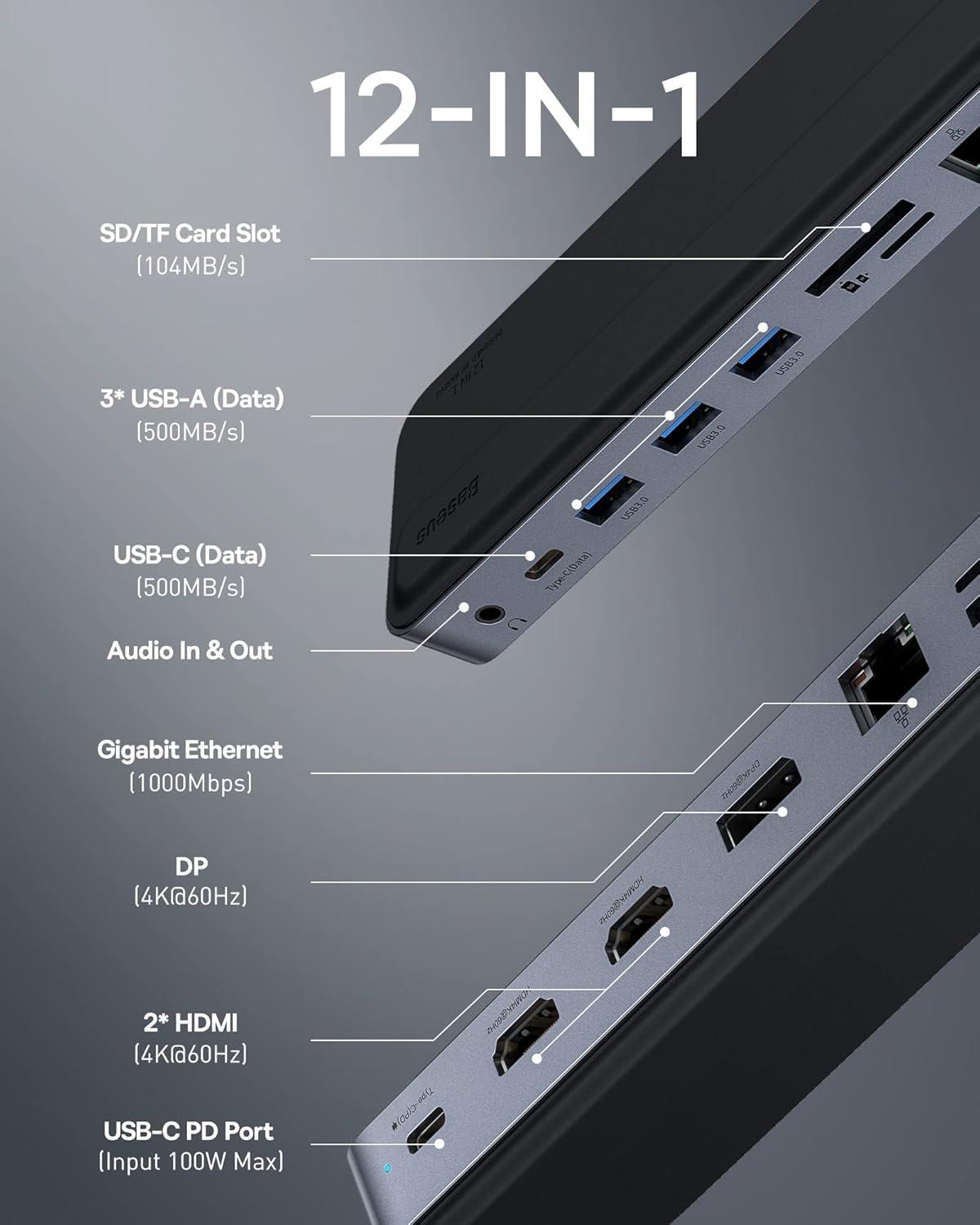
Image: Detailed diagram illustrating all 12 ports and their functions on the docking station.
4. Змесціва ўпакоўкі
Калі ласка, праверце змесціва ўпакоўкі пасля адкрыцця. Калі якія-небудзь прадметы адсутнічаюць або пашкоджаныя, звярніцеся ў службу падтрымкі кліентаў.
- Baseus 12-in-1 Laptop Docking Station
- Кіраўніцтва карыстальніка
5. Кіраўніцтва па наладцы
Follow these steps to set up your Baseus 12-in-1 Laptop Docking Station:
- Падключэнне да ноўтбука: Падключыце ўбудаваны кабель USB-C ад док-станцыі да сумяшчальнага порта USB-C на вашым ноўтбуку.
- Падключэнне да сілкавання (неабавязкова, але рэкамендуецца): For stable performance and laptop charging, connect your laptop's power adapter to the 100W PD USB-C port on the docking station.
- Падключэнне знешніх дысплеяў: Use HDMI or DisplayPort cables to connect your monitors to the corresponding ports on the docking station. Ensure your cables support 4K resolution if desired.
- Падключэнне перыферыйных прылад: Plug in your USB devices (keyboard, mouse, external hard drives) into the USB-A or USB-C data ports.
- Падключэнне да сеткі: For a stable internet connection, connect an Ethernet cable from your router to the Gigabit Ethernet port on the docking station.
- Аўдыяпрылады: Падключыце навушнікі або дынамікі да аўдыёраздыма 3.5 мм.
- Карты памяці: Insert SD or TF cards into the respective slots for data transfer.

Image: A laptop connected to three external monitors, demonstrating the triple 4K display capability.
6. Інструкцыя па эксплуатацыі
Once connected, your operating system should automatically detect the docking station and connected devices. No additional drivers are typically required for most functions (Plug and Play).
6.1. Рэжымы адлюстравання
The docking station supports various display configurations for both macOS and Windows operating systems.
6.1.1. Mac OS Display Modes
Mac OS only supports Single-Stream Transport (SST) and does not support Multi-Stream Transport (MST) in extended mode. This means that while you can extend your display across multiple monitors, the content on the extended monitors will be mirrored or a single extended desktop, not independent extended desktops for each monitor.
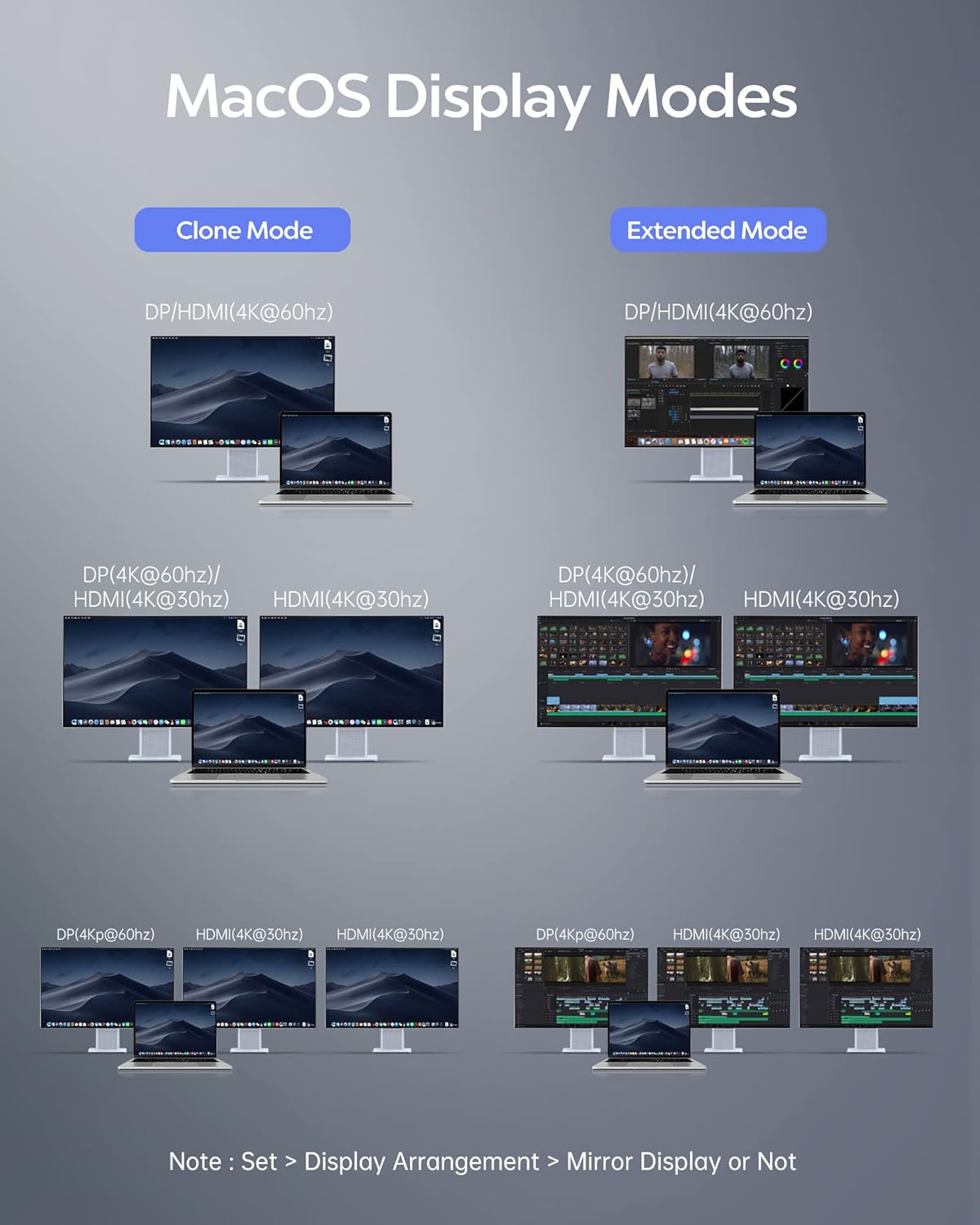
Image: Visual guide for configuring display modes on Mac OS, showing mirror and extended display options.
6.1.2. Windows Display Modes
Only computers with DP1.4 and AMD processor can realize 4 screens when using WIN system. Resolution (AMD + DP1.4), the video output will be 4K. For Intel graphics cards, you can achieve up to 3 screens.

Image: Visual guide for configuring display modes on Windows, showing mirror and extended display options.
To quickly select the display mode on Windows, press "WIN + P".
6.2. Port Functionality
- Слот для карты SD/TF: Supports high-speed data transfer up to 104MB/s for SD and TF (MicroSD) cards.
- USB-A (Data) & USB-C (Data): Three USB-A 3.0 ports and one USB-C 3.0 port provide data transfer speeds up to 500MB/s for connecting various peripherals.
- Аўдыёўваход і выхад: A 3.5mm audio jack for connecting headphones, speakers, or microphones.
- Гігабітны Ethernet: RJ45 port for a stable 1000Mbps wired internet connection.
- DP (4K@60Hz) & 2* HDMI (4K@60Hz): Multiple video output ports for connecting external monitors with high resolution.
- USB-C PD Port (Input 100W Max): Power Delivery port for charging your laptop while using the docking station.

DP and HDMI Ports

Парты USB 3.0

3.5mm Audio Jack

SD/TF Card Slots

100W PD Charging Port

Гігабітны порт Ethernet
7. Тэхнічнае абслугоўванне
- Уборка: Для чысткі паверхні док-станцыі выкарыстоўвайце мяккую сухую тканіну. Пазбягайце выкарыстання вадкіх ачышчальнікаў або аэразоляў.
- захоўванне: Захоўвайце прыладу ў прахалодным, сухім месцы, удалечыні ад прамых сонечных прамянёў і экстрэмальных тэмператур.
- Апрацоўка: Пазбягайце падзення і моцных удараў док-станцыі. Не спрабуйце разбіраць або мадыфікаваць прыладу.
- Цеплааддача: Ensure proper airflow around the docking station, especially when used as a laptop stand, to prevent overheating.
8. Выпраўленне непаладак
Калі ў вас узніклі праблемы з док-станцыяй, звярніцеся да наступных распаўсюджаных праблем і іх рашэнняў:
- Няма вываду на дысплей:
- Ensure the docking station is securely connected to your laptop's USB-C port.
- Check that the HDMI/DP cables are firmly connected to both the docking station and the monitors.
- Verify that your laptop's display settings are configured correctly for extended or mirror mode.
- Паспрабуйце перазагрузіць ноўтбук.
- Перыферыйныя прылады не выяўлены:
- Ensure USB devices are properly plugged into the docking station's USB ports.
- Try connecting the device to a different USB port on the docking station or directly to your laptop to rule out device issues.
- Ensure the docking station is receiving sufficient power, especially if multiple power-hungry devices are connected.
- Slow Charging or No Charging:
- Confirm that your laptop's original power adapter is connected to the PD USB-C port on the docking station.
- Check if the power adapter and cable are functioning correctly.
- Пераканайцеся, што ваш ноўтбук падтрымлівае USB-C Power Delivery.
- Праблемы з падключэннем да Ethernet:
- Пераканайцеся, што кабель Ethernet надзейна падключаны як да док-станцыі, так і да маршрутызатара/мадэма.
- Праверце налады сеткі на вашым ноўтбуку.
- Паспрабуйце іншы кабель Ethernet.
- Перагрэў прылады:
- Ensure the docking station is placed on a flat, stable surface with adequate ventilation.
- Avoid blocking the ventilation holes.
- Reduce the number of connected power-hungry devices if possible.
9. Тэхнічныя характарыстыкі
| Атрыбут | Каштоўнасць |
|---|---|
| Марка | Басейс |
| мадэль | B0D7GX6FMS |
| Сумяшчальнасць аперацыйнай сістэмы | Лінукс, Віндовс, macOS |
| Вага прадмета | 12.6 унцыі |
| Памеры ўпакоўкі | 12.48 х 3.11 х 1.06 цалі |
| Колер | Серабро |
| Асаблівасці | Anti-Slip, Fast Charging, Fast Data Transfer, Heat Resistant, Plug and Play |
| Сумяшчальныя прылады | Ноўтбукі |
| Усяго партоў USB | 4 (3 USB-A 3.0, 1 USB-C 3.0) |
| Відэавыхад | 2x HDMI (4K@60Hz), 1x DisplayPort (4K@60Hz) |
| Ethernet | Гігабітны Ethernet (RJ45) |
| Счытвальнік карт | Прылада для чытання карт TF/SD |
| Аўдыё | 3.5mm Audio Jack |
| Пастаўка электраэнергіі | 100W PD Input (85W Output to Laptop) |
10. Гарантыя і падтрымка
Baseus products come with a limited warranty. For detailed warranty information, please refer to the warranty card included with your product or visit the official Baseus website. If you require technical assistance or have any questions, please contact Baseus customer support through their official channels.
Падтрымка кліентаў: Please refer to the contact information provided on the product packaging or the official Baseus webсайт для падтрымкі.