
1. Уводзіны
Welcome to the CarpodGo T3 Pro User Manual. This document provides detailed instructions for the installation, operation, and maintenance of your CarpodGo T3 Pro portable display. Designed to enhance your in-car experience, the T3 Pro offers seamless wireless CarPlay and Android Auto functionality on an 8.9-inch IPS touchscreen.
Please read this manual thoroughly before using the device to ensure proper functionality and to maximize your user experience. Keep this manual for future reference.
2. Прадукт скончыўсяview
2.1 Асноўныя магчымасці
- Fully Laminated Display: Features a seamless black texture with a 1920x720 retina-like resolution, 16.7 million colors, and 700nit brightness. Supports automatic dimming for night driving.
- 60fps Wireless CarPlay & Android Auto: Provides smooth and responsive scrolling with quick reactions, booting to CarPlay display in approximately 12 seconds.
- Display-Only Bluetooth Mode: Allows the device to act as a display while your phone connects directly to the car's Bluetooth for full audio playback, calls, and steering wheel control support.
- Магнітны дызайн: Ultra-thin body with a strong magnetic base, tested to withstand 8KG of downward pressure. Compatible with 17mm ball head mounts and includes various mounting options.
- Modern UI Design: New linear neomorphic interface designed for simplified features and enhanced core functionalities.

Figure 2.1: CarpodGo T3 Pro display with CarPlay interface.

Figure 2.2: Close-up of the fully laminated display.

Figure 2.3: Visual representation of 60fps Wireless CarPlay.
2.2 Змест пакета
Праверце, ці ёсць усе прадметы ў вашай упакоўцы:
- CarpodGo T3 Pro Wireless CarPlay Display
- Магнітная база
- 9V Power Cord (for cigarette lighter)
- Адаптар OTG
- Кіраўніцтва карыстальніка
- Fixed Console Mount
- Backup Camera (optional, if included in your specific package)
- Bluetooth Aux Receiver (to add Bluetooth to car)
- Suction Cup Mount (for console glass only)

Figure 2.4: CarpodGo T3 Pro Package Contents.
3. Настройка
3.1 Мантаж прылады
The CarpodGo T3 Pro offers flexible mounting options:
- Магнітная база: Attach the magnetic base to a suitable flat surface on your dashboard. Ensure the surface is clean and dry for optimal adhesion. The display unit then magnetically attaches to this base.
- Fixed Console Mount: Use the provided fixed console mount for a more permanent installation. This mount is designed for seamless integration with your central console.
- Мацаванне на прысосцы: For mounting on glass surfaces, such as the windshield or console glass, use the suction cup mount. Ensure the surface is clean before applying.
The magnetic base is compatible with standard 17mm ball head mounts, allowing for customization with other mounting accessories if desired.

Figure 3.1: CarpodGo T3 Pro mounted using the magnetic base.
3.2 Падключэнне харчавання
Connect the provided 9V power cord to your car's cigarette lighter socket and then to the USB Type C port on the CarpodGo T3 Pro. Ensure a secure connection. The device will power on automatically when the car's ignition is turned on.
4. Інструкцыя па эксплуатацыі
4.1 Initial Power-On and Boot-Up
Upon receiving power, the CarpodGo T3 Pro will initiate its boot sequence. The device is designed for fast startup, typically reaching the CarPlay or Android Auto display within 12 seconds.
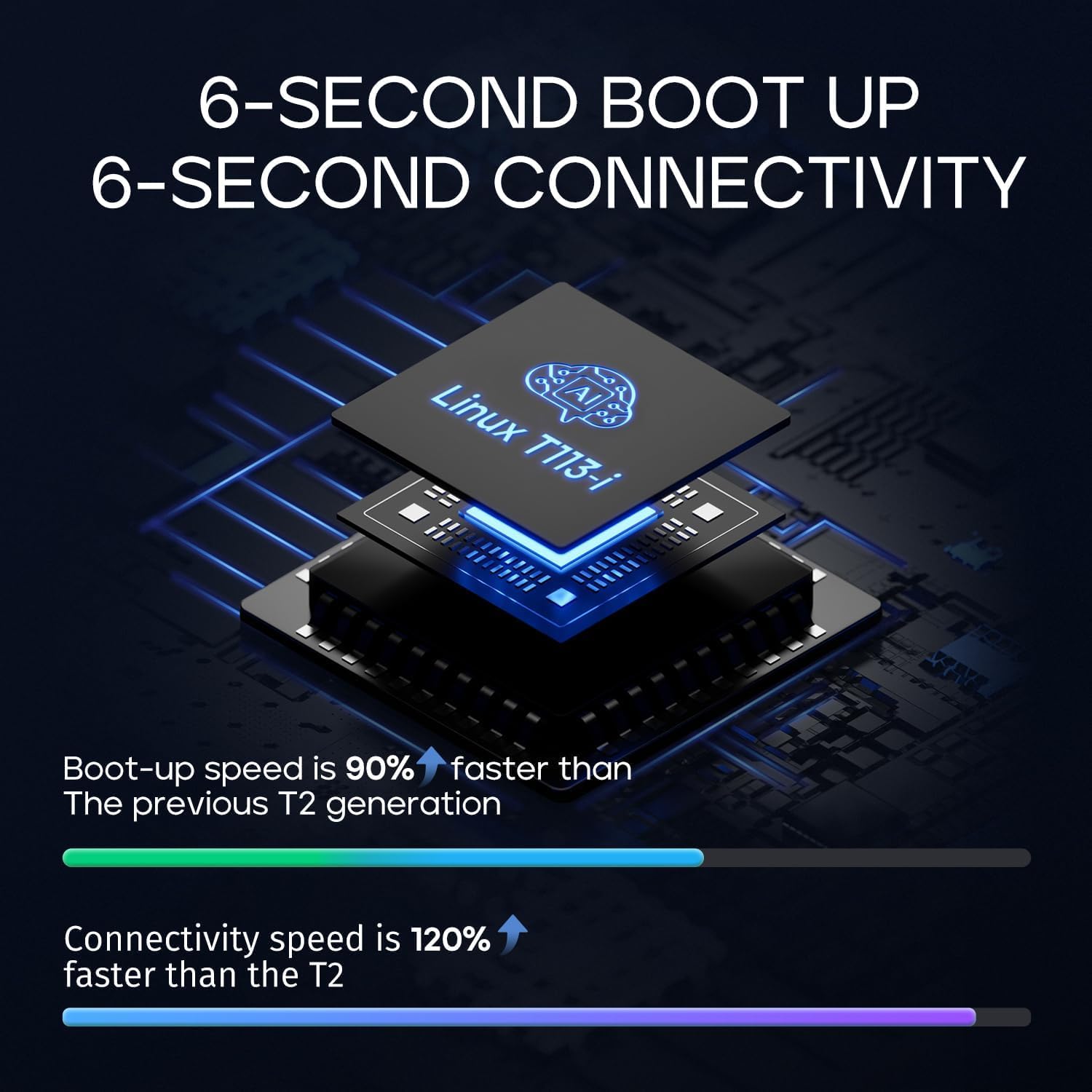
Figure 4.1: Fast boot-up and connectivity.
4.2 Touchscreen Interaction
The 8.9-inch IPS touchscreen is fully responsive. Navigate the interface by tapping, swiping, and pinching as you would on a smartphone or tablet. The 60fps refresh rate ensures smooth scrolling and quick reactions to touch inputs.
4.3 User Interface (UI)
The CarpodGo T3 Pro features a linear neomorphic UI design, prioritizing clarity and ease of use. You can customize certain aspects of the display, such as the startup screen, to match your preferences.

Figure 4.2: CarpodGo T3 Pro UI design in a vehicle.
4.4 Аўтаматычная рэгуляванне яркасці
The display includes a light sensor that automatically adjusts screen brightness. In night mode, the brightness is intelligently reduced to minimize distraction and improve visibility.

Figure 4.3: Automatic brightness adjustment for day and night driving.
5. Сувязь
5.1 Бесправадны CarPlay і Android Auto
Каб падключыць смартфон бесправадным спосабам:
- Пераканайцеся, што Bluetooth і Wi-Fi уключаны на вашым смартфоне.
- On the CarpodGo T3 Pro, select either CarPlay or Android Auto from the main menu.
- Follow the on-screen prompts to pair your phone via Bluetooth. Once paired, the device will establish a Wi-Fi connection for wireless CarPlay/Android Auto.
- The connection should be established within seconds, providing a fluid 60fps experience.
5.2 Display-Only Bluetooth Mode
This mode is ideal for vehicles with existing Bluetooth audio systems:
- Activate the "Display-Only Bluetooth Mode" on the CarpodGo T3 Pro.
- Connect your smartphone directly to your car's built-in Bluetooth system for audio playback and calls.
- The CarpodGo T3 Pro will function solely as a visual display for CarPlay or Android Auto, allowing your car's speakers and microphone to handle all audio. This mode supports existing steering wheel controls.

Figure 5.1: Display-Only Bluetooth Mode in use.
6. Тэхнічныя характарыстыкі
6.1 Тэхнічныя характарыстыкі
| Асаблівасць | Спецыфікацыя |
|---|---|
| Марка | CarpodGo |
| Нумар мадэлі | CarpodGo T3 Pro |
| Тэхналогія падлучэння | Bluetooth |
| Асаблівасць | Сэнсарны экран |
| Сумяшчальныя прылады | Смартфон |
| Тып раздыма | USB тыпу C |
| Рэжым выхаду гуку | Акружаць |
| Канфігурацыя канала аб'ёмнага гуку | 5.1 |
| Кадзіроўка відэа | H.264, H.265/HEVC |
| Акумулятарная батарэя | няма |
7. Тэхнічнае абслугоўванне
7.1 Ачыстка дысплея
Каб ачысціць экран, акуратна працярыце яго мяккай тканінай без ворса. Для выдалення ўстойлівых плям злёгку працярыцеampПрацярыце тканіну вадой або бяспечным для экрана ачышчальным растворам. Пазбягайце выкарыстання агрэсіўных хімічных рэчываў, абразіўных матэрыялаў або празмернай вільгаці, бо яны могуць пашкодзіць экран або ўнутраныя кампаненты.
7.2 Агульны догляд
- Пазбягайце працяглага ўздзеяння экстрэмальных тэмператур, прамых сонечных прамянёў або высокай вільготнасці на прыладу.
- Не спрабуйце разбіраць або рамантаваць прыладу самастойна. Звярніцеся да кваліфікаванага абслугоўваючага персаналу для любога рамонту.
- Ensure all cables are securely connected but not overly strained.
8. Выпраўленне непаладак
If you encounter issues with your CarpodGo T3 Pro, refer to the following common problems and solutions:
8.1 Прылада не ўключаецца
- Check the power connection: Ensure the 9V power cord is securely plugged into both the car's cigarette lighter socket and the device's USB Type C port.
- Verify car's power: Confirm that the car's cigarette lighter socket is receiving power. Test with another device if possible.
8.2 Праблемы з бесправадным падключэннем CarPlay/Android Auto
- Bluetooth/Wi-Fi: Ensure Bluetooth and Wi-Fi are active on your smartphone.
- Рамонт прылады: Delete the device from your phone's Bluetooth settings and re-pair it with the CarpodGo T3 Pro.
- Перазапуск прылад: Restart both your smartphone and the CarpodGo T3 Pro.
- Перашкоды: Адыдзіце далей ад крыніц моцных электрамагнітных перашкод.
8.3 Audio Output Problems
- Display-Only Mode: If using Display-Only Bluetooth Mode, ensure your phone is successfully connected to your car's Bluetooth for audio.
- Падлучэнне AUX: If using the Bluetooth Aux Receiver, ensure it is properly connected to your car's AUX input and your car's audio system is set to AUX mode.
- Узроўні гучнасці: Check volume settings on both the CarpodGo T3 Pro, your smartphone, and your car's audio system.
8.4 Screen Reflections
- Adjust the mounting angle of the device to minimize glare from sunlight or interior lights.
- Consider using an anti-glare screen protector (not included) if reflections persist in specific lighting conditions.
9. Гарантыя і падтрымка
9.1 Інфармацыя аб гарантыі
Specific warranty details for the CarpodGo T3 Pro are not provided in this manual. Please refer to the product packaging, the seller's website, or your purchase documentation for information regarding warranty coverage and terms.
9.2 Падтрымка кліентаў
For technical assistance, troubleshooting beyond this manual, or warranty claims, please contact CarpodGo customer support through the retailer where you purchased the product or visit the official CarpodGo webсайт для кантактнай інфармацыі службы падтрымкі.