
Уводзіны
Thank you for choosing the HP Series 5 527sf Monitor. This manual provides essential information for the safe and efficient use of your new display. Please read this manual thoroughly before operating the monitor and retain it for future reference.
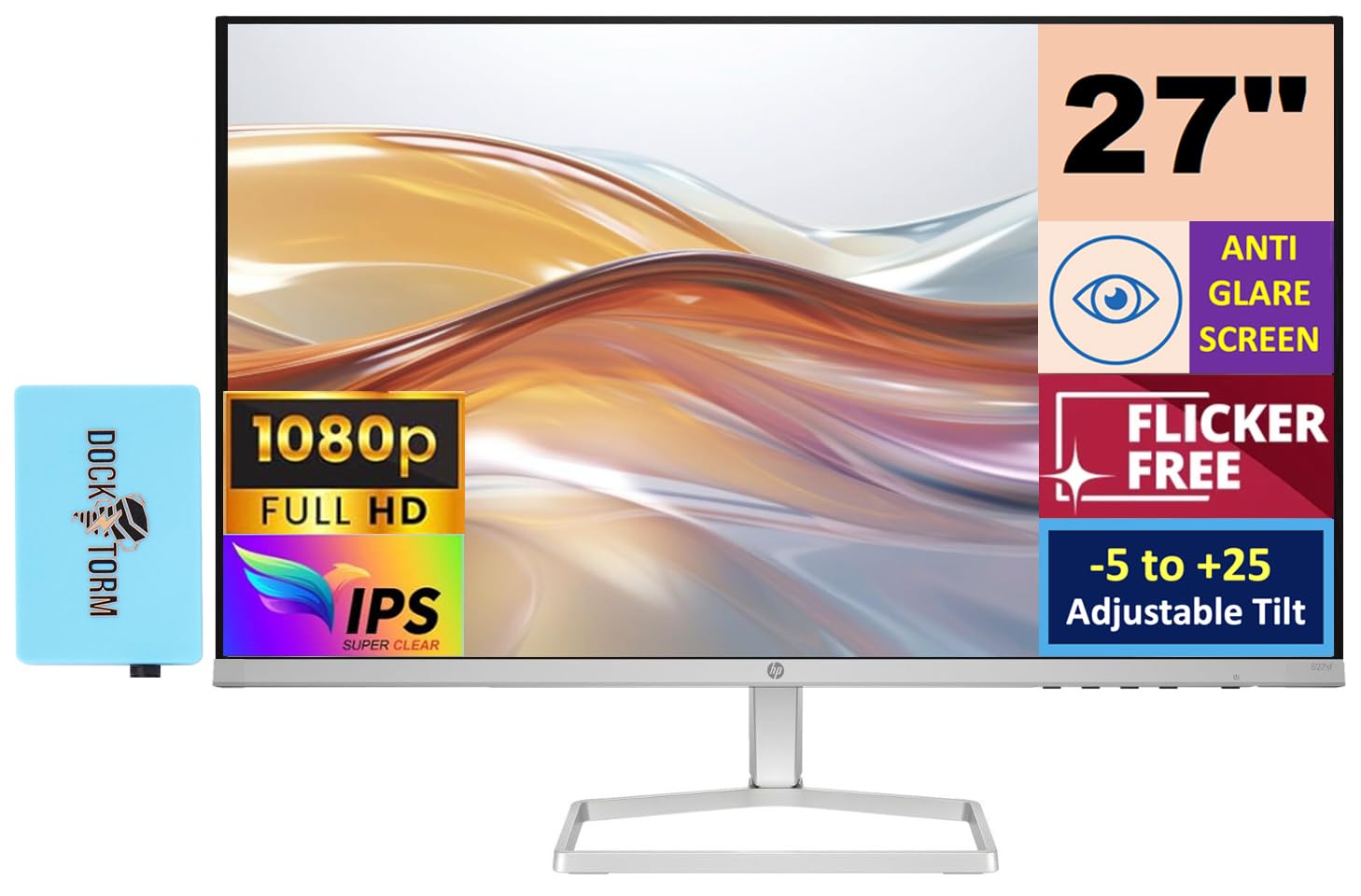
Малюнак 1: Спераду view of the HP Series 5 527sf Monitor.
Інфармацыя па бяспецы
Каб забяспечыць бяспечную працу і прадухіліць пашкоджанні, выконвайце наступныя меры бяспекі:
- Не падвяргайце манітор уздзеянню дажджу або вільгаці.
- Не перакрывайце вентыляцыйныя адтуліны.
- Выкарыстоўвайце толькі адаптар сілкавання, які пастаўляецца з маніторам.
- Пазбягайце размяшчэння манітора на няўстойлівай паверхні.
- Адключайце кабель сілкавання падчас навальніцы або калі прылада не выкарыстоўваецца працяглы час.
- Звяртайцеся да кваліфікаванага абслугоўваючага персаналу.
Што ў скрынцы
Пераканайцеся, што ўсе прадметы наяўныя пры распакаванні:
- Манітор HP серыі 5 527sf
- Падстаўка для манітора (аснова і шыя)
- Power Adapter and AC Power Cord
- Кабель HDMI
- Quick Setup Guide / Document Kit
- Docztorm Dock (Special Edition Portable Docztorm Data Hub)

Figure 2: Included Docztorm Portable USB Hub.
Настройка
1. Зборка падстаўкі для манітора
- Асцярожна выміце кампаненты манітора і падстаўкі з упакоўкі.
- Прымацуйце падстаўку да панэлі манітора. Пераканайцеся, што яна надзейна зашчапілася.
- Attach the stand base to the stand neck. Tighten any screws if provided.
2. Злучальныя кабелі
The HP Series 5 527sf Monitor offers multiple connectivity options. Refer to the rear view of the monitor for port locations.

Малюнак 3: Задняя частка view with power, VGA, and HDMI ports.
- Падключэнне сілкавання: Connect the power adapter to the monitor's power input, then plug the AC power cord into a wall outlet.
- Падключэнне HDMI: Use the provided HDMI cable to connect your computer's HDMI output to one of the monitor's HDMI ports (HDMI 1 or HDMI 2).
- Падключэнне VGA: If your computer uses VGA, connect a VGA cable from your computer's VGA output to the monitor's VGA port.
3. Пачатковае ўключэнне
- Націсніце кнопку харчавання на маніторы.
- Уключыце камп'ютар. Манітор павінен аўтаматычна распазнаць уваходны сігнал.
- If no image appears, ensure cables are securely connected and select the correct input source using the monitor's OSD (On-Screen Display) menu.
Кіраванне маніторам
Элементы кіравання маніторам
The monitor controls are typically located on the bottom right bezel or rear of the monitor. These buttons allow you to navigate the On-Screen Display (OSD) menu to adjust various settings.
Рэгуляванне налад дысплея
Use the OSD menu to customize your viewвопыт:
- Яркасць/кантраст: Adjust these settings to suit your environment and preference.
- Налады колеру: Select from preset color modes or manually adjust color temperature and RGB values.
- Выбар уводу: Manually switch between HDMI 1, HDMI 2, and VGA inputs if auto-detection fails.
- HP Eye Ease (фільтр нізкага сіняга святла): This feature is always-on and reduces blue light emissions without impacting color accuracy, contributing to eye comfort.

Figure 4: HP Eye Ease technology for reduced blue light.
Рэгуляванне нахілу
The monitor stand allows for tilt adjustment from -5 to +25 degrees. Gently hold the top and bottom edges of the monitor panel and tilt it to your desired viewing angle. No buttons or levers are required for this adjustment.
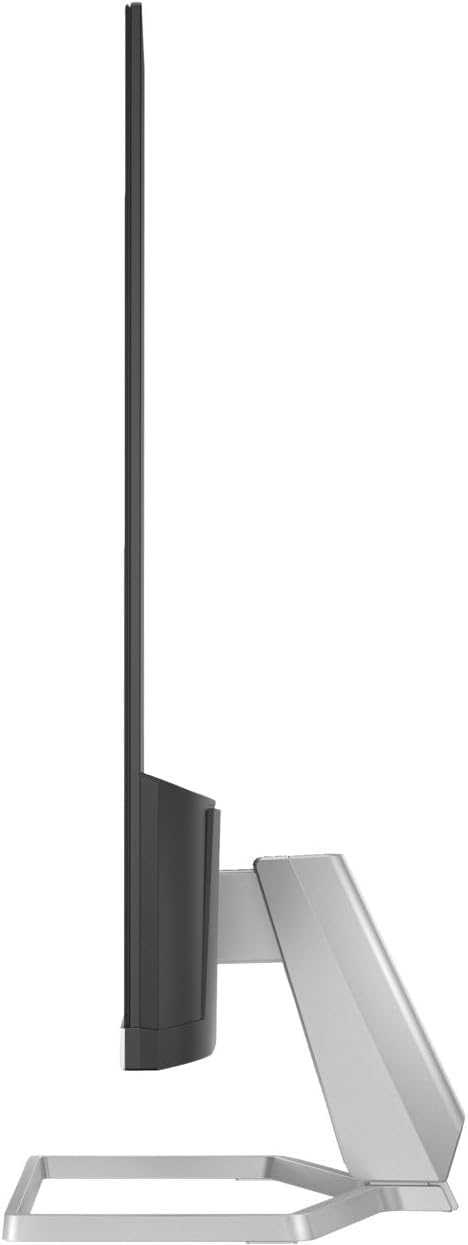
Малюнак 5: Бакавы прафесіяналfile ілюструе магчымасць нахілу манітора.
Тэхнічнае абслугоўванне
Чыстка манітора
- Перад чысткай заўсёды адключайце манітор ад сеткі.
- Выкарыстоўвайце мяккую тканіну без ворса. dampвадой або неабразіўным ачышчальнікам для экрана.
- Не распыляйце ачышчальнік непасрэдна на экран.
- Пазбягайце выкарыстання агрэсіўных хімікатаў або абразіўных матэрыялаў.
Агульны догляд
- Трымайце манітор далей ад прамых сонечных прамянёў і крыніц цяпла.
- Забяспечце дастатковую вентыляцыю вакол манітора.
- Не стаўце цяжкія прадметы на манітор або яго кабелі.
Ліквідацыю непаладак
If you encounter issues with your monitor, try the following solutions:
| праблема | Магчымае рашэнне |
|---|---|
| Няма выявы на экране | Check power cable connection. Verify video cable is securely connected to both monitor and computer. Ensure correct input source is selected in OSD menu. |
| Мігценне або нестабільнае малюнак | Check video cable for damage or loose connections. Ensure display resolution and refresh rate are supported by your computer's graphics card. |
| Колеры адлюстроўваюцца няправільна | Adjust color settings in the OSD menu. Ensure your graphics card drivers are up to date. |
| Манітор не ўключаецца | Confirm power cable is plugged into a working outlet. Check power adapter connection to the monitor. |
If the problem persists after trying these steps, please contact HP customer support.
Тэхнічныя характарыстыкі
| Асаблівасць | Дэталь |
|---|---|
| Марка | HP |
| Назва мадэлі | 527sf |
| Нумар мадэлі | Series 5 527sf |
| Памер экрана | 27 цалі |
| дазвол | FHD 1080p (1920x1080) |
| Тып дысплея | IPS |
| Частата абнаўлення | 100 Гц |
| Час водгуку | 5 мілісекунд |
| Яркасць | 300 ніт |
| Каэфіцыент кантраснасці | 1500:1 |
| Viewing кут | 178 градусаў |
| Сувязь | 2x HDMI 1.4, 1x VGA |
| Адаптыўная сінхранізацыя | FreeSync |
| Дадатковыя магчымасці | Anti-glare Screen, Flicker-Free, Tilt Adjustment (-5 to +25 degrees), HP Eye Ease (Low-Blue Light) |
| Падтрымка мацавання VESA | няма |
| Памеры прадмета (Д х Ш х У) | 7.4" Г x 23.93" Ш x 17.21" У |
| Вага прадмета | 7.05 фунта |
| UPC | 196384005196 |
Гарантыя і падтрымка
Інфармацыя аб гарантыі
Your HP Series 5 527sf Monitor is covered by a limited warranty. Please refer to the warranty card included in your product packaging or visit the official HP webсайт для падрабязных умоў.
Падтрымка кліентаў
For technical assistance, troubleshooting, or warranty claims, please contact HP customer support through their official website or the contact information provided in your product documentation. Have your monitor's model number and serial number ready when contacting support.