
Уводзіны
The APEXEL DC001 WiFi Wireless Electronic Eyepiece transforms traditional optical devices into digital cameras, allowing users to capture and share observations directly to their smartphones. This device offers wireless connectivity, high-definition imaging, and broad compatibility with various optical instruments. This manual provides detailed instructions for setup, operation, and maintenance.
Што ў скрынцы
- TelesCam (Electronic Eyepiece)
- Мацаванне для тэлефона
- Зарадны кабель Type-C
- Round EVA Pad (for smaller eyepieces)
- Анучка для чысткі
- Карта Micro SD (32 ГБ)
- Кіраўніцтва карыстальніка

This diagram illustrates the various components of the electronic eyepiece, including the quick release button, lens, EVA pad, and connection range.
Асаблівасці прадукту
- HD Wireless Transmission: Supports high-definition wireless transmission up to 10 meters without loss.
- Low-Light Compensation: Enhances dark scenes to reveal fine details, enabling clear imaging in dim conditions.
- Кантроль прыкладанняў: Built-in WiFi connects to the "APVision" app for browsing, control, interval shooting, and time-lapse video recording.
- Трывалая канструкцыя: Features a metal frame and polymer body with a non-slip thread eyepiece clamp, providing a secure connection to optical instruments.
- Лёгкі і партатыўны: Weighs only 0.44 lbs (144g) and includes an 800mAh rechargeable battery for up to 4 hours of use.
- 360° Rotational Shooting: Allows switching between landscape and portrait orientations for flexible capture.
- True-to-Life Color Reproduction: Advanced lens coating and low-light compensation ensure clear and vibrant images.

This image highlights the core features of the electronic eyepiece, including its optical and technical specifications.

This image emphasizes the seamless wireless operation and stable connection provided by the device.

This image details the long-lasting performance provided by the 800mAh lithium battery and Type-C charging.

This image illustrates the device's ability to reproduce true-to-life colors and its low-light compensation capabilities.
Інструкцыя па наладзе
1. Распакоўка і ідэнтыфікацыя кампанентаў
Carefully unpack all components from the box. Identify the electronic eyepiece, phone mount, charging cable, EVA pad, cleaning cloth, and Micro SD card.
This video demonstrates the unboxing of the APEXEL DC001 Electronic Eyepiece and its included accessories.
2. Attaching the Phone Mount
Align the phone mount with the designated slot on the electronic eyepiece. Slide the phone mount into place until it clicks securely.
3. Устаўка карты TF
Locate the TF card slot on the side of the electronic eyepiece. Insert the provided Micro SD card into the slot.

Image showing the first step of installation: inserting the TF card into the electronic eyepiece. The blue indicator light will stay on once the device is powered on.
4. Уключэнне
Press and hold the power button on the electronic eyepiece for 3 seconds until the indicator light turns on.
This video segment demonstrates how to power on the electronic eyepiece by pressing and holding the power button.
5. Attaching to Optical Device
Pinch the handle of the eyepiece clamp. Snap the electronic eyepiece onto the eyepiece of your telescope, binocular, monocular, microscope, or spotting scope. Ensure a tight and secure fit.
Image illustrating the third step of installation: attaching the electronic eyepiece to an optical instrument by pinching the handle and snapping it onto the eyepiece.
6. App Download and WiFi Connection
Download the "APVision" app from your device's app store (compatible with Android 4.4+ and iOS 7+). You can scan the QR code in the physical manual or search directly. Open the "APVision" app. Go to your phone's WiFi settings and connect to the WiFi network named "Apexel-DC001-XXXXXX" (the default password is "12345678"). The yellow indicator light on the device will stay on when connected.

Image detailing the steps to download the APVision app, connect to the device's WiFi, and enter the app interface.
This video segment demonstrates connecting the electronic eyepiece to a smartphone via WiFi and accessing the APVision app.
Інструкцыя па эксплуатацыі
1. Accessing the Camera Interface
After connecting to WiFi, open the "APVision" app and click "Enter Preview" to access the live camera feed.
This video segment shows how to enter the camera interface within the APVision app after establishing a WiFi connection.
2. Захоп фота і відэа
Within the camera interface, select "Video/Photo" mode. Adjust settings as desired (e.g., resolution). Press the capture button to take a photo or start/stop video recording. The device supports 360° rotational shooting, allowing you to switch between landscape and portrait modes on your phone.

This image illustrates the 360° rotational shooting capability, allowing users to capture images in both vertical and horizontal orientations.
This video segment demonstrates how to capture photos and record videos using the APVision app, including changing video resolution.
3. Viewing and Downloading Media
In the APVision app, navigate to the "Album" section to view captured photos and videos. You can download media simultaneously to the device's internal storage (TF card) and your phone's photo album.
This video segment shows how to access the album in the APVision app and download captured media to your phone.
Сумяшчальнасць
The APEXEL DC001 Wireless Electronic Eyepiece is designed for broad compatibility with various optical instruments.
- Дыяметр акуляра: Fits eyepieces from 23mm to 50mm (0.9" to 2.0") in diameter. The round EVA pad can be used for smaller eyepieces to ensure a snug fit.
- Сумяшчальныя прылады:
- Тэлескопы
- Бінокль
- Манакуляры
- Мікраскопы
- Кропкавыя ўказанні
- Night Vision devices
- Сумяшчальнасць тэлефона: Compatible with iPhone and Android phones (Android 4.4 or later, iOS 7 or later).
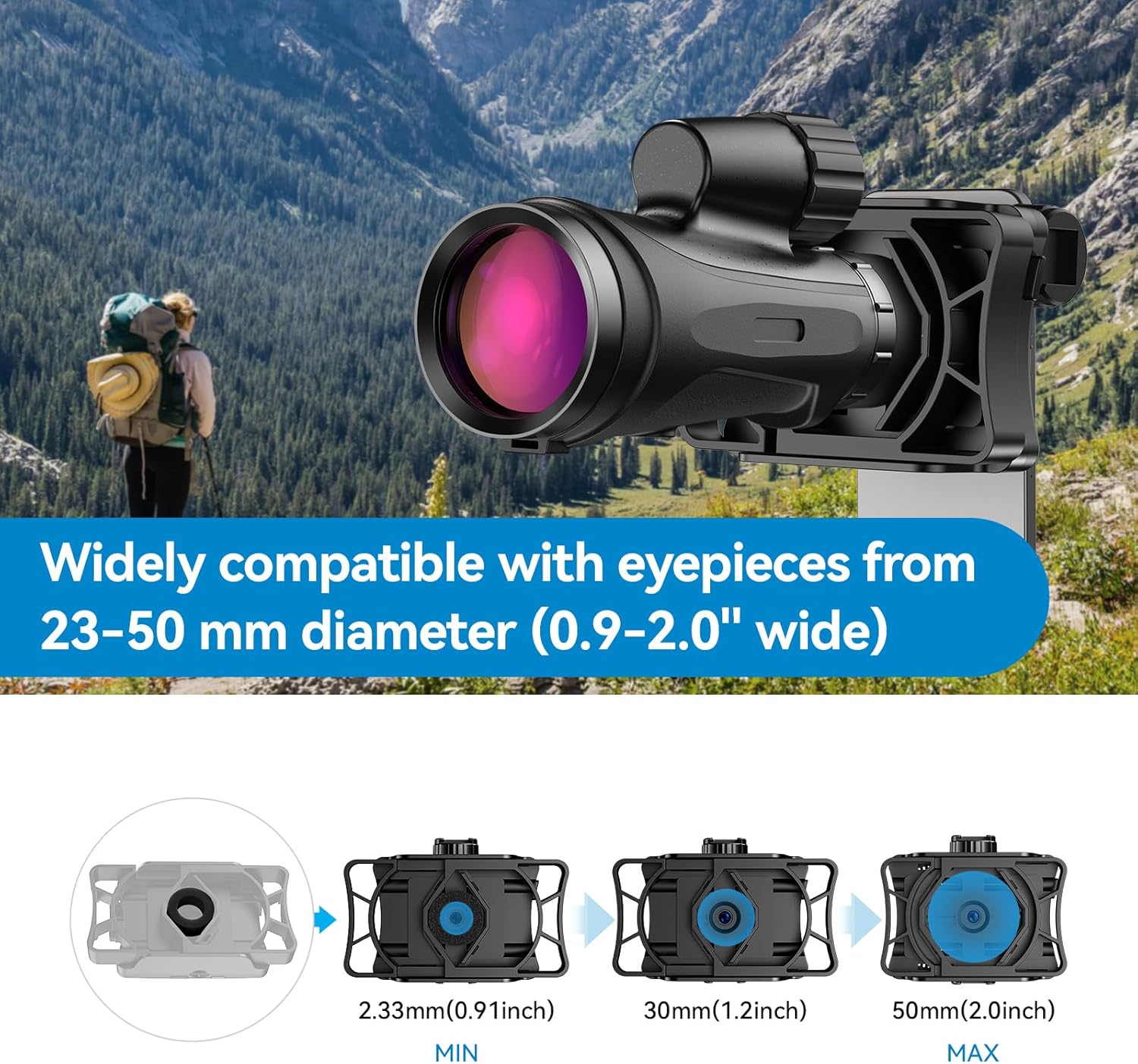
This image illustrates the range of eyepiece diameters (23-50mm) that the electronic eyepiece can accommodate, with an emphasis on the adjustable clamp.

Example of the electronic eyepiece connected to a telescope, showing the live view на смартфоне.

Example of the electronic eyepiece connected to binoculars, showing the live view на смартфоне.

Example of the electronic eyepiece connected to a spotting scope, showing the live view на смартфоне.

Example of the electronic eyepiece connected to a microscope, showing the live view на смартфоне.
Тэхнічныя характарыстыкі
| Памеры прадукту | 6.7 х 2.5 х 3.6 цалі |
| Вага прадмета | 9.6 унцыі |
| Нумар мадэлі тавару | DC001 |
| Батарэі | Патрабуецца 1 літый-іённы акумулятар (у камплекце) |
| Марка | АПЕКСЕЛЬ |
| Колер | Чорны |
| Сумяшчальныя прылады | Binocular, Microscope, Monocular, Spotting Scope, Telescope |
| Вытворца | АПЕКСЕЛЬ |
| Першая даступная дата | 25 ліпеня 2024 г |
Ліквідацыю непаладак
- Прылада не ўключаецца: Ensure the battery is charged. Connect the device to a power source using the Type-C cable.
- Немагчыма падлучыцца да Wi -Fi:
- Verify the device is powered on and the yellow indicator light is active.
- Check your phone's WiFi settings to ensure you are connected to the correct "Apexel-DC001-XXXXXX" network.
- Confirm the WiFi password "12345678" is entered correctly.
- Move closer to the device to ensure you are within the 10-meter wireless range.
- No image in the app:
- Ensure the electronic eyepiece is securely attached to your optical device and properly aligned.
- Check that the optical device itself is focused.
- Restart the app and reconnect to the WiFi.
- Дрэнная якасць выявы:
- Ensure the lens of the electronic eyepiece and the eyepiece of your optical device are clean. Use the provided cleaning cloth.
- Adjust the focus of your optical device.
- Check lighting conditions; utilize the low-light compensation feature if necessary.
- Немагчыма захаваць фота/відэа:
- Ensure a Micro SD card is properly inserted into the device.
- Check if the Micro SD card has sufficient storage space.
- Verify app permissions on your phone allow saving to the photo album.
Тэхнічнае абслугоўванне
- Уборка: Use the provided cleaning cloth to gently wipe the lens and body of the electronic eyepiece. Avoid abrasive materials or harsh chemicals.
- Захоўванне: Store the device in a cool, dry place away from direct sunlight and extreme temperatures when not in use.
- Сыход за батарэяй: For optimal battery life, avoid fully discharging the battery frequently. Charge the device regularly, even if not in use for extended periods.
- Абнаўлення праграмнага забеспячэння: Check the APVision app periodically for any available software or firmware updates for the electronic eyepiece to ensure optimal performance and new features.
Гарантыя і падтрымка
For warranty information, technical support, or service inquiries, please refer to the contact details provided in the physical user manual or visit the official APEXEL webсайт. Захоўвайце чэк аб куплі як пацвярджэнне пакупкі для гарантыйных прэтэнзій.