
REVODATA I3006-P-A-HS-S
REVODATA 5MP POE IP Dome Security Camera (Model: I3006-P-A-HS-S) User Manual
Падрабязныя інструкцыі па ўсталёўцы, эксплуатацыі і абслугоўванні.
1. Уводзіны
This manual provides essential information for the proper installation, configuration, and operation of your REVODATA 5MP POE IP Dome Security Camera, model I3006-P-A-HS-S. Please read this manual thoroughly before using the product to ensure optimal performance and safety.

Image 1.1: REVODATA 5MP POE IP Dome Security Camera.
2. Змесціва ўпакоўкі
Праверце, ці ўсе пералічаныя ніжэй прадметы ўваходзяць у камплект. Калі якія-небудзь прадметы адсутнічаюць або пашкоджаныя, звярніцеся ў службу падтрымкі кліентаў.
- 1 x REVODATA 5MP POE IP Dome Security Camera
- 1 х Кіраўніцтва карыстальніка (гэты дакумент)
- 1 x Screws Set for mounting

Image 2.1: Illustration of package contents and camera dimensions. The image shows the camera, user manual, package box, screws set, and details like the 3.6mm lens, audio port, DC power port (support 12V 2A), and RJ45 port (support POE).
3. Асаблівасці прадукту
The REVODATA I3006-P-A-HS-S camera offers a range of advanced features for reliable indoor security surveillance:
- 5MP HD-дазвол: Equipped with a 1/3-inch CMOS sensor, providing clear 5.0-megapixel images and videos at 25 frames per second.
- POE and DC Power Support: Features a built-in POE template (48V 802.3af) for simplified wiring, and an auxiliary 12V 2A DC power interface for non-POE setups.
- Убудаваны мікрафон: Captures audio around the camera, enhancing surveillance with sound information.
- IR-CUT Infrared Night Vision: Integrated IR-CUT technology with 3 Array LEDs ensures clear day and night vision, with an effective range of 10-20 meters in total darkness.
- H.265/H.264 Dual Encoding: Utilizes H.265 compression to reduce bandwidth and storage requirements by approximately 50% compared to H.264, while maintaining image quality.
- Выяўленне руху: Records only when motion is detected, optimizing storage space.
- P2P Remote View: Access live and recorded footage remotely via the Linklemo mobile app (iOS/Android) or VMS software (Windows).

Выява 3.1: Канецview of camera features including 5MP resolution, 3.6mm lens, night vision, P2P, POE, audio, detection alarm, and H.265/H.264 encoding.
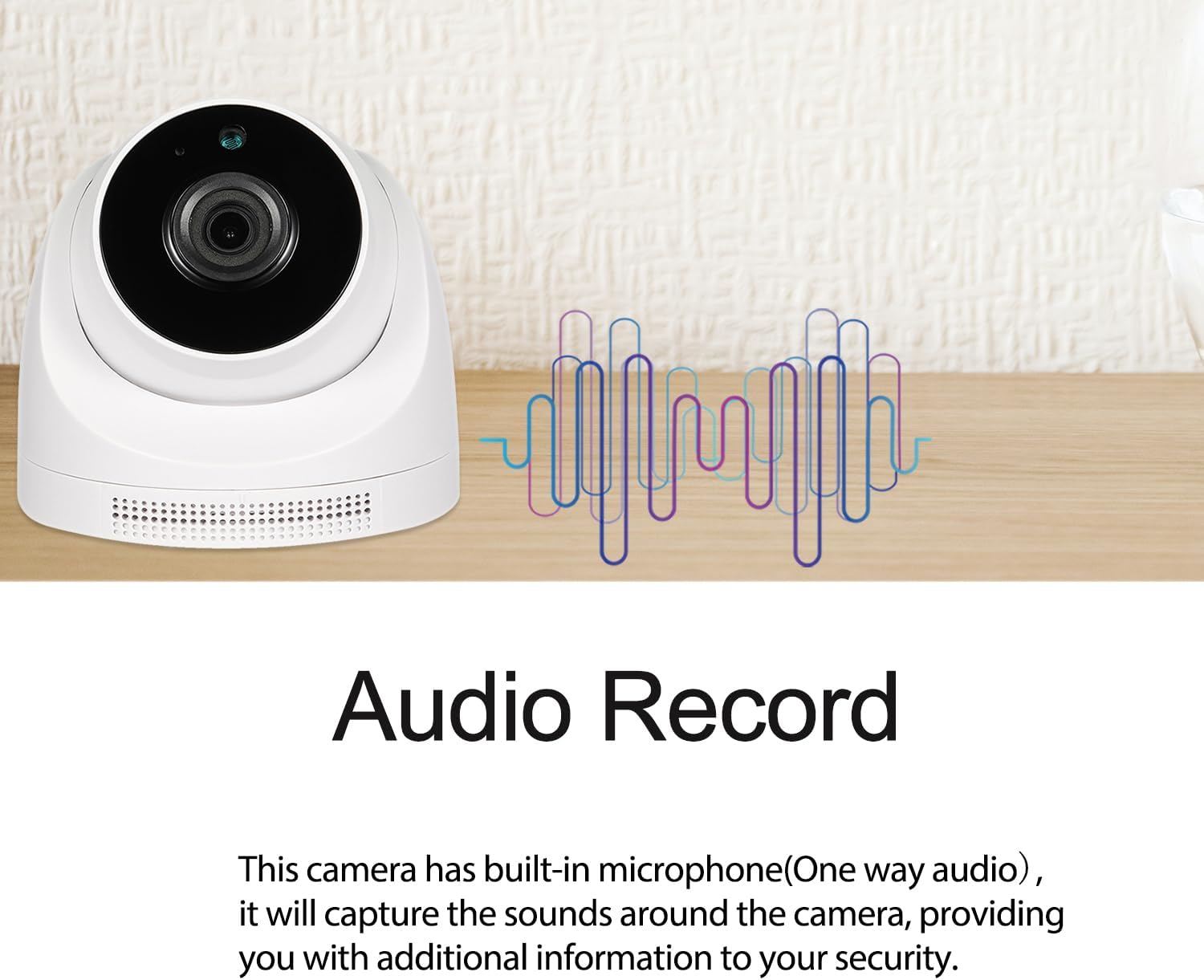
Image 3.2: The camera features a built-in microphone for one-way audio recording, capturing sounds for enhanced security.

Image 3.3: Demonstration of IR Night Vision. Infrared LEDs activate in low light conditions, switching the camera from color to black and white for clear visibility in darkness.

Image 3.4: Explains POE (Power Over Ethernet) support with a POE cable illustration and the benefits of H.265/H.264 dual encoding for reduced bandwidth and storage.

Image 3.5: Real-world comparison of camera footage during the day and at night, showcasing the effectiveness of night vision.
4. Настройка
4.1 Фізічная ўстаноўка
The camera is designed for indoor use and supports wall mounting.
- Выберыце падыходнае месца для ўстаноўкі камеры ў памяшканні.
- Use the provided screws set to securely mount the camera to the wall. Ensure the camera is positioned to cover the desired surveillance area.
4.2 Падключэнне да электрасілкавання і сеткі
The camera offers two power options: Power over Ethernet (POE) or a standard DC power supply.
- Падключэнне POE: Connect an Ethernet cable from a POE-enabled switch or NVR to the camera's RJ45 port. This will provide both power and network connectivity.
- Падключэнне сілкавання пастаяннага току: If not using POE, connect a 12V 2A DC power adapter (not included) to the camera's DC power port, and then connect an Ethernet cable from your router/switch to the camera's RJ45 port for network access.

Image 4.1: Diagram showing the camera connected via an Ethernet cable to an NVR, illustrating the POE connection method.
5. Інструкцыя па эксплуатацыі
Your REVODATA camera can be accessed and managed through VMS software on Windows, a web browser interface, or the Linklemo smartphone application.
5.1 Connecting to VMS Software (Windows)
Follow these steps to connect your camera to the VMS software on a Windows computer:
- Install the VMS software on your Windows PC.
- Launch the VMS software. The default username is 'admin' and the default password is 'admin'.
- Use the device manager to search for and add your camera to the software.
- Пасля дадання вы можаце view the live feed and configure camera settings.
5.2 Connecting via Web Інтэрфейс
Каб атрымаць доступ да камеры web interface, you will need its IP address. This can be found using the VMS software or a network scanning tool.
- Адкрыйце a web браўзер (напрыклад, Chrome, Firefox).
- Enter the camera's IP address into the address bar.
- Log in using the default username 'admin' and default password '123456'.
- Вы можаце зараз view the live feed and adjust various camera settings through the web інтэрфейс.
5.3 Connecting to Smartphone APP (Linklemo)
The Linklemo app allows for remote viewing and management on iOS and Android devices.
- Download and install the 'Linklemo' app from your device's app store.
- Зарэгіструйце ўліковы запіс або ўвайдзіце ў сістэму, калі ён у вас ужо ёсць.
- Add your device by scanning the QR code on the camera or manually entering its ID.
- Ensure your phone and the camera are on the same network during the initial pairing process.
- Пасля дадання вы можаце view live video, receive motion detection alerts, and manage settings.
Notice: This device does not support Cloud Storage. Please do not purchase Cloud Storage from the 'Linklemo' app.
Video 5.1: This video demonstrates how to connect the REVODATA camera to VMS software, access its web interface via a browser, and set up the Linklemo smartphone application for remote viewінг і кіраванне.

Image 5.2: Screenshots illustrating the user interface for both the Linklemo mobile application and the VMS desktop software, showing live camera feeds.

Image 5.3: Depicts the camera's remote viewing capabilities on both a smartphone and a computer monitor.

Image 5.4: A visual representation of the camera's one-way audio feature, showing sound waves and a conversation being captured.
6. Канфігурацыя і налады
The camera's settings can be adjusted via the VMS software or web interface. Key configuration areas include:
6.1 Налады відэа
- Adjust stream type (Main Stream), encoding format (H.265/H.264), resolution (up to 2880x1616P), and frame rate (25 fps).
- Configure video quality and bitrate control.
6.2 Налады гуку
- Enable/disable audio, adjust input volume.
6.3 OSD (On-Screen Display) Settings
- Enable/disable OSD, set date/time format, and position.
6.4 Налады выявы
- Adjust brightness, contrast, saturation, sharpness.
- Configure IR-CUT mode (Auto, Day, Night), and infrared lamp налады.
6.5 Кіраванне сігналізацыяй
- Выяўленне руху: Configure detection areas, sensitivity, and alarm actions (e.g., send email, push notification to app).
- Выяўленне чалавека: Specific detection for human figures, reducing false alarms.

Image 6.1: Illustrates the motion detection alarm feature, showing a detected human figure and a notification on a smartphone.

Image 6.2: Shows the motion detection feature highlighting a person within the surveillance area, triggering an alert.
6.6 Налады сеткі
- Configure IP address settings (DHCP/Static), RTSP, ONVIF, HTTP, Email, and FTP settings for advanced integration.
7. Тэхнічнае абслугоўванне
7.1 Агульны догляд
- Рэгулярна працірайце аб'ектыў камеры мяккай сухой тканінай, каб забяспечыць выразную якасць выявы.
- Avoid exposing the camera to extreme temperatures or direct water spray.
7.2 Абслугоўванне сістэмы
- Абнаўленні прашыўкі: Праверце вытворцы webперыядычна правяраць сайт на наяўнасць абнаўленняў прашыўкі для паляпшэння прадукцыйнасці і бяспекі.
- Канфігурацыя рэзервовага капіявання: It is recommended to back up your camera's configuration settings regularly.
- Аднаўленне да заводскіх налад: If experiencing persistent issues, you may restore the camera to its factory default settings. Note that this will erase all custom configurations.
8. Выпраўленне непаладак
Калі ў вас узніклі праблемы з камерай, звярніцеся да наступных распаўсюджаных праблем і іх рашэнняў:
| праблема | Магчымая прычына | Рашэнне |
|---|---|---|
| Няма стужкі малюнкаў/відэа | Праблемы з электраэнергіяй, адключэнне сеткі, няправільны IP-адрас. | Check power supply (POE or DC adapter). Verify Ethernet cable connection. Ensure correct IP address is used in software/browser. |
| Дрэнная якасць выявы | Dirty lens, low resolution setting, poor lighting. | Clean the lens. Increase resolution setting in video configuration. Ensure adequate lighting or verify night vision is active. |
| Выяўленне руху не працуе | Detection area not configured, sensitivity too low, alarm schedule incorrect. | Configure motion detection areas and sensitivity. Check alarm schedule settings. |
| Cannot connect via Linklemo app | Incorrect login details, device not added, network issues. | Verify app login credentials. Ensure camera is added to the app. Check Wi-Fi/mobile data connection. |
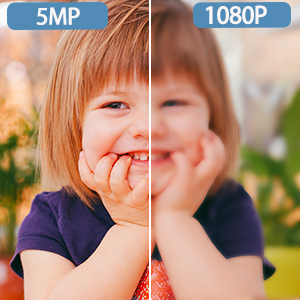
Image 8.1: A visual comparison demonstrating the superior clarity of 5MP resolution compared to 1080P.
9. Тэхнічныя характарыстыкі
| Асаблівасць | Спецыфікацыя |
|---|---|
| мадэль | I3006-P-A-HS-S |
| дазвол | 5MP (2880x1616P) |
| Датчык | 1/3-цалевы CMOS |
| Аб'ектыў | 3.6mm, Manual Focus |
| Частата кадраў | 25 кадраў у секунду |
| Кампрэсія відэа | H.265/H.264 |
| Аўдыё | Built-in Microphone (1-way audio) |
| Начное бачанне | Infrared (3 Array LEDs), 10-20m range |
| Электразабеспячэнне | POE (48V 802.3af) or DC 12V 2A |
| Сувязь | Ethernet |
| Сумяшчальныя прылады | Smartphone (iOS, Android), Windows PC |
| Тып мацавання | Насценнае мацаванне |
| Выкарыстанне ў памяшканні/на вуліцы | У памяшканні |
| Матэрыял | Пластыкавыя |
| Памеры (Д х Ш х У) | 4.33 х 4.33 х 4.01 цалі |
| Вага прадмета | 10.6 унцыі |
| Працоўная тэмпература | Да 60 градусаў Цэльсія |

Image 9.1: Displays different angles of the camera and suggested indoor applications such as living rooms, pet monitoring, baby rooms, and offices.

Image 9.2: Highlights the 10-20M night vision capability powered by 3 Array LEDs, showing a split view of a room in day and night conditions.
10. Гарантыя і падтрымка
For warranty information, technical support, or any product-related inquiries, please refer to the contact details provided on the REVODATA official website or your purchase platform. Keep your purchase receipt as proof of purchase.