
1. Прадукт скончыўсяview
The XunFox K90 is a compact 66-key mechanical keyboard designed for efficient and responsive input. It features adjustable RGB backlighting and a durable construction. The ergonomic design aims to provide a comfortable typing experience, with keys engineered for smooth and responsive keystrokes.
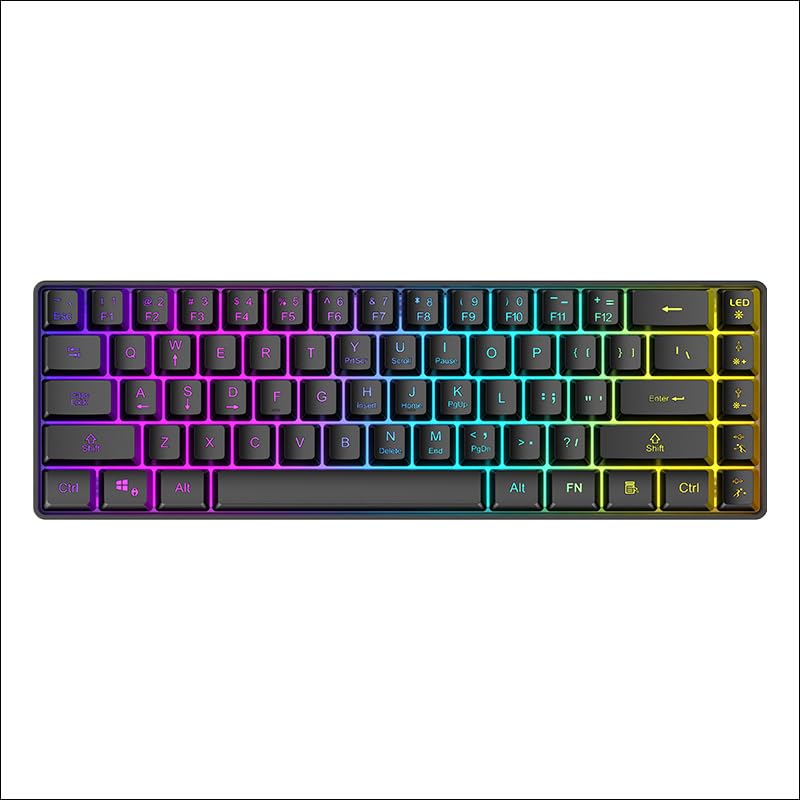
Малюнак 1: Зверху ўніз view of the XunFox K90 RGB Gaming Keyboard, showcasing its compact 66-key layout and vibrant RGB backlighting.
Асноўныя характарыстыкі:
- Compact 66-Key Design: A minimalist layout for enhanced typing comfort and portability.
- Adjustable RGB Backlighting: Customizable lighting effects to personalize your setup.
- Трывалая канструкцыя: Crafted with sturdy materials for reliable performance.
- Правадное падключэнне USB: Ensures a stable and lag-free connection.
- Універсальная сумяшчальнасць: Compatible with Windows and other popular operating systems.
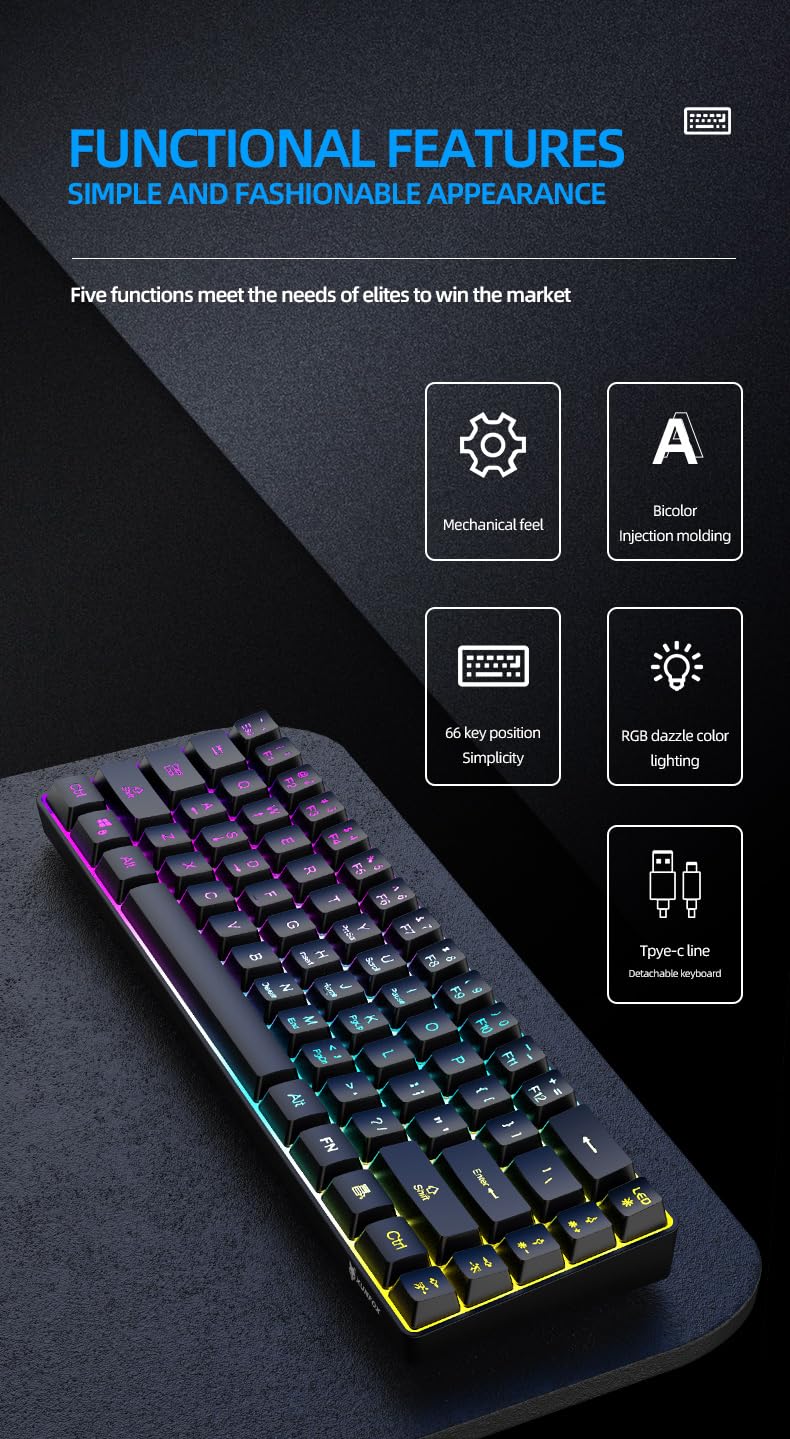
Малюнак 2: Скончанаview of the XunFox K90 keyboard's functional features, including mechanical feel, bicolor injection molding, 66-key simplicity, RGB lighting, and detachable Type-C cable.
2. Інструкцыі па ўсталёўцы
Змест пакета:
- XunFox K90 RGB Gaming Keyboard
- USB Cable (Type-C to USB-A)
Падключэнне клавіятуры:
- Locate the USB Type-C port on the back or side of the XunFox K90 keyboard.
- Connect the Type-C end of the provided USB cable to the keyboard's port.
- Падключыце канец кабеля USB-A да даступнага порта USB на вашым камп'ютары або ноўтбуку.
- The keyboard will automatically be recognized by your operating system (e.g., Windows 10). No additional drivers are typically required.

Малюнак 3: Image showing the detachable Type-C cable connecting to the keyboard, illustrating the wired USB connectivity.
3. Інструкцыя па эксплуатацыі
Асноўная аперацыя:
The XunFox K90 keyboard functions as a standard 66-key input device. Simply plug it into your computer, and it will be ready for use.
Кіраванне падсветкай RGB:
The keyboard features adjustable RGB backlighting with multiple effects. Use the FN (Function) key in combination with specific keys to control the lighting.
- FN + LED Key (usually next to F12): Cycles through various lighting modes, including endless stream, colorful horse running, circular breathing, solid comet tailing, monochrome, multicolor diffusion, and backlight color impact diffusion.
- FN + ↑ (стрэлка ўверх): Павялічвае яркасць падсветкі.
- FN + ↓ (стрэлка ўніз): Змяншае яркасць падсветкі.
- FN + → (стрэлка ўправа): Increases the speed of the lighting effect.
- FN + ← (стрэлка ўлева): Decreases the speed of the lighting effect.

Малюнак 4: Diagram illustrating the key combinations for controlling RGB lighting modes, intensity, and speed on the XunFox K90 keyboard.
4. Тэхнічнае абслугоўванне
Чыстка клавіятуры:
- Адключыце клавіятуру ад кампутара перад чысткай.
- Выкарыстоўвайце мяккую безворсовую тканіну, злёгку dampпрамыйце вадой або мяккім ачышчальным растворам, каб працерці клавішы і паверхню.
- Пазбягайце распылення вадкасцей непасрэдна на клавіятуру.
- Для выдалення пылу і смецця паміж клавішамі выкарыстоўвайце сціснутае паветра.
- Не выкарыстоўвайце агрэсіўныя хімікаты або абразіўныя матэрыялы, бо яны могуць пашкодзіць пакрыццё.
захоўванне:
- Захоўвайце клавіятуру ў прахалодным, сухім месцы, удалечыні ад прамых сонечных прамянёў і экстрэмальных тэмператур.
- If storing for an extended period, consider using the original packaging or a protective cover to prevent dust accumulation.
5. Выпраўленне непаладак
Клавіятура не адказвае:
- Праверце падключэнне USB: Пераканайцеся, што кабель USB надзейна падключаны як да клавіятуры, так і да кампутара. Паспрабуйце іншы порт USB.
- Перазагрузіце кампутар: Часам просты перазапуск сістэмы можа вырашыць праблемы з падключэннем.
- Тэст на іншым кампутары: If possible, test the keyboard on a different computer to determine if the issue is with the keyboard or the original computer's setup.
RGB Lights Not Working or Incorrect:
- Check FN Key Combinations: Refer to the "RGB Backlight Control" section (Section 3) to ensure you are using the correct key combinations to adjust lighting modes, brightness, and speed.
- Падключыце клавіятуру зноў: Адключыце і падключыце USB-кабель.
6. Тэхнічныя характарыстыкі
| Асаблівасць | Дэталь |
|---|---|
| Марка | XunFox |
| Назва мадэлі | К90 |
| Тып клавіятуры | Механічная гульнявая клавіятура |
| Раскладка клавіш | 66-клавішная кампактная |
| Сувязь | Wired USB (Type-C detachable cable) |
| Падсвятленне | RGB with adjustable breathing lamp эфекты |
| Асаблівасці | Backlit, Ergonomic design |
| Сумяшчальныя аперацыйныя сістэмы | Windows 10 and other popular operating systems |
| Сумяшчальныя прылады | Ноўтбук, ПК |
| Памеры прадукту (ДxШxВ) | 38 х 12 х 4 см |
| Вага прадмета | 600 г |
| Колер | Чорны |
7. Інфармацыя аб гарантыі
The XunFox K90 RGB Gaming Keyboard comes with a Гарантыя 2 год з даты пакупкі. Гэтая гарантыя распаўсюджваецца на вытворчыя дэфекты і праблемы, якія ўзніклі ў выніку нармальнага выкарыстання. Яна не распаўсюджваецца на пашкоджанні, выкліканыя няправільным выкарыстаннем, аварыямі, несанкцыянаванымі мадыфікацыямі або няправільным абслугоўваннем.
Калі ласка, захавайце доказы пакупкі для прэтэнзій па гарантыі.
8. Падтрымка
For technical assistance, warranty claims, or any other inquiries regarding your XunFox K90 RGB Gaming Keyboard, please contact customer support:
- Абслугоўванне кліентаў: +91 9906910066
- Імпарцёр/Упакоўшчык: NJ Infotech, India