
XunFox K30 Pro
XunFox K30 Pro Transparent Mechanical Keyboard User Manual
Мадэль: K30 Pro
Brand: XunFox
Уводзіны
Welcome to the XunFox K30 Pro Transparent Mechanical Keyboard user manual. This guide provides detailed instructions for setting up, operating, and maintaining your new keyboard. The K30 Pro features a unique transparent design, 61-key layout, RGB backlighting, and versatile 3-mode connectivity (2.4GHz wireless, Bluetooth 5.1, and wired USB).
Змест пакета
- XunFox K30 Pro Mechanical Keyboard
- Кабель USB-C - USB-A (для праваднога падключэння і зарадкі)
- Бесправадны прыёмнік 2.4 ГГц
- Кіраўніцтва карыстальніка (гэты дакумент)
Прадукт скончаныview
The XunFox K30 Pro keyboard features a compact 61-key layout with transparent keycaps and a translucent bottom shell, showcasing its internal mechanical components.
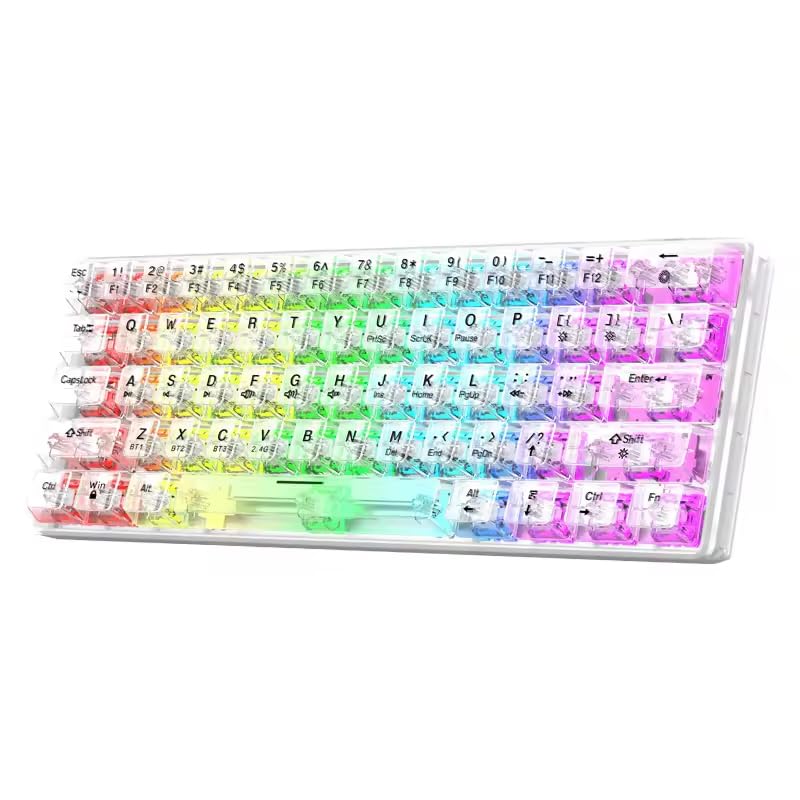
Выява: спераду view of the XunFox K30 Pro Transparent Mechanical Keyboard, showcasing its compact 61-key layout and vibrant RGB backlighting through transparent keycaps.

Image: Diagram highlighting the 61-key minimalist layout of the XunFox K30 Pro keyboard, emphasizing space-saving design compared to traditional 104-key keyboards.

Image: Exploded diagram illustrating the internal layers of the keyboard, including transparent keycaps, customized mechanical shafts, positioning plate, PCB board, and translucent bottom shell.
Асноўныя характарыстыкі:
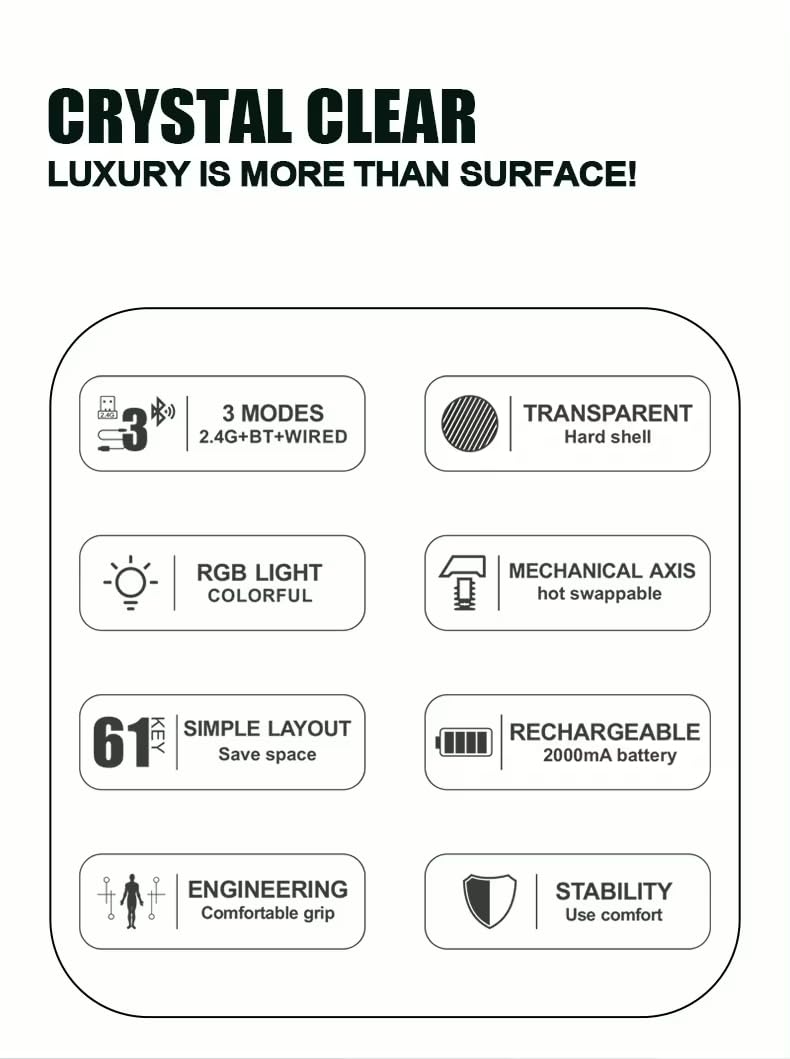
- 61-Key Minimalist Layout: Дызайн, які эканоміць прастору.
- Празрысты дызайн: Crystal clear hard shell and keycaps.
- 3-рэжым падключэння: 2.4GHz Wireless, Bluetooth 5.1, and Wired USB.
- RGB-падсветка: Customizable colorful lighting effects.
- Hot-Swappable Mechanical Axis: Allows for easy switch replacement.
- Акумулятарная батарэя 2000 мАг: For extended wireless use.
- Эрганамічны дызайн: Зручная ручка для працяглага выкарыстання.
Настройка
1. Зарадка акумулятара
Before first use, or when the battery is low, connect the keyboard to a USB power source (e.g., computer USB port, USB wall adapter) using the provided USB-C cable. The charging port is typically located on the back or side of the keyboard.
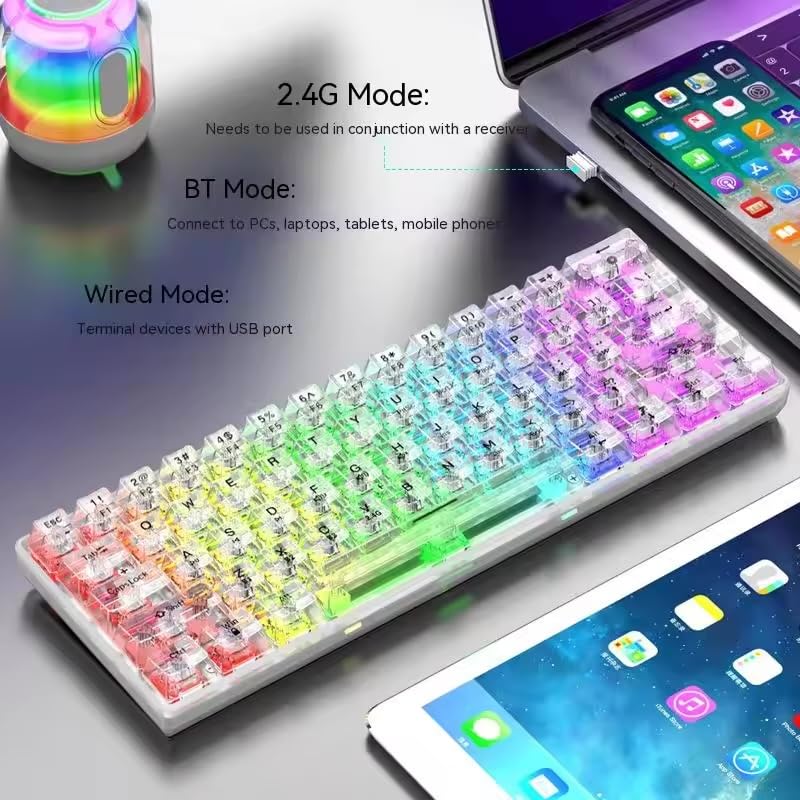
Image: The XunFox K30 Pro keyboard connected via a USB-C cable to a laptop, illustrating the charging process and highlighting the 2000mAh battery capacity.
A full charge provides approximately 2000mAh of battery life.
2. Connecting via 2.4GHz Wireless Mode
- Locate the 2.4GHz wireless receiver, usually stored in a compartment on the keyboard or included separately.
- Падключыце прыёмнік 2.4 ГГц да даступнага USB-порта вашага кампутара.
- Switch the keyboard's connection mode to 2.4GHz. This is typically done using a switch on the keyboard or an FN key combination (e.g., FN + V).
- Клавіятура павінна аўтаматычна падключыцца да вашай прылады.
3. Падключэнне праз рэжым Bluetooth
- Switch the keyboard's connection mode to Bluetooth. This is typically done using a switch on the keyboard or an FN key combination (e.g., FN + Z для БТ1, FN + X для БТ2, FN + C for BT3).
- For first-time pairing, long-press the corresponding FN key combination (e.g., FN + Z for 3 seconds) to enter pairing mode. The keyboard's indicator light will flash.
- On your device (computer, laptop, tablet, phone), open Bluetooth settings and search for new devices.
- Select "XunFox K30 Pro" (or similar name) from the list of available devices to pair.
- Пасля спалучэння індыкатар перастане міргаць.
4. Connecting via Wired USB Mode
- Падключыце адзін канец кабеля USB-C, які ўваходзіць у камплект, да порта USB-C клавіятуры.
- Падключыце другі канец кабеля USB-A да даступнага порта USB на вашым кампутары.
- Switch the keyboard's connection mode to Wired. This is typically done using a switch on the keyboard or an FN key combination.
- The keyboard will be recognized as a standard USB keyboard and is ready for use.

Image: Diagram illustrating the three connection modes: Bluetooth (BT), 2.4GHz Wireless (with receiver), and Wired (USB-C cable). Shows the keyboard connected to various devices.
Інструкцыя па эксплуатацыі
Пераключэнне рэжымаў злучэння
The keyboard supports three connection modes. Use the dedicated switch or FN key combinations to switch between them:
- Бесправадная сувязь 2.4 ГГц: Прэса FN + V (short press to switch, long press for 3 seconds to enter pairing mode). Requires the 2.4GHz receiver.
- Bluetooth 1 (BT1): Прэса FN + Z (short press to switch, long press for 3 seconds to enter pairing mode).
- Bluetooth 2 (BT2): Прэса FN + X (short press to switch, long press for 3 seconds to enter pairing mode).
- Bluetooth 3 (BT3): Прэса FN + C (short press to switch, long press for 3 seconds to enter pairing mode).
- Правадной рэжым: Connect the USB-C cable. The keyboard will automatically switch to wired mode or may require a specific FN key combination (refer to specific product documentation if FN key is needed).
Кіраванне падсветкай RGB
The XunFox K30 Pro features customizable RGB backlighting. Specific FN key combinations are used to control lighting effects, brightness, and speed. Please refer to the quick start guide or product packaging for exact FN key combinations for RGB control, as these can vary.
Special Function Keys (FN Combinations)
The 61-key layout utilizes the FN key to access secondary functions printed on the keycaps.
- FN + [Number Keys]: Access F1-F12 functions.
- FN + [Other Keys]: Access multimedia controls, volume, and other system functions.
A detailed list of FN key combinations can usually be found in the quick start guide or on the product's official support page.
Тэхнічнае абслугоўванне
Уборка
Каб ачысціць клавіятуру:
- Disconnect the keyboard from all power sources and devices.
- Выкарыстоўвайце мяккую безворсовую тканіну, злёгку dampпрамыйце вадой або мяккім ачышчальным растворам, каб праціраць клавішы і корпус.
- Для выдалення пылу і смецця паміж клавішамі выкарыстоўвайце сціснутае паветра.
- Пазбягайце выкарыстання агрэсіўных хімікатаў або абразіўных матэрыялаў.
Пераключальнікі з магчымасцю гарачай замены
The K30 Pro features hot-swappable mechanical switches, allowing you to change switches without soldering. Use a switch puller tool (not included unless specified) to carefully remove and insert compatible 3-pin or 5-pin mechanical switches.
Ліквідацыю непаладак
Клавіятура не адказвае
- Пераканайцеся, што клавіятура зараджана.
- Check the connection mode (2.4GHz, Bluetooth, Wired) and ensure it matches your device's connection.
- For 2.4GHz, ensure the receiver is properly plugged in.
- For Bluetooth, ensure it's paired correctly and within range. Try re-pairing.
- For wired, ensure the USB cable is securely connected to both the keyboard and the computer.
- Паспрабуйце падключыцца да іншага USB-порта або прылады.
Праблемы з падключэннем Bluetooth
- Ensure the keyboard is in Bluetooth pairing mode (indicator light flashing).
- Remove the keyboard from your device's Bluetooth list and try pairing again.
- Пераканайцеся, што на вашай прыладзе ўключаны Bluetooth.
- Reduce distance between keyboard and device.
RGB-лямпы не працуюць
- Пераканайцеся, што клавіятура ўключана і зараджана.
- Check if the backlight has been turned off via an FN key combination.
- Adjust brightness settings using FN key combinations.
Тэхнічныя характарыстыкі
| Асаблівасць | Спецыфікацыя |
|---|---|
| Марка | XunFox |
| мадэль | K30 Pro |
| Тып клавіятуры | Механічны |
| Макет | 61 Ключы |
| Сувязь | 2.4GHz Wireless, Bluetooth 5.1, Wired (USB-C) |
| Ёмістасць батарэі | 2000 мАг |
| Падсвятленне | RGB |
| Асаблівасці | Backlit, Ergonomic, Rechargeable, Hot-swappable mechanical axis |
| Памеры прадукту | 40 х 8 х 4 см |
| Вага прадмета | 900 г |
| Сумяшчальныя прылады | Laptop, PC, Tablet, Phone |
Выява: зверху ўніз view of the XunFox K30 Pro keyboard with key dimensions (292mm length, 102mm width, 40mm height) indicated.
Гарантыя і падтрымка
This XunFox K30 Pro keyboard comes with a 2 год гарантыі.
For technical support, warranty claims, or further assistance, please contact:
- Абслугоўванне кліентаў: +91 9906910066
- Імпарцёр/Упакоўшчык: NJ Infotech
Калі ласка, захавайце пацвярджэнне пакупкі для гарантыйных мэт.
Ask a question about this manual
Ask about setup, troubleshooting, compatibility, parts, safety, or missing instructions. Manuals+ will review the question and use this page’s manual context to help answer it.