
1. Уводзіны
This manual provides essential information for the proper setup, operation, and maintenance of your FUNYET 2-in-1 Laptop Tablet. Please read this manual thoroughly before using the device to ensure optimal performance and longevity. Keep this manual for future reference.
2. Прадукт скончыўсяview
2.1 Змест пакета
- FUNYET 2-in-1 Laptop Tablet
- Здымная клавіятура
- Адаптар пераменнага току
- Кіраўніцтва карыстальніка (гэты дакумент)
2.2 Размяшчэнне прылады і парты
Familiarize yourself with the various ports and buttons on your device.

выява: Збоку view of the FUNYET 2-in-1 Laptop Tablet illustrating the location of the power button, volume control, two Type-C ports, and Micro HDMI port.
- Кнопка харчавання: Press and hold to power on/off or sleep/wake the device.
- Рэгулятар гучнасці: Рэгулюе гучнасць сістэмы.
- Type-C (Full-featured): Supports data transfer, video output, and power delivery.
- Type-C (Charging and Data Transfer): Primarily for charging the device and data transfer.
- Micro HDMI: Падключаецца да знешніх дысплеяў.
2.3 Асноўныя магчымасці
- Працэсар: Intel 12th Gen Celeron N100 (up to 3.4 GHz, 4 cores, 4 threads).
- Памяць: 16 ГБ аператыўнай памяці DDR5 для эфектыўнай шматзадачнасці.
- захоўванне: 512GB SSD for fast boot times and ampле захоўвання.
- Дысплей: 14-inch 1920 x 1200 IPS Touchscreen.
- Падключэнне: Wi-Fi 6 (802.11ax) and Bluetooth 5.2.
- Камеры: 2MP Front Camera and 5MP Rear Camera.
- Клавіятура: Detachable, backlit keyboard.
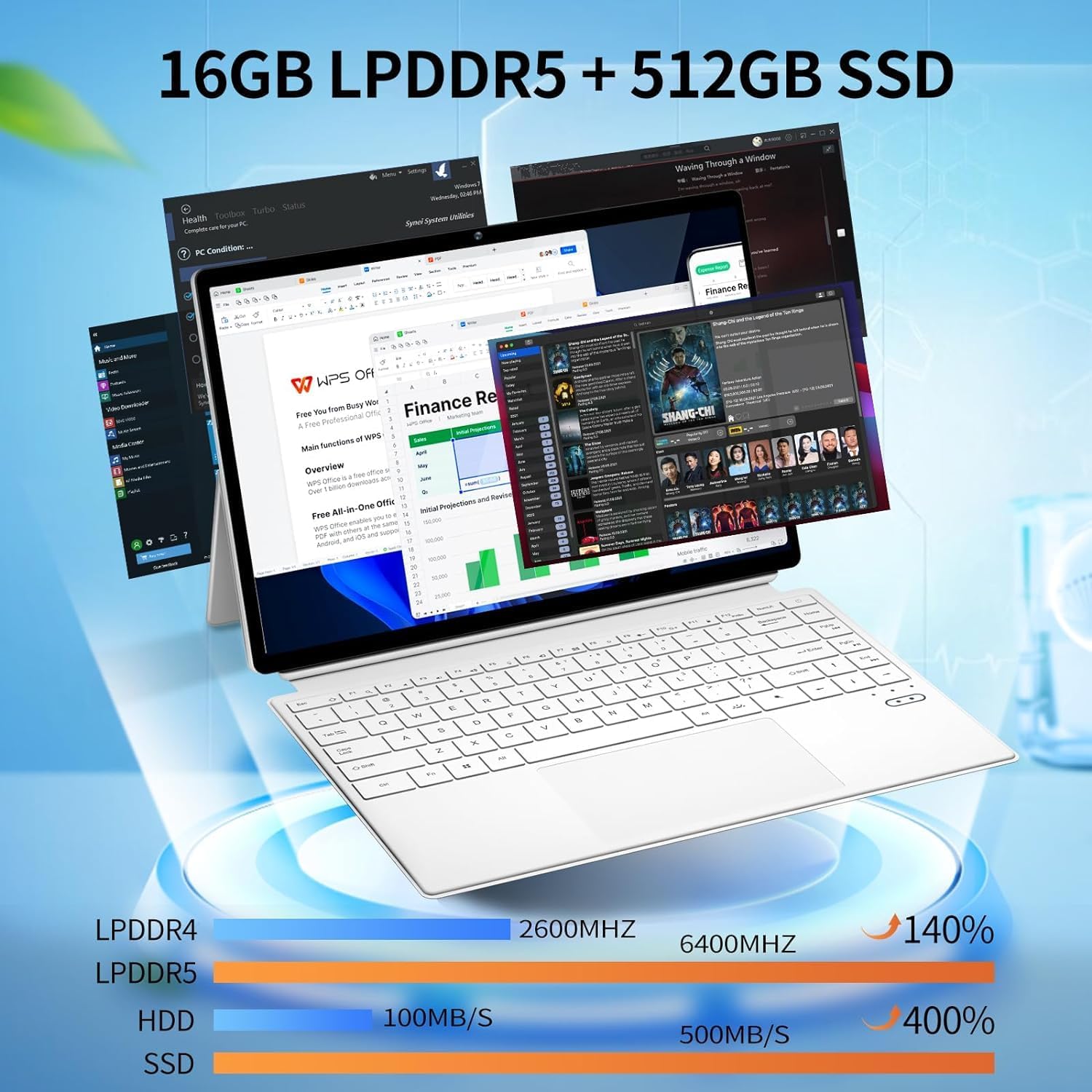
выява: The device displaying multiple open applications, illustrating its multitasking capabilities with 16GB LPDDR5 RAM and 512GB SSD.
3. Настройка
3.1 Першапачатковая зарадка
Before first use, connect the AC power adapter to the device's charging Type-C port and a power outlet. Charge the device until the battery is full. The battery indicator will show charging status.
3.2 Падключэнне і адключэнне клавіятуры
The keyboard connects magnetically to the tablet. Align the magnetic connectors on the tablet and keyboard until they snap into place. To detach, gently pull the tablet away from the keyboard.
3.3 Adjusting the Kickstand
The integrated kickstand allows for various viewing angles. Extend the kickstand from the back of the tablet and adjust it to your desired position. Ensure the kickstand is fully extended and stable to prevent the device from tipping.

выява: Visual guide demonstrating the correct method for deploying the device's kickstand for stable use, alongside examples of incorrect positioning.
3.4 Першая загрузка і ўстаноўка Windows
Press and hold the Power Button until the screen turns on. Follow the on-screen instructions to complete the Windows 11 Pro setup, including language selection, network connection, and user account creation.
4. Інструкцыя па эксплуатацыі
4.1 Уключэнне/выключэнне харчавання і рэжым сну
- Уключэнне: Press and hold the Power Button for a few seconds.
- Выключэнне: From Windows, go to Start > Power > Shut down. Alternatively, press and hold the Power Button, then select 'Shut down' from the options.
- Рэжым сну: Briefly press the Power Button to enter or exit sleep mode.
4.2 Выкарыстанне сэнсарнага экрана
The 14-inch display supports multi-touch gestures. Use your fingers to navigate, tap, swipe, pinch-to-zoom, and interact with applications.
4.3 Выкарыстанне клавіятуры і сэнсарнай панэлі
When the keyboard is attached, it functions as a standard laptop keyboard. The integrated touchpad supports multi-touch gestures for navigation. The keyboard features backlighting for use in low-light conditions.

выява: Буйны план view of the detachable backlit keyboard, showing the key layout and touchpad.
4.4 Падключэнне перыферыйных прылад
- Прылады USB-C: Connect compatible USB-C devices to the Type-C ports for data transfer or external display output (if full-featured).
- Знешні дысплей: Use the Micro HDMI port to connect to an external monitor or TV. An appropriate adapter may be required.
4.5 Бесправадное падключэнне
- Wi-Fi: Access network settings in Windows to connect to available Wi-Fi 6 networks.
- Bluetooth: Pair Bluetooth devices such as headphones, mice, or keyboards through Windows Bluetooth settings.

выява: The device in use, highlighting its wireless capabilities (Wi-Fi 6, Bluetooth 5.2) and integrated cameras (2MP front, 5MP rear).
4.6 Выкарыстанне камеры
The device includes a 2MP front camera and a 5MP rear camera. Use the built-in Camera application in Windows to take photos, record videos, or participate in video calls.
5. Тэхнічнае абслугоўванне
5.1 Ачыстка
Для чысткі экрана і вонкавых паверхняў выкарыстоўвайце мяккую тканіну без ворса. Для выдалення ўстойлівых плям...ampen the cloth slightly with water or a screen-safe cleaner. Avoid harsh chemicals or abrasive materials.
5.2 Сыход за акумулятарам
Каб падоўжыць тэрмін службы батарэі:
- Пазбягайце экстрэмальных тэмператур.
- Не варта часта цалкам разраджаць акумулятар.
- If storing the device for an extended period, charge it to about 50-70%.

выява: An illustration of the 38Wh battery capacity and estimated usage times: 10 hours for daily use, 6-8 hours for video playback (Wi-Fi off), and 4 hours for video playback (Wi-Fi on).
5.3 Абнаўленне праграмнага забеспячэння
Regularly check for and install Windows updates to ensure system stability, security, and access to the latest features. Go to Start > Settings > Windows Update.
5.4 Кіраванне сховішчам
Перыядычна пераview and manage your storage space. Delete unnecessary fileвыдаліце невыкарыстоўваныя праграмы і падумайце аб выкарыстанні воблачнага сховішча для вялікіх files для падтрымання аптымальнай прадукцыйнасці.
6. Выпраўленне непаладак
- Прылада не ўключаецца: Ensure the device is charged. Connect the AC adapter and try again. If unresponsive, press and hold the power button for 15-20 seconds to perform a hard reset.
- Клавіятура не рэагуе: Ensure the keyboard is securely attached. Check if the keyboard's power is on (if it has a separate power switch or indicator). Re-attach the keyboard.
- Праблемы з падключэннем да Wi-Fi: Check if Wi-Fi is enabled in Windows settings. Restart your router and the device. Ensure you are within range of a Wi-Fi network.
- Павольная прадукцыйнасць: Close unnecessary applications. Check for background processes consuming resources. Ensure sufficient free storage space. Run a system scan for malware.
- Screen not rotating: Ensure auto-rotation is enabled in Windows settings (Action Center).
7. Тэхнічныя характарыстыкі
| Асаблівасць | Спецыфікацыя |
|---|---|
| Назва мадэлі | FUNYET-2-IN-1-LAPTOP-TABLET-1 |
| Працэсар | Intel Celeron N100 (12th Gen) |
| АЗП | 16 ГБ DDR5 |
| Захоўванне | 512 ГБ SSD |
| Памер экрана | 14 цалі |
| Дазвол экрана | 1920 х 1200 пікселяў |
| Аперацыйная сістэма | Windows 11 Pro |
| Бесправадны тып | 802.11ax (Wi-Fi 6) |
| Bluetooth | Bluetooth 5.2 |
| Пярэдняя камера | 2 МП |
| Задняя камера | 5 МП |
| Вага прадмета | 5.37 фунта |
| Памеры прадукту | 12.5 х 8.4 х 0.4 цалі |
| Колер | Белы |
8. Гарантыя і падтрымка
FUNYET offers a 30-дзённы бясплатны абмен і а 1 год бясплатнага рамонту service for all its products. For any questions or assistance regarding your FUNYET 2-in-1 Laptop Tablet, please contact FUNYET support. We aim to respond within 24 hours.
For support, please visit the official FUNYET store or contact customer service through your purchase platform.