
SUAAT S10
SUAAT S10 10-inch Android 14 Tablet User Manual
Мадэль: S10
1. Уводзіны
This manual provides comprehensive instructions for the setup, operation, maintenance, and troubleshooting of your SUAAT S10 Android 14 Tablet. Please read this manual carefully before using your device to ensure proper functionality and to maximize your user experience.
2. Змесціва ўпакоўкі
Verify that all items listed below are included in your package. If any items are missing or damaged, please contact SUAAT customer support.
- Планшэт SUAAT S10
- Корпус планшэта
- Bluetooth клавіятура
- Мышка
- Адаптар Type-C да USB
- Кабель для перадачы дадзеных тыпу C
- European Standard Charger
- Адаптар OTG
- Пратэктар экрана
- Інструкцыя па эксплуатацыі (гэты дакумент)

Малюнак 2.1: Камплект пастаўкі
3. Прадукт скончыўсяview
The SUAAT S10 tablet features a 10.1-inch IPS display, an Octa-Core processor, and runs on Android 14. It is designed for versatile use, from entertainment to productivity.
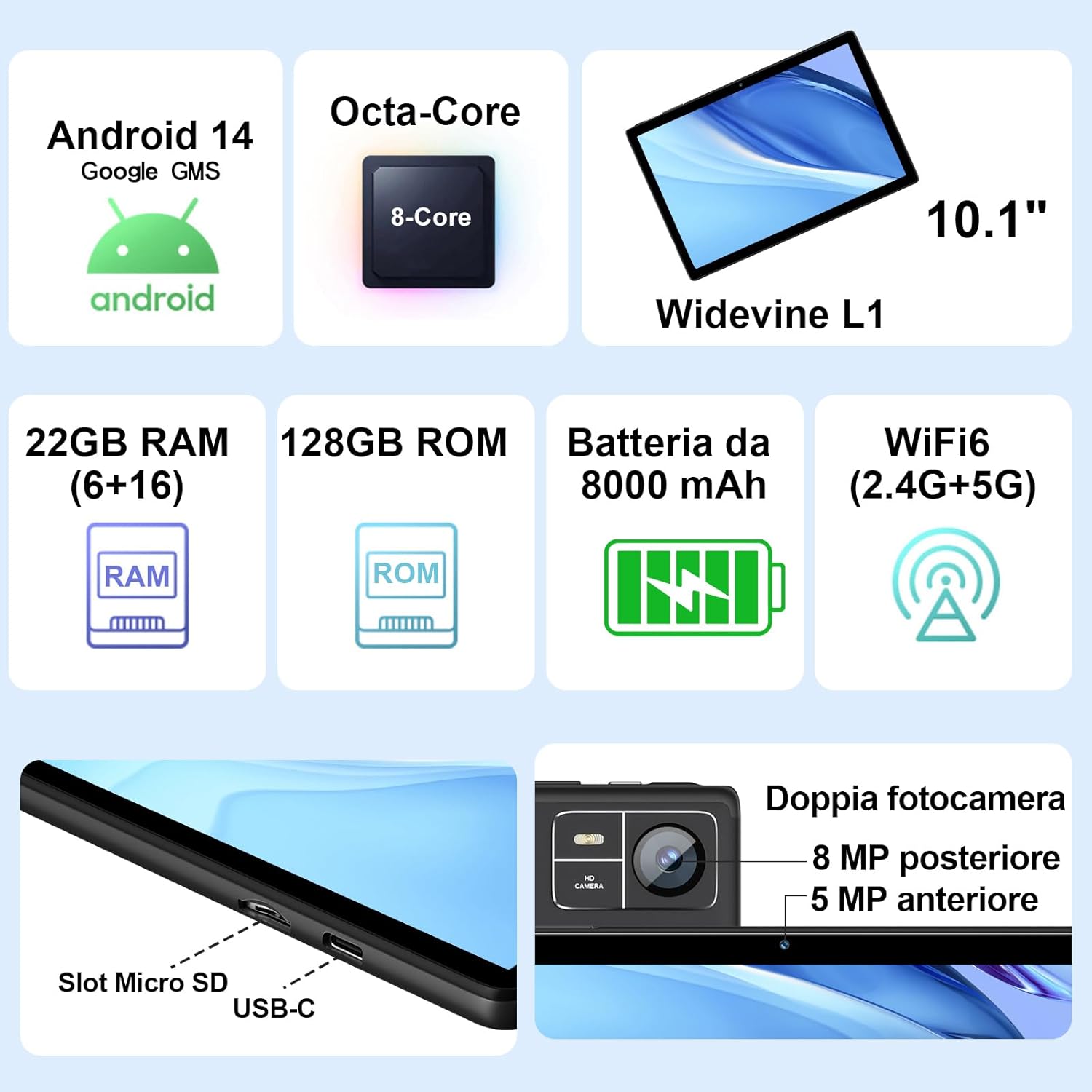
Figure 3.1: Key Features and Ports
3.1 Фізічныя асаблівасці
- Дысплей: 10.1-inch IPS screen (1280 x 800 resolution)
- Камеры: 5 MP Front Camera, 8 MP Rear Camera
- парты: USB Type-C, MicroSD Card Slot
- кнопкі: Power Button, Volume Up/Down
4. Настройка
4.1 Першапачатковая зарадка
Before first use, fully charge your tablet using the provided Type-C data cable and European standard charger. The battery indicator on the screen will show charging status.
4.2 Уключэнне/выключэнне сілкавання
- Каб уключыць: Press and hold the Power button until the SUAAT logo appears.
- Каб выключыць: Націсніце і ўтрымлівайце кнопку харчавання, пакуль не з'явяцца параметры харчавання, затым абярыце «Выключыць харчаванне».
- Каб перазапусціць: Націсніце і ўтрымлівайце кнопку харчавання, пакуль не з'явяцца параметры харчавання, затым абярыце «Перазагрузка».
4.3 Майстар пачатковай налады
Пры першым уключэнні планшэт правядзе вас праз працэс пачатковай налады:
- Выберыце жаданую мову.
- Падключыцеся да сеткі Wi-Fi.
- Sign in with your Google account or create a new one. This is necessary to access the Google Play Store and other Google services.
- Наладзьце блакаванне экрана (PIN-код, узор або пароль).
- Review і прыміце ўмовы карыстання паслугамі Google.
4.4 Устаўка карты MicroSD
The tablet supports MicroSD cards up to 1TB for expanded storage.
- Знайдзіце слот для карты MicroSD на бакавой панэлі планшэта.
- Gently insert the MicroSD card into the slot until it clicks into place. Ensure the card is oriented correctly.
- Каб выняць, акуратна націсніце на карту, пакуль яна не выскочыць.
4.5 Connecting Accessories (Keyboard and Mouse)
The included Bluetooth keyboard and mouse can be easily paired with your tablet.
- Перайсці да Налады > Падключаныя прылады > Bluetooth на планшэце.
- Turn on the Bluetooth keyboard and mouse. Put them into pairing mode (refer to their individual manuals if needed).
- On the tablet, tap "Pair new device" and select the keyboard or mouse from the list of available devices.
- Выконвайце любыя падказкі на экране, каб завяршыць працэс спалучэння.

Figure 4.1: Tablet with Keyboard and Mouse
5. Кіраванне планшэтам
5.1 Функцыі Android 14
Your SUAAT S10 tablet runs on the latest Android 14 operating system, offering enhanced privacy, customizable themes, and improved performance.
- Сертыфікаваны GMS: Pre-installed Google Play Store allows easy download of your favorite apps.
- Канфідэнцыяльнасць і бяспека: Enhanced privacy controls to manage app permissions and data access.
- Настройка: Personalize themes and app icons.
- Асаблівасці прадукцыйнасці: Supports multi-users, multi-windows, and split-screen functionality for efficient multitasking.
- Бацькоўскі кантроль: Tools to manage content and screen time for children.
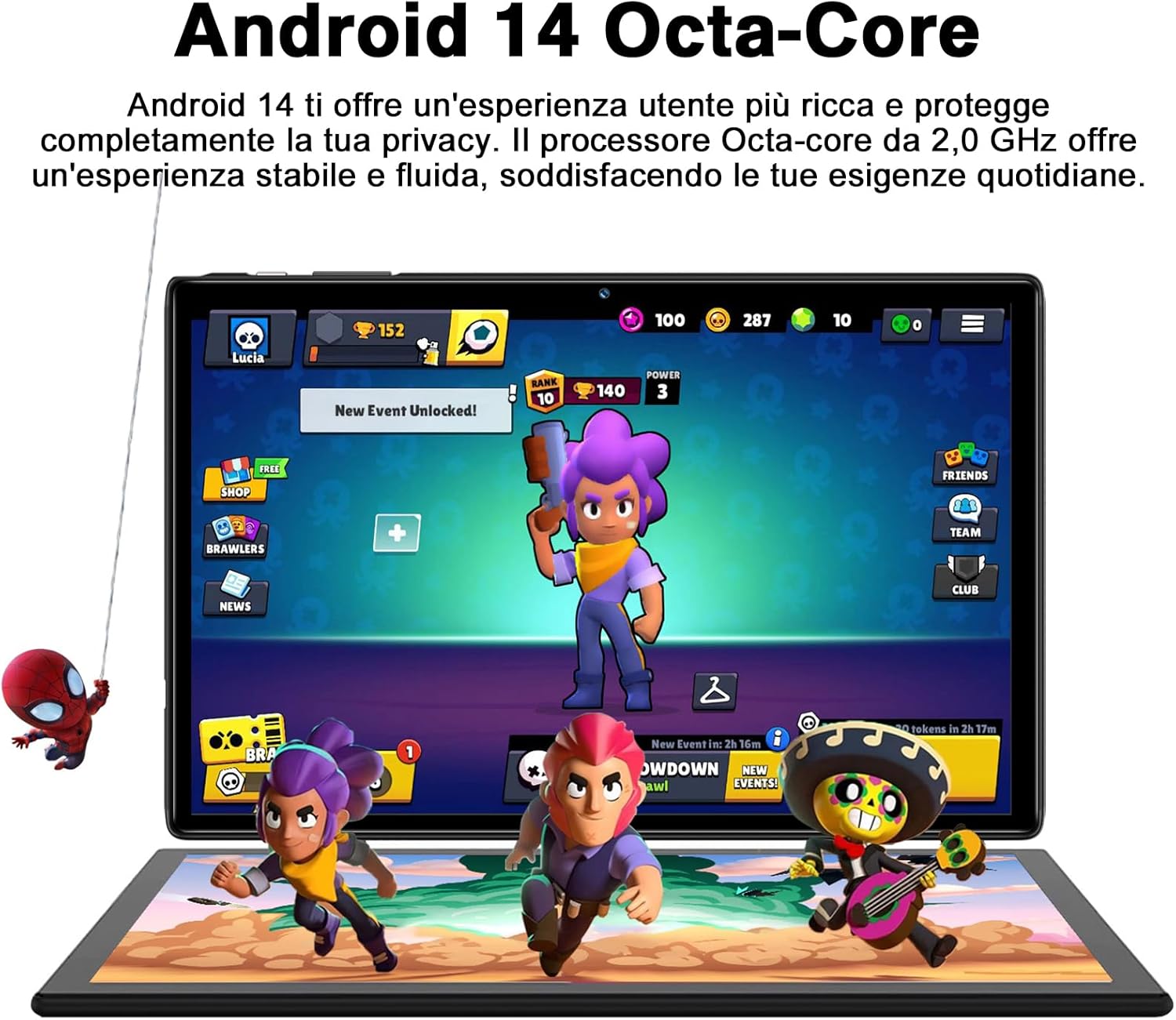
Figure 5.1: Android 14 Interface with Gaming Example
5.2 Функцыі дысплея
The 10.1-inch IPS display provides clear visuals and rich colors.
- Тэхналогія IPS: Прапановы шырокія viewракурсы і дакладную колераперадачу.
- WideVine L1 Support: Enables high-definition video streaming (up to 1280p) from platforms like YouTube and Netflix.

Figure 5.2: Displaying Apps on the IPS Screen
5.3 Выкарыстанне камеры
The tablet is equipped with a 5 MP front camera and an 8 MP rear camera for photos and video calls.
- Адкрыйце праграму «Камера» на галоўным экране або ў панэлі праграм.
- Пераключайцеся паміж пярэдняй і задняй камерамі з дапамогай значка камеры.
- Націсніце кнопку спуску засаўкі, каб зрабіць фотаздымак або пачаць/спыніць відэазапіс.
- Explore various camera modes and editing options within the app.
5.4 Падключэнне
- Wi-Fi: Supports 2.4GHz and 5GHz Wi-Fi for fast and stable internet connection. Access Wi-Fi settings via Налады > Сетка і інтэрнэт > Інтэрнэт.
- Bluetooth 5.0: Connect to Bluetooth headphones, speakers, printers, and other devices. Manage connections via Налады > Падключаныя прылады > Bluetooth.
- OTG (У дарозе): Use the included OTG adapter to connect USB flash drives, external hard drives, or other USB peripherals.
- GPS: Інтэграваны GPS для навігацыі і паслуг на аснове месцазнаходжання.
- FM-радыё: Built-in FM receiver for listening to radio broadcasts.
5.5 Функцыі даступнасці
The tablet includes features to assist users with different needs:
- Выберыце для размовы: Калі ўключана (Налады > Даступнасць > Выберыце, каб гаварыць), you can tap text on the screen, and the tablet will read it aloud.
- TalkBack: Provides spoken feedback for all actions and screen elements, allowing navigation without visual input. Supports Braille displays via Bluetooth. Enable via Налады > Даступнасць > TalkBack.
5.6 File Трансфер
Вы можаце лёгка перадаць files between your tablet and other devices like computers or mobile phones.
- Праз USB: Connect the tablet to a computer using the Type-C data cable. On the tablet, select "File transfer" from the USB connection options in the notification panel.
- Праз Bluetooth: Pair with another Bluetooth-enabled device and use the file sharing option.
6. Тэхнічнае абслугоўванне
6.1 Ачыстка
Для чысткі планшэта выкарыстоўвайце мяккую тканіну без ворса. Для выдалення ўстойлівых плям злёгкуampПрацярыце тканіну вадой або сродкам для чысткі экранаў. Пазбягайце выкарыстання агрэсіўных хімічных рэчываў або абразіўных матэрыялаў.
6.2 Сыход за акумулятарам
The 8000mAh battery provides extended usage. To prolong battery life:
- Пазбягайце экстрэмальных тэмператур.
- Не дапускайце частай поўнай разрадкі акумулятара.
- Выкарыстоўвайце арыгінальную зарадную прыладу і кабель.
- Зачыніце праграмы, якія не выкарыстоўваюцца ў фонавым рэжыме.
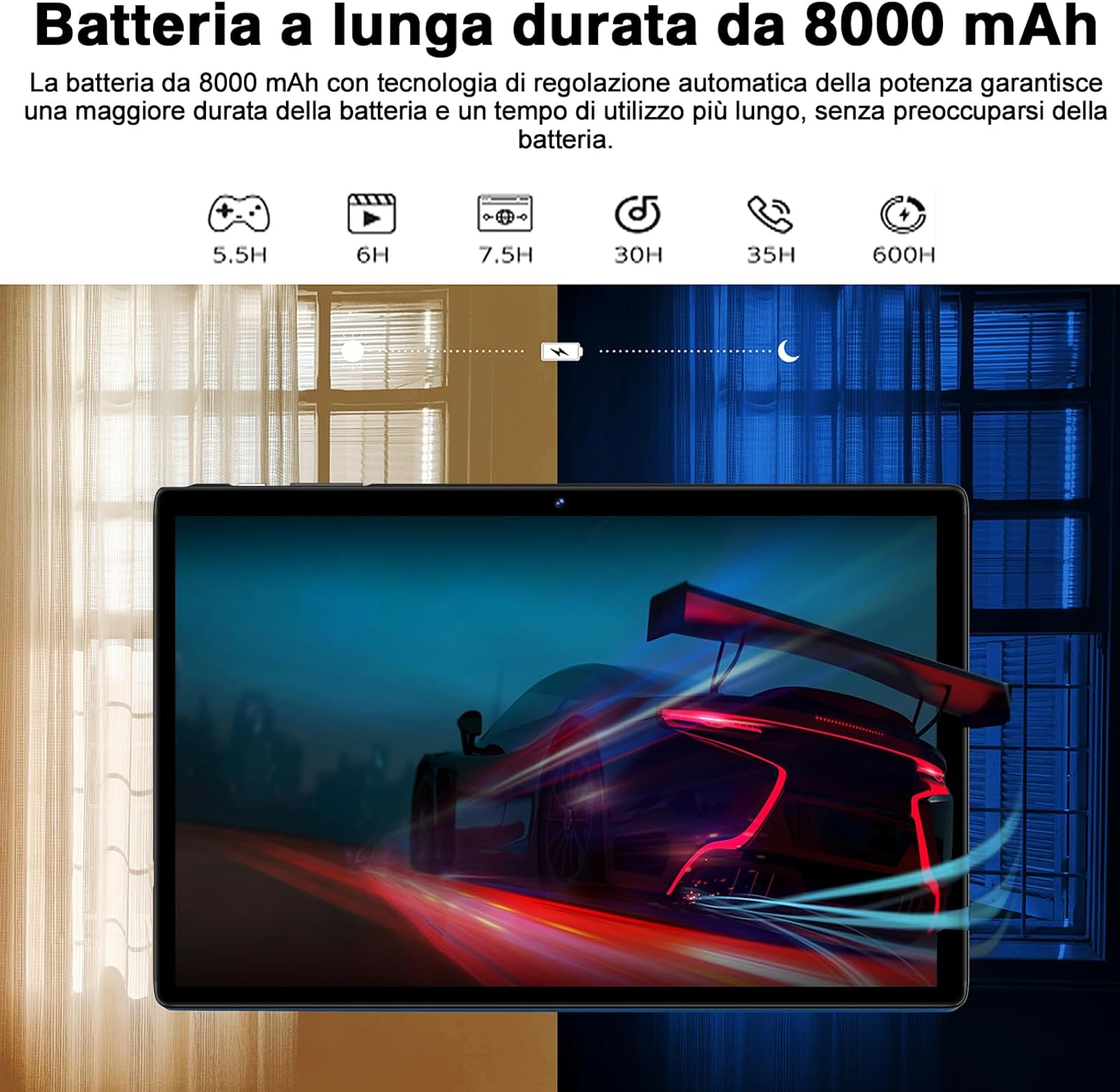
Figure 6.1: 8000mAh Battery Life Overview
6.3 Абнаўленне праграмнага забеспячэння
Рэгулярна правярайце наяўнасць абнаўленняў сістэмы, каб забяспечыць аптымальную прадукцыйнасць і бяспеку. Перайдзіце па спасылцы Налады > сістэма > Абнаўленне сістэмы.
7. Выпраўленне непаладак
| праблема | Магчымая прычына / рашэнне |
|---|---|
| Планшэт не ўключаецца. | Battery might be depleted. Connect the charger and try again after a few minutes. If it still doesn't turn on, press and hold the power button for 10-15 seconds to force a restart. |
| Праблемы з падключэннем да Wi-Fi. | Ensure Wi-Fi is enabled. Restart your router and the tablet. Forget the network and reconnect. Check if other devices can connect to the same Wi-Fi. |
| Праграмы завісаюць або выходзяць з ладу. | Close background apps. Clear the app's cache (Settings > Apps > [App Name] > Storage & cache > Clear cache). Update the app to the latest version. Restart the tablet. |
| Павольная прадукцыйнасць. | Зачыніце невыкарыстоўваныя праграмы. Ачысціце кэш і часовыя files. Uninstall unnecessary apps. Ensure sufficient storage space. Restart the tablet regularly. |
| Прылада Bluetooth не спалучаецца. | Ensure Bluetooth is enabled on both devices. Put the accessory in pairing mode. Make sure devices are within range. Restart both devices. |
8. Тэхнічныя характарыстыкі
| Асаблівасць | Дэталь |
|---|---|
| Марка | СУААТ |
| мадэль | S10 |
| Аперацыйная сістэма | Android 14 |
| Працэсар | Octa-Core, 2.0 GHz (Unisoc) |
| АЗП | 22 GB (6GB physical + 16GB expansion) |
| Унутраная памяць (ROM) | 128 ГБ |
| Сховішча з магчымасцю пашырэння | Да 1 ТБ праз карту MicroSD |
| Ёмістасць батарэі | 8000 мАг |
| Тып дысплея | IPS |
| Памер экрана | 10.1 цаляў |
| Дазвол дысплея | 1280 х 800 пікселяў |
| Пярэдняя камера | 5 МП |
| Задняя камера | 8 МП |
| Wi-Fi | 2.4 GHz + 5 GHz (802.11ax) |
| Bluetooth | Bluetooth 5.0 |
| Інтэрфейсы | Type-C, MicroSD Card Slot |
| Асаблівасці | GMS Certified, WideVine L1, OTG, FM Receiver, GPS |
| Памеры (Д х Ш х У) | 24.31 х 0.99 х 16.1 см |
| Вага | 480 грамаў |
9. Гарантыя і падтрымка
9.1 Інфармацыя аб гарантыі
SUAAT offers a 2-year European standard warranty for each tablet PC. This warranty covers manufacturing defects and ensures your product functions as intended under normal use.
9.2 Падтрымка кліентаў
SUAAT has over 15 years of experience in tablet manufacturing and sales, backed by a professional technical support and assistance team. We are committed to providing excellent pre-sales advice and after-sales service, including product technical support.
If you require any assistance or have questions, please do not hesitate to contact us. We aim to respond within 24 hours and provide satisfactory service.
For support, please refer to the contact information provided on the product packaging or SUAAT's official webсайт.
10. Важная інфармацыя па бяспецы
- Не падвяргайце планшэт уздзеянню экстрэмальных тэмператур, прамых сонечных прамянёў або высокай вільготнасці.
- Пазбягайце падзення планшэта або яго моцных удараў.
- Do not attempt to disassemble or repair the tablet yourself. This will void the warranty.
- Use only original or certified compatible chargers and accessories.
- Трымайце таблетку далей ад вады і іншых вадкасцей.
- Утылізуйце планшэт і яго акумулятар адказна ў адпаведнасці з мясцовымі правіламі.