
1. Уводзіны
This manual provides comprehensive instructions for the MUNBYN ITPP130B Bluetooth Thermal Label Printer. It covers setup, operation, maintenance, and troubleshooting to ensure you get the most out of your device. This printer is designed for efficient and high-quality label printing in various environments, including home and office settings.

Image 1.1: The MUNBYN ITPP130B Bluetooth Thermal Label Printer with a printed label and a smartphone showing the companion app.
2. Інфармацыя па бяспецы
Please read and follow these safety guidelines to prevent damage to the printer or injury to yourself:
- Не падвяргайце прынтар уздзеянню вады або празмернай вільгаці.
- Пазбягайце размяшчэння прынтара пад прамымі сонечнымі прамянямі або побач з крыніцамі цяпла.
- Выкарыстоўвайце толькі адаптар сілкавання і кабелі, якія ўваходзяць у камплект.
- Трымайце прынтар далей ад дзяцей і хатніх жывёл.
- Do not attempt to disassemble or repair the printer yourself. Contact support if issues arise.
- Забяспечце належную вентыляцыю вакол прынтара падчас працы.
3. Змесціва ўпакоўкі
Праверце наяўнасць усіх прадметаў у камплекце:
- MUNBYN ITPP130B Label Printer Unit
- Адаптар сілкавання
- Сілавы кабель
- Кабель USB
- Тэставыя этыкеткі
- Кіраўніцтва карыстальніка (гэты дакумент)
4. Настройка
4.1 Physical Setup and Label Loading
- Размясціце прынтар на ўстойлівай, роўнай паверхні.
- Connect the power adapter to the printer and then to a power outlet.
- Адкрыйце крышку прынтара.
- Insert the thermal labels into the printer, ensuring the print side is facing up. Adjust the paper guides to fit the label width snugly.
- Close the printer cover. The printer will automatically calibrate the label size.

Image 4.1: Illustration of loading labels into the printer and adjusting the paper guides.
4.2 Варыянты падключэння
The MUNBYN ITPP130B offers both Bluetooth and USB connectivity.

Выява 4.2: Канецview of Bluetooth connectivity for smartphones/tablets and USB connectivity for PCs (Windows, macOS, ChromeOS, Linux).
4.2.1 Bluetooth Connection (iOS, Android, Windows)
- Пераканайцеся, што прынтэр уключаны.
- Download the "MUNBYN Print" app from your device's app store (App Store for iOS, Google Play Store for Android).
- Enable Bluetooth on your mobile device or Windows PC.
- Open the "MUNBYN Print" app and search for available devices.
- Select "P130B" from the list to pair.
4.2.2 USB Connection (Windows, macOS, ChromeOS, Linux)
- Падключыце прынтар да кампутара з дапамогай кабеля USB, які ўваходзіць у камплект.
- For Windows and macOS, install the necessary drivers. Drivers can typically be found on the included USB drive or downloaded from the official MUNBYN webсайт.
- Выконвайце інструкцыі на экране, каб завяршыць устаноўку драйвера.
- Заўвага: Mac and desktop PCs primarily support USB connection. Windows PCs can use both USB and Bluetooth.
5. Інструкцыя па эксплуатацыі
5.1 General Printing via MUNBYN Print App
The "MUNBYN Print" app allows for quick and easy label printing from your mobile device.
- Ensure your printer is connected via Bluetooth to your mobile device.
- Адкрыйце праграму «MUNBYN Print».
- Выберыце file you wish to print (e.g., image, PDF, TXT). The app supports various file тыпаў.
- Adjust print settings such as label size, orientation, and density within the app.
- Tap the print button to send the job to the printer.
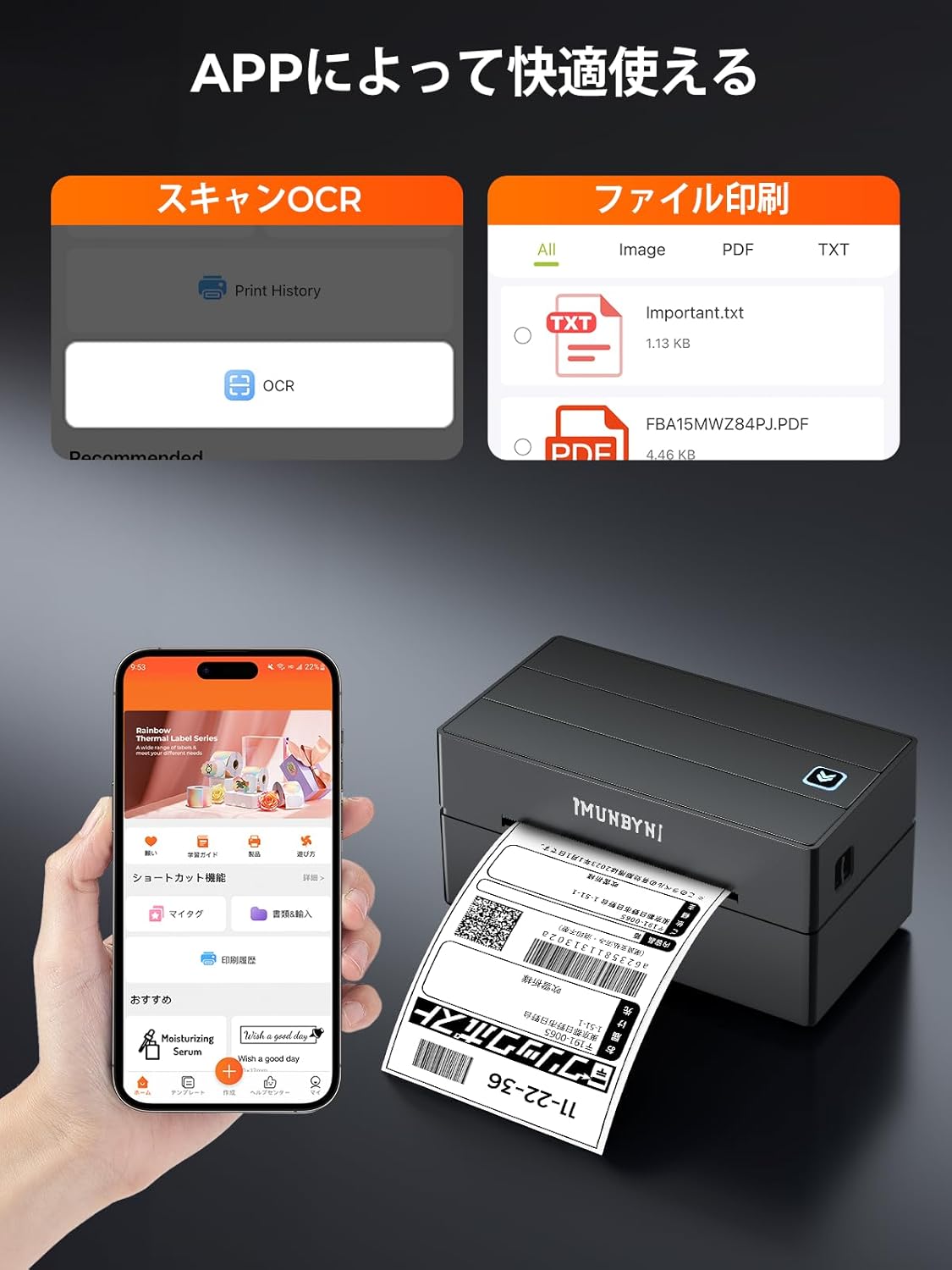
Image 5.1: Screenshot of the MUNBYN Print app showing options for scanning and file друк.
5.2 Printing Japan Post (Click Post) Labels
Click Post generates A4 size PDF files. To print these on A6 labels, a conversion is necessary. You can use third-party plugins for this purpose:
- Paid Plugin: "Click Post Batch Registration/Payment/Printing v3"
- Free Plugin: "Click Post Extension Function by GoQSystem (Click Post Batch Payment & Import)"
Адмова ад адказнасці: Гэтыя plugins are not products of MUNBYN. We provide this information for guidance only and are not responsible for their use or functionality. Please refer to the plugin provider's documentation for detailed instructions.

Image 5.2: Comparison showing a standard label (left) and a MUNBYN-optimized label (right) for clarity and proper formatting.
5.3 Printing from PC (Windows/macOS)
After installing the drivers and connecting via USB (or Bluetooth for Windows), you can print from any application that supports printing.
- Open the document or label design you wish to print.
- Перайсці да File > Друк.
- Select the MUNBYN ITPP130B printer from the list of available printers.
- Access printer preferences or properties to adjust settings such as label size (e.g., 4x6 inch), orientation, and print quality. Ensure these settings match your loaded labels.
- Націсніце Друк.

Image 5.3: The printer supports various label sizes from 40mm to 110mm wide, including common sizes like 4x6 inches, 3x2 inches, and circular labels.
6. Тэхнічнае абслугоўванне
6.1 Ачыстка друкавальнай галоўкі
Рэгулярная чыстка друкавальнай галоўкі забяспечвае аптымальную якасць друку і падаўжае тэрмін службы прынтара.
- Выключыце прынтэр і адключыце шнур сілкавання.
- Адкрыйце крышку прынтара.
- Акуратна працярыце друкавальную галоўку ватовым тампонам, злёгкуampз ізапрапілавым спіртам.
- Дайце друкавальнай галоўцы цалкам высахнуць, перш чым зачыніць вечка і ўключыць прынтар.
6.2 Label Handling
- Use only high-quality thermal labels compatible with your printer.
- Store labels in a cool, dry place away from direct sunlight.
- Avoid touching the thermal printing surface of the labels with bare hands to prevent oil transfer.
7. Выпраўленне непаладак
If you encounter issues with your MUNBYN ITPP130B printer, refer to the following common problems and solutions:
7.1 Прынтар не адказвае
- Ensure the power cable is securely connected and the printer is turned on.
- Check the USB or Bluetooth connection. Reconnect if necessary.
- Restart the printer and your connected device.
7.2 Нізкая якасць друку
- Clean the print head as described in Section 6.1.
- Пераканайцеся, што вы выкарыстоўваеце якасныя тэрмічныя этыкеткі.
- Adjust print density settings in your printer preferences or the MUNBYN Print app.
- Verify that the labels are loaded correctly and the print side is facing the print head.
7.3 Этыкеткі падаюцца няправільна
- Ensure the labels are loaded straight and the paper guides are adjusted to the correct width.
- Праверце наяўнасць перашкод на шляху праходжання этыкеткі.
- Perform a label calibration: With the printer on and cover closed, press and hold the feed button until the printer emits a beep or feeds a few blank labels, then release.
8. Тэхнічныя характарыстыкі
| Асаблівасць | Спецыфікацыя |
|---|---|
| Марка | МАНБІН |
| Нумар мадэлі | ITPP130B |
| Тэхналогія друку | Цеплавы |
| Максімальная хуткасць друку (монахромны) | 180 mm/s (equivalent to 117 pages/minute) |
| Максімальнае разрозненне друку | 203 dpi |
| Максімальны памер носьбіта (паперы) | 108 mm (max width) |
| Падтрымоўваная шырыня этыкеткі | ад 40 мм да 110 мм |
| Сувязь | Bluetooth (iOS, Android, Windows), USB (Windows, macOS, ChromeOS, Linux) |
| Памеры прадукту (Д х Ш х У) | 20.5 х 17.5 х 12 см |
| Вага прадукту | 1.4 кг |
| Колер | Чорны |
| Двухбаковая друк | няма |
9. Гарантыя і падтрымка
MUNBYN products come with a standard warranty. For specific warranty details, please refer to the warranty card included with your product or visit the official MUNBYN website. If you require technical assistance or have questions not covered in this manual, please contact MUNBYN customer support through their official channels.
Для атрымання дадатковай інфармацыі наведайце MUNBYN Brand Store on Amazon.