
1. Уводзіны
The Ulefone Armor PAD 4 Ultra is a rugged 5G tablet PC designed for durability and high performance in challenging environments. It features a 10.36-inch 2K FHD+ display, a powerful MediaTek Dimensity 6300 processor, and a large 11800mAh battery. This manual provides essential information for setting up, operating, maintaining, and troubleshooting your device.

Image: The Ulefone Armor PAD 4 Ultra tablet showcasing its rugged design in an outdoor environment.
Key features include IP68/IP69K and MIL-STD-810H certifications for water, dust, and drop resistance, a 50MP rear camera, a 32MP front camera, and a versatile 1100 lumens LED light. The tablet runs on Android 14 and offers up to 16GB RAM and 256GB internal storage, expandable up to 2TB.
2. Кіраўніцтва па наладцы
2.1 Змест пакета
Перад пачаткам пераканайцеся, што ў камплекце ёсць усе неабходныя рэчы:
- Ulefone Armor PAD 4 Ultra Tablet PC
- Адаптар сілкавання
- USB-кабель C
- Інструмент выцягвання SIM-карты
- Кіраўніцтва карыстальніка (гэты дакумент)
2.2 Inserting SIM/SD Card
- Знайдзіце латок для SIM-карты/SD-карты на бакавой панэлі планшэта.
- Выкарыстайце інструмент для выцягвання SIM-карты, які ўваходзіць у камплект, каб адкрыць латок.
- Carefully place your Nano SIM card(s) and/or SD card into the designated slots. The tablet supports dual Nano SIM cards or one Nano SIM card and one SD card.
- Акуратна ўстаўце латок назад у планшэт, пакуль ён не зашчоўкнецца.

Выява: спераду view of the Ulefone Armor PAD 4 Ultra tablet, showing its display and rugged frame.
2.3 Пачатковая зарадка і ўключэнне
- Connect the USB-C cable to the tablet's charging port and the power adapter.
- Plug the power adapter into a wall outlet. Allow the tablet to charge for at least 30 minutes before initial use, or until the battery indicator shows sufficient charge. The 11800mAh battery supports 33W fast charging.
- Press and hold the Power button (usually located on the side) until the Ulefone logo appears on the screen.
- Выконвайце падказкі на экране, каб завяршыць пачатковую наладу, у тым ліку выбар мовы, падключэнне да Wi-Fi і наладу ўліковага запісу Google.
2.4 Падключэнне да сеткі
The tablet supports 5G LTE dual SIM connectivity. Ensure your SIM card is active and your mobile data plan is configured. For Wi-Fi, navigate to Налады > Сетка і інтэрнэт > Wi-Fi to connect to an available network.
3. Інструкцыя па эксплуатацыі
3.1 Асноўная навігацыя (Android 14)
The Ulefone Armor PAD 4 Ultra runs on Android 14. Navigate using gestures or the traditional three-button navigation bar (Back, Home, Recents). Swipe up from the bottom for the app drawer, swipe down from the top for notifications and quick settings.

Image: The tablet displaying the Android 14 interface, with an HDMI connection to an external display for presentations.
3.2 Выкарыстанне камеры
The tablet is equipped with a 50MP rear camera and a 32MP front camera. Open the Camera app to capture photos and videos. Tap to focus, pinch to zoom, and use the on-screen controls for various modes and settings.

Выява: Падрабязны view of the tablet's rear camera module, highlighting the 50MP sensor and the powerful LED light.
3.3 Versatile LED Light
The tablet features a powerful 1100 lumens LED light. This can be activated via a dedicated custom key or through the exclusive app. It functions as a flashlight, headlight, or portable campсвятло.
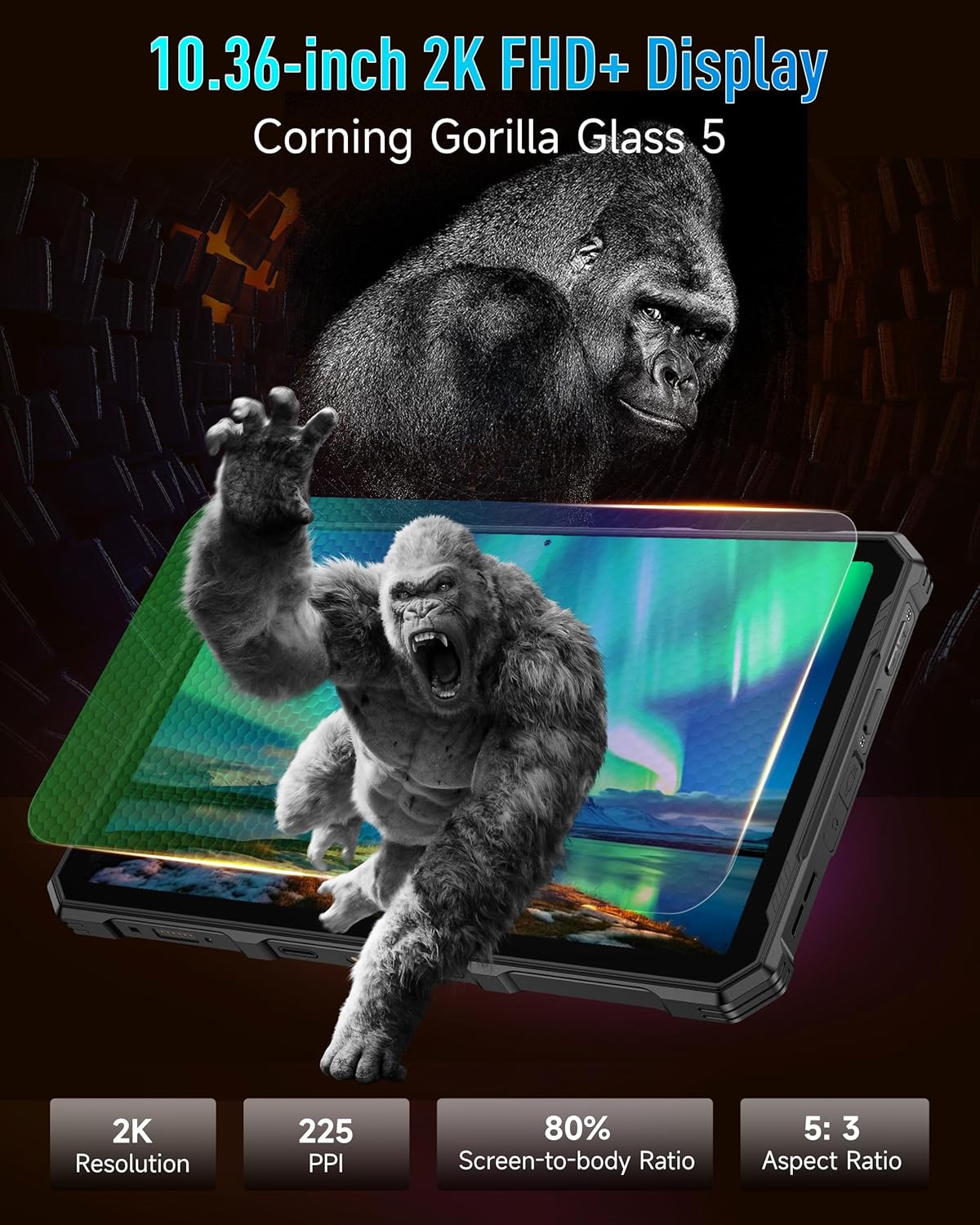
Image: The Ulefone Armor PAD 4 Ultra tablet illuminating a camping tent with its powerful LED light.
3.4 Custom Key Functionality
The tablet includes a customizable physical key. This key can be configured for single click, double click, or long press actions to quickly access specific functions or applications, such as activating the LED light or launching the camera.
3.5 Gloves Mode
For use in cold weather or industrial environments, activate Gloves Mode in Settings > Smart Assistant > Gloves Mode. This enhances touch sensitivity, allowing the screen to respond to gloved hands.
3.6 Face Unlock and Fingerprint ID
Enhance security and convenience by setting up Face Unlock or Fingerprint ID. Go to Налады > Бяспека і прыватнасць > Разблакіроўка прылады to configure these options.
3.7 Multi-use Digital Toolbox
The tablet comes with a suite of pre-installed tools in the Digital Toolbox, including a compass, sound meter, protractor, and more. These tools are designed to assist in various outdoor and professional tasks.

Image: A construction worker utilizing the Ulefone Armor PAD 4 Ultra tablet's digital toolbox for various measurements and utilities.
3.8 Headset-free FM Radio
Enjoy FM radio without needing to connect headphones. Simply open the FM Radio app and tune into your favorite stations.
3.9 Порт HDMI
The tablet features an HDMI port for connecting to external displays, such as monitors or projectors. This allows for screen mirroring or extended display functionality, useful for presentations or media consumption.
4. Тэхнічнае абслугоўванне
4.1 Ачыстка прылады
Due to its rugged design, the Armor PAD 4 Ultra can be cleaned with water and mild soap. Ensure all port covers are securely closed before exposing the device to water. Wipe with a soft, lint-free cloth. Avoid using harsh chemicals or abrasive materials.
4.2 Сыход за акумулятарам
Каб падоўжыць тэрмін службы батарэі:
- Пазбягайце экстрэмальных тэмператур.
- Для аптымальнай зарадкі выкарыстоўвайце арыгінальную зарадную прыладу і кабель.
- Не варта часта цалкам разраджаць акумулятар.
- Калі прылада захоўваецца працяглы час, зарадзіце яе прыкладна да 50% і выключыце.
4.3 Абнаўленне праграмнага забеспячэння
Рэгулярна правярайце наяўнасць абнаўленняў праграмнага забеспячэння і ўсталёўвайце іх, каб забяспечыць аптымальную прадукцыйнасць, бяспеку і доступ да новых функцый. Перайдзіце па спасылцы Налады > Сістэма > Абнаўленне сістэмы.
4.4 Асаблівасці трываласці
The tablet is IP68/IP69K and MIL-STD-810H certified, meaning it is resistant to water, dust, and drops. While designed to be durable, avoid intentionally subjecting it to extreme conditions beyond its specifications. Ensure all port covers are sealed to maintain water and dust resistance.

Image: The Ulefone Armor PAD 4 Ultra tablet submerged in water, covered in dust, and dropped, demonstrating its IP68/IP69K and MIL-STD-810H certifications.
5. Выпраўленне непаладак
5.1 Прылада не ўключаецца
- Ensure the battery is charged. Connect the tablet to its charger and wait a few minutes before attempting to power it on.
- Націсніце і ўтрымлівайце кнопку харчавання не менш за 10-15 секунд, каб выканаць прымусовы перазапуск.
5.2 Праблемы з падключэннем да сеткі
- Wi-Fi: Check if Wi-Fi is enabled in Settings. Restart your router. Forget the network and reconnect.
- Мабільныя дадзеныя: Ensure your SIM card is correctly inserted and activated. Check your data plan status with your carrier. Restart the tablet.
5.3 Экран не рэагуе
- Перазагрузіце прыладу, утрымліваючы кнопку харчавання.
- If the screen is frozen, perform a forced restart.
5.4 Збоі або завісанні праграм
- Clear the cache and data of the problematic app (Налады > Праграмы > [Назва праграмы] > Сховішча і кэш).
- Выдаліце і пераўсталюйце праграму.
- Пераканайцеся, што праграмнае забеспячэнне вашага планшэта абноўлена.
5.5 Скід да заводскіх налад
If issues persist, a factory reset may be necessary. This will erase all data on your tablet, so back up important information first. Go to Налады > Сістэма > Параметры скіду > Сцерці ўсе даныя (скід да заводскіх налад).
6. Тэхнічныя характарыстыкі
| Асаблівасць | Дэталь |
|---|---|
| Марка | Улефон |
| Нумар мадэлі | Ulefone Armor Pad 4 Ultra |
| Памер экрана | 10.36 цалі |
| Роднае дазвол | 2000x1200 pixels (2K FHD+) |
| Суадносіны бакоў | 5:3 |
| Працэсар | MediaTek Dimensity 6300 (2400 MHz) |
| АЗП | Да 16 ГБ (8 ГБ фізічнай + 8 ГБ віртуальнай) |
| Унутраная памяць | 256GB (2TB Expandable) |
| Аперацыйная сістэма | Android 14 |
| Задняя камера | 50 МП |
| Пярэдняя камера | 32 МП |
| Ёмістасць батарэі | 11800 мАг |
| Зарадка | Хуткая зарадка 33 Вт |
| Грубасць | Сертыфікаваны IP68/IP69K, MIL-STD-810H |
| Сувязь | 5G LTE, Wi-Fi (2.4G/5G), Bluetooth 5.2, NFC, GPS |
| Асаблівасці | 1100 Lumens LED Light, Custom Key, Gloves Mode, HDMI Port, Multi-use Digital Toolbox |
| Вага прадмета | 16 унцыі |
7. Гарантыя і падтрымка
7.1 Інфармацыя аб гарантыі
The Ulefone Armor PAD 4 Ultra comes with a 2-гадовая сусветная гарантыя. This warranty covers manufacturing defects and malfunctions under normal use. Please retain your proof of purchase for warranty claims. The warranty does not cover damage caused by misuse, accidents, unauthorized repairs, or normal wear and tear.
7.2 Падтрымка кліентаў
For technical assistance, warranty claims, or any other inquiries, please contact Ulefone customer support. Refer to the official Ulefone webна сайце або ў дакументацыі па куплі, каб атрымаць найбольш актуальную кантактную інфармацыю.
Your satisfaction is a priority. Should you encounter any technical issues, the dedicated support team is available to assist you.