
1. Уводзіны
This manual provides detailed instructions for the setup, operation, maintenance, and troubleshooting of your Omezizy D450BT Bluetooth Shipping Label Printer. Please read this manual thoroughly before using the printer to ensure proper function and longevity of the device. Keep this manual for future reference.
2. Змесціва ўпакоўкі
Праверце наяўнасць усіх прадметаў у камплекце:
- Omezizy D450BT Thermal Label Printer
- Адаптар сілкавання
- Кабель USB
- Кароткае кіраўніцтва
- Sample Thermal Labels (e.g., 500Pcs 2x2 Roll Transparent Thermal Labels)

Image: Contents of the Omezizy D450BT printer package, including the printer, cables, and a roll of labels.
3. Прадукт скончыўсяview
The Omezizy D450BT is a compact thermal label printer designed for efficiency. It features a built-in label compartment and supports both roll and fanfold labels.

Выява: Унутраная view of the D450BT printer showing the label compartment, adjustable baffle, and guide rail for label loading.
Асноўныя характарыстыкі:
- Кампактны дызайн: Space-saving dimensions of approximately 7.2 x 6.3 x 5.3 inches.
- Dual Label Loading: Supports internal roll paper (up to 250 4x6 labels) and external fanfold labels.
- Бесправаднае падключэнне: Bluetooth for Android, iOS, Windows, macOS, Linux, and ChromeOS.
- Правадное падключэнне: USB connection compatible with all major computer systems.
- Высокая раздзяляльнасць: 203 DPI for clear print quality.
- Хуткая друк: Up to 72 labels per minute.
4. Настройка
4.1. Загрузка этыкетак
- Адкрыйце верхнюю крышку прынтара.
- Adjust the movable baffle and guide rail to match the width of your labels.
- For roll labels, place the roll into the internal compartment. Ensure the labels feed smoothly through the output slot.
- For fanfold labels, feed them from the rear input slot.
- Close the top cover. The printer will automatically detect and calibrate the label size.

Image: Illustration demonstrating the process of loading both roll and fanfold thermal labels into the D450BT printer.
4.2. Падключэнне сілкавання
Connect the power adapter to the printer's power port and then plug it into a power outlet. Turn on the printer using the power button.
4.3. Driver Installation (for USB Connection)
For Windows, macOS, Linux, or ChromeOS, connect the printer to your computer using the provided USB cable. Drivers can typically be found on the Omezizy support website or included on a USB drive with the product. Follow the on-screen instructions for installation.
4.4. Bluetooth Pairing (for Wireless Connection)
The D450BT supports Bluetooth connectivity for various operating systems.
- Для мабільных прылад (Android/iOS):
- Пераканайцеся, што Bluetooth уключаны на вашым мабільным прыладзе.
- Download and install the official Omezizy printing application (refer to section 4.5).
- Open the app and follow the in-app instructions to search for and connect to the "D450BT" printer.
- For Computers (Windows/macOS/Linux/ChromeOS):
- Пераканайцеся, што Bluetooth уключаны на вашым кампутары.
- Go to your computer's Bluetooth settings and search for available devices.
- Select "D450BT" from the list and pair the device.
- Install the necessary printer drivers as described in section 4.3.

Image: The D450BT printer demonstrating both Bluetooth and USB connectivity options across various operating systems.
4.5. Mobile Application Installation
For convenient mobile printing, download the official Omezizy app from your device's app store.
Once installed, open the app, connect to your D450BT printer via Bluetooth, and you can import PDFs or other label formats for printing.

Image: Visual guide for using the mobile application to print labels via Bluetooth, including app download links and printing steps.
5. Інструкцыя па эксплуатацыі
5.1. Printing from Computer
- Ensure the printer is connected via USB or Bluetooth and drivers are installed.
- Адкрыйце дакумент або этыкетку file you wish to print (e.g., PDF, shipping label from a platform).
- Go to "Print" (usually File > Print or Ctrl+P/Cmd+P).
- Select "Omezizy D450BT" as your printer.
- Adjust print settings such as paper size (e.g., 4x6 inches), orientation, and print quality as needed.
- Націсніце «Друк».
5.2. Printing from Mobile Application
- Ensure the printer is powered on and connected to your mobile device via Bluetooth through the Omezizy app.
- У дадатку абярыце file or image you want to print.
- Adjust print settings such as label size, number of copies, and print quality.
- Ініцыюйце каманду друку з праграмы.
5.3. Label Calibration
The printer typically calibrates automatically when labels are loaded. If labels are misaligned or printing incorrectly, perform a manual calibration:
- Ensure labels are properly loaded.
- Выключыце прынтэр.
- Press and hold the feed button while turning on the printer. Release the button when the printer starts feeding labels. The printer will detect the label gaps and calibrate.
5.4. Supported Label Types
The D450BT printer supports thermal labels with widths ranging from 1 inch to 4.6 inches. This includes common sizes like 4x6 inch shipping labels, 2x2 inch round labels, and various other sizes for barcodes, product labels, and more.

Малюнак: Examples of different label types and sizes that can be printed with the D450BT thermal label printer.
For specific label types and designs, you may find resources like гэтая спасылка helpful for inspiration or templates.
6. Тэхнічнае абслугоўванне
6.1. Ачыстка друкавальнай галоўкі
Regular cleaning of the print head ensures optimal print quality and extends the printer's lifespan. Clean the print head if print quality degrades or after every few rolls of labels.
- Выключыце прынтэр і адключыце шнур сілкавання.
- Адкрыйце верхнюю крышку.
- Wait a few minutes for the print head to cool down if the printer has been recently used.
- Gently wipe the print head surface with an alcohol swab or a soft, lint-free cloth lightly dampened with isopropyl alcohol. Do not use water or abrasive materials.
- Дайце друкавальнай галоўцы цалкам высахнуць, перш чым зачыніць вечка і ўключыць прынтар.
6.2. Агульны догляд
- Трымайце прынтар у чыстым асяроддзі без пылу.
- Avoid exposing the printer to direct sunlight, high temperatures, or high humidity.
- Use only high-quality thermal labels to prevent damage to the print head.
- Do not attempt to disassemble the printer yourself. Contact support for repairs.
7. Выпраўленне непаладак
| праблема | Магчымая прычына | Рашэнне |
|---|---|---|
| Прынтар не ўключаецца | Power cable loose; power outlet faulty; power adapter issue. | Check power connections; try a different outlet; contact support if adapter is faulty. |
| Няма вываду на друк | No labels loaded; labels loaded incorrectly; printer not connected; driver issue. | Load labels correctly; check USB/Bluetooth connection; reinstall drivers. |
| Нізкая якасць друку (бляклыя палосы) | Print head dirty; low-quality labels; incorrect print settings. | Clean print head (Section 6.1); use recommended thermal labels; adjust print density in software. |
| Labels skipping or misaligning | Labels loaded incorrectly; sensor dirty; calibration needed. | Reload labels, ensuring they are straight; clean sensor; perform manual calibration (Section 5.3). |
| Праблемы з падключэннем Bluetooth | Bluetooth off; device not paired; interference. | Ensure Bluetooth is on; re-pair device; move closer to printer; restart devices. |
8. Тэхнічныя характарыстыкі
| Асаблівасць | Дэталь |
|---|---|
| Назва мадэлі | D450BT |
| Марка | Амезізы |
| Тэхналогія друку | Цеплавы |
| Тэхналогія падлучэння | Bluetooth, USB |
| Вывад на прынтэр | Monochrome (Thermal printers print in black) |
| Максімальнае дазвол чорна-белай друку | 203 DPI |
| Максімальны памер носьбіта | 4 inches (supports 1 to 4.6 inches width) |
| Максімальная ёмістасць аркуша ўводу | 250 (for 4x6 inch roll labels) |
| Двухбаковая друк | Не (аднастайны) |
| Уключаныя кампаненты | Printer, Power Adapter, USB Cable, Sampле Этыкеткі |
| Памеры (прыбл.) | 7.2 х 6.3 х 5.3 цалі |
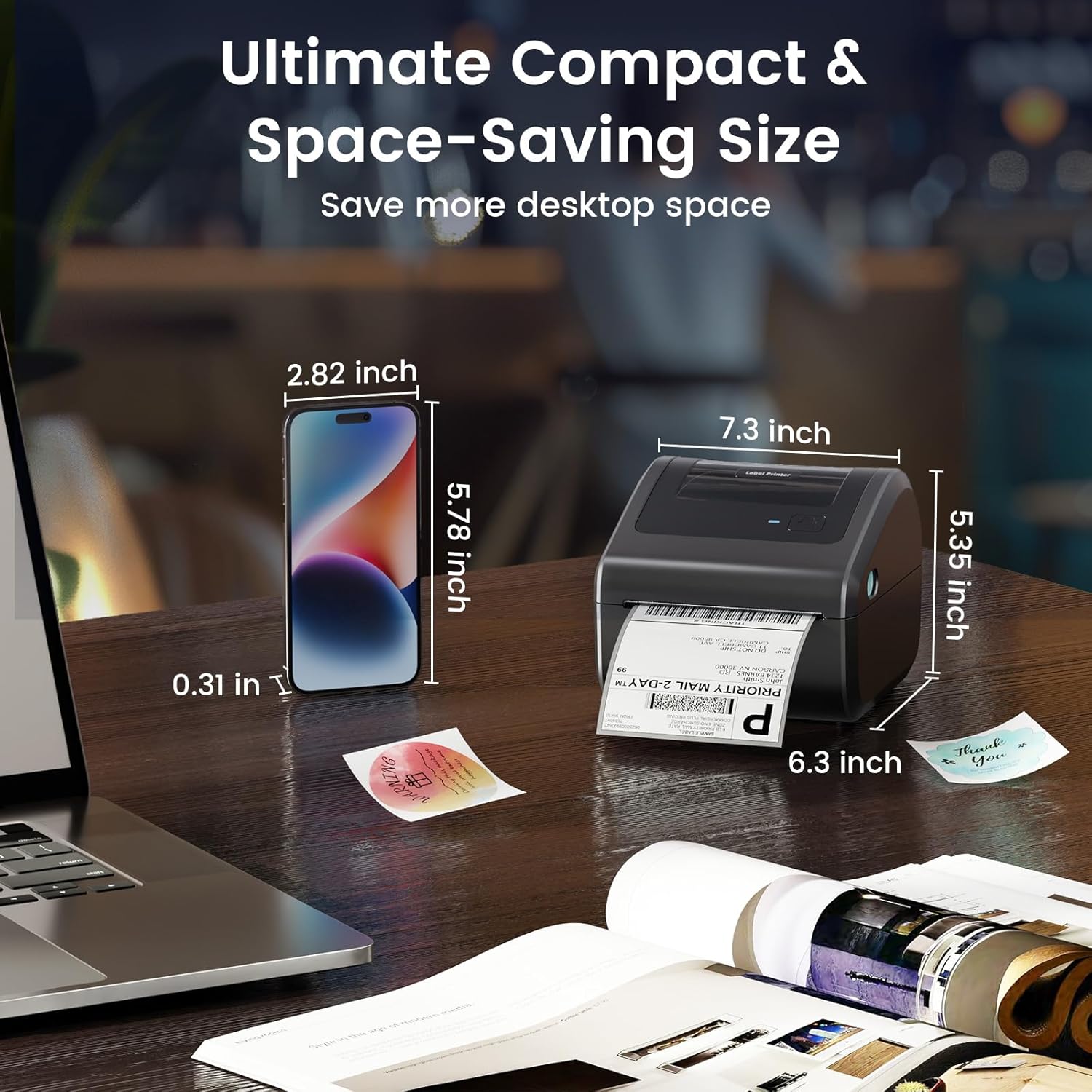
Image: Visual representation of the D450BT printer's compact size and dimensions.
9. Гарантыя і падтрымка
The Omezizy D450BT printer comes with a limited warranty. For specific warranty terms and conditions, please refer to the documentation included with your product or visit the official Omezizy webсайт.
For technical support, troubleshooting assistance, or warranty claims, please contact Omezizy customer service through their official channels. Contact information can typically be found on the Omezizy webна сайце або ў кіраўніцтве па хуткім выкарыстанні вашага прадукту.
Omezizy Store Link: Visit the Omezizy Store on Amazon