
1. Уводзіны
Thank you for choosing the LOFREE Zero ARTZ Mechanical Keyboard and Terrazzo Mouse combo. This manual provides essential information for setting up, operating, and maintaining your new devices. The Zero ARTZ keyboard features a 75% layout, hot-swappable switches, and versatile connectivity options including Bluetooth, 2.4GHz wireless, and USB-C. The accompanying Terrazzo Mouse offers dual-mode connectivity and adjustable DPI settings for enhanced productivity.

Image: The LOFREE Terrazzo Mouse, featuring its unique speckled design.
2. Змесціва ўпакоўкі
Калі ласка, пераканайцеся, што ўсе прадметы прысутнічаюць у вашай упакоўцы:
- LOFREE Zero ARTZ Mechanical Keyboard
- LOFREE Terrazzo Mouse
- Кабель USB-C да USB-A
- Бесправадны прыёмнік 2.4 ГГц
- Keycap Puller (for hot-swappable switches)
- Здымальнік перамыкачоў (для перамыкачоў з магчымасцю гарачай замены)
- Кіраўніцтва карыстальніка (гэты дакумент)
3. Настройка
3.1 Зарадка прылад
І клавіятура, і мыш абсталяваны акумулятарамі. Перад першым выкарыстаннем рэкамендуецца цалкам зарадзіць абедзве прылады.
- Connect the provided USB-C cable to the charging port on the keyboard and mouse.
- Падключыце другі канец кабеля USB-C да адаптара харчавання USB (не ўваходзіць у камплект) або да USB-порта кампутара.
- Індыкатар зарадкі будзе гарэць падчас зарадкі і выключацца або мяняць колер пры поўнай зарадцы.
3.2 Keyboard Connectivity
The Zero ARTZ keyboard supports three connection modes: Bluetooth, 2.4GHz Wireless, and USB-C wired.
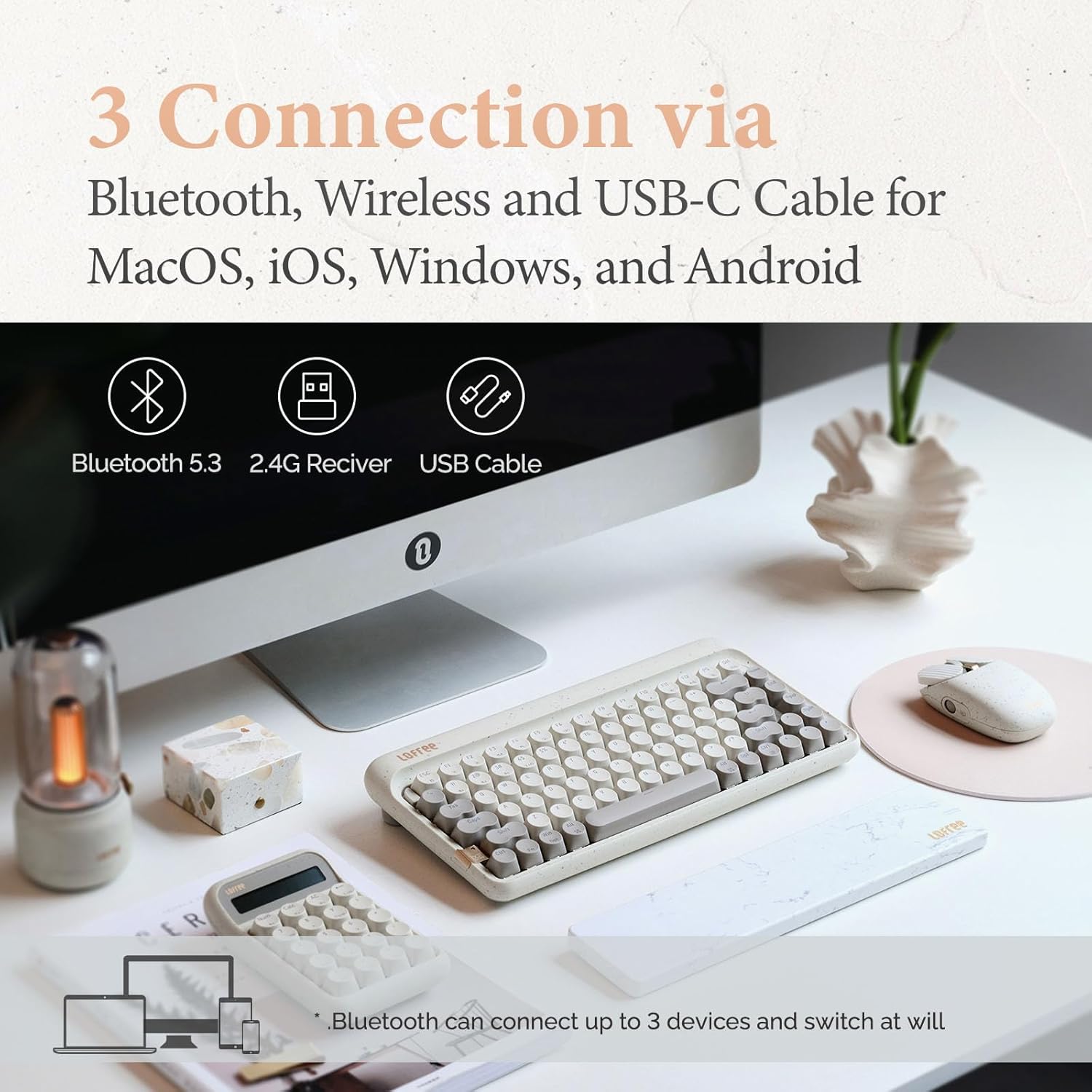
Image: Illustration showing the three connection methods: Bluetooth 5.3, 2.4G Receiver, and USB Cable, compatible with MacOS, iOS, Windows, and Android.
3.2.1 Злучэнне Bluetooth
- Locate the mode switch on the keyboard and set it to 'BT' (Bluetooth).
- Націсніце і ўтрымлівайце fn+1, fn+2, або fn+3 for 3-5 seconds until the indicator light flashes rapidly, indicating pairing mode. The keyboard can store up to three Bluetooth devices.
- On your device (computer, tablet, smartphone), enable Bluetooth and search for 'LOFREE Zero ARTZ'.
- Выберыце клавіятуру для спалучэння. Індыкатар перастане міргаць пасля падключэння.
- Каб пераключыцца паміж падлучанымі прыладамі Bluetooth, націсніце fn+1, fn+2, або fn+3 коратка.
3.2.2 Бесправадное злучэнне 2.4 ГГц
- Locate the mode switch on the keyboard and set it to '2.4G'.
- Insert the 2.4GHz wireless receiver into an available USB port on your computer.
- Клавіятура павінна падключыцца аўтаматычна. Калі не, націсніце fn+4 каб пачаць спалучэнне.
3.2.3 Правадное падключэнне USB-C
- Locate the mode switch on the keyboard and set it to 'USB'.
- Connect the provided USB-C cable from the keyboard to your computer's USB port.
- The keyboard will be recognized as a standard USB device and is ready for use.
3.3 Mouse Connectivity
The Terrazzo Mouse supports dual-mode connection: Bluetooth and 2.4GHz Wireless.
3.3.1 Злучэнне Bluetooth
- Locate the mode switch on the bottom of the mouse and set it to 'BT'.
- Press and hold the Bluetooth pairing button (usually near the mode switch) for 3-5 seconds until the indicator light flashes.
- On your device, enable Bluetooth and search for 'LOFREE Terrazzo Mouse'.
- Select the mouse to pair. The indicator light will stop flashing once connected.
- The mouse can connect to 2 devices simultaneously. Use the pairing button to switch between them.
3.3.2 Бесправадное злучэнне 2.4 ГГц
- Locate the mode switch on the bottom of the mouse and set it to '2.4G'.
- Insert the 2.4GHz wireless receiver into an available USB port on your computer.
- Мышка павінна падключыцца аўтаматычна.
4. Інструкцыя па эксплуатацыі
4.1 Функцыі клавіятуры
The Zero ARTZ keyboard is designed for optimal typing experience with a gasket mount structure and 1000Hz polling rate.

Выява: Разабраная view of the LOFREE keyboard showing the Gasket Mount, Keycaps, Switches, Gasket Pad, Poron, PCBA IXPE Foam, EVA Foam, EVA Pad, Upper Case, and Bottom Case layers.
4.1.1 Камбінацыі функцыянальных клавіш (Fn)
Выкарыстоўвайце Fn key in combination with other keys to access special functions:
- Fn + 1/2/3: Пераключэнне паміж прыладамі Bluetooth.
- fn+4: Activate 2.4GHz wireless pairing.
- Fn + Q/W/E/R: (Specific to some models) Switch between operating system layouts (e.g., Mac/Windows). Refer to the keycap legends for specific OS modes.
- Fn+F1-F12: Multimedia and system control keys (e.g., volume, playback, screen brightness). The specific functions are indicated by icons on the keycaps.
4.1.2 Сумяшчальнасць аперацыйнай сістэмы
The keyboard is compatible with MacOS, iOS, Windows, and Android. Ensure the correct operating system mode is selected if available, typically via a switch or Fn key combination, to ensure proper key mapping.

Image: A user typing on the LOFREE keyboard, highlighting the 1000Hz Polling Rate for responsive input.
4.2 Функцыі мышы
The Terrazzo Mouse features an ergonomic design and adjustable sensitivity.

Image: A hand comfortably resting on the LOFREE Terrazzo Mouse, demonstrating its ergonomic design.
4.2.1 Рэгуляванне DPI
The mouse offers 5 adjustable DPI levels to suit different preferences and tasks. Press the DPI button (usually located on the top or bottom of the mouse) to cycle through the available DPI settings. The indicator light may change color or flash to indicate the current DPI level.
4.2.2 Thumb Wheel and Button
The mouse includes a thumb wheel and an additional button for multi-gesture use, enhancing navigation and productivity. Refer to your operating system's mouse settings for customization options.
5. Тэхнічнае абслугоўванне
5.1 Ачыстка
To maintain the appearance and functionality of your devices:
- Выкарыстоўвайце мяккую, сухую тканіну без ворса, каб праціраць паверхні клавіятуры і мышы.
- Для ўстойлівага бруду злёгку ачысціцеampПрацярыце тканіну вадой або мяккім неабразіўным ачышчальнікам. Пазбягайце празмернай вільготнасці.
- To clean between keycaps, use compressed air or a small brush.
5.2 Перамыкачы з магчымасцю гарачай замены
The Zero ARTZ keyboard features hot-swappable switches, allowing for easy replacement without soldering.
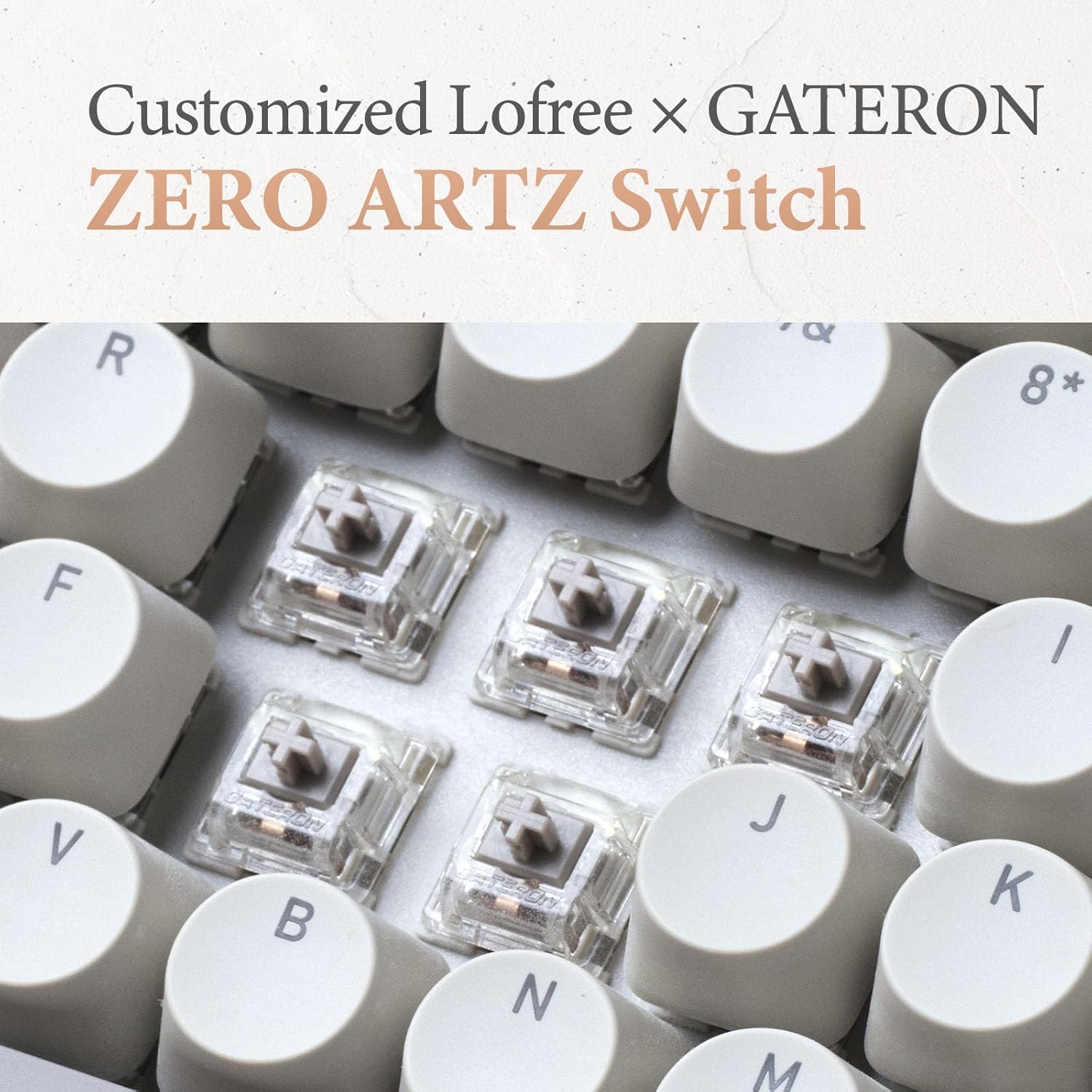
Image: Close-up of the customized LOFREE x GATERON ZERO ARTZ switches installed in the keyboard.
- Выкарыстоўвайце прыкладзены здымнік для клавіш, каб акуратна зняць патрэбную клавішу.
- Use the provided switch puller to gently grip the switch from its top and bottom clips, then pull it straight up to remove.
- Сумясціце кантакты новага перамыкача з адтулінамі на друкаванай плаце і моцна націсніце на яго, пакуль ён не зафіксуецца са шчоўк. Пераканайцеся, што кантакты не сагнутыя.
- Заменіце каўпачок клавішы.
5.3 Сыход за акумулятарам
Каб падоўжыць тэрмін службы батарэі:
- Пазбягайце частай поўнай разрадкі акумулятара.
- Захоўвайце прылады ў прахалодным, сухім месцы, калі яны не выкарыстоўваюцца працяглы час.
- Recharge the devices when the low battery indicator appears. The mouse has an approximate 50-day battery life on a single charge, depending on usage.
6. Выпраўленне непаладак
6.1 Праблемы з падключэннем
- Прылада не падключаецца праз Bluetooth: Ensure the keyboard/mouse is in pairing mode. Check your device's Bluetooth settings and try re-pairing. Ensure no other devices are interfering.
- 2.4GHz wireless not working: Ensure the 2.4GHz receiver is securely plugged into a USB port. Try a different USB port. Ensure the keyboard/mouse is set to 2.4G mode.
- Wired connection issues: Ensure the USB-C cable is properly connected to both the keyboard and the computer. Try a different USB-C cable or port.
6.2 Keyboard/Mouse Not Responding
- Праверце ўзровень батарэі і пры неабходнасці зарадзіце яе.
- Ensure the correct connection mode (Bluetooth, 2.4G, USB) is selected on the device.
- Перазагрузіце камп'ютар або прыладу.
- For the keyboard, ensure the correct operating system mode (Mac/Windows) is selected.
6.3 DPI Adjustment Not Working (Mouse)
- Пераканайцеся, што мыш уключана і падключана.
- Press the DPI button firmly. If there's no visual indicator, try moving the mouse after each press to feel the change in sensitivity.
7. Тэхнічныя характарыстыкі
| Асаблівасць | Дэталь |
|---|---|
| Марка | LOFREE |
| мадэль | Zero ARTZ |
| Раскладка клавіятуры | 75% QWERTY |
| Тэхналогія падлучэння | Bluetooth 5.3, бесправадная сувязь 2.4 ГГц, правадны USB-C |
| Сумяшчальныя прылады | Laptop, Personal Computer, Smartphone, Tablet (Windows, Mac OS, iOS, Android) |
| Крыніца харчавання | Працуе ад батарэі (акумулятарная) |
| Keyboard Polling Rate | 1000 Гц |
| Клавіятурныя пераключальнікі | Customized LOFREE x GATERON ZERO ARTZ (Linear) |
| Клавіятуры | Dual Color PBT |
| Узроўні DPI мышы | 5 наладжвальныя ўзроўні |
| Тэрмін службы батарэі мышы | Approx. 50 days (depending on usage) |
| ASIN | B0DKJB48FR |
| Дата першай даступнасці | 22 кастрычніка 2024 г |
8. Гарантыя і падтрымка
LOFREE products are covered by a limited warranty. For detailed warranty information, please refer to the warranty card included with your product or visit the official LOFREE website. If you encounter any issues or require technical assistance, please contact LOFREE customer support through their official channels.
- Official LOFREE Webсайт: www.lofree.co
- Адрас падтрымкі кліентаў: Refer to the product packaging or webсайт для атрымання актуальнай кантактнай інфармацыі.