
1. Уводзіны
This user manual provides comprehensive instructions for the setup, operation, maintenance, and troubleshooting of your Thomson 27-inch QHD Gaming Monitor (Model: M27QG5Y14). This monitor is designed to deliver a superior visual experience with its QHD resolution, 180Hz refresh rate, and IPS panel technology, making it ideal for gaming and multimedia applications.

Выява 1.1: Спераду view of the Thomson 27-inch QHD Gaming Monitor, showcasing its sleek design and display area.
2. Інфармацыя па бяспецы
Калі ласка, уважліва прачытайце ўсе інструкцыі па тэхніцы бяспекі перад выкарыстаннем манітора. Захоўвайце гэтую інструкцыю для далейшага выкарыстання.
- Крыніца харчавання: Выкарыстоўвайце толькі адаптар сілкавання, які пастаўляецца з маніторам. Пераканайцеся, што разетка правільна заземлена.
- Вентыляцыя: Не блакуйце вентыляцыйныя адтуліны. Пакіньце дастатковую прастору вакол манітора для належнай цыркуляцыі паветра і прадухілення перагрэву.
- Вадкасць і вільгаць: Keep the monitor away from water, rain, or excessive moisture. Do not place objects filled with liquids on the monitor.
- Уборка: Disconnect the power cable before cleaning. Use a soft, dry cloth. Do not use liquid cleaners or aerosol cleaners.
- Размяшчэнне: Размясціце манітор на ўстойлівай роўнай паверхні. Пазбягайце размяшчэння яго пад прамымі сонечнымі прамянямі або побач з крыніцамі цяпла.
- Апрацоўка: Handle the monitor with care. Avoid dropping or subjecting it to strong impacts.
- Абслугоўванне: Не спрабуйце абслугоўваць манітор самастойна. Звяртайцеся па любыя паслугі да кваліфікаванага спецыяліста па абслугоўванні.
3. Змесціва ўпакоўкі
Праверце наяўнасць усіх прадметаў у камплекце. Калі якія-небудзь прадметы адсутнічаюць або пашкоджаныя, звярніцеся да прадаўца.
- Thomson 27-inch QHD Gaming Monitor
- Падстаўка для манітора (аснова і шыя)
- Адаптар харчавання і кабель харчавання
- Кабель HDMI
- DisplayPort (DP) Cable (may vary by region)
- Кабель USB-B - USB-A (для функцыянальнасці USB-канцэнтратара)
- Кіраўніцтва карыстальніка (гэты дакумент)
- Шрубы для зборкі падстаўкі
4. Настройка
4.1. Зборка падстаўкі для манітора
- Асцярожна дастаньце манітор з упакоўкі і пакладзеце яго экранам уніз на мяккую чыстую паверхню, каб пазбегнуць драпін.
- Прымацуйце шыйку падстаўкі да панэлі манітора з дапамогай прадугледжаных шруб.
- Attach the stand base to the stand neck and secure it with the designated screw.
- Once assembled, carefully lift the monitor and place it on a stable desk or table.

Image 4.1: Monitor dimensions and stand assembly overview. The monitor measures approximately 61 cm wide, 54 cm high (with stand), and 24 cm deep (with stand).
4.2. Падключэнне манітора
Падключыце неабходныя кабелі да ўваходных партоў манітора. Размяшчэнне партоў паказана на малюнку ніжэй.
- Падключэнне сілкавання: Connect the power adapter to the "DC IN" port on the monitor, then plug the power cable into a power outlet.
- Відэа ўваход:
- Connect an HDMI cable from your computer's graphics card to an "HDMI 2.1" port on the monitor.
- Alternatively, connect a DisplayPort (DP) cable from your computer's graphics card to a "DP 1.2" port on the monitor.
- USB-канцэнтратар: To enable the monitor's USB 3.0 ports, connect a USB-B cable from the "USB 3.0 B" port on the monitor to a USB-A port on your computer.
- Аўдыявыхад: Connect headphones or external speakers to the "Earphone Plug" (3.5mm audio jack) for audio output.

Image 4.2: Rear panel of the monitor displaying the various input and output ports for connectivity.
4.3. Эрганамічныя рэгуляванні
Падстаўка для манітора дазваляе розныя рэгуляванні для аптымізацыі вашага viewкамфорт:
- Нахіл: Adjust the screen's vertical angle (up or down).
- Паваротны: Rotate the screen horizontally (left or right).
- Паварот: Павярніце экран на 90 градусаў для партрэтнага рэжыму viewінж.
- Рэгуляванне вышыні: Падніміце або апусціце манітор да патрэбнага вам узроўню вачэй.
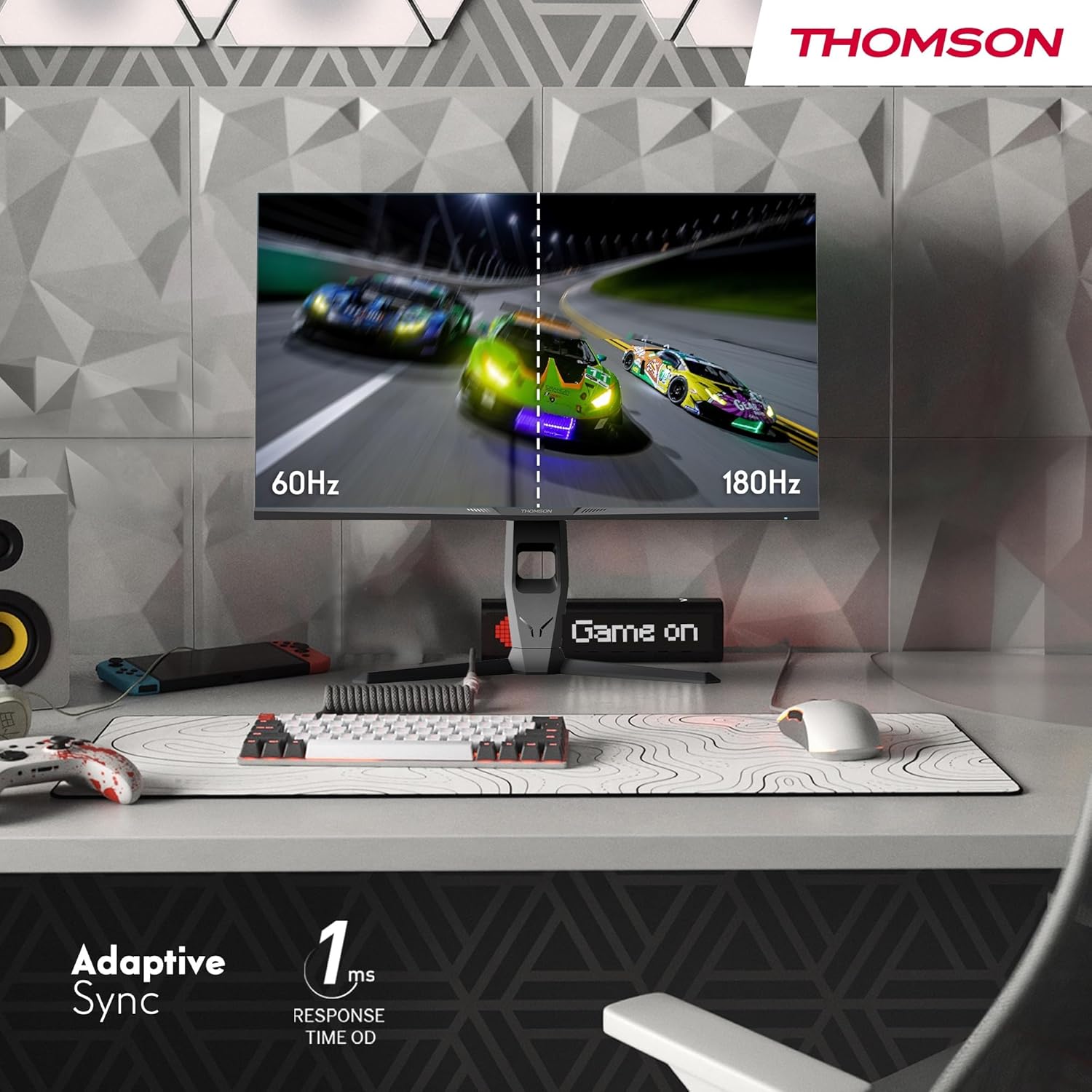
Image 4.3: Demonstrations of the monitor's ergonomic capabilities, including tilt, swivel, and pivot for optimal viewныя вуглы.
4.4. Мацаванне VESA
The monitor is compatible with VESA 100x100mm mounting standards. To mount the monitor on a wall or an alternative stand, remove the original stand and attach the VESA-compatible mount (sold separately) using appropriate screws.
5. Інструкцыя па эксплуатацыі
5.1. Уключэнне/выключэнне харчавання
Націсніце кнопку харчавання, якая звычайна знаходзіцца на задняй або ніжняй панэлі манітора, каб уключыць або выключыць яго. Індыкатар харчавання загараецца, калі манітор уключаны.
5.2. Экраннае меню (OSD).
The OSD menu allows you to adjust various monitor settings. Use the joystick or buttons (location may vary) on the monitor to navigate the menu.
- Налады малюнка: Адрэгулюйце яркасць, кантраснасць, рэзкасць, каляровую тэмпературу і гаму.
- Налады колеру: Fine-tune RGB levels, saturation, and hue.
- Выбар уводу: Ручное пераключэнне паміж уваходамі HDMI і DisplayPort.
- Аўдыё: Adjust volume for built-in speakers or headphone output.
- Налады экраннага меню: Змяніць мову экраннага меню, празрыстасць і час чакання.
- Гульнявыя налады: Access features like Adaptive Sync, response time (OD), and crosshair overlays.
5.3. Гульнявыя функцыі
- 180 Гц частата абнаўлення: Provides smoother motion and reduced input lag, especially beneficial for fast-paced games. Ensure your graphics card and cable support this refresh rate.
- 1ms Response Time (OD): Minimizes motion blur and ghosting for clear, crisp images during rapid movements.
- Адаптыўная сінхранізацыя: Synchronizes the monitor's refresh rate with your graphics card's frame rate, eliminating screen tearing and stuttering. Enable this feature in the OSD menu and your graphics card control panel.

Image 5.1: Visual comparison illustrating the difference between 60Hz and 180Hz refresh rates, highlighting the smoother motion provided by the higher refresh rate, alongside the Adaptive Sync feature.
5.4. Асаблівасці догляду за вачыма
- Тэхналогія барацьбы з мігаценнем: Reduces screen flickering, which can cause eye strain during prolonged use.
- Рэжым нізкага сіняга святла: Filters out harmful blue light emissions to protect your eyes and reduce fatigue. This mode can be activated through the OSD menu.
- Антыблікавы экран: The matte screen surface minimizes reflections from ambient light, providing clear visuals without distraction.

Image 5.2: Depiction of the monitor's eye comfort features, including an anti-glare screen and technologies like Anti-Flicker and Low Blue Light for reduced eye strain.
5.5. RGB Ambient Lighting
The monitor features integrated RGB ambient lighting on the rear. This lighting can be customized via the OSD menu to enhance your gaming environment or match your setup's aesthetics.
6. Тэхнічнае абслугоўванне
6.1. Ачыстка манітора
- экран: Акуратна працярыце экран мяккай тканінай без ворса. Для ўстойлівых плям злёгку працярыцеampen the cloth with water or a specialized screen cleaner (ensure it's safe for LCD/IPS panels) and wipe gently. Never spray liquid directly onto the screen.
- Casing: Выкарыстоўвайце мяккую сухую тканіну, каб праціраць манітор casinг. Пазбягайце выкарыстання абразіўных ачышчальнікаў або растваральнікаў.
- Заўсёды адключайце кабель сілкавання перад чысткай.
6.2. Захоўванне
Калі манітор захоўваецца працяглы час, адключыце ўсе кабелі, спакуйце яго ў арыгінальную ўпакоўку (калі яна ёсць) і захоўвайце ў прахалодным, сухім месцы, удалечыні ад прамых сонечных прамянёў і экстрэмальных тэмператур.
7. Выпраўленне непаладак
У гэтым раздзеле разглядаюцца распаўсюджаныя праблемы, з якімі вы можаце сутыкнуцца. Калі праблема не знікне, звярніцеся ў службу падтрымкі кліентаў.
| праблема | Магчымая прычына | Рашэнне |
|---|---|---|
| Няма ўлады | Power cable not connected; Power outlet faulty; Monitor off. | Ensure power cable is securely connected. Test the power outlet. Press the monitor's power button. |
| Няма сігналу / Пусты экран | Video cable not connected; Incorrect input selected; Computer not outputting signal. | Check HDMI/DP cable connections. Select the correct input source via OSD. Ensure computer is on and outputting video. |
| Distorted image / Flickering | Incorrect resolution/refresh rate; Faulty cable; Graphics driver issue. | Set display resolution to 2560x1440 and refresh rate to 180Hz. Try a different video cable. Update graphics drivers. |
| Няма гуку з дынамікаў/навушнікаў | Занадта нізкі гук; Аўдыёкабель не падключаны; На ПК выбраны няправільны аўдыёвыхад. | Increase monitor volume via OSD. Ensure headphones/speakers are connected. Select monitor as audio output device in PC settings. |
8. Тэхнічныя характарыстыкі
Detailed technical specifications for the Thomson M27QG5Y14 monitor.
| Асаблівасць | Спецыфікацыя |
|---|---|
| Марка | Томсан |
| мадэль | М27QG5Y14 |
| Памер экрана | 27 цалі |
| Тып панэлі | IPS |
| дазвол | 2560 x 1440 (QHD) |
| Частата абнаўлення | 180 Гц |
| Час водгуку | 1 Millisecond (OD) / 5 Milliseconds (GtG) |
| Яркасць | 350 гнід |
| Каэфіцыент кантраснасці | 1200:1 |
| Viewing кут | 178 Degrees (Horizontal/Vertical) |
| Колеравая гама | 120% sRGB |
| Падтрымка HDR | HDR10 (10-bit) |
| Адаптыўная сінхранізацыя | так |
| Сувязь | 2x HDMI 2.1, 1x DisplayPort 1.2, 1x USB 3.0 Type-B (upstream), 3x USB 3.0 Type-A (downstream), 1x Earphone Plug (3.5mm) |
| Убудаваныя дынамікі | Yes (2x2W) |
| Сумяшчальнасць з мацаваннем VESA | 100х100 мм |
| Памеры вырабу (з падстаўкай) | 61 x 54 x 24 см (Ш x У x Г) |
| Вага (з падстаўкай) | 7.3 кг |
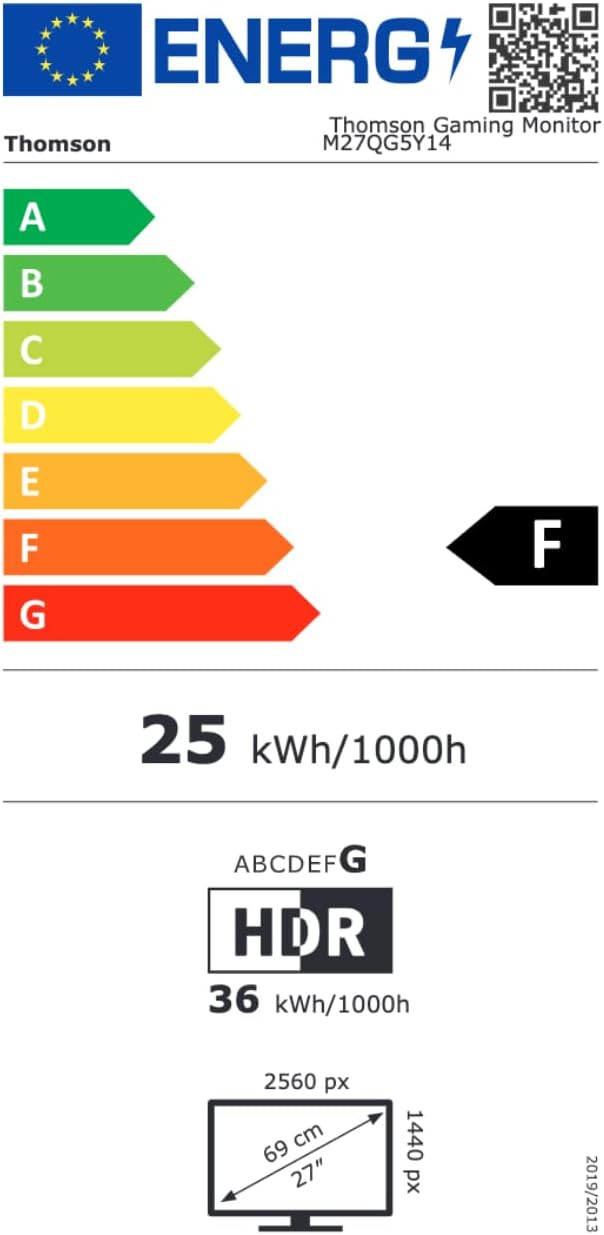
Image 8.1: EU Energy Label for the Thomson M27QG5Y14 monitor. For more details, visit the База дадзеных EPREL.
9. Гарантыя і падтрымка
Thomson products are designed for reliability and performance. This monitor typically comes with a Гарантыя 3 год з даты пакупкі, якая пакрывае вытворчыя дэфекты. Калі ласка, захавайце пацвярджэнне пакупкі для прэтэнзій па гарантыі.
For technical assistance, troubleshooting beyond this manual, or warranty inquiries, please contact Thomson customer support or your local retailer. Refer to the official Thomson website or your product packaging for specific contact details.
You can also visit the official Thomson store on Amazon for more information: Thomson Store.