
1. Уводзіны
This manual provides essential information for the safe and efficient operation of your Itari A886 Bluetooth Tattoo Stencil Printer. Please read it thoroughly before using the device.
1.1 Змест пакета
- Itari A886 Tattoo Stencil Printer (1)
- Кабель USB-C (1)
- Адаптар USB-C да USB-A (1)
- Кіраўніцтва карыстальніка (1)
- Папера для пераносу татуіровак (10 лісты)
- Soft Carrying Pouch (1)
1.2 Часткі прадукту
Familiarize yourself with the components of your printer:

Апісанне малюнка: A diagram illustrating the various parts of the Itari A886 printer, including the power button, indicator light, top cover, paper output slot, print head, paper entry slot, and transducers.
2. Настройка
2.1 Зарадка прылады
Before initial use, fully charge the printer. Use a 5V-2A USB-A charger and the original data cable for optimal battery protection. The indicator light will show solid green when fully charged.
2.2 Спампоўка праграмы
The Itari A886 printer operates via a mobile application. Пошук 'Phomemo' on the App Store (iOS) or Google Play Store (Android), or scan the QR code provided in the Quick Start Guide to download the app.

Апісанне малюнка: A smartphone screen displaying options to download the 'Phomemo' app from the App Store or Google Play, along with a QR code for quick access.
2.3 Падключэнне прынтара
2.3.1 Bluetooth Wireless Connection (Phone/Tablet)
- Long press the power button for 2 seconds to turn on the printer. The indicator light will illuminate.
- Пераканайцеся, што Bluetooth уключаны на вашым мабільным прыладзе.
- Open the 'Phomemo' app and select 'Auto Connect' or search for the A886 printer.
- Confirm the pairing request on your device. The printer will beep once connected.
Апісанне відэа: A demonstration showing how to connect the Itari A886 printer to a Windows laptop, including driver installation and printing a stencil.
Апісанне відэа: A demonstration showing how to connect the Itari A886 printer to a MacOS laptop, including driver installation and printing a stencil.
2.3.2 USB Connection (PC/Mac)
- Download the appropriate printer driver from the official website (a886.labelife.cc).
- Connect the printer to your computer using the provided USB-C cable and adapter.
- Пераканайцеся, што прынтар уключаны.
- Follow the on-screen instructions to install the driver and print.

Апісанне малюнка: A visual guide demonstrating the steps to connect the Itari A886 printer to a computer via USB for printing.
2.4 Loading Tattoo Transfer Paper
- Prepare the tattoo transfer paper by tearing off the yellow backing paper and removing the protective layer, leaving the white tracing sheet and blue carbon sheet.
- Open the top cover of the printer by pressing the two side buttons.
- Center the prepared tattoo transfer paper into the paper entry slot, ensuring the white tracing paper faces up.
- Close the top cover until you hear a click, indicating it is securely closed.

Апісанне малюнка: A six-step visual guide demonstrating how to prepare and load tattoo transfer paper into the Itari A886 printer for printing.
3. Аперацыя
3.1 Basic Printing Process
- Select your desired tattoo design from the app or upload your own.
- Adjust the size and orientation of the design as needed within the app.
- Press the 'Print' button in the app. The printer will automatically feed the paper and print the stencil.
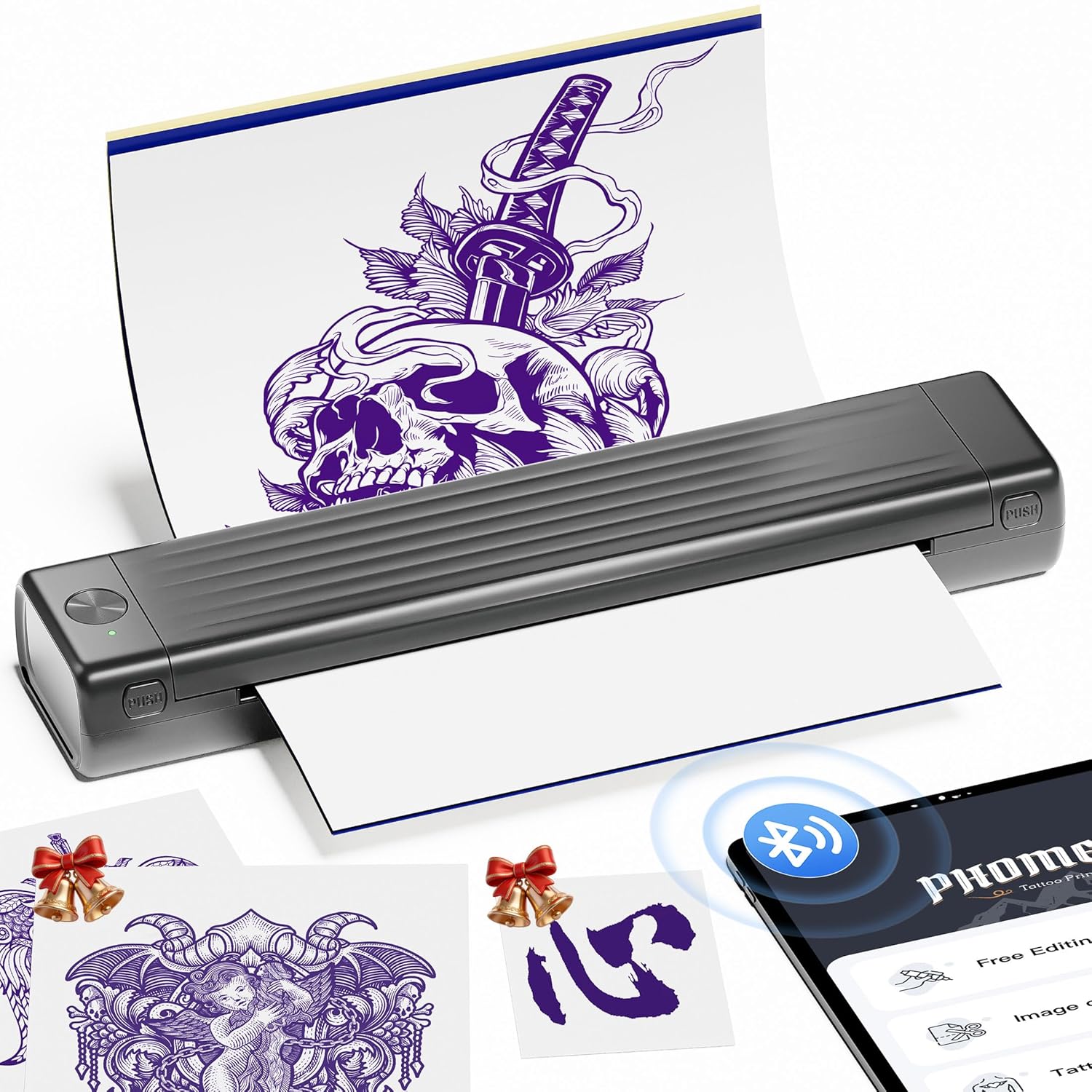
Апісанне малюнка: The Itari A886 printer actively printing a tattoo stencil, with a smartphone displaying the design and Bluetooth connectivity icon.
3.2 Anti-Wrinkle Mode
The A886 features a patented wrinkle-resistant technology. When activated in the app, this mode ensures the tattoo paper remains flat during printing, resulting in clearer prints. Note that this mode may leave anti-wrinkle lines on the sides of the transfer paper.
Апісанне відэа: A user demonstrates how to use the anti-wrinkle mode on the Itari A886 printer, showing the paper feeding smoothly and the resulting print quality.

Апісанне малюнка: The Itari A886 printer with a tattoo stencil being printed, highlighting the 'Anti-Wrinkle Mode' feature that keeps the paper flat for clear results.
3.3 функцыі прыкладання
The 'Phomemo' app offers various functionalities to enhance your tattoo stencil creation:
- Рэдагаванне татуіровак: Adjust designs, add text, and customize.
- AI-Generated Tattoo Designs: Input requirements to generate custom tattoo designs. (Note: Some AI features may require a subscription after a free trial).
- Падрыхтоўка да татуіроўкіview: Visualize how the tattoo will look on the skin.
- Image Cutting & Stitching: For larger designs, the app can cut and stitch images across multiple sheets.
- Tattoo Design Library: Access a wide variety of pre-loaded designs.

Апісанне малюнка: Four smartphone screens showcasing the 'Phomemo' app's features: Image Cutting, Tattoo Preview, Tattoo Editing, and AI Generate Tattoo, illustrating the creative possibilities.
Апісанне відэа: A short video demonstrating the ease of use and quick printing capabilities of the A886 Tattoo Stencil Printer for beginners.
Апісанне відэа: A promotional video highlighting the new features and improved design of the Itari 2025 Tattoo Stencil Printer.
Апісанне відэа: Відэа-шоўasing the A886 Temporary Tattoo Stencil Printer in action, demonstrating its ability to print various designs for temporary tattoos.
4. Тэхнічнае абслугоўванне
4.1 Агульны догляд
- Трымайце прынтар у чысціні, ачышчайце яго ад пылу і смецця.
- Store the printer in the provided soft carrying pouch when not in use.
- Avoid exposing the printer to extreme temperatures or direct sunlight.
4.2 Paper Handling Tips
- Only use tattoo transfer paper with the A886 printer. Thermal paper is not supported.
- For best results, use Itari brand tattoo paper and print simple line art designs.
- Ensure the paper is centered correctly in the entry slot to prevent jams and skewed prints.
- If the print head overheats, the app will prompt you to pause printing. Allow 5 minutes for the print head to cool before resuming.

Апісанне малюнка: A visual comparison showing optimal tattoo stencil prints from the Itari A886 for simple line patterns versus less effective results for complex color block patterns, and correct paper handling.
5. Выпраўленне непаладак
Refer to the indicator light status for common issues:
| Статус | Сэнс | Рэкамендаванае дзеянне |
|---|---|---|
| Суцэльнае зялёнае святло | Працуе/цалкам зараджаны | Няма |
| Мігае зялёнае святло | Charging/While printer is on | Няма |
| Гарыць чырвонае святло | Printer overheated / Top cover open | Close top cover or pause for 5-10 minutes |
| Мігае чырвонае святло | Нізкі акумулятар | Зараджаць на працягу 4 гадзін |
| Няма святла пасля доўгага націскання кнопкі харчавання на працягу 3 секунд | Акумулятар разраджаны | Зараджаць на працягу 4 гадзін |
| Alternately Flashing Red and Green Light | Charging while printer is off | Няма |
6. Тэхнічныя характарыстыкі
- Памеры прадукту: 2.64" Г x 12.2" Ш x 1.57" У
- Вага прадмета: 715 грам (1.58 фунта)
- Назва мадэлі: A886
- Марка: Itari
- Тэхналогія падключэння: Bluetooth
- Тэхналогія друку: Цеплавы
- Асаблівасці: AI Creation, Anti-Wrinkle Mode, Portable, Temporary Tattoo, Wireless
- колер: Шэры
- Вывад на прынтэр: Манахромны
- Максімальная хуткасць друку ў манахромным рэжыме: 3 праміле
- батарэі: Патрабуецца 1 літый-палімерная батарэя (у камплекце)
- вытворца: Itari
7. Гарантыя і падтрымка
7.1 Інфармацыя аб гарантыі
The company assumes full responsibility for the revision and explanation of this manual, exercising utmost diligence to guarantee its accuracy. Nevertheless, please note that technical improvements to the product may not be incorporated immediately. Due to continuous product updates and upgrades, the actual product may vary slightly from the images. Please refer to the physical product for accurate representations.
7.2 Інтэрнэт-падтрымка
For more information about your device, video tutorials, and answers to frequently asked questions, please visit: a886.labelife.cc