
1. Уводзіны
This manual provides detailed instructions for the setup, operation, maintenance, and troubleshooting of your Macally UCAMINIZHUBA Compact Wired Keyboard with USB Hub. This keyboard is designed for use with Mac OS devices, offering a familiar 78-key layout and integrated USB hub for enhanced connectivity.
2. Змесціва ўпакоўкі
- Macally UCAMINIZHUBA Compact Wired Keyboard
- Integrated USB Cable (with 2-in-1 USB-C and USB-A plug)
3. Настройка
- Падключэнне клавіятуры: Locate the integrated USB cable on your Macally keyboard. This cable features a unique 2-in-1 plug, allowing connection to either a USB-A port or a USB-C port on your Mac, PC, tablet, or smartphone.
- Plug and Play: Insert the appropriate end of the USB cable into an available USB port on your device. The keyboard is plug-and-play and typically requires no additional drivers for basic functionality.
- Распазнаванне сістэмы: Your operating system (macOS, Windows, etc.) should automatically detect the new keyboard. Follow any on-screen prompts for initial setup, such as identifying the keyboard layout.

Figure 3.1: The 2-in-1 USB-A and USB-C plug for universal compatibility.
4. Інструкцыя па эксплуатацыі
4.1 Асноўны набор тэксту
The keyboard features a standard 78-key QWERTY layout. Simply begin typing after connecting the keyboard to your device.
4.2 MacOS Shortcut Keys
The keyboard includes 12 dedicated MacOS shortcut keys for quick access to common functions. These keys are typically located in the function row (F1-F12) and allow control over media playback, volume, screen brightness, and other system features.

Figure 4.1: The 78-key MacOS layout with integrated shortcut commands.
4.3 Using the Integrated USB Hub
The keyboard features a built-in 3-port USB hub, including two USB-C ports and one USB-A port. This allows you to connect additional peripherals directly to your keyboard, such as a mouse, flash drive, or other USB-powered accessories.
- Connect USB-C devices to the two USB-C ports.
- Connect USB-A devices to the single USB-A port.
Ensure that any connected devices do not exceed the power output capabilities of the keyboard's USB hub or the host device's USB port.
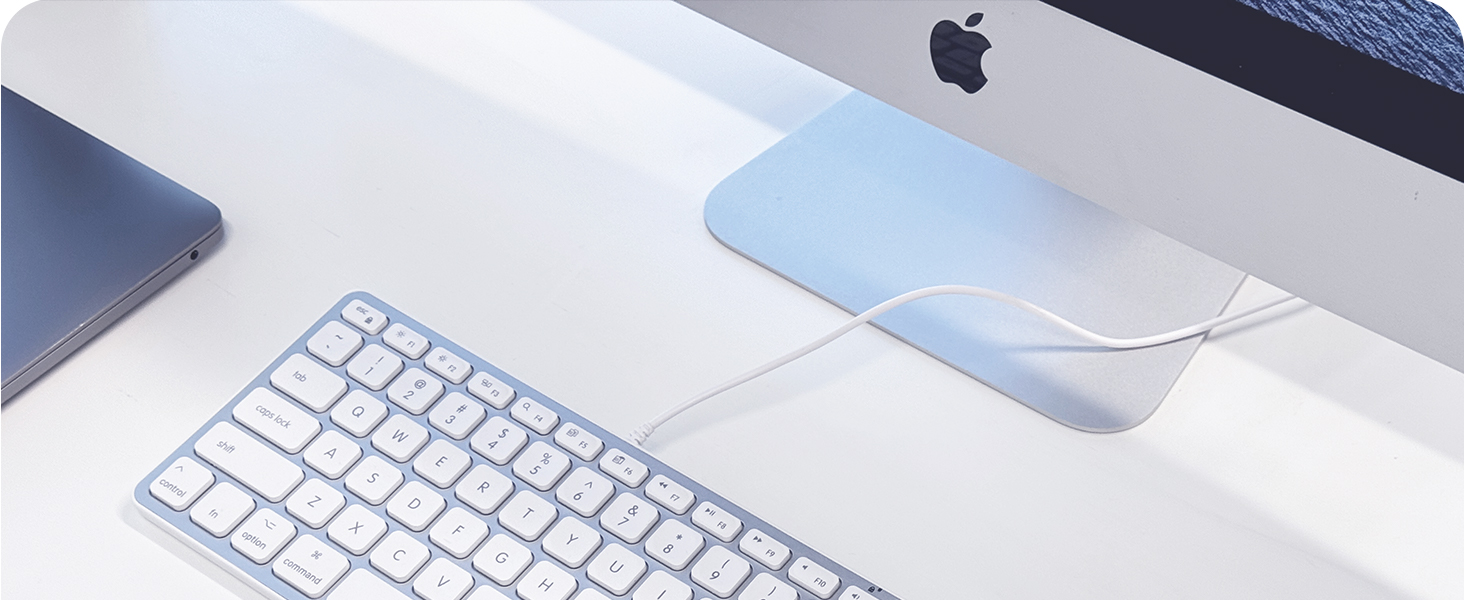
Figure 4.2: Integrated USB hub with 2x USB-C and 1x USB-A ports.
5. Асаблівасці большview
- Кампактны дызайн: The keyboard's small footprint helps save desk space and makes it portable for travel.
- Клавішы перамыкача нажніц: Provides a tactile and responsive typing experience, similar to Apple's native keyboards.
- Angled for Comfort: An integrated kickstand subtly angles the keyboard to improve ergonomic comfort during extended typing sessions.
- Трывалая канструкцыя: Constructed with a metal enclosure for durability and a premium feel.

Figure 5.1: Compact design for saving desk space.

Figure 5.2: Scissor switch key technology for a familiar typing experience.
6. Тэхнічнае абслугоўванне
- Уборка: Disconnect the keyboard from your device before cleaning. Use a soft, lint-free cloth slightly dampвадой або мяккім ачышчальным растворам. Пазбягайце выкарыстання агрэсіўных хімічных рэчываў або абразіўных матэрыялаў.
- Выдаленне пылу: Выкарыстоўвайце сціснутае паветра, каб выдаліць пыл і смецце паміж клавішамі.
- захоўванне: Калі клавіятура не выкарыстоўваецца, захоўвайце яе ў чыстым, сухім месцы, удалечыні ад экстрэмальных тэмператур.
7. Выпраўленне непаладак
- Клавіятура не адказвае:
- Ensure the USB cable is securely connected to both the keyboard and your device.
- Try connecting the keyboard to a different USB port on your device.
- If using a USB hub, try connecting the keyboard directly to your device.
- Restart your computer or device. - USB Hub Devices Not Working:
- Ensure the peripheral is properly connected to the keyboard's USB hub.
- Verify that the peripheral itself is functional by connecting it directly to your device.
- Some high-power devices may require a powered USB hub or direct connection to your computer. - Incorrect Key Layout:
- Go to your device's system settings (e.g., System Settings > Keyboard on macOS) and ensure the correct keyboard layout is selected.
8. Тэхнічныя характарыстыкі
| Асаблівасць | Апісанне |
|---|---|
| Марка | Макальна |
| Нумар мадэлі | UCAMINIZHUBA |
| Тэхналогія падлучэння | Правадны (USB-A, USB-C) |
| Апісанне клавіятуры | Compact, 78-key MacOS layout with 12 shortcuts |
| Інтэграваны USB-канцэнтратар | 2x USB-C ports, 1x USB-A port |
| Тып ключа | Нажніцы |
| Матэрыял | Металічны корпус |
| Колер | Серабро |
| Сумяшчальныя прылады | Laptop, PC, Tablet, Smartphone (Mac OS optimized) |
9. Гарантыя і падтрымка
The Macally UCAMINIZHUBA keyboard comes with a Гарантыя 1 год from the date of purchase. For technical support, warranty claims, or further assistance, please contact Macally customer support. US-based support is available to assist you.
For the latest information and support resources, please visit the official Macally webсайт або звярніцеся да кантактнай інфармацыі, размешчанай на ўпакоўцы прадукту.
10. Відэа пра прадукт
Відэа 10.1: Скончанаview of the Macally Compact Keyboard with 2-in-1 USB Plug and USB Hub. This video demonstrates the keyboard's features and connectivity options.