

1. Уводзіны
This manual provides comprehensive instructions for the safe and effective use of your Pericat PJ108 Projector. Please read this manual thoroughly before operating the device and retain it for future reference.

Image 1.1: The Pericat PJ108 Projector displaying various streaming service icons and a smartphone screen mirroring content. This image illustrates the projector's primary function and connectivity options.
2. Змесціва ўпакоўкі
Праверце, ці ўсе пералічаныя ніжэй прадметы ўваходзяць у вашу ўпакоўку:
- PJ108 Projector (x1)
- Кабель HDMI (x1)
- Пульт дыстанцыйнага кіравання (x1)
- Кіраўніцтва па эксплуатацыі (x1)
- Кабель харчавання (x1)
- AV Cable (x1)
3. Прадукт скончыўсяview
3.1. Памеры і партатыўнасць
The PJ108 projector is designed for portability, featuring compact dimensions of approximately 6.7 x 5.5 x 2.55 inches and a weight of 1.37 pounds.

Image 3.1: A person placing the compact Pericat PJ108 Projector into a handbag, illustrating its small size and portability. The image also shows the projector's approximate dimensions: 7 inches (L), 5.5 inches (W), and 2.7 inches (H).
3.2. Парты ўводу/вываду
The projector is equipped with multiple ports for versatile connectivity:
- Порт HDMI: For connecting devices such as TV sticks, gaming consoles (Xbox, PS3/4/5), PCs, and laptops.
- Порт USB: Для падключэння USB-назапашвальнікаў для прайгравання медыяфайлаў files.
- AV-порт: For connecting older devices using the included AV cable.
- Гняздо для навушнікаў 3.5 мм: Для падключэння знешніх аўдыёпрылад, такіх як навушнікі або дынамікі.
- DC IN: Порт ўводу харчавання.

Малюнак 3.2: Падрабязны view of the rear panel of the Pericat PJ108 Projector, highlighting its various connectivity ports including AV, HDMI, USB, and DC IN. This image demonstrates the projector's versatile connection options for different devices.
4. Настройка
4.1. размяшчэнне
Position the projector on a stable, flat surface or mount it according to your preference. Ensure there are no obstructions to the air inlets and outlets to prevent overheating.
- Адлегласць праекцыі: The optimal projection distance ranges from 4.1 feet to 17.5 feet.
- Памер экрана: This distance allows for a display size between 35 inches and 200 inches.
- Асяроддзе: For best performance, use the projector in a dark environment.
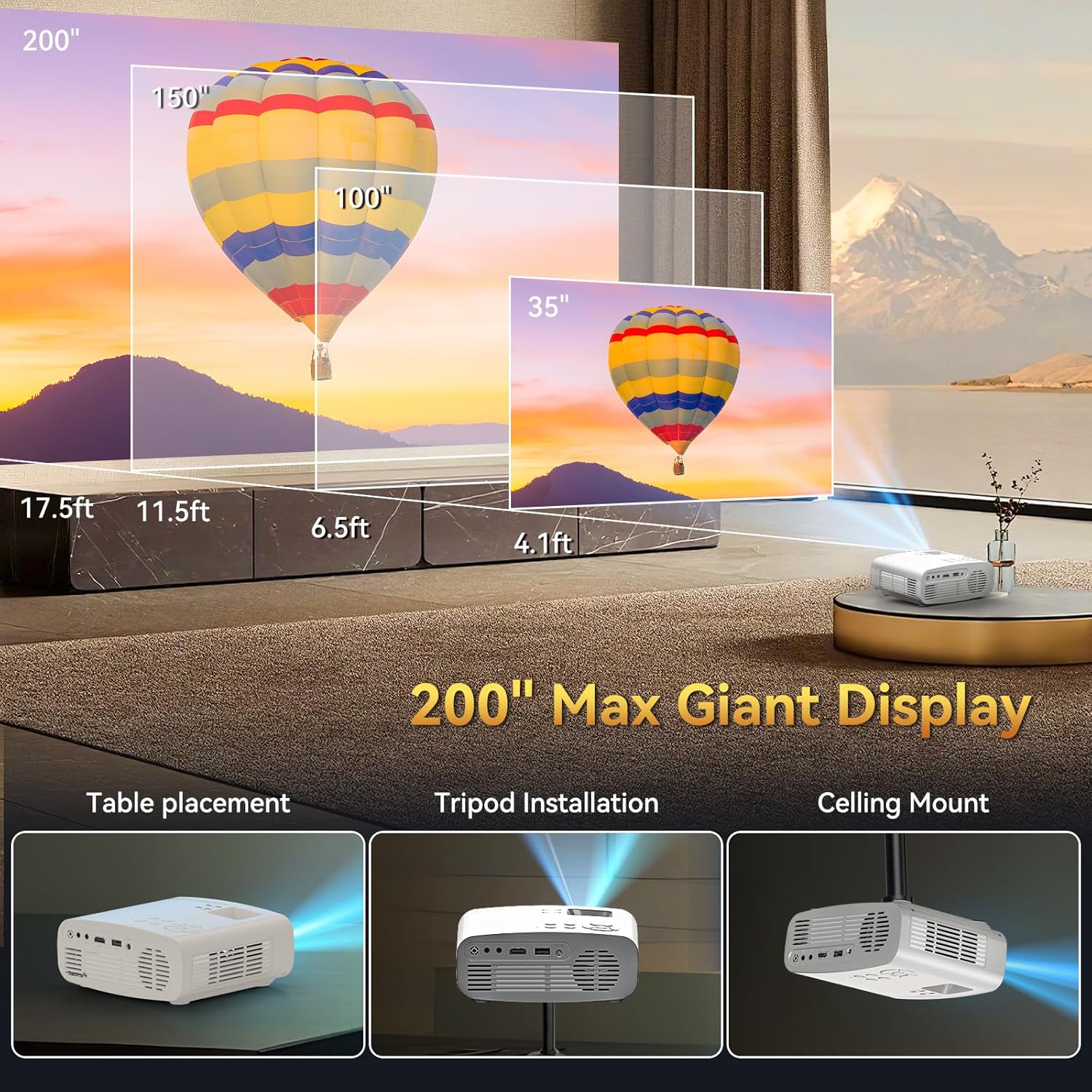
Image 4.1: An illustration demonstrating the flexible projection distances and corresponding screen sizes (35", 100", 150", 200") achievable with the Pericat PJ108 Projector, ranging from 4.1 feet to 17.5 feet. This image also shows different placement options: table, tripod, and ceiling mount.
4.2. Падключэнне сілкавання
- Connect the power cable to the DC IN port on the projector.
- Устаўце другі канец кабеля сілкавання ў разетку.
4.3. Фокус і карэкцыя трапецападобнага скажэння
Adjust the focus ring on the projector lens until the image is clear. Use the keystone correction feature (usually a dial or digital setting) to correct any trapezoidal distortion, ensuring a rectangular image.
4.4. Варыянты мантажу
The projector supports various installation methods:
- Размяшчэнне стала: Пастаўце праектар на плоскую паверхню.
- Ўстаноўка штатыва: Mount the projector onto a compatible tripod.
- Потолочное мацаванне: Install the projector on the ceiling using a suitable mount (mount not included).

Image 4.2: An illustrative image showcasing the three primary installation methods for the Pericat PJ108 Projector: table placement, tripod installation, and ceiling mount. This highlights the projector's adaptability to different viewных асяроддзях.
5. Інструкцыя па эксплуатацыі
5.1. Уключэнне/выключэнне харчавання
Націсніце кнопку харчавання на праектары або пульце дыстанцыйнага кіравання, каб уключыць або выключыць прыладу.
5.2. Выбар крыніцы
Use the 'Source' button on the projector or remote control to select the desired input source (HDMI, USB, AV, Screen Mirroring).
5.3. Бесправадное падключэнне
5.3.1. Злучэнне Wi-Fi
The projector supports dual-band 2.4G and 5G Wi-Fi for stable online video and music streaming. Ensure both your smart device and the projector are connected to the same Wi-Fi network.

Image 5.1: An illustration depicting the Wi-Fi 6 wireless connection capability of the Pericat PJ108 Projector, showing compatibility with Windows, iOS, and Android devices. It also contrasts wired (HDMI/USB) and wireless connection methods.
5.3.2. Злучэнне Bluetooth
The projector features Bluetooth 5.3 technology, allowing connection to wireless Bluetooth headsets or speakers for an enhanced audio experience. The built-in 15W speaker provides clear sound quality.

Image 5.2: The Pericat PJ108 Projector positioned among a Bluetooth speaker and wireless headphones, illustrating its Bluetooth 5.3 functionality for connecting to external audio devices.
5.4. Адлюстраванне экрана
The projector supports screen mirroring from smartphones and tablets. However, due to copyright restrictions, direct screen mirroring of content from streaming services like Netflix, Amazon Prime, Disney, and Hulu is not supported. To view content from these platforms, connect a TV stick (e.g., Fire TV Stick) to the projector's HDMI port.

Image 5.3: The Pericat PJ108 Projector connected to a TV stick, displaying a user interface with various streaming applications such as Netflix, Amazon Prime, and Hulu. This image demonstrates how to access copyrighted content via a TV stick.
5.5. Функцыя маштабавання
The projector includes a 50-100% zoom function, allowing you to adjust the screen size without moving the projector. This feature is accessible via the projector's menu or remote control.

Image 5.4: An illustration showing the 50-100% zoom function of the Pericat PJ108 Projector, demonstrating how the projected image size can be adjusted without physically moving the projector.
6. Тэхнічнае абслугоўванне
6.1. Уборка
- Аб'ектыў: Выкарыстоўвайце мяккую тканіну без ворса, спецыяльна распрацаваную для аптычных лінзаў, каб акуратна праціраць аб'ектыў праектара. Пазбягайце абразіўных матэрыялаў або агрэсіўных хімічных рэчываў.
- Знешні выгляд: Працірайце знешнія паверхні праектара мяккай сухой тканінай.
- вентылі: Periodically check and clean the air inlets and outlets to ensure proper ventilation and prevent dust buildup, which can affect performance and lifespan.
6.2. Захоўванне
When not in use, store the projector in a cool, dry place, away from direct sunlight and extreme temperatures. Protect it from dust and moisture.
7. Выпраўленне непаладак
7.1. Праблемы з падключэннем да Wi-Fi
- праблема: Projector cannot connect to Wi-Fi.
- рашэнне: Due to potential compatibility issues with the WPA3 protocol, it is recommended to set your router's encryption mode to "WPA2" or "WPA2/WPA3" to ensure a smooth connection.
- рашэнне: Ensure both your smart device and the projector are connected to the same Wi-Fi network.
7.2. No Image or Poor Image Quality
- праблема: Відарыс не адлюстроўваецца.
- рашэнне: Check power connections and ensure the projector is turned on. Verify the correct input source is selected.
- праблема: Размыты малюнак.
- рашэнне: Адрэгулюйце кольца факусоўкі на аб'ектыве.
- праблема: Distorted image (trapezoid shape).
- рашэнне: Выкарыстоўвайце функцыю карэкцыі трапецападобнага скажэння, каб адрэгуляваць форму выявы.
- праблема: Image is dim.
- рашэнне: Ensure the projector is used in a dark environment for optimal brightness.
7.3. Няма гуку
- праблема: No sound from the projector or connected speakers.
- рашэнне: Check the volume settings on the projector and any connected audio devices. Ensure Bluetooth devices are properly paired. If using HDMI, verify the audio output settings on the source device.
7.4. Screen Mirroring Restrictions
- праблема: Cannot mirror copyrighted content from streaming apps (Netflix, Hulu, etc.).
- рашэнне: This is a copyright restriction. To view such content, connect a TV stick (e.g., Fire TV Stick) to the projector's HDMI port.
8. Тэхнічныя характарыстыкі
| Асаблівасць | Спецыфікацыя |
|---|---|
| Марка | Перыкат |
| мадэль | PJ108 |
| Роднае дазвол | 1920 x 1080P |
| Падтрымка 4K | так |
| Каэфіцыент кантраснасці | 10000:1 |
| Яркасць | 150 прасветаў ANSI |
| Тэхналогія падлучэння | Wi-Fi (2.4G/5G), Bluetooth 5.3, HDMI, USB, 3.5mm Jack, AV |
| Памер дысплея | 35"-200" |
| Адлегласць праекцыі | 4.1-17.5 футаў |
| Функцыя маштабавання | 50-100% |
| Карэкцыя Keystone | ±15° Інструкцыя |
| Убудаваны дынамік | 15 Вт |
| Памеры прадукту | 6.7 х 5.5 х 2.55 цалі |
| Вага прадмета | 1.37 фунта |
9. Гарантыя і падтрымка
Pericat is committed to product quality and customer satisfaction. The PJ108 Projector comes with a lifetime service warranty.
- Абслугоўванне кліентаў: 24/7 customer service is available to assist with any issues.
- Вяртае: A 30-day no-reason return policy is provided.
- Замена: A 1-year free replacement policy is offered.
If you encounter any problems, please contact our customer service team for assistance.

Image 9.1: Icons representing Pericat's customer support commitments: 24-hour service, 30-day return policy, 1-year free replacement, and lifetime support.