
1. Уводзіны
Thank you for choosing the MEETION BTM011 Ergonomic Wireless Bluetooth Vertical Mouse. This device is designed to provide a comfortable and efficient computing experience by promoting a natural hand position, reducing wrist strain. It offers versatile connectivity options for multiple devices and adjustable precision to suit various tasks.

The ergonomic design of the MEETION vertical mouse helps maintain a natural hand and wrist posture, reducing discomfort compared to traditional mice.
2. Змесціва ўпакоўкі
- MEETION BTM011 Ergonomic Wireless Bluetooth Vertical Mouse
- USB 2.4G Receiver (stored in the mouse battery compartment)
- Адаптар USB-A да USB-C
- Кіраўніцтва карыстальніка
3. Прадукт скончыўсяview
Familiarize yourself with the various components and buttons of your MEETION BTM011 mouse.

Падрабязны view of the mouse components, including the Mode Switching Button, Power Switch (ON/OFF), Low Battery Indicator, Charging Indicator, DPI Speed Switch Button, 2.4G Connection Indicator, Bluetooth 1 Connection Indicator, and Bluetooth 2 Connection Indicator.
- Левая кнопка: Стандартная функцыя левага кліку.
- Правая кнопка: Стандартная функцыя правай кнопкі мышы.
- Кола пракруткі: For scrolling up and down.
- Кнопка "Наперад": Перамяшчаецца наперад web браўзэры або file даследчыкі.
- Кнопка "Назад": Пераходзіць назад у web браўзэры або file даследчыкі.
- Кнопка пераключэння DPI: Рэгулюе адчувальнасць курсора.
- Кнопка пераключэння рэжымаў: Switches between 2.4G, Bluetooth 1, and Bluetooth 2 modes.
- Выключальнік харчавання (УКЛ./ВЫКЛ.): Уключае або выключае мыш.
- Батарэйны адсек: Located at the bottom, for 1x AA battery and USB receiver storage.
4. Інструкцыі па ўсталёўцы
4.1 Устаноўка батарэі
The mouse requires one AA battery (not included).
- Знайдзіце вечка батарэйнага адсека на ніжняй частцы мышы.
- Адкрыйце крышку.
- Устаўце адну батарэйку тыпу АА, сачыце за правільнай палярнасцю (+/-).
- Надзейна зачыніце крышку батарэйнага адсека.

Insert one AA battery into the compartment. The USB receiver is also stored here.
4.2 Уключэнне/выключэнне сілкавання
Slide the power switch located on the bottom of the mouse to the "ON" position to turn it on. Slide to "OFF" to conserve battery when not in use.
4.3 Рэжымы падключэння
The MEETION BTM011 mouse supports three connection modes: 2.4GHz wireless (via USB receiver) and two independent Bluetooth 5.3 channels (BT1 and BT2). You can connect to up to three devices simultaneously and switch between them.

The mouse supports 2.4G wireless and two Bluetooth 5.3 connections for seamless switching between devices.
4.4 2.4GHz USB Connection
- Take out the USB receiver from the battery compartment of the mouse.
- Insert the USB receiver into an available USB-A port on your computer. If your computer only has USB-C ports, use the provided USB-A to USB-C adapter.
- Уключыце мыш з дапамогай выключальніка харчавання.
- Press the Mode Switching Button until the 2.4G Connection Indicator (green light) lights up. The mouse should now be connected.
4.5 Падключэнне Bluetooth (BT1 / BT2)
- Уключыце мыш з дапамогай выключальніка харчавання.
- Press the Mode Switching Button to select either Bluetooth 1 (BT1) or Bluetooth 2 (BT2). The corresponding blue indicator light will blink, indicating pairing mode.
- On your device (computer, laptop, tablet, smartphone), go to Bluetooth settings.
- Пошук new devices. You should find "Meetion_MS_BT1" or "Meetion_MS_BT2".
- Select the device to pair. Once paired, the blue indicator light will stop blinking and remain solid for a few seconds.

Visual guide for connecting the mouse via 2.4G USB receiver and Bluetooth modes.
5. Інструкцыя па эксплуатацыі
5.1 Рэгуляванне DPI
The mouse features 4 adjustable DPI levels: 1200, 1600, 2400, and 3200. Press the DPI Switch Button (located behind the scroll wheel) to cycle through these settings. Each press changes the cursor speed, allowing you to select the precision suitable for your task.
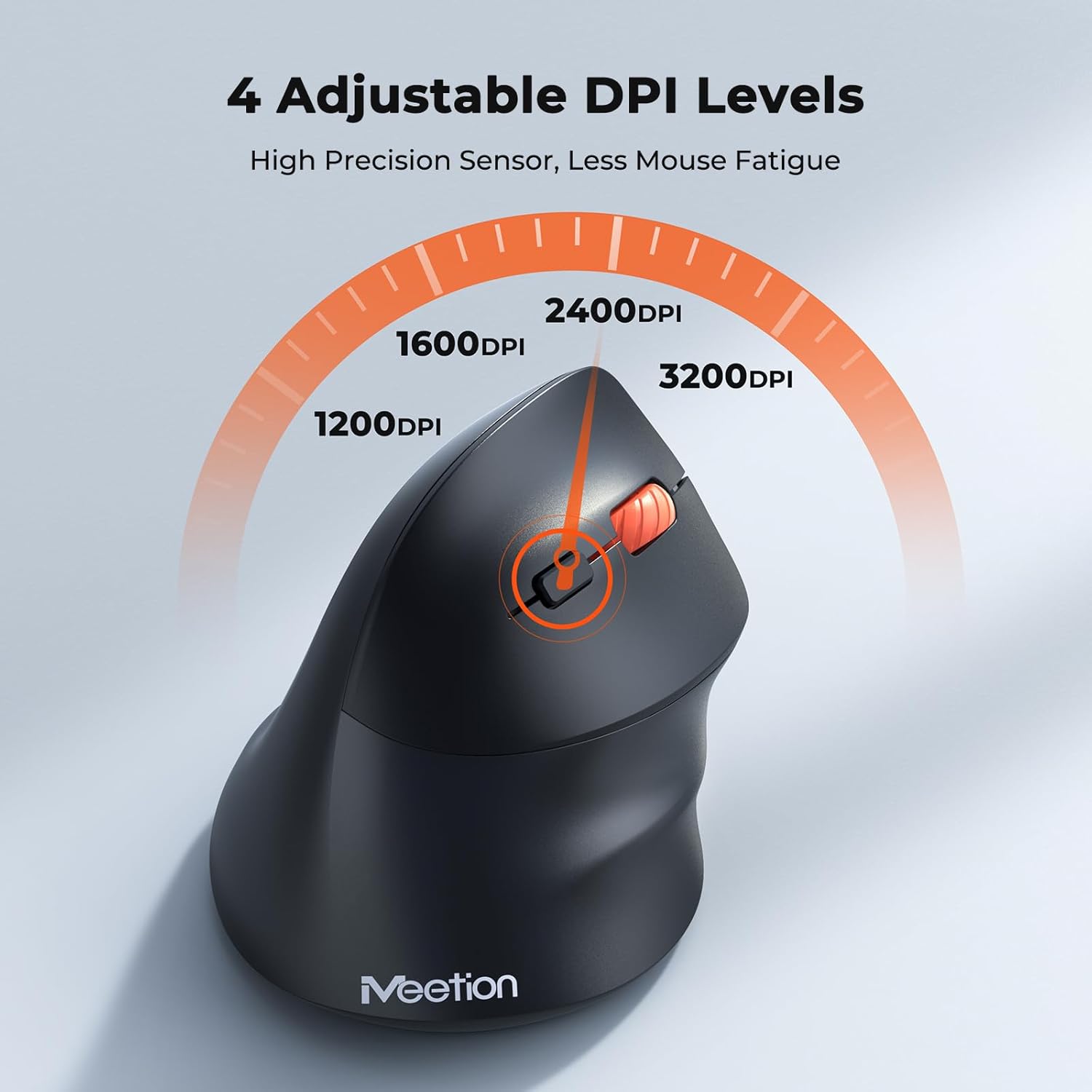
Adjust the DPI to match your preference for cursor speed and precision.
5.2 Пераключэнне некалькіх прылад
To switch between connected devices, simply press the Mode Switching Button located on the bottom of the mouse. The corresponding indicator light (green for 2.4G, blue for BT1/BT2) will illuminate to show the active connection.
5.3 Кнопкі «Наперад»/«Назад»
Use the Forward and Back buttons, conveniently located on the side of the mouse, for quick navigation in web browsers, file explorers, and other applications that support these functions.
6. Кіраванне харчаваннем
6.1 Auto-Sleep Mode
To conserve battery life, the mouse will automatically enter sleep mode after 20 minutes of inactivity. This intelligent feature helps extend the battery's operational time.
6.2 Waking the Mouse
To wake the mouse from sleep mode, simply press any button. It will instantly reconnect to the last active device.
6.3 Тэрмін службы батарэі
With typical usage, a single AA battery can power the mouse for up to 3 months. Actual battery life may vary based on usage patterns and battery quality.
7. Тэхнічнае абслугоўванне
To ensure optimal performance and longevity of your mouse, follow these maintenance guidelines:
- Уборка: Выкарыстоўвайце мяккую сухую тканіну для працірання паверхні мышы. Для выдалення ўстойлівага бруду злёгкуamp можна выкарыстоўваць тканіну, але сачыце за тым, каб вільгаць не трапляла ўнутр прылады. Пазбягайце выкарыстання агрэсіўных хімічных рэчываў або абразіўных ачышчальнікаў.
- Замена батарэі: Replace the AA battery when the low battery indicator lights up or when mouse performance degrades. Always dispose of used batteries responsibly.
- захоўванне: When not in use for extended periods, turn off the mouse and store it in a dry, cool place.
8. Выпраўленне непаладак
If you encounter issues with your MEETION BTM011 mouse, refer to the following solutions:
| праблема | Рашэнне |
|---|---|
| Мышка не рэагуе |
|
| Рух курсора няўстойлівы або павольны |
|
| Немагчыма падключыцца праз Bluetooth |
|
| Forward/Back buttons not working |
|
9. Тэхнічныя характарыстыкі
| Асаблівасць | Дэталь |
|---|---|
| мадэль | BTM011 |
| Сувязь | 2.4GHz Wireless, Bluetooth 5.3 (BT1, BT2) |
| Ўзроўні DPI | 1200/1600/2400/3200 |
| Гузікі | 7 (Left, Right, Scroll Wheel, Forward, Back, DPI Switch, Mode Switch) |
| Крыніца харчавання | 1 батарэйка тыпу АА (не ўваходзіць у камплект) |
| Аўтаматычны рэжым сну | Пасля 20 хвілін бяздзейнасці |
| Сумяшчальнасць | Windows, Mac OS, Linux, Android, iOS (for iPad/iPhone) |
| Матэрыял | Пластыкавыя |
| Памеры (прыбл.) | 4.4 х 3.29 х 2.74 цалі (11.18 х 8.36 х 6.96 см) |
10. Гарантыя і падтрымка
10.1 Інфармацыя аб гарантыі
MEETION products are designed and manufactured to the highest quality standards. This product is covered by a limited warranty against defects in materials and workmanship. Please retain your proof of purchase for warranty claims. Specific warranty terms may vary by region; refer to your local retailer or the official MEETION webсайт для дэталяў.
10.2 Падтрымка кліентаў
For technical assistance, troubleshooting, or general inquiries, please contact MEETION customer support:
- электронная пошта: service@meetion.com
- Webсайт: Visit the official MEETION webсайт з часта задаванымі пытаннямі і дадатковымі рэсурсамі.