
Уводзіны
This manual provides detailed instructions for the CHONCHOW G100 60% Wireless Gaming Keyboard and Mouse Combo. Please read this manual carefully before use to ensure proper operation and to maximize your experience with the product.
The CHONCHOW G100 combo features a compact 68-key layout keyboard and a responsive gaming mouse, both utilizing a 2.4G wireless connection for a clutter-free setup. Both devices are rechargeable and offer customizable RGB backlighting for an enhanced gaming and computing experience.
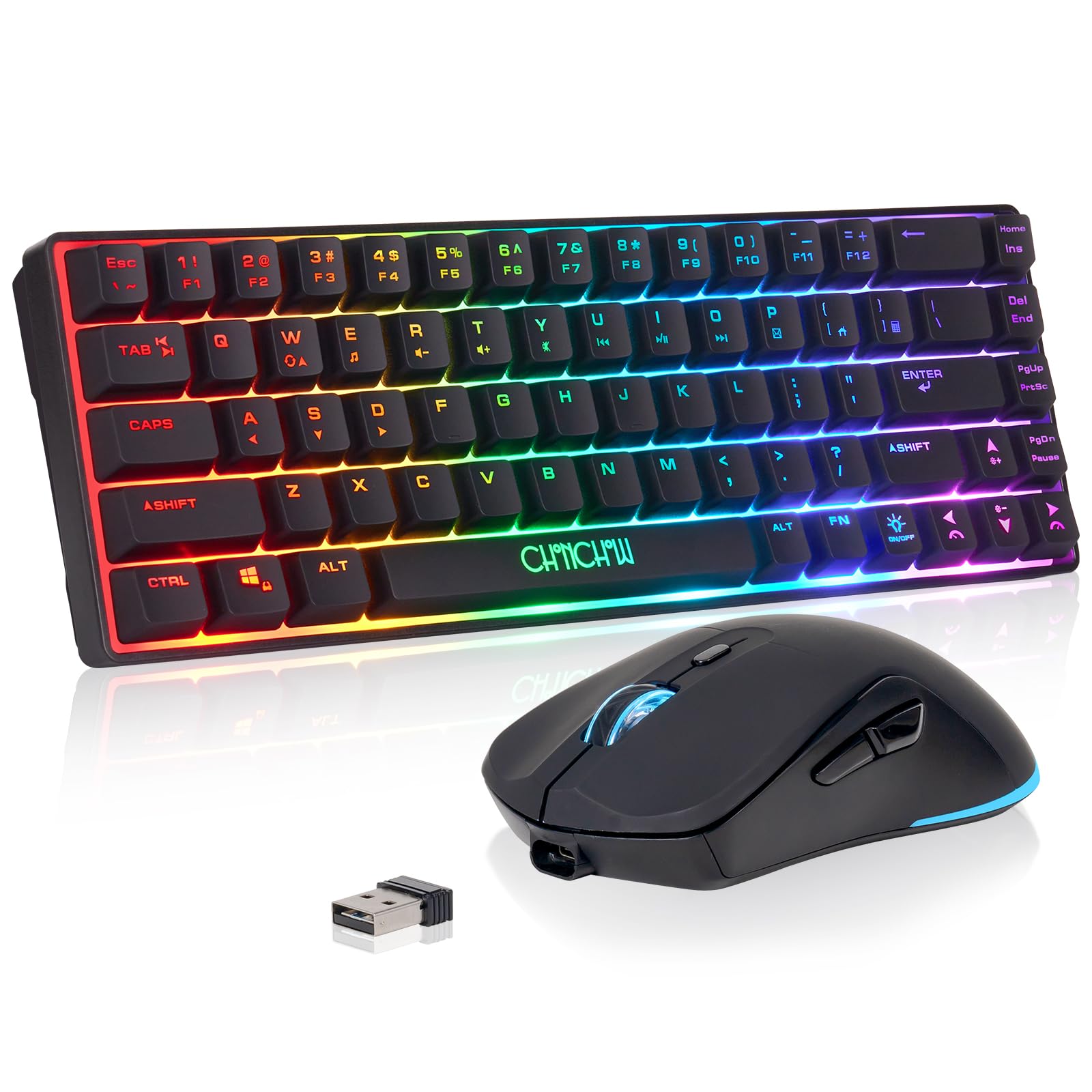
Image: The CHONCHOW G100 60% Wireless Gaming Keyboard and Mouse Combo, showcasinдзякуючы кампактнаму дызайну і RGB-падсветцы.
Змест пакета
- CHONCHOW 60% Wireless Gaming Keyboard
- Бесправадная гульнявая мыш CHONCHOW
- USB 2.4G Wireless Receiver (located in the mouse battery compartment)
- USB Charging Cable (Type-C for keyboard, Micro-USB for mouse)
Інструкцыя па наладзе
- Зараджайце прылады: Before first use, ensure both the keyboard and mouse are fully charged. Connect the provided USB charging cables to the respective charging ports on the keyboard (Type-C) and mouse (Micro-USB), then plug the other end into a USB power source. The keyboard has a 2000 mAh battery, and the mouse has a 500 mAh battery.
- Знайдзіце USB-прыёмнік: The 2.4G wireless USB adapter is stored in the battery compartment on the back of the mouse. Carefully open the compartment and remove the receiver.
- Падключыце прыёмнік: Plug the USB 2.4G wireless receiver into an available USB port on your computer, laptop, or compatible gaming console (PS3, PS4, PS5, Xbox, Mac).
- Уключаныя прылады: Turn on the keyboard and mouse using their respective power switches. The power switch for the mouse is located on its underside. The keyboard's power switch is typically near the charging port.
- Аўтаматычнае падключэнне: The keyboard and mouse should automatically connect to the receiver. No additional drivers are typically required for Windows 2000/2003/XP/Vista/Win7/Win8/Win10/Win11 or Mac OS 14 Sonoma.

Image: Illustration of the keyboard and mouse charging via Type-C and Micro-USB, with battery capacity indicators.

Image: Close-up of the 2.4GHz USB receiver, typically stored in the mouse.
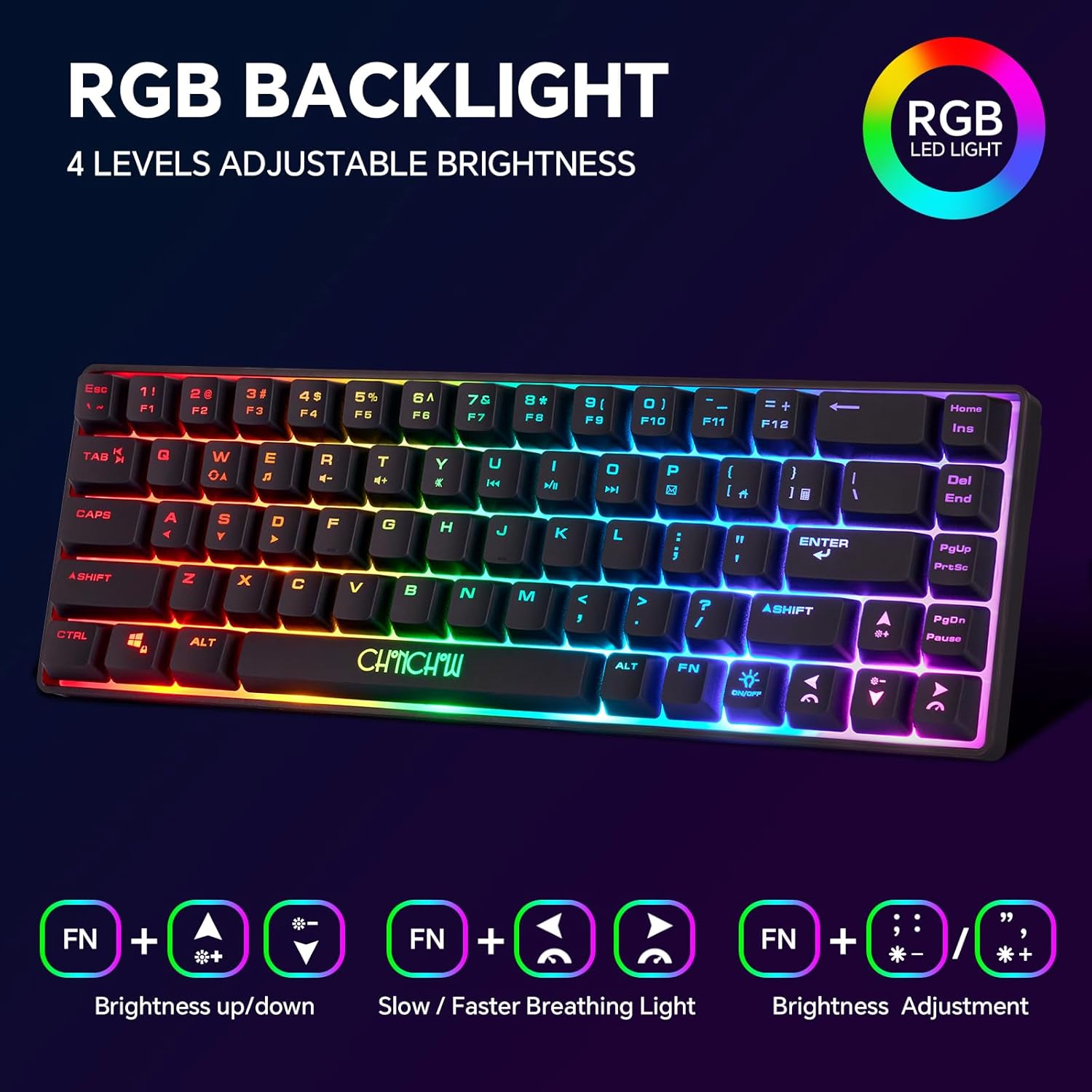
Image: The keyboard and mouse connected wirelessly to a monitor via the USB receiver, indicating plug-and-play functionality.

Image: Diagram of the rechargeable mouse, highlighting the DPI key, roller, side keys, charging port, and the power ON/OFF switch with backlight option.
Інструкцыя па эксплуатацыі
Функцыі клавіятуры
- Кіраванне падсветкай RGB: The keyboard features RGB backlighting with 4 adjustable brightness levels and 3 breathing speeds. Use the following key combinations:
- Рэгуляванне яркасці: Прэса Fn + Стрэлка ўверх / Стрэлка ўніз для рэгулявання яркасці.
- Хуткасць дыхання: Прэса Fn + Стрэлка ўлева / Стрэлка ўправа to adjust breathing speed.
- Рэжым падсвятлення: Прэса Fn + ; / ' to cycle through different backlight modes.
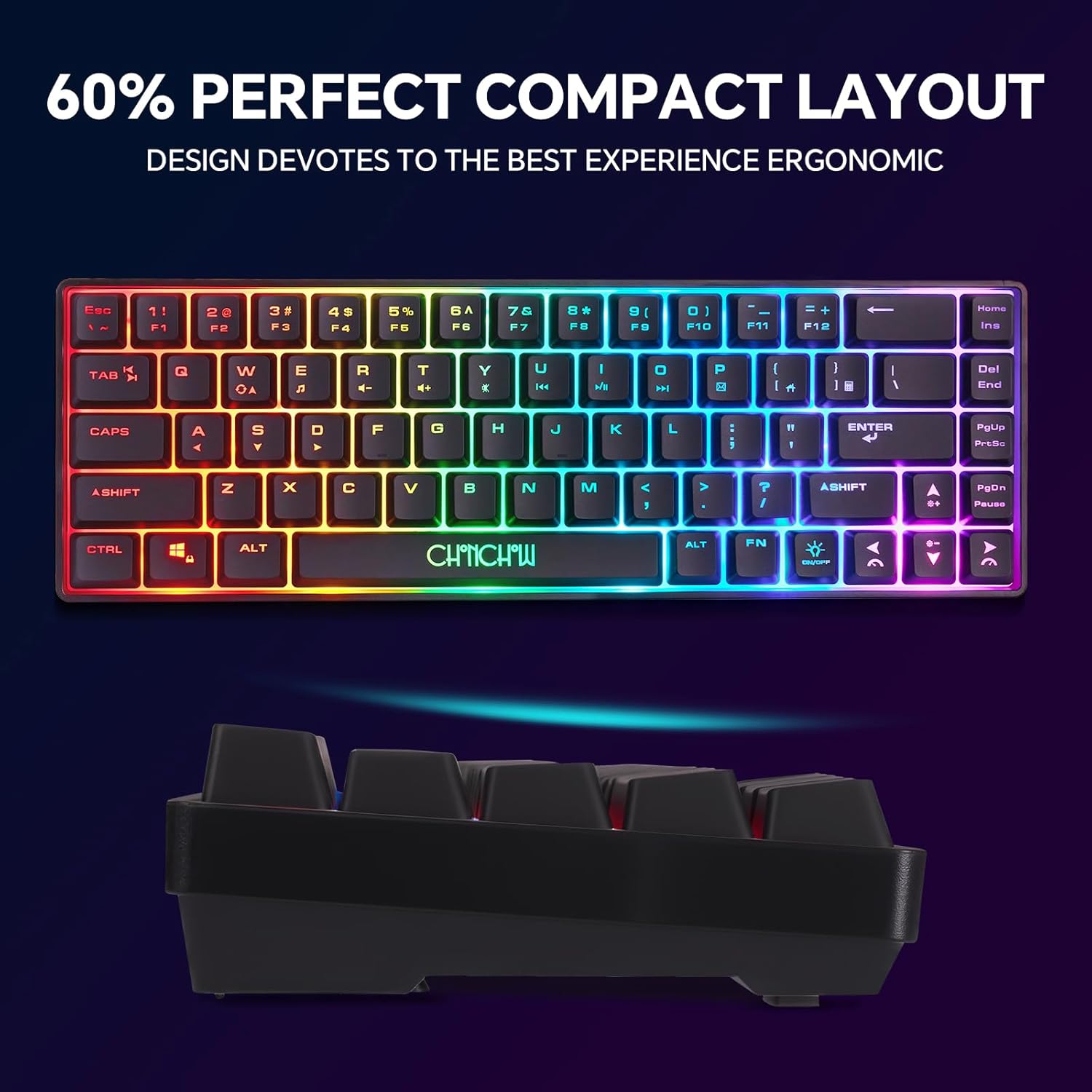
Image: The 60% compact keyboard displaying RGB backlighting, with visual cues for Fn key combinations to control brightness and breathing light effects.
- Multimedia Functions (Fn Key Combinations): The keyboard utilizes Fn key combinations for various multimedia and system functions. Refer to the table below:
| Складаны ключ | Функцыя | Складаны ключ | Функцыя |
|---|---|---|---|
| Fn+Z | СМІ | Fn + N | Далей |
| Fn + X | Аб'ём+ | Fn + M | Прайграванне/Паўза |
| Fn + C | Аб'ём- | Fn + | Стоп |
| Fn + V | Адключыць гук | Fn + > | Пошта |
| Fn + B | Папярэдні | Fn + /? | Favorites Folder (works on IE browser) |

Image: A visual representation of the keyboard and a table detailing the Fn key combinations for multimedia functions.
Функцыі мышы
- Рэгуляванне DPI: The mouse features adjustable DPI settings (1200-2400-3200 DPI) for varying cursor sensitivity. Press the Ключ DPI (usually located behind the scroll wheel) to cycle through the DPI settings.
- RGB асвятленне: The mouse includes seven brilliant colors that illuminate its body. These lights are typically linked to the DPI setting or can be controlled via the power switch (Power ON with Backlight option).

Image: Diagram of the gaming mouse with labeled buttons (Left, Right, Roller/Middle, DPI+/-, Forward, Backward) and an illustration of different DPI settings with corresponding colors.
Тэхнічнае абслугоўванне
- Чыстка клавіш: The keyboard features detachable ABS keycaps, allowing for easy cleaning. Gently pull the keycaps upwards to remove them. Clean with a soft, damp cloth and ensure they are completely dry before reattaching.

Image: Close-up of the keyboard showing several keycaps detached, illustrating the detachable ABS keycap feature for easy cleaning.
- Генеральная ўборка: Use a soft, dry cloth to wipe down the surfaces of both the keyboard and mouse. Avoid using harsh chemicals or abrasive materials.
- захоўванне: Калі прылады не выкарыстоўваюцца працяглы час, захоўвайце іх у прахалодным, сухім месцы.
Ліквідацыю непаладак
- Mouse Not Working / Needs Pairing:
- Адключыце USB-прыёмнік ад кампутара.
- Press and hold the mouse wheel and the right-click button simultaneously for 3 seconds.
- Адпусціце кнопкі.
- Reinsert the USB receiver into your computer.
- Click any key or move the mouse to re-establish connection. The mouse wheel light should turn blue to indicate successful pairing.
- Keyboard Not Working / Needs Pairing:
- Адключыце USB-прыёмнік ад кампутара.
- Press and hold the 'ESC' key and the 'Q' key simultaneously for 3 seconds. The indicator light on the keyboard should provide a prompt.
- Адпусціце ключы.
- Reinsert the USB receiver into your computer. The indicator light on the keyboard should turn off.
- Click any key to re-establish connection.
- Mouse Not Charging: If the mouse battery is completely depleted, it may require a longer charging period to reactivate. Charge the mouse with a 2A/5V charger for approximately 10 hours to wake up the battery. This is a characteristic of lithium batteries.
- Страта злучэння: If the mouse or keyboard connection is lost, try resetting the device codes as described above. Ensure the USB receiver is within the effective 10-meter range and free from interference.
Тэхнічныя характарыстыкі
| Асаблівасць | Дэталь |
|---|---|
| Марка | ЧОНЧОУ |
| Нумар мадэлі | G100 |
| Тэхналогія падлучэння | Бесправадная сетка 2.4G |
| Раскладка клавіятуры | 68-key, 60% Compact, QWERTY |
| Ёмістасць батарэі клавіятуры | 2000 мАг |
| Ёмістасць батарэі мышы | 500 мАг |
| Налады DPI мышы | 1200-2400-3200 ДПІ |
| Падсвятленне клавіятуры | RGB (4 brightness levels, 3 breathing speeds) |
| Падсвятленне мышы | 7 Brilliant Colors |
| Сумяшчальныя прылады | PC, Laptop, Xbox, PS3, PS4, PS5, Mac |
| Сумяшчальныя аперацыйныя сістэмы | Windows 2000/2003/XP/Vista/Win7/Win8/Win10/Win11, Mac OS 14 Sonoma |
| Памеры прадукту (клавіятура) | 12.44 см Д х 4.09 см Ш х 1.54 см В |
| Матэрыял | Пластыкавыя |
Гарантыя і падтрымка
CHONCHOW offers a one-month refund or replacement па пытаннях якасці і twelve-month warranty for this product. For any quality concerns or technical assistance, please contact customer service.
Кантакт па службе падтрымкі:
- Email support information can be found on the product packaging.
- Working hours for support are Monday-Friday, 9:30 AM - 12:30 PM PST and 2:00 PM - 6:00 PM PST.
We are committed to resolving any issues you may encounter during the use of our products.