
1. Уводзіны
This manual provides detailed instructions for the setup, operation, and maintenance of your ATTACK SHARK X98PRO Wireless Mechanical Keyboard. The X98PRO features tri-mode connectivity (Bluetooth, 2.4GHz wireless, USB-C wired), hot-swappable switches, a customizable TFT screen, and a multi-function CNC knob, designed for both gaming and productivity across various operating systems.
2. Змесціва ўпакоўкі
- ATTACK SHARK X98PRO Mechanical Keyboard
- USB-C to USB-A Braided Cable
- Бесправадны прыёмнік 2.4 ГГц
- Здымальнік клавішнай шапкі
- Пераключальнік
- Кіраўніцтва карыстальніка (гэты дакумент)
3. Keyboard Layout and Components
The X98PRO features a compact 98-key layout, integrating a numeric keypad while maintaining a smaller footprint than a full-size keyboard. Key components include:
- 1.14-цалевы TFT-экран: Located above the numeric keypad, this screen displays various information and allows for customization.
- CNC Multi-Function Knob: Positioned next to the TFT screen, this knob controls volume, brightness, RGB effects, and connection modes.
- Порт USB-C: Для праваднога падключэння і зарадкі.
- 2.4GHz Wireless Receiver Storage: Typically located in a dedicated slot on the keyboard for safekeeping.


4. Настройка
4.1. Зарадка клавіятуры
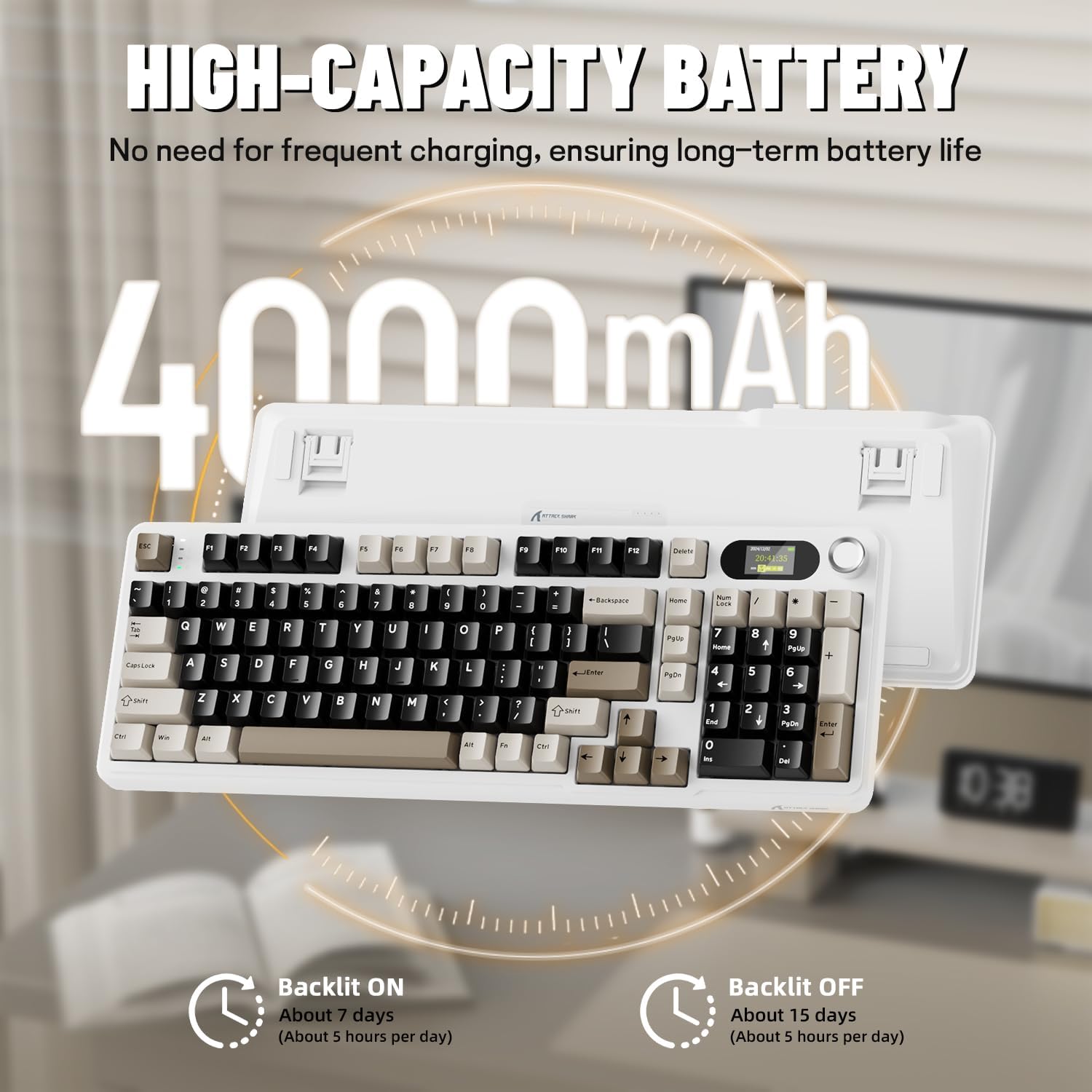
Before first use, it is recommended to fully charge the keyboard. Connect the provided USB-C cable to the keyboard's USB-C port and the other end to a USB-A power source (e.g., computer, wall adapter). The TFT screen will indicate charging status. The keyboard features a 4000mAh battery for extended wireless use.
4.2. Рэжымы падключэння
The X98PRO supports three connection modes:
- Правадны рэжым USB-C: Connect the keyboard directly to your device using the USB-C cable. This mode also charges the keyboard.
- Бесправадны рэжым 2.4 ГГц:
- Insert the 2.4GHz wireless receiver into an available USB port on your computer.
- Switch the keyboard's mode selector to 2.4G. The keyboard should automatically connect.
- Рэжым Bluetooth 5.0: Клавіятура можа падключацца да трох прылад Bluetooth.
- Switch the keyboard's mode selector to Bluetooth.
- Націсніце і ўтрымлівайце fn+1, fn+2, або fn+3 for 3-5 seconds until the indicator light flashes, indicating pairing mode.
- On your device (PC, Mac, Tablet), search for Bluetooth devices and select "ATTACK SHARK X98PRO" to pair.
- Каб пераключыцца паміж падлучанымі прыладамі Bluetooth, націсніце fn+1, fn+2, або fn+3 коратка.

4.3. Пачатковая канфігурацыя (Web-based Driver)
The X98PRO utilizes an intuitive web-based driver for advanced customization. This allows you to edit, upload, and switch display content for the TFT screen, customize RGB lighting, remap keys, and set macros without installing dedicated software. Access the official ATTACK SHARK webсайт для web інтэрфейс драйвера.

5. Інструкцыя па эксплуатацыі
5.1. TFT Screen Functions
The 1.14-inch TFT screen can display various information:
- Стан сістэмы: Connection mode (wired, 2.4G, BT1/2/3), operating system (Win/Mac).
- Тэрмін службы батарэі: Real-time battery level.
- Час: Бягучы час.
- Custom GIFs: Upload personalized animations via the web кіроўца.
To navigate the TFT screen menu, rotate the CNC knob to scroll through options and press the knob to confirm a selection.
5.2. CNC Multi-Function Knob
The CNC knob provides intuitive control over several keyboard features:
- Рэгулятар гучнасці: By default or after switching, rotate to adjust system volume.
- Кантроль яркасці: Адрэгулюйце яркасць падсвятлення.
- RGB-эфекты: Пераключайцеся паміж рознымі эфектамі RGB-асвятлення.
- Рэжымы падлучэння: Switch between wired, 2.4GHz, and Bluetooth modes.
To switch the knob's function (e.g., between volume and RGB control), press Fn + ручка (press the knob down).
5.3. Падсвятленне RGB
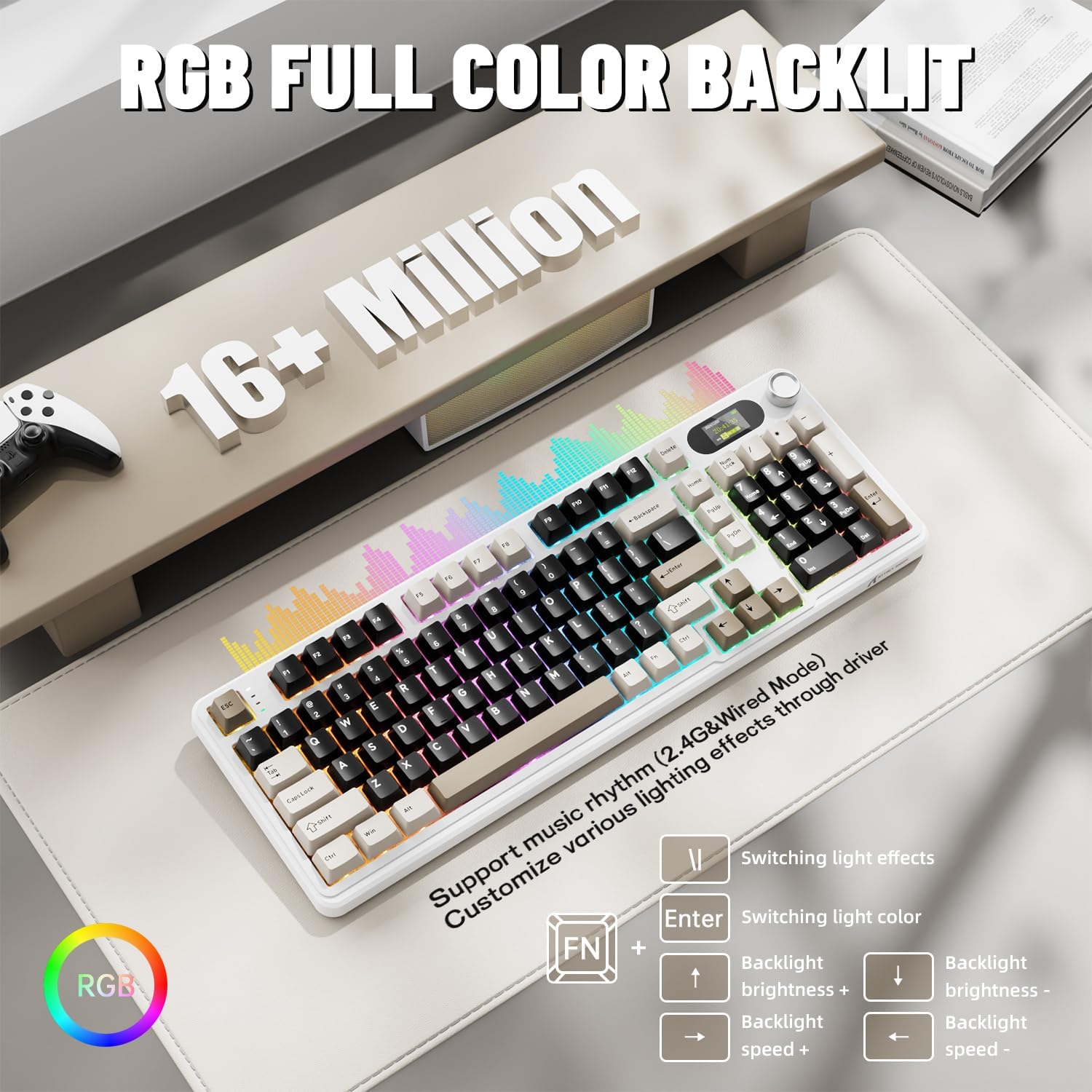
The X98PRO features full RGB backlighting with multiple effects. Control options include:
- Пераключэнне светлавых эфектаў: Прэса Fn + Enter.
- Switching Light Color: Прэса Fn + \|.
- Яркасць падсвятлення: Прэса Fn + стрэлка ўверх (павелічэнне) або Fn + стрэлка ўніз (зніжэнне).
- Хуткасць падсвятлення: Прэса Fn + стрэлка ўлева (памяншэнне) або Fn + стрэлка ўправа (increase).
Further customization of RGB lighting, including per-key lighting and custom profiles, is available through the webкіроўца на аснове.
5.4. Камутатары з магчымасцю гарачай замены
The X98PRO features a hot-swappable PCB, allowing you to easily change mechanical switches without soldering. It is compatible with most 3-pin and 5-pin mechanical switches.
- Using the provided switch puller, carefully grip the switch and pull it straight up to remove it.
- Сумясціце кантакты новага перамыкача з адтулінамі на друкаванай плаце. Пераканайцеся, што кантакты размешчаны прама.
- Gently press the new switch into place until it clicks. Do not force it.

6. Тэхнічнае абслугоўванне
6.1. Уборка
- Перад чысткай адключыце клавіятуру ад усіх крыніц харчавання.
- Каб старанна ачысціць клавішы, выкарыстоўвайце здымнік.
- Wipe the keyboard surface with a soft, damp тканіна. Пазбягайце рэзкіх хімікатаў.
- Выкарыстоўвайце сціснутае паветра, каб выдаліць пыл і смецце паміж клавішамі.
6.2. Замена перамыкача і каўпачка клавіш
Refer to Section 5.4 for instructions on replacing switches. Keycaps can be removed using the provided keycap puller and replaced with compatible sets.
7. Выпраўленне непаладак
- Клавіятура не рэагуе: Ensure the keyboard is charged. Check the connection mode (wired, 2.4G, BT) and ensure it matches your device. For 2.4GHz, ensure the receiver is properly inserted. For Bluetooth, re-pair if necessary.
- TFT screen not updating/syncing: Ensure the keyboard is connected to a device. For time synchronization or custom GIFs, use the webкіроўца на аснове.
- Кароткі тэрмін службы батарэі: Ensure the keyboard is fully charged. Reduce backlight brightness or disable RGB effects to conserve battery.
- Ключы не рэгіструюцца: If a specific key is not working, try removing and re-inserting its switch. If the issue persists, consider replacing the switch.
- Customization issues: Ensure you are using the official web-based driver. Clear browser cache or try a different browser if experiencing issues.
8. Тэхнічныя характарыстыкі
| Марка | АТАКА АКУЛА |
| мадэль | X98PRO |
| Тэхналогія падлучэння | 2.4GHz, Bluetooth 5.0, USB-C Wired |
| Апісанне клавіятуры | Механічны |
| Тып перамыкача | Linear (Blueberry switches) |
| Гарачая замена | Yes (3-pin and 5-pin compatible) |
| Ёмістасць батарэі | 4000 мАг |
| Асаблівасці | Customizable TFT Display, Multi-Function CNC Knob, RGB Backlit, Gasket Mount |
| Сумяшчальныя прылады | Laptop, PC, Tablet (Windows, Mac, Linux) |
| Памеры | 16.4 х 5.8 х 1.8 цалі (прыблізна) |
| Вага прадмета | 2.9 фунта |
9. Гарантыя і падтрымка
For warranty information and technical support, please refer to the official ATTACK SHARK webсайт або звярніцеся ў службу падтрымкі кліентаў. Захоўвайце чэк аб куплі для прэтэнзій па гарантыі.