
1. Уводзіны
This manual provides detailed instructions for the setup, operation, customization, and maintenance of your Xtrike Me GM314 RGB Gaming Mouse. Please read this manual thoroughly before using the product to ensure optimal performance and longevity.
The Xtrike Me GM314 is a wired gaming mouse featuring a 7200 DPI optical sensor, 7 programmable buttons, and customizable RGB lighting, designed for personal computer use.
2. Прадукт скончыўсяview
Familiarize yourself with the components of your Xtrike Me GM314 RGB Gaming Mouse.
Малюнак 2.1: Верх view of the GM314 Gaming Mouse.

Малюнак 2.2: Пад вуглом view showing scroll wheel and DPI buttons.
The mouse features a comfortable design with a textured grip on the sides. It includes a scroll wheel, left and right click buttons, two DPI adjustment buttons, and two side buttons for enhanced functionality.
3. Настройка
3.1. Змесціва ўпакоўкі
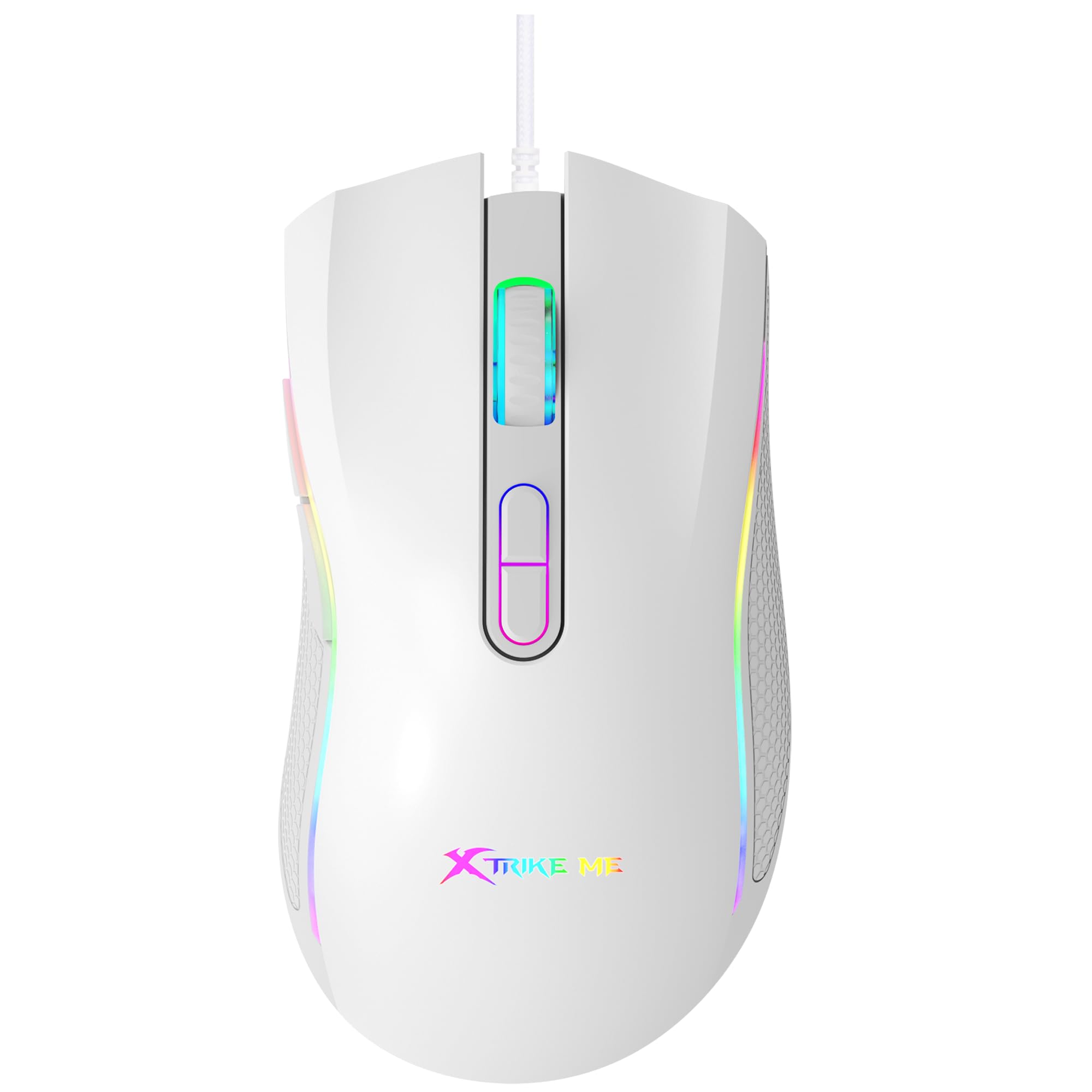
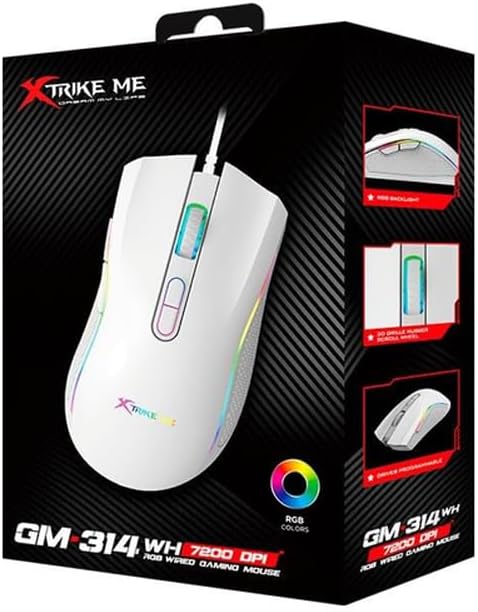
Figure 3.1: GM314 Product Packaging.
Пераканайцеся, што ў вашай упакоўцы ёсць наступныя рэчы:
- Xtrike Me GM314 RGB Gaming Mouse
- Кіраўніцтва карыстальніка (гэты дакумент)
- Driver Software (if provided on disc or download link)
3.2. Падключэнне мышы
- Знайдзіце вольны USB-порт на вашым персанальным кампутары.
- Plug the USB connector of the GM314 mouse into the USB port.
- Аперацыйная сістэма аўтаматычна выявіць і ўсталюе неабходныя драйверы. Гэта можа заняць некалькі хвілін.
- Once installed, the mouse will be ready for basic use.
3.3. Усталёўка праграмнага забеспячэння драйвера
For full customization of programmable buttons and RGB lighting, install the dedicated driver software.
- If a driver disc is included, insert it into your computer's optical drive and follow the on-screen instructions.
- Alternatively, download the latest driver software from the official Xtrike Me webсайт (гл. упакоўку прадукту або інструкцыі вытворцы website for the correct URL).
- Запусціце праграму ўстаноўкі і выконвайце падказкі, каб завяршыць устаноўку.
- Перазагрузіце кампутар, калі будзе прапанавана.
4. Інструкцыя па эксплуатацыі
4.1. Асноўныя функцыі
- Пстрычка левай кнопкай мышы: Першаснае дзеянне, выбар.
- Пстрыкніце правай кнопкай мышы: Кантэкстнае меню, другаснае дзеянне.
- Кола пракруткі: Scroll up/down, middle click for universal scroll or other assigned functions.
4.2. Рэгуляванне DPI
The GM314 mouse features adjustable DPI (Dots Per Inch) settings, allowing you to change cursor sensitivity on the fly. The available DPI levels are 1200, 2400, 4800, and 7200.
Figure 4.1: DPI Adjustment Buttons.
- Націсніце Кнопка DPI+ (usually the forward button behind the scroll wheel) to increase DPI.
- Націсніце Кнопка DPI (usually the rear button behind the scroll wheel) to decrease DPI.
- The RGB lighting may change color to indicate the current DPI setting (refer to driver software for specific color assignments).
4.3. Бакавыя кнопкі
The GM314 includes two side buttons, typically located on the left side of the mouse.
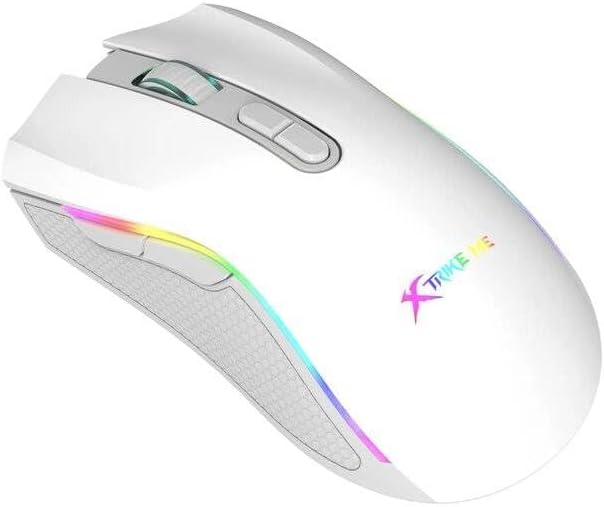
Figure 4.2: Side Buttons.
By default, these buttons often function as 'Forward' and 'Back' in web браўзэры або file explorers. Their functions can be customized using the driver software.
5. Налада
The Xtrike Me GM314 mouse offers extensive customization options through its dedicated driver software. This includes:
- Праграмаванне кнопак: Assign custom functions, macros, or key combinations to any of the 7 programmable buttons.
- Налады DPI: Fine-tune DPI levels and assign specific colors to each level for visual identification.
- RGB асвятленне: Choose from various lighting effects, colors, and brightness levels for the mouse's RGB backlight.
- Хуткасць галасавання: Adjust the data transmission rate (e.g., 125 Hz) for responsiveness.
- профіfiles: Стварыць і захаваць некалькі прафесіяналаўfiles for different games or applications, allowing quick switching between settings.
Refer to the driver software's built-in help or interface for detailed instructions on using these customization features.
6. Тэхнічнае абслугоўванне
Proper maintenance ensures the longevity and performance of your gaming mouse.
- Уборка: Выкарыстоўвайце мяккую сухую тканіну для працірання паверхні мышы. Для ўстойлівага бруду злёгкуampпрацярыце тканіну вадой або мяккім ачышчальным растворам. Пазбягайце агрэсіўных хімічных рэчываў.
- Сыход за датчыкам: Keep the optical sensor on the underside of the mouse clean and free from dust or debris. Use a cotton swab if necessary.
- Кабельнае кіраванне: Avoid sharp bends or excessive pulling on the USB cable. Store the mouse in a way that prevents cable damage. The cable includes a magnetic ring for improved signal stability.
- захоўванне: Калі мыш не выкарыстоўваецца працяглы час, захоўвайце яе ў чыстым і сухім месцы.
7. Выпраўленне непаладак
If you encounter issues with your GM314 gaming mouse, refer to the following common solutions:
| праблема | Рашэнне |
|---|---|
| Мышка не рэагуе |
|
| Рух курсора няўстойлівы або скачковы |
|
| DPI or RGB settings not changing |
|
| Праграмуемыя кнопкі не працуюць |
|
8. Тэхнічныя характарыстыкі
| Асаблівасць | Дэталь |
|---|---|
| Назва мадэлі | GM314 |
| Тэхналогія выяўлення руху | Аптычны |
| Налады DPI | 1200/2400/4800/7200 |
| Колькасць кнопак | 7 (праграмуемых) |
| Кнопка жыцця | 3 мільёнаў клікаў |
| Падсвятленне | RGB |
| Хуткасць перадачы даных | 125 Гц |
| Тэхналогія падлучэння | USB (правадной) |
| Даўжыня кабеля | 1.5 meters (with magnetic ring) |
| Сумяшчальныя прылады | Персанальны кампутар |
| Вага прадмета | 104 грамаў |
| Колер | Белы |
9. Гарантыя і падтрымка
The Xtrike Me GM314 RGB Gaming Mouse comes with a standard manufacturer's warranty. Please refer to the warranty card included in your product packaging or visit the official Xtrike Me webсайт для атрымання падрабязных гарантыйных умоў.
For technical support, driver downloads, or further assistance, please visit the official Xtrike Me support page or contact their customer service department. Contact information can typically be found on the product packaging or the manufacturer's webсайт.