
1. Уводзіны
This manual provides detailed instructions for the XBG B15pro Wireless Bluetooth Mouse. This device offers versatile connectivity options, an ergonomic design, and an intuitive LED display for enhanced user experience.
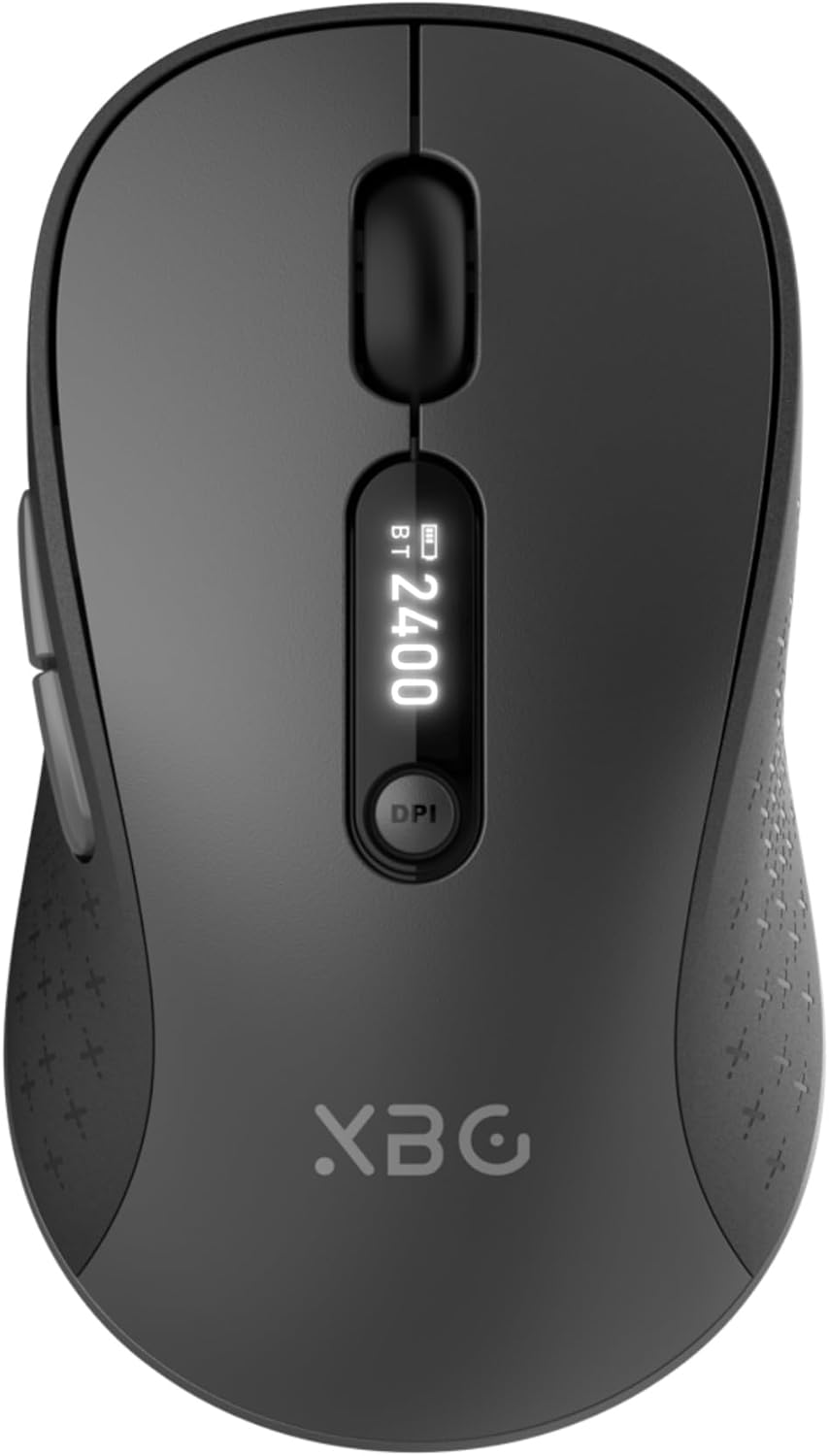
Image 1.1: The XBG B15pro Wireless Bluetooth Mouse, showcasing its sleek design and LED display.
Змест пакета:
- 1 x XBG B15pro Wireless Bluetooth Mouse
- 1 х USB-кабель для зарадкі (тып C)
- 1 x USB Receiver (2.4G)
- 1 х Кіраўніцтва карыстальніка
2. Асаблівасці прадукту
- Трохрэжымнае падключэнне: Supports Bluetooth 5.0, Bluetooth 4.0, and 2.4GHz wireless connections, allowing seamless switching between up to three devices.
- LED Screen Display: Забяспечвае інфармацыю ў рэжыме рэальнага часу аб працэнтах зарада батарэіtage, DPI level, and current connection mode.
- Рэгуляваны DPI: Five adjustable DPI levels (800/1000/1200/1600/2400) for precise cursor control.
- Акумулятарная батарэя: Built-in 500 mAh lithium polymer battery, rechargeable via Type-C port.
- Бясшумныя кнопкі: Main left and right buttons feature silent click technology, reducing noise in quiet environments.
- Эрганамічны дызайн: Contoured shape with a thumb rest and arched palm support for comfortable use during extended periods.
- Сумяшчальнасць з некалькімі паверхнямі: Operates effectively on various surfaces including resin, wood, fabric, paper, and metal.

Image 2.1: The XBG B15pro mouse designed for multi-device use, highlighting its wireless capabilities.

Image 2.2: The ergonomic contour of the XBG B15pro mouse, designed for comfortable hand fit.
3. Настройка
3.1 Зарадка мышы
Before first use, or when the battery indicator on the LED screen shows low power, charge the mouse using the provided Type-C USB cable. Connect the cable to the mouse's Type-C port and a USB power source (e.g., computer USB port, USB wall adapter).

Image 3.1: The XBG B15pro mouse connected for charging via its Type-C port.
3.2 Падключэнне мышы
The XBG B15pro mouse supports three connection modes: 2.4GHz wireless (via USB receiver) and two Bluetooth channels (BT1, BT2). The mode switch is located on the bottom of the mouse.

Image 3.2: The underside of the XBG B15pro mouse, showing the ON/OFF switch, mode switch button, and USB receiver storage.
Бесправадное злучэнне 2.4 ГГц:
- Locate the USB receiver stored in the bottom compartment of the mouse.
- Падключыце USB-прыёмнік да вольнага порта USB на вашым кампутары.
- Уключыце мыш з дапамогай перамыкача ON/OFF, які знаходзіцца ўнізе.
- Press the Mode Switch button on the bottom until the LED indicator shows a Чырвонае святло, indicating 2.4G mode. The mouse should connect automatically.
Падключэнне Bluetooth (BT1 / BT2):
- Уключыце мыш з дапамогай перамыкача ON/OFF, які знаходзіцца ўнізе.
- Press the Mode Switch button on the bottom to select either BT1 (Блакітнае святло) or BT2 (Зялёнае святло).
- Press and hold the Mode Switch button for 3-5 seconds until the corresponding Bluetooth indicator light (blue or green) starts flashing rapidly. This indicates pairing mode.
- On your device (laptop, tablet, PC), go to Bluetooth settings and search for new devices.
- Select "XBG B15pro" from the list of available devices to pair.
- Пасля спалучэння індыкатар перастане міргаць і застанецца бесперапынным.

Image 3.3: Illustration of the XBG B15pro mouse connecting to multiple devices via 2.4G and Bluetooth modes.
4. Інструкцыя па эксплуатацыі
4.1 Святлодыёдны экран
The integrated LED screen provides essential information at a glance:
- Працэнт зарада батарэіtage: Паказвае бягучы ўзровень батарэі.
- Узровень DPI: Displays the active DPI setting (800/1000/1200/1600/2400).
- Рэжым злучэння: Indicates the active connection (2.4G, BT1, or BT2).
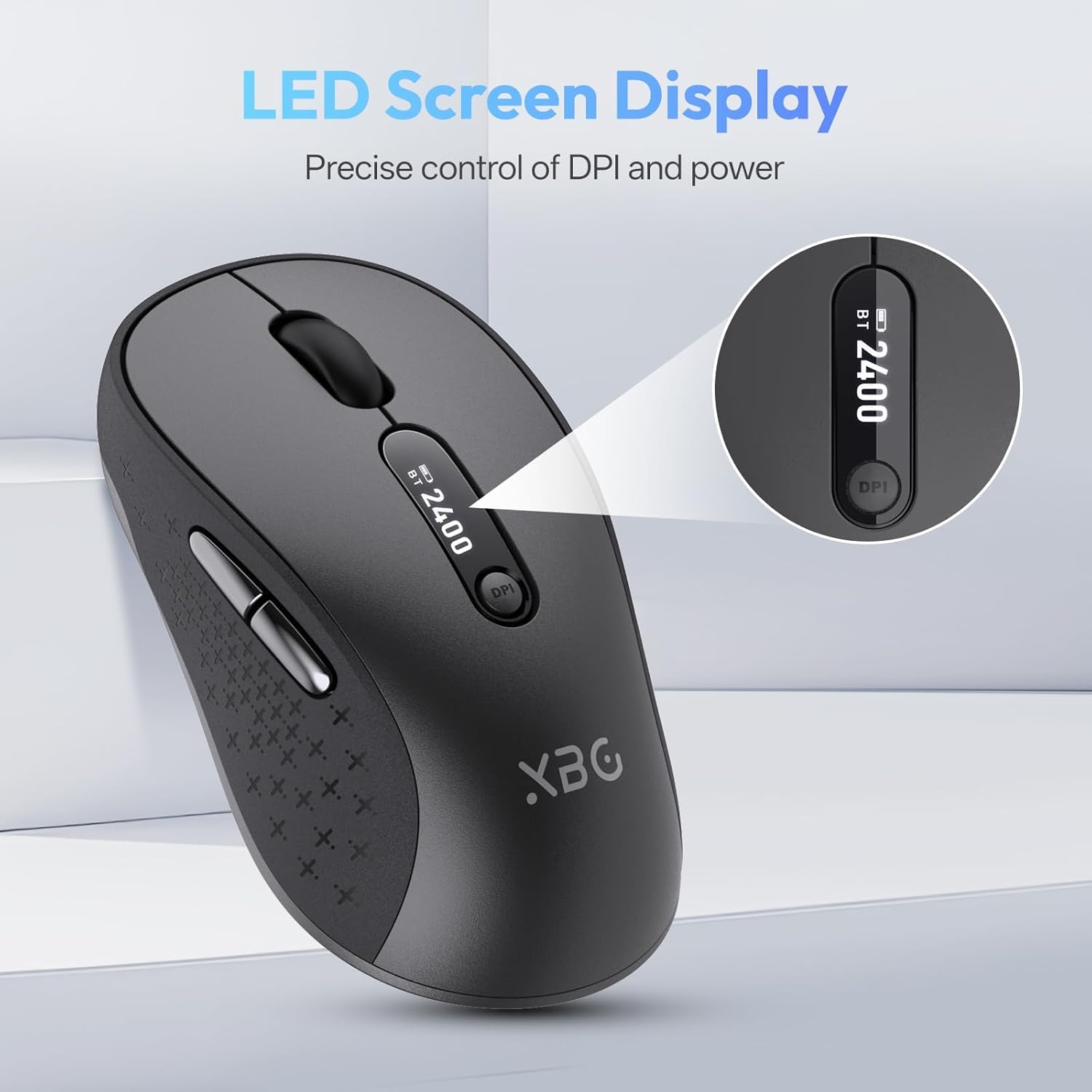
Малюнак 4.1: Падрабязны view of the mouse's LED screen, showing battery, DPI, and connection status.
4.2 Рэгуляванне DPI
Press the DPI button located below the scroll wheel to cycle through the five available DPI settings (800, 1000, 1200, 1600, 2400). The current DPI level will be displayed on the LED screen.
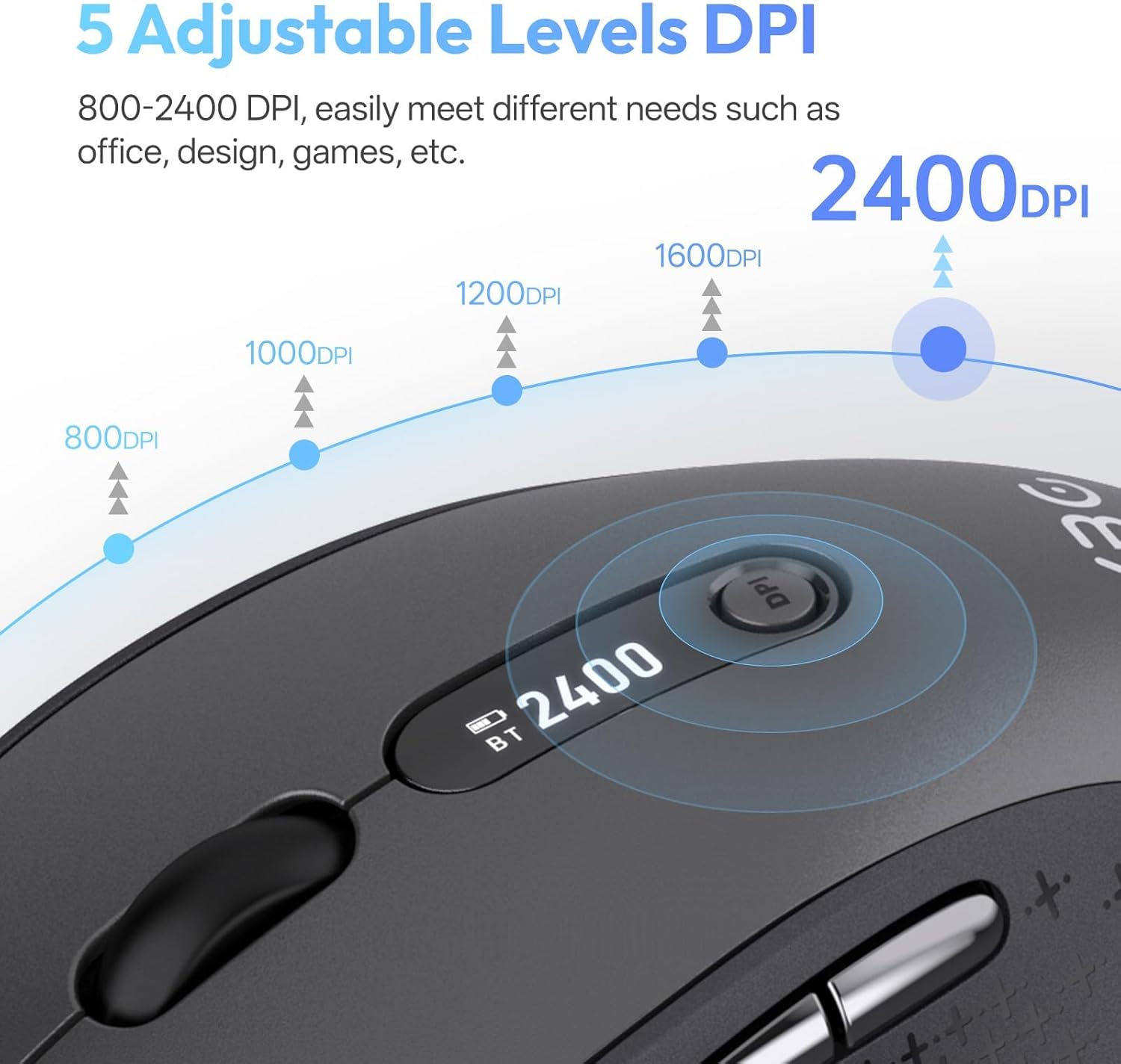
Image 4.2: Visual representation of the five adjustable DPI levels and how to change them.
4.3 Silent Click Functionality
The main left and right click buttons are designed for silent operation, providing a tactile click feel without audible noise. This feature is ideal for environments requiring minimal disturbance.

Image 4.3: A user operating the XBG B15pro mouse, illustrating its silent click feature in a quiet setting.
4.4 Аўтаматычны рэжым сну
To conserve battery, the mouse will automatically enter sleep mode after 5 minutes of inactivity. To wake the mouse, simply move it or click any button.
5. Тэхнічнае абслугоўванне
5.1 Сыход за акумулятарам
- Charge the mouse fully before first use.
- Пазбягайце частай поўнай разрадкі акумулятара, каб падоўжыць тэрмін яго службы.
- Для зарадкі выкарыстоўвайце кабель Type-C, які ўваходзіць у камплект.
- When not in use for extended periods, turn off the mouse using the ON/OFF switch on the bottom to prevent battery discharge.

Image 5.1: The XBG B15pro mouse being charged, illustrating its fast charging capability and long-lasting battery.
5.2 Ачыстка
Wipe the mouse with a soft, damp тканіна. Пазбягайце выкарыстання агрэсіўных хімікатаў або абразіўных матэрыялаў, якія могуць пашкодзіць паверхню.
6. Выпраўленне непаладак
- Мышка не рэагуе:
- Пераканайцеся, што мыш уключана.
- Check the battery level on the LED screen and charge if necessary.
- Verify the correct connection mode (2.4G, BT1, BT2) is selected and properly paired.
- Для рэжыму 2.4G пераканайцеся, што USB-прыёмнік надзейна падключаны да кампутара.
- For Bluetooth mode, ensure Bluetooth is enabled on your device and re-pair if connection is lost.
- Рух курсора няўстойлівы або павольны:
- Адрэгулюйце налады DPI з дапамогай кнопкі DPI.
- Ensure the mouse is used on a clean, suitable surface.
- Mouse disconnects frequently:
- Ensure the mouse is within the effective range of your device (typically 10 meters for Bluetooth/2.4G).
- Мінімізуйце перашкоды ад іншых бесправадных прылад.
- Праверце ўзровень батарэі.
- Mouse does not automatically enter sleep mode:
- While the mouse has an automatic sleep feature, it is recommended to manually turn off the mouse via the ON/OFF switch when not in use for extended periods to ensure maximum battery conservation.
7. Тэхнічныя характарыстыкі
| Асаблівасць | Спецыфікацыя |
|---|---|
| Нумар мадэлі | В15 пра |
| Тэхналогія падлучэння | Bluetooth 5.0/4.0, 2.4GHz Wireless |
| Выяўленне руху | Аптычны |
| Ўзроўні DPI | 800, 1000, 1200, 1600, 2400 |
| Тып батарэі | 1 Lithium Polymer (500 mAh, included) |
| Порт для зарадкі | Тып-C |
| Памеры прадукту | 4.55 х 2.83 х 0.04 цалі (11.56 х 7.19 х 0.1 см) |
| Вага прадмета | 2.65 унцыі (75 грам) |
| Асаблівасці | Ergonomic Design, Portable, Silent Click, LED Screen Display |

Image 7.1: A guide for recommended mouse size based on palm length and width.
8. Гарантыя і падтрымка
XBG offers a satisfaction guarantee for the B15pro Wireless Bluetooth Mouse.
- 30-дзённая палітыка вяртання: If you are not satisfied with the product, you may return it within 30 days of purchase.
- 1-Year Replacement Warranty: The product is covered by a 1-year replacement warranty for manufacturing defects.
For further assistance or support, please refer to the contact information provided with your purchase or visit the official XBG webсайт.