
DragoBud AX913
DragoBud AX900Mbps USB WiFi 6 Adapter with Bluetooth 5.4 Dongle
Мадэль: AX913
Уводзіны
This manual provides detailed instructions for the installation, operation, and troubleshooting of your DragoBud AX900Mbps USB WiFi 6 Adapter with Bluetooth 5.4 Dongle. Please read this manual thoroughly before using the device to ensure optimal performance and proper handling.
Што ў скрынцы
- 1x DragoBud AX900Mbps USB WiFi 6 Adapter
Асноўныя характарыстыкі
- Wi-Fi 6 AX900: Supports Wi-Fi 6 (802.11ax) with backward compatibility (802.11 ac/a/b/g/n). Delivers dual-band speeds up to 600 Mbps on 5GHz and 287 Mbps on 2.4GHz. Features advanced internal chips and dual 2dBi antennas for stable, long-range coverage.
- Multi-Device Bluetooth 5.4 Connectivity: Connects up to 7 devices simultaneously (PC, laptop, smartphone, wireless headphones, Bluetooth speakers, keyboards, printers). Offers a 65-foot range with backward compatibility (5.3/5.2/5.0/4.0). Low-latency technology ensures lag-free gaming and clear audio with automatic reconnection.
- 2-in-1 WiFi Receiver & Hotspot Mode: Functions as a WiFi receiver to connect to a router or as an Access Point (AP) to create a WiFi hotspot from a wired connection. Ideal for travel, emergency networking, and internet sharing.
- Plug-and-Play Built-in Driver Installation: Automatic installation on Windows 10/11 without requiring a CD or downloads. Simply plug into a USB port to connect. Supports Windows 7/10/11 for WiFi; Bluetooth requires Windows 10+. Not compatible with macOS, Linux, or Windows 8/8.1/XP.
- Бяспека WPA3: Supports WPA3 encryption, an advanced security protocol for network information protection.
- Ultra-Compact External Design: Portable size (1.25” × 0.6" × 0.3") suitable for travel and desktop use.
Сумяшчальнасць сістэмы
The DragoBud AX913 adapter is compatible with the following operating systems:
- WiFi Function: Windows 7, Windows 10, Windows 11
- Функцыя Bluetooth: Windows 10, Windows 11
Note: This device is NOT compatible with macOS, Linux, Windows 8/8.1, or Windows XP.

Image: System compatibility chart showing support for Windows 7, 10, 11 for WiFi, and Windows 10, 11 for Bluetooth. macOS, Linux, Chrome OS, and TV are marked as incompatible.
Настройка і ўстаноўка
1. Фізічнае падключэнне
Insert the DragoBud AX913 USB adapter into an available USB port on your desktop or laptop computer. The adapter features a compact design, ensuring it does not obstruct adjacent ports.

Image: The DragoBud AX913 USB WiFi 6 Adapter is shown plugged into the USB port of a laptop, with a blue light indicating activity and a WiFi signal icon.
2. Driver Installation (Windows 10/11 Plug-and-Play)
For Windows 10 and Windows 11, the driver installation is automatic. Simply plug the adapter into a USB port, and the system will detect and install the necessary drivers. A work indicator light on the adapter will illuminate once the WiFi connection is established.
Video: A tutorial demonstrating the USB WiFi 6 adapter driver installation process on a Windows computer. It shows plugging in the adapter, the automatic driver detection, and connecting to a WiFi network.
3. Driver Installation (Windows 7 or Manual Installation)
If the driver does not install automatically, or for Windows 7, follow these steps:
- Plug the USB WiFi 6 adapter into your computer's USB port.
- Open 'This PC' (or 'My Computer') and locate the virtual CD drive (e.g., 'REALTEK (E:)').
- Double-click the drive to open it, then navigate to the 'Windows' folder.
- Run the 'WiFiAutoInstallSetup' application.
- Follow the on-screen prompts to complete the installation. You may need to restart your computer.

Image: Visual guide showing the steps to install the WiFi adapter driver, including locating the virtual drive and running the setup file.
Інструкцыя па эксплуатацыі
1. Connecting to a WiFi Network (Receiver Mode)
Once the driver is installed, the adapter will function as a WiFi receiver. To connect to a network:
- Click the WiFi icon in your system tray (bottom-right corner of the screen).
- Абярыце патрэбную сетку Wi-Fi са спісу.
- Увядзіце ключ бяспекі сеткі (пароль), калі будзе прапанавана.
- Click 'Connect'. Your computer should now be connected to the internet.

Image: A schematic diagram illustrating the WiFi adapter in both receiving WiFi mode (connecting to a router) and transmitting WiFi mode (creating a hotspot).
2. Creating a WiFi Hotspot (AP Mode)
The adapter can also convert a wired internet connection into a WiFi hotspot:
- Ensure your computer has a wired internet connection.
- Access your computer's network settings (e.g., 'Settings' > 'Network & Internet' > 'Mobile hotspot').
- Enable the 'Mobile hotspot' feature.
- Configure the network name (SSID) and password for your new hotspot.
- Other devices can now connect to your computer's WiFi hotspot.
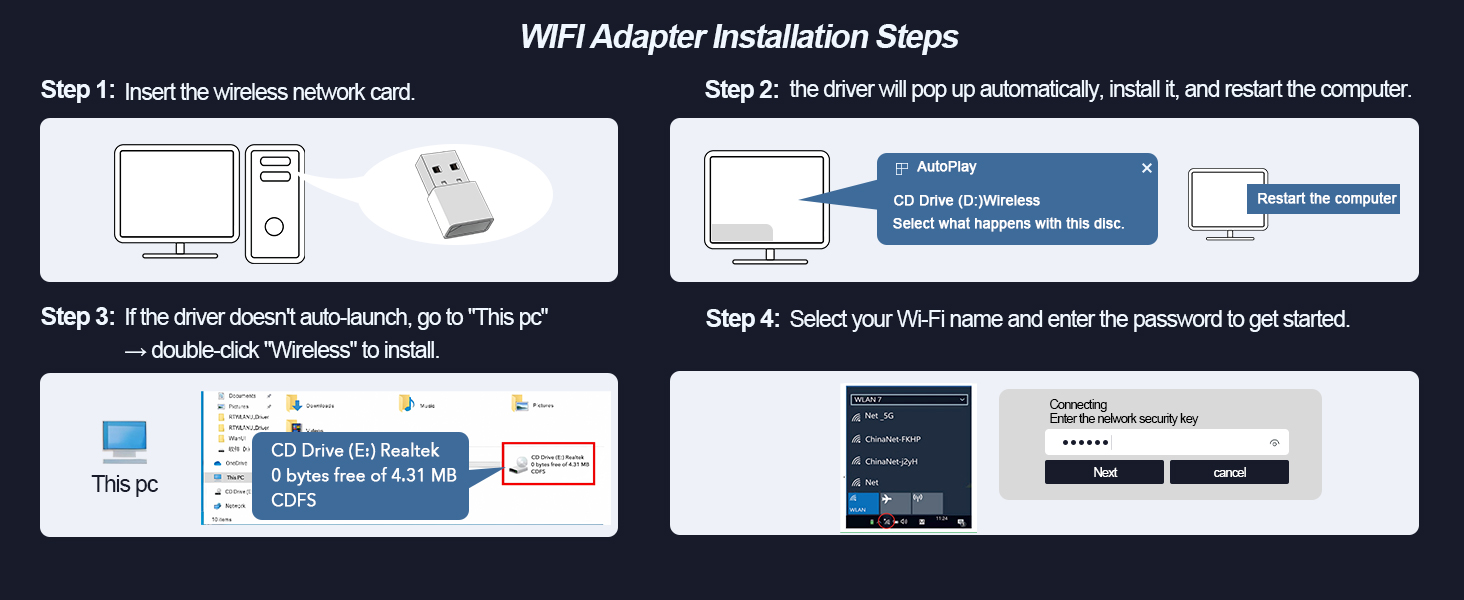
Image: A diagram showing a laptop transmitting WiFi, allowing multiple mobile devices to connect, illustrating the hotspot functionality.
3. Спалучэнне прылад Bluetooth
To connect Bluetooth devices to your computer using the adapter:
- Ensure your computer's built-in Bluetooth (if any) is disabled via Device Manager to avoid conflicts.
- Right-click the Bluetooth icon on the taskbar and select 'Add a Bluetooth Device'.
- Перавядзіце прыладу Bluetooth (напрыклад, навушнікі, мыш, клавіятуру) у рэжым спалучэння.
- Выберыце сваю прыладу са спісу і выконвайце падказкі на экране, каб завяршыць спалучэнне.

Image: A diagram illustrating multiple Bluetooth devices (printer, keyboard, mouse, phone, audio, earphone) simultaneously connected to a computer via the Bluetooth 5.4 adapter.
Тэхнічнае абслугоўванне
- Трымайце адаптар чыстым і без пылу.
- Пазбягайце ўздзеяння экстрэмальных тэмператур або вільготнасці на адаптар.
- Не спрабуйце разбіраць або рамантаваць адаптар самастойна.
Ліквідацыю непаладак
1. WiFi Connection Issues
- No WiFi Networks Detected: Ensure the adapter is properly inserted into a USB port and its drivers are installed. Check your computer's Device Manager to confirm the adapter is recognized and enabled.
- Нізкая хуткасць: Ensure you are connecting to the appropriate band (5GHz for higher speeds, 2.4GHz for longer range). Check for interference from other devices or physical obstructions.
- Частыя адключэнні: Try moving closer to your WiFi router. Ensure your router firmware is up to date.
2. Праблемы з падключэннем Bluetooth
- Прылада не знойдзена: Ensure your Bluetooth device is in pairing mode and within range.
- Cannot Connect: If your computer has built-in Bluetooth, disable it in Device Manager before using the adapter to prevent conflicts.
- Audio Lag/Stuttering: Reduce the distance between the adapter and the Bluetooth audio device. Ensure no other devices are causing interference.
Video: A troubleshooting guide for Bluetooth connection issues, specifically demonstrating how to disable a PC's built-in Bluetooth device to avoid conflicts with the adapter.
Тэхнічныя характарыстыкі
| Асаблівасць | Дэталь |
|---|---|
| Нумар мадэлі | AX913 |
| Памеры прадукту | 1.25 х 0.6 х 0.3 цалі |
| Вага прадмета | 0.634 унцыі |
| Абсталяванне інтэрфейсу | Bluetooth 5, USB 2.0 |
| Пратакол перадачы дадзеных | Bluetooth, IEEE 802.11 ax/ac/a/b/g/n |
| Хуткасць перадачы даных | 900 мегабіт у секунду |
| Сумяшчальнае сямейства аперацыйных сістэм | вокны |
| Minimum Required Operating System Version | Windows 7 |
Гарантыя і падтрымка
This product includes a 30-day money-back guarantee and a 12-month replacement warranty. For technical support or warranty claims, please contact DragoBud customer service through the retailer where the product was purchased.
Manufacturer: DragoBud
Ask a question about this manual
Ask about setup, troubleshooting, compatibility, parts, safety, or missing instructions. Manuals+ will review the question and use this page’s manual context to help answer it.