
Smart Ink MX286-V5
Videowall Smart Technologies MX286-V5 4K Ultra HD 86' Monitor User Manual
Model: MX286-V5
Прадукт скончаныview
The SMART Board MX286-V5 is an 86-inch 4K Ultra HD collaboration display designed for interactive learning and professional environments. Featuring HyPr Touch Technology, this touchscreen monitor offers a responsive and intuitive user experience. It comes equipped with 8 GB DDR4 SDRAM, a 16:9 aspect ratio, and a resolution of 3840 x 2160 pixels, delivering crisp and vibrant visuals. Connectivity options include USB, HDMI, VGA, and Bluetooth, running on Android 13 for versatile functionality.
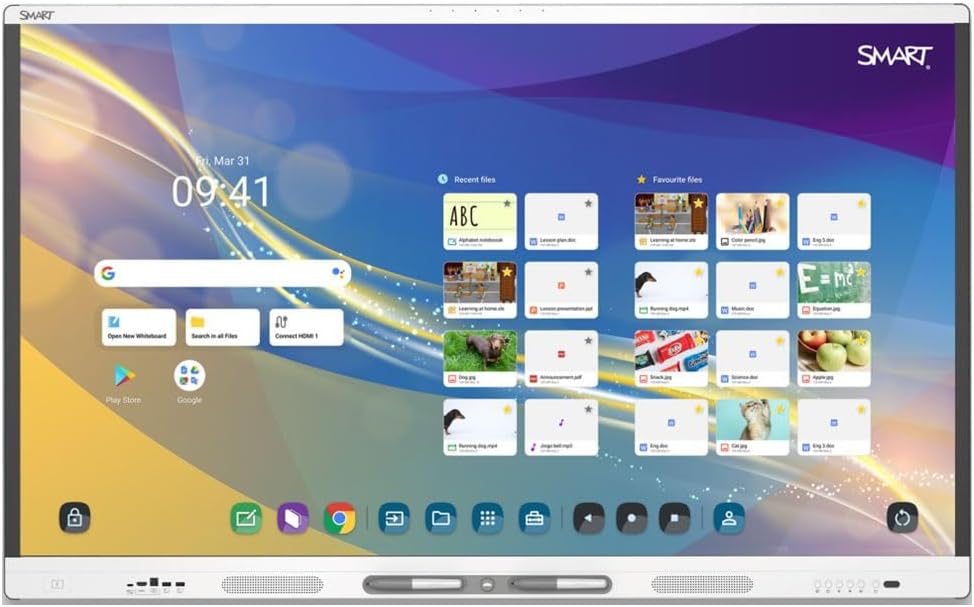
Figure 1: The SMART Board MX286-V5 display showing its interactive home screen with various applications and files.
Кіраўніцтва па ўстаноўцы
1. Распакаванне
- Carefully open the packaging and remove the display. It is recommended to have at least two people for safe handling due to the size and weight (149.6 pounds).
- Check all contents against the packing list to ensure all accessories are present.
- Захоўвайце арыгінальную ўпакоўку для будучай транспарціроўкі або захоўвання.
2. Mounting/Placement
- Ensure the mounting surface or stand can support the display's weight (149.6 pounds).
- Follow the instructions provided with your specific wall mount or stand for secure installation.
- Place the display in a location with adequate ventilation and away from direct sunlight or heat sources.
3. Падключэнне перыферыйных прылад
- Магутнасць: Падключыце кабель харчавання да ўваходу харчавання дысплея, а затым да заземленай электрычнай разеткі.
- HDMI/VGA: Connect external devices (e.g., computers, media players) using HDMI or VGA cables to the corresponding input ports on the display.
- USB: Use the USB ports to connect external storage devices, cameras, or other USB peripherals.
- Сетка: Connect an Ethernet cable for wired network access, or configure Wi-Fi settings after powering on.
Інструкцыя па эксплуатацыі
1. Уключэнне / выключэнне харчавання
- Уключэнне: Press the power button located on the display's frame. The display will boot up to the Android 13 home screen.
- Выключэнне: Press and hold the power button until a power-off menu appears, then select 'Power Off'. Alternatively, a short press will put the display into standby mode.
2. Базавая навігацыя
- Сэнсарныя жэсты: Use single tap for selection, drag for moving items, pinch-to-zoom for scaling, and swipe for scrolling.
- Галоўны экран: The central hub for accessing apps, settings, and input sources.
- Side Toolbar: Access common tools like pen, eraser, and screenshot from the floating toolbar on the side of the screen.

Figure 2: The SMART Board MX286-V5 demonstrating its interactive whiteboard feature with numbered elements, ideal for educational activities.
3. Функцыянальнасць сэнсарнага экрана
- The HyPr Touch Technology supports multiple touch points, allowing for collaborative interaction.
- Use your finger or the included stylus for precise input.

Figure 3: The SMART Board MX286-V5 showcasing various ready-made activity templates within its software, facilitating quick content creation.
4. Выбар крыніцы ўводу
- From the home screen or the quick settings panel, select the desired input source (e.g., HDMI 1, VGA, Internal Android).
5. Android OS Features
- Access pre-installed applications or download new ones from the Google Play Store.
- Adjust display settings, network connections, and user profiles through the Settings menu.

Figure 4: A user interacting with the SMART Board MX286-V5, demonstrating its large interactive surface and collaborative capabilities.
Тэхнічнае абслугоўванне і догляд
1. Ачыстка экрана
- Turn off and unplug the display before cleaning.
- Выкарыстоўвайце мяккую безворсовую тканіну, злёгку dampвадой або неабразіўным ачышчальнікам для экрана.
- Do not spray liquid directly onto the screen. Avoid using harsh chemicals, alcohol, or ammonia-based cleaners.
2. Агульны догляд
- Keep the display free from dust by regularly wiping the frame and vents.
- Забяспечце належную вентыляцыю вакол дысплея, каб пазбегнуць перагрэву.
- Avoid placing heavy objects on the display or subjecting it to physical shock.
Ліквідацыю непаладак
| праблема | Магчымая прычына | Рашэнне |
|---|---|---|
| Няма сілы | Кабель харчавання адключаны; праблема з разеткай | Check power cable connection; Try a different outlet; Ensure power button is pressed. |
| Няма малюнка на экране | Incorrect input source; Loose video cable | Select correct input source (HDMI/VGA); Reconnect video cables securely. |
| Сэнсарны экран не рэагуе | Software glitch; Calibration needed | Restart the display; Check for firmware updates; Perform touchscreen calibration if available in settings. |
| Без гуку | Volume too low; Muted; External device audio settings | Increase volume; Unmute display; Check audio output settings on connected device. |
| Праблемы з падключэннем да Wi-Fi | Няправільны пароль; праблема з маршрутызатарам; перашкоды сігналу | Verify Wi-Fi password; Restart router; Move display closer to router or reduce interference. |
Тэхнічныя характарыстыкі
| Асаблівасць | Спецыфікацыя |
|---|---|
| Памеры прадукту | 3.5 х 47.2 х 78.03 цалі |
| Вага прадмета | 149.6 фунта |
| Памер пастаяннага экрана | 86 цаляў |
| Суадносіны бакоў | 16:9 |
| дазвол | 4K UHD 2160p (3840 x 2160) |
| Апісанне паверхні экрана | Глянцавы |
| Тэхналогія адлюстравання | LCD са святлодыёднай падсветкай |
| Яркасць | 400 ніт |
| АЗП | 8 ГБ DDR4 SDRAM |
| Аперацыйная сістэма | Android 13 |
| Сэнсарная тэхналогія | HyPr Touch Technology |
| Сувязь | USB, HDMI, VGA, Bluetooth |
Гарантыя і падтрымка
For detailed warranty information and technical support, please refer to the official Smart Ink webсайт або звярніцеся непасрэдна ў службу падтрымкі кліентаў. Умовы гарантыі могуць адрознівацца ў залежнасці ад рэгіёна і даты пакупкі.
Інтэрнэт-падтрымка: Наведайце ст Smart Ink Store on Amazon для атрымання інфармацыі аб прадукце і рэсурсаў.
Ask a question about this manual
Ask about setup, troubleshooting, compatibility, parts, safety, or missing instructions. Manuals+ will review the question and use this page’s manual context to help answer it.