
1. Уводзіны
This manual provides essential information for the proper installation, operation, and maintenance of your GAMEON Pro Series 27-inch Fast IPS Gaming Monitor (Model: GOAE27QHD165IPS). Please read this manual thoroughly before using the product to ensure optimal performance and safety. Keep this manual for future reference.

Выява 1.1: Спераду view of the GAMEON Pro Series 27-inch Fast IPS Gaming Monitor, showcasinяго тонкія рамкі і падстаўка.
The GAMEON Pro Series 27-inch Fast IPS Gaming Monitor features a QHD 2K (2560x1440p) resolution, a 165Hz refresh rate, and a 0.5ms MPRT response time. It supports Adaptive-Sync and Variable Refresh Rate (VRR) technologies for smooth, tear-free gameplay. Connectivity options include dual HDMI 2.1 ports and dual DisplayPort 1.4 ports, along with an audio-out jack and integrated speakers. This monitor is compatible with various gaming consoles and PCs, including PS5.
2. Змесціва ўпакоўкі
Калі ласка, праверце змесціва ўпакоўкі пасля распакавання. Калі якія-небудзь прадметы адсутнічаюць або пашкоджаныя, звярніцеся да прадаўца.
- GAMEON Pro Series 27-inch Fast IPS Gaming Monitor
- Падстаўка для манітора (аснова і шыя)
- Адаптар харчавання і кабель харчавання
- Кабель HDMI
- Кабель DisplayPort
- Кіраўніцтва карыстальніка
3. Настройка
3.1 Зборка манітора
- Асцярожна выміце манітор з упакоўкі, абараняючы экран.
- Прымацуйце падстаўку да панэлі манітора. Пераканайцеся, што яна надзейна зашчапілася або замацавана шрубамі, калі яны ёсць.
- Прымацуйце аснову падстаўкі да шыйкі падстаўкі і зацягніце шрубу ў ніжняй частцы падставы.
- Змесціце сабраны манітор на ўстойлівую, роўную паверхню.
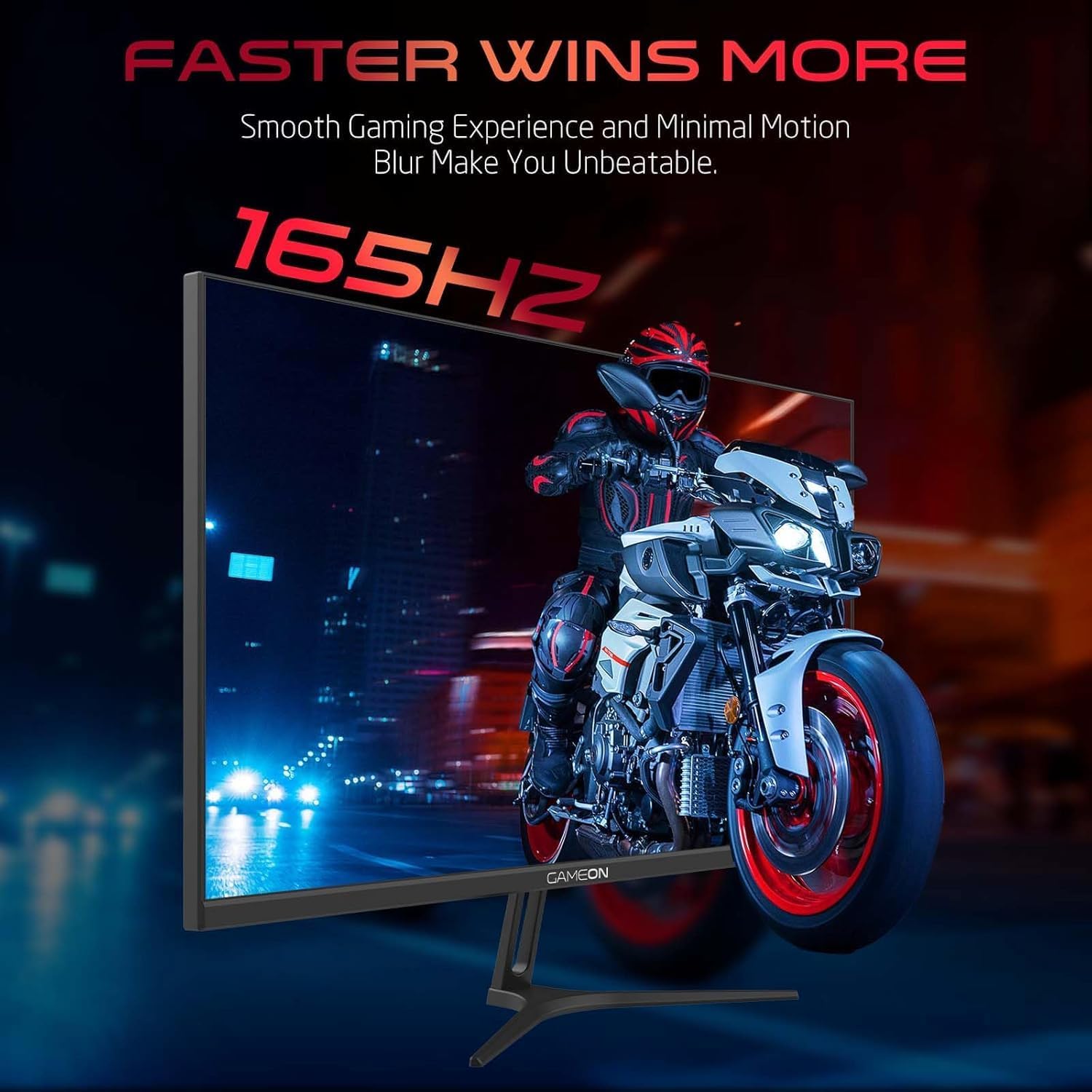
Image 3.1: Illustration of the monitor with its stand, ready for assembly.
3.2 Падключэнне да прылад
The monitor offers multiple input options. Choose the appropriate cable for your device (PC, gaming console, etc.).

Малюнак 3.2: ззаду view of the monitor, highlighting the input ports and VESA mounting points.

Image 3.3: Detailed diagram illustrating the various input/output ports and their corresponding devices.
- Падключэнне HDMI: Connect one end of the HDMI cable to the HDMI output port of your device (PC, PS5, Xbox, TV box) and the other end to one of the HDMI 2.1 ports on the monitor.
- Падключэнне DisplayPort: Connect one end of the DisplayPort cable to the DisplayPort output of your PC and the other end to one of the DisplayPort 1.4 ports on the monitor.
- Аўдыявыхад: For external audio, connect headphones or external speakers to the 3.5mm audio-out jack on the monitor.
3.3 Падключэнне харчавання
- Connect the power adapter to the DC IN port on the monitor.
- Plug the power cable into the power adapter, then plug the other end of the power cable into a power outlet.
4. Інструкцыя па эксплуатацыі
4.1 Уключэнне/выключэнне сілкавання
Націсніце кнопку харчавання, размешчаную на маніторы, каб уключыць або выключыць яго. Індыкатар харчавання будзе гарэць, калі манітор уключаны.
4.2 Экраннае меню (OSD).
The monitor features a menu button (often a joystick or a series of buttons) usually located on the back or bottom right of the monitor. Use this to navigate the OSD menu and adjust settings.
- Press the menu button to open the OSD menu.
- Use the navigation controls to move through menu options.
- Press the menu button again (or a designated 'Enter' button) to select an option.
- Use the navigation controls to adjust values or select sub-menus.
- Select 'Exit' or press the menu button repeatedly to close the OSD menu.
4.3 Агульныя налады экраннага меню
- Налады малюнка: Адрэгулюйце яркасць, кантраснасць, рэзкасць, гаму і каляровую тэмпературу.
- Налады колеру: Fine-tune RGB values, hue, and saturation.
- Крыніца ўводу: Уручную выберыце паміж HDMI 1, HDMI 2, DisplayPort 1 або DisplayPort 2.
- Аўдыё: Адрэгулюйце гучнасць убудаваных дынамікаў або падлучаных навушнікаў.
- Гульнявыя асаблівасці: Enable/disable Adaptive-Sync/FreeSync, adjust overdrive settings, and activate crosshair overlays if available.
4.4 PS5 120Hz Setup Guide
To enable 120Hz output on your PlayStation 5 with this monitor, follow these steps:

Image 4.1: Visual guide for configuring 120Hz refresh rate on a PlayStation 5 console.
- Enable 120Hz from PS5 Settings:
- Перайсці да Налады > Screen and Video > Відэавыхад.
- Набор Enable 120Hz Output каб Аўтаматычны.
- Набор дазвол каб 1080p or Аўтаматычны. (Note: While the monitor supports 1440p, some PS5 games may require 1080p for 120Hz output.)
- Enable Performance Mode for Gamers:
- Перайсці да Налады > Save Data and Game App Settings > Налады гульні.
- Набор Рэжым прадукцыйнасці па змаўчанні.
- Check In-Game Settings:
- Go to the specific game's Налады гульні > Налады відэа і абярыце 120 кадраў у секунду or Рэжым прадукцыйнасці.
5. Тэхнічнае абслугоўванне
5.1 Ачыстка экрана
- Выключыце манітор і адлучыце кабель сілкавання.
- Выкарыстоўвайце мяккую тканіну без ворса. dampвадой або спецыяльным сродкам для чысткі экранаў.
- Wipe the screen gently. Do not press hard or use abrasive materials.
- Avoid using alcohol, ammonia, or benzene-based cleaners, as they may damage the screen surface.
5.2 Ачыстка Casing
- Выкарыстоўвайце мяккую сухую тканіну, каб праціраць манітор casing.
- Для ўстойлівых плям, злёгку dampпрацярыце тканіну вадой з мяккім мыйным сродкам, затым вытрыце насуха.
6. Выпраўленне непаладак
Калі ў вас узніклі праблемы з маніторам, звярніцеся да наступнага кіраўніцтва па ліквідацыі непаладак:
| праблема | Магчымая прычына | Рашэнне |
|---|---|---|
| Няма выявы на экране | No power; Incorrect input source; Loose video cable | Ensure power cable is securely connected and power outlet is active. Press power button. Check OSD menu to select correct input source (HDMI/DP). Reconnect video cable firmly. |
| Выява размытая або скажоная | Incorrect resolution; Video cable issue | Set display resolution to 2560x1440p in your device's display settings. Try a different video cable. |
| Няма гуку | Volume too low; Incorrect audio output selected; Loose audio cable | Adjust monitor volume via OSD. Ensure monitor is selected as the audio output device on your PC/console. Check external audio cable connection if using headphones/speakers. |
| Мігаценне экрана | Refresh rate mismatch; Adaptive-Sync/VRR issue | Ensure your device's refresh rate is set to 165Hz. If flickering persists with Adaptive-Sync/VRR enabled, try disabling it in the OSD or your graphics card settings. |
| Monitor not detected by PC/console | Video cable issue; Driver issue | Try a different video cable or port. Update your graphics card drivers. Restart your PC/console. |
7. Тэхнічныя характарыстыкі
Below are the technical specifications for the GAMEON Pro Series 27-inch Fast IPS Gaming Monitor (GOAE27QHD165IPS):
| Асаблівасць | Спецыфікацыя |
|---|---|
| Памер дысплея | 27 цаляў |
| Тып панэлі | хуткі IPS |
| дазвол | QHD 2K (2560x1440p) |
| Частата абнаўлення | 165 Гц |
| Час водгуку | 0.5 мс MPRT |
| Каэфіцыент кантраснасці | 1000:1 |
| Яркасць | 280 (±30) nits typical |
| Viewвуглавыя куты | Шырокі viewing angles (IPS technology) |
| Тэхналогія адаптыўнай сінхранізацыі | Adaptive-Sync, FreeSync, VRR Compatible |
| Сувязь | 2x HDMI 2.1, 2x DisplayPort 1.4, 1x аўдыёвыхад (3.5 мм) |
| Аўдыё | Built-in 4Ω2W speakers |
| Сумяшчальнасць з мацаваннем VESA | 100х100 мм |
| Увод магутнасці | Знешні адаптар пастаяннага току 12 В 4 А |
| Максімальнае энергаспажыванне | 48 Вт |
| Памеры вырабу (з падстаўкай) | 16.2 х 61.4 х 45.3 см |
| Вага прадукту | 5.84 кг |
| Нумар мадэлі | GOAE27QHD165IPS |
8. Гарантыя і падтрымка
The GAMEON Pro Series 27-inch Fast IPS Gaming Monitor comes with a Гарантыя 2 год з даты пакупкі. Гэтая гарантыя распаўсюджваецца на вытворчыя дэфекты пры нармальным выкарыстанні. Калі ласка, захавайце пацвярджэнне пакупкі для прэтэнзій па гарантыі.
For technical support, warranty inquiries, or service requests, please contact GAMEON customer service through their official website or the retailer where the product was purchased. Provide your monitor's model number (GOAE27QHD165IPS) and a detailed description of the issue to expedite assistance.