
1. Уводзіны
This manual provides detailed instructions for setting up, operating, and maintaining your Bcofo Wireless Mobile Gaming Controller. Please read this manual thoroughly before use to ensure optimal performance and a seamless gaming experience across various platforms including iPhone, Android, Nintendo Switch, and PC.
2. Асаблівасці прадукту
- Шырокая сумяшчальнасць: Supports wireless connection with Nintendo Switch/Lite/OLED, PC (Windows 7/8/10/11), Android phones/iOS/Mac/iPad/tablets, Apple Arcade MFi Games/PS3, and Steam Deck. Wired connection available for PC and other devices via USB cable.
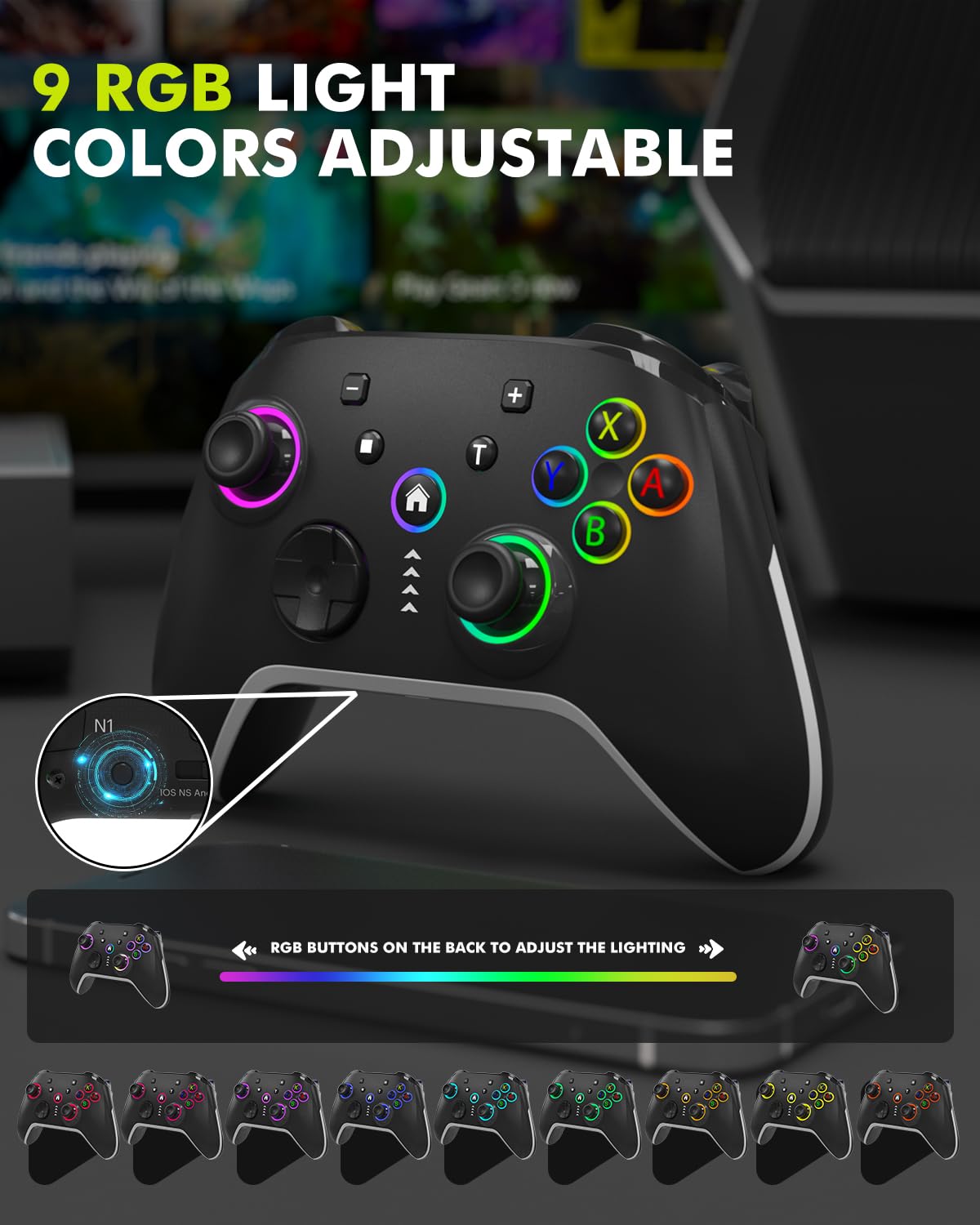
- Cool RGB Lighting: Features 8 lights and 1 colorful gradient with 4 lighting modes (colorful, wave, breathing, static). Choose from 9 different RGB lighting colors using the dedicated RGB light switch button.
- Палепшаны гульнявы вопыт: Equipped with dual vibration motors for immersive feedback, a 6-axis gyro sensor for quick response, and three turbo speeds (5, 12, or 20 shots/sec) for action and arcade games.
- Трыгеры эфекту Хола: Provides precise and reliable input detection for smoother and more accurate in-game movement.
- Праграмуемыя макраклавішкі: Features two programmable macro keys (N1/N2) allowing customization of up to 21 buttons for complex command sequences.
- Доўгі час гульні: Built-in 1200mAh battery offers up to 16 hours of playtime on a full charge (2-3 hours charging time via Type-C cable). The controller can be used while charging.
3. Налада і падключэнне
3.1. Падключэнне да прылад
The controller supports multiple connection modes. Use the mode switch button on the back of the controller to select the desired platform before pairing.

Image: The Bcofo Wireless Mobile Gaming Controller is compatible with a wide range of devices, including iOS, Android, Nintendo Switch, and PC, offering both wireless and wired connection options.
3.1.1. iOS Mode (MFi)
- Switch the mode selector on the back of the controller to the 'iOS' position.
- Press and hold the 'HOME' button on the controller for 3 seconds until the LED lights flash quickly.
- On your iOS device, go to Bluetooth settings and select "Xbox Wireless Controller" to pair.
- Once connected, the LED lights will become solid.
Video: Demonstrates the process of connecting the Bcofo Wireless Mobile Gaming Controller to an iOS device, showing the mode switch, pairing process, and in-game functionality.
3.1.2. Android Mode (HID)
- Switch the mode selector on the back of the controller to the 'Android' position.
- Press and hold the 'HOME' button on the controller for 3 seconds until the LED lights flash quickly.
- On your Android device, go to Bluetooth settings and select the controller to pair.
- Once connected, the LED lights will become solid.
3.1.3. Рэжым Nintendo Switch
- Switch the mode selector on the back of the controller to the 'NS' (Nintendo Switch) position.
- Press and hold the 'HOME' button on the controller for 3 seconds until the LED lights flash quickly.
- On your Nintendo Switch, navigate to 'Controllers' > 'Change Grip/Order' and select the controller to pair.
- Once connected, the LED lights will become solid.
3.1.4. PC Mode (Wired/Wireless)
- Бесправадная сувязь: Switch the mode selector on the back of the controller to the 'PC' position. Press and hold the 'HOME' button for 3 seconds until the LED lights flash quickly. On your PC, go to Bluetooth settings and select the controller to pair.
- Wired: Connect the controller to your PC using the provided USB Type-C cable. The controller will automatically be recognized.
Відэа: Скончанаview of the Bcofo Controller, demonstrating its compatibility with iOS, Android, PC, and Switch, and highlighting the phone clip feature.
4. Інструкцыя па эксплуатацыі
4.1. Button Layout

Выява: спераду view of the controller, highlighting the main control buttons including joysticks, D-pad, action buttons, and system buttons.
Выява: Спіна view of the controller, showing the N1 and N2 programmable macro buttons, RGB light switch, and platform mode selector.
4.2. Кіраванне RGB-падсветкай
The controller features customizable RGB lighting. Press the 'RGB' button on the back of the controller to cycle through 9 different colors and 4 lighting modes (colorful, wave, breathing, static). Press and hold the 'RGB' button for 2 seconds to turn off the lighting.

Image: The controller's joysticks and action buttons illuminate with 9 adjustable RGB light colors, enhancing the visual experience.
4.3. Функцыя турба
The controller offers three adjustable turbo speeds: 5 shots/sec, 12 shots/sec, or 20 shots/sec. To activate or adjust the turbo function, refer to the detailed instructions in the included quick start guide.

Image: Illustration of the controller's turbo adjustment, dual vibration, and 6-axis gyroscope features, designed to enhance gameplay responsiveness.
4.4. Programmable Macro Keys (N1/N2)
The N1 and N2 buttons on the back of the controller can be programmed to execute complex sequences of up to 21 button presses. To program these keys:
- Press the 'Set' button.
- Press either 'N1' or 'N2'.
- Input the desired sequence of up to 21 buttons (e.g., A+B+X+Y+LT+RT+LB+RB+D-Pad).
- Press the 'Set' button again to save the macro.

Image: The controller's N1 and N2 macro buttons are highlighted, illustrating their programmability for executing complex button combinations with a single press.
4.5. Phone Clip Usage
The included phone clip allows you to attach your smartphone directly to the controller for mobile gaming. The clip extends from 65mm to 115mm and offers a 135° angle adjustment for optimal viewінж.

Image: The phone clip attached to the controller, demonstrating its adjustable dimensions and angle for secure smartphone mounting during gameplay.
5. Тэхнічнае абслугоўванне
5.1. Зарадка кантролера
The controller is equipped with a 1200mAh rechargeable battery. Use the provided Type-C charging cable to connect the controller to a power source. A full charge typically takes 2-3 hours and provides up to 16 hours of playtime. The controller can be used while charging.

Image: Visual representation of the controller's 1200mAh battery, indicating a 3-hour charging time for 16 hours of continuous use.
5.2. Уборка
Wipe the controller with a soft, dry cloth. Avoid using harsh chemicals or abrasive materials that could damage the surface.
6. Выпраўленне непаладак
6.1. Кантролер не падключаецца
- Ensure the correct platform mode (iOS, Android, NS, PC) is selected using the switch on the back of the controller.
- Пераканайцеся, што Bluetooth уключаны на вашай прыладзе.
- Make sure the controller is sufficiently charged.
- Try resetting the controller by pressing the 'Reset' button on the back with a small pin.
- If connecting to PC, try both wireless (Bluetooth) and wired (USB-C cable) connections.
6.2. Кнопкі або джойсцікі не рэагуюць
- Ensure the controller is properly connected and paired.
- Check if the game you are playing supports controller input. Not all mobile games are controller-compatible.
- Recalibrate the 6-axis gyro sensor if experiencing drift or inaccurate movement (refer to the quick start guide for calibration steps).
- Recharge the controller if the battery is low.
6.3. RGB Lights Not Working
- Press the 'RGB' button on the back of the controller to cycle through lighting modes.
- Пераканайцеся, што кантролер уключаны.
7. Тэхнічныя характарыстыкі
| Асаблівасць | Дэталь |
|---|---|
| мадэль | G147 (as per product image) |
| Сувязь | Bluetooth 5.0 (Wireless), USB Type-C (Wired) |
| Сумяшчальнасць | iOS, Android, Nintendo Switch/Lite/OLED, PC (Windows 7/8/10/11), Mac, iPad, Apple Arcade MFi, PS3, Steam Deck |
| Ёмістасць батарэі | 1200 мАг |
| Час зарадкі | 2-3 гадзін |
| Час гульні | Да 16 гадзін |
| Асаблівасці | RGB Lighting (9 colors, 4 modes), Dual Vibration, 6-Axis Gyro Sensor, Hall Effect Triggers, 2 Programmable Macro Keys (N1/N2), Phone Clip (65-115mm, 135° adjustment) |
| Вага прадмета | 10.8 унцыі |
| Памеры ўпакоўкі | 6.38 х 4.69 х 2.91 цалі |
8. Гарантыя і падтрымка
Bcofo offers a full refund guarantee within 30 days of purchase. For any questions, technical assistance, or warranty claims regarding your Bcofo Wireless Mobile Gaming Controller, please contact our customer support team. Refer to your purchase documentation for specific contact details.