
Уводзіны
Thank you for choosing the NEWFAST WiFi 6E PCIe Network Card. This card is designed to provide high-speed wireless connectivity and Bluetooth functionality for your desktop PC. Featuring the Intel AX210 chipset, it supports the latest WiFi 6E standard, offering tri-band operation (2.4GHz, 5.8GHz, and 6GHz) with speeds up to 5374Mbps. The integrated Bluetooth 5.3 ensures fast and reliable connections to your wireless peripherals. This manual will guide you through the installation process, operation, and provide troubleshooting tips.

Скончанаview of the NEWFAST WiFi 6E PCIe Card's multi-performance features, including WiFi 6E standard, Bluetooth 5.3 upgrade, Tri-Band support (6GHz/5.8GHz/2.4GHz), 5374Mbps speed, WPA-PSK/WPA2-PSK/WPA3 security, OFDMA, MU-MIMO technology, and power saving capabilities.
Што ў скрынцы
Калі ласка, праверце змесціва пакета, каб пераканацца ў наяўнасці ўсіх прадметаў:
- 1 x NEWFAST WiFi 6E PCIe Network Card
- 1 x Multi-language Instruction Manual (this document)
- 1 x Bluetooth Cable
- 2 антэны х 5dBi
- 2 х Шрубы
Тэхнічныя характарыстыкі
| Асаблівасць | Дэталь |
|---|---|
| Марка | NEWFAST |
| мадэль | NF-P395 |
| Набор мікрасхем | Intel AX210 |
| бесправадной стандарт | WiFi 6E (IEEE 802.11ax) |
| Пратакол перадачы дадзеных | IEEE 802.11ac/a/b/g/n, IEEE 802.11ax |
| Дыяпазоны частот | 2.4 ГГц, 5.8 ГГц, 6 ГГц (трохдыяпазонны) |
| Максімальная хуткасць перадачы дадзеных | 5374 Mbps (2.4GHz: 574Mbps, 5.8GHz: 2400Mbps, 6GHz: 2400Mbps) |
| Версія Bluetooth | Bluetooth 5.3 |
| Абсталяванне інтэрфейсу | PCI-E X1, X4, X8, X16 (PCI slots not supported) |
| Антэны | 2 знешнія антэны па 5 дБі |
| Функцыі бяспекі | WPA-PSK/WPA2-PSK/WPA3 |
| Падтрымліваюцца АС | Windows 10 (64-разрадная версія), Windows 11 (64-разрадная версія) |
| Памеры (пакет) | 19.9 х 11.9 х 3.4 см |
| Вага прадмета | 230 г |

Detailed breakdown of WiFi 6E speeds across 6GHz, 5.8GHz, and 2.4GHz bands, highlighting the Intel AX210 chip and Bluetooth 5.3 capabilities.
Інструкцыя па наладзе
1. Устаноўка абсталявання
- Выключыце кампутар: Before starting, ensure your computer is completely powered off and unplugged from the power outlet.
- Адкрыць корпус ПК: Каб атрымаць доступ да матчынай платы, зніміце бакавую панэль корпуса кампутара.
- Знайдзіце слот PCI-E: Find an available PCI-E X1, X4, X8, or X16 slot on your motherboard. Note: Standard PCI slots are not compatible.
- Insert the WiFi Card: Carefully align the NEWFAST WiFi 6E PCIe card with the chosen PCI-E slot and press it firmly until it is securely seated.
- Абараніце карту: Use the provided screw to fasten the card's bracket to your PC case.
- Падключэнне кабеля Bluetooth: Connect one end of the provided Bluetooth cable to the 9-pin USB header on the WiFi card and the other end to an available F_USB header on your motherboard. This connection is essential for Bluetooth functionality.
- Прымацаваць антэны: Screw the two 5dBi external antennas onto the connectors at the back of the WiFi card. Adjust their orientation for optimal signal reception.
- Зачыніць корпус ПК: Заменіце бакавую панэль корпуса кампутара і зноў падключыце кабель харчавання.

Illustration of compatible PCI-E slots on a desktop motherboard.
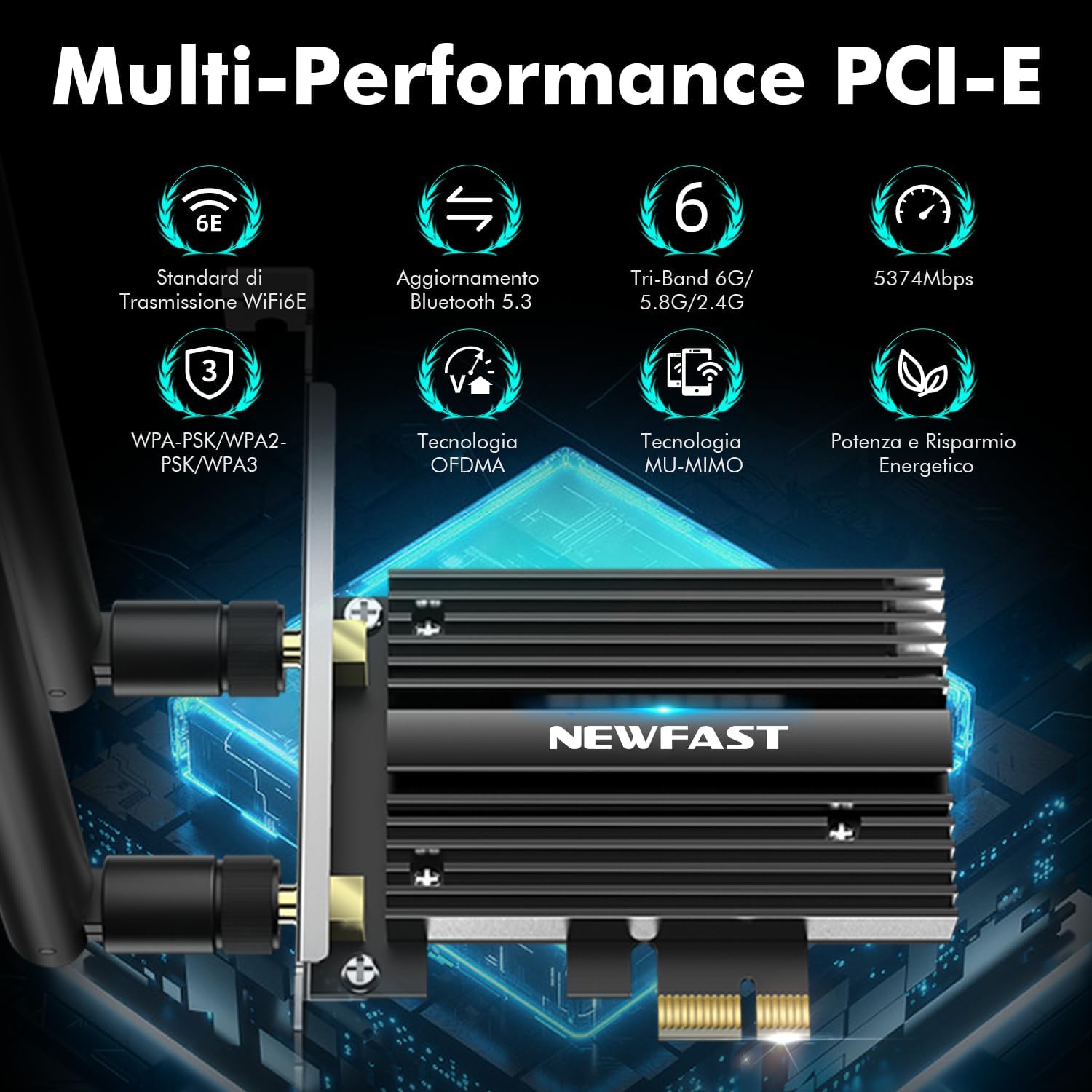
The NEWFAST WiFi 6E PCIe Card with its two external antennas.
2. Ўстаноўка драйвера
After hardware installation, power on your PC. You will need to install the drivers for both WiFi and Bluetooth functionality. Drivers are typically available on the manufacturer's website. If you do not have internet access, you may need to download them on another device and transfer them via USB.
- Спампаваць драйверы: Visit the NEWFAST official website or the Intel support page for the AX210 chipset to download the latest WiFi and Bluetooth drivers for Windows 10 (64-bit) or Windows 11 (64-bit).
- Усталяваць драйвер WiFi: Locate the downloaded WiFi driver file (usually an executable .exe file) and run it. Follow the on-screen instructions to complete the installation.
- Усталяваць драйвер Bluetooth: Similarly, locate and run the Bluetooth driver file. Follow the installation wizard.
- Перазагрузіце ПК: Пасля ўсталёўкі абодвух драйвераў перазагрузіце кампутар, каб пераканацца, што ўсе змены ўступілі ў сілу.

The WiFi card supports Windows 10 (64-bit) and Windows 11 (64-bit).
Інструкцыя па эксплуатацыі
1. Падключэнне да сеткі Wi-Fi
- Налады сеткі доступу: On your Windows desktop, click the WiFi icon in the system tray (usually bottom-right corner).
- Выберыце сетку: A list of available WiFi networks will appear. Select your desired network.
- Увядзіце пароль: Калі будзе прапанавана, увядзіце ключ бяспекі сеткі (пароль) і націсніце «Падключыцца».
- Праверце злучэнне: Once connected, the WiFi icon will indicate an active connection. You can now browse the internet.
2. Выкарыстанне Bluetooth 5.3
Ensure the Bluetooth cable is correctly connected to your motherboard's F_USB header for Bluetooth functionality.
- Уключыць Bluetooth: Go to Windows Settings > Devices > Bluetooth & other devices. Ensure Bluetooth is turned 'On'.
- Спалучэнне прылады: Націсніце «Дадаць Bluetooth або іншую прыладу» і выберыце «Bluetooth».
- Зрабіць прыладу бачнай: Put your Bluetooth device (e.g., headphones, mouse, controller) into pairing mode. Refer to your device's manual for specific instructions.
- Выберыце і падключыце: Your PC will scan for nearby Bluetooth devices. Select your device from the list and follow any on-screen prompts to complete pairing.

The Bluetooth 5.3 feature allows connection to various peripherals with improved speed and range.
Тэхнічнае абслугоўванне
The NEWFAST WiFi 6E PCIe Network Card is designed for reliable, long-term performance with minimal maintenance. Follow these guidelines:
- Абнаўляць драйверы: Regularly check the NEWFAST or Intel website for the latest WiFi and Bluetooth drivers to ensure optimal performance and security.
- Забяспечце належны паток паветра: Make sure your PC case has adequate ventilation to prevent overheating, which can affect the card's performance. The card's aluminum heatsink is designed for efficient heat dissipation.
- Clean Antennas: Occasionally wipe the antennas with a soft, dry cloth to remove dust.
- Пазбягайце фізічных пашкоджанняў: Handle the card with care during installation and avoid bending or stressing the antennas.
Ліквідацыю непаладак
If you encounter issues with your NEWFAST WiFi 6E PCIe Network Card, refer to the following common problems and solutions:
- Няма падключэння да Wi-Fi:
- Ensure the card is properly seated in the PCI-E slot.
- Verify that WiFi drivers are correctly installed and updated.
- Check if the antennas are securely attached.
- Confirm that your router is powered on and broadcasting a WiFi signal.
- Try restarting your PC and router.
- No Bluetooth Functionality:
- Ensure the Bluetooth cable is securely connected to both the WiFi card and the motherboard's F_USB header. This is crucial for Bluetooth.
- Verify that Bluetooth drivers are correctly installed and updated.
- Check Windows Bluetooth settings to ensure Bluetooth is enabled.
- Паспрабуйце перазагрузіць ПК.
- Павольная хуткасць Wi-Fi:
- Ensure you are connected to a WiFi 6E compatible router for optimal speeds.
- Праверце наяўнасць перашкод ад іншых электронных прылад.
- Adjust antenna orientation for better signal reception.
- Абнавіце прашыўку вашага маршрутызатара.
- Ensure your PC is within a reasonable range of your WiFi router.
- Прылада не выяўлена:
- Double-check all physical connections, including the PCI-E slot and Bluetooth cable.
- Ensure your operating system is Windows 10 (64-bit) or Windows 11 (64-bit).
- Check Device Manager in Windows for any unknown devices or driver errors.
Гарантыя і падтрымка
NEWFAST products are designed for quality and reliability. For specific warranty information, please refer to the warranty card included with your product or visit the official NEWFAST webсайт.
If you encounter any configuration issues, technical problems, or require further assistance, please do not hesitate to contact NEWFAST customer support. Our team is ready to help you.
- Інтэрнэт-падтрымка: Visit the NEWFAST official webсайт з часта задаванымі пытаннямі, загрузкай драйвераў і кантактнай інфармацыяй службы падтрымкі.
- Падтрымка па электроннай пошце: Звярніцеся да ўпакоўкі прадукту або да афіцыйнай webсайт для адраса электроннай пошты службы падтрымкі кліентаў.