
1. Уводзіны
Thank you for choosing the Auusda T156A 15.6-inch Business Laptop. This manual provides essential information for setting up, operating, and maintaining your new laptop. Please read this manual thoroughly before using the device to ensure proper function and longevity. This laptop is designed for productivity and portability, featuring a 4-core processor, 8GB DDR4 RAM, and a 512GB M.2 PCIe NVMe SSD, all running on Windows 11 Pro.
2. Змесціва ўпакоўкі
Праверце наяўнасць усіх прадметаў у камплекце:
- Auusda T156A Laptop
- Адаптар сілкавання і кабель
- Transparent Keyboard Cover
- Spanish Keyboard Cover
- Інструкцыя па эксплуатацыі (гэты дакумент)

Image: The laptop, power adapter, and keyboard covers as included in the package.
3. Прадукт скончыўсяview
3.1 Асноўныя магчымасці
- Высокая прадукцыйнасць: Equipped with a 4-core N95 processor (1.7-3.4 GHz) and 8GB DDR4 RAM for efficient multitasking.
- AmpЗахоўванне: Features a 512GB M.2 PCIe NVMe SSD for fast data access and sufficient storage.
- Vibrant Full HD Display: A 15.6" Full HD IPS LCD screen offers clear visuals with wide viewныя вуглы.
- Зручныя функцыі: Includes a backlit keyboard for low-light use and a fingerprint reader for secure access.
- Connectivity & Versatility: Offers Bluetooth, an SD card reader, and essential ports for various devices.

Выява: Оверview of the Auusda T156A laptop with its main features labeled.
3.2 Працэсар і памяць
The laptop is powered by an Intel N95 4-core processor, capable of speeds up to 3.4 GHz, ensuring smooth operation for business and academic tasks. It comes with 8GB of DDR4 RAM and a 512GB M.2 PCIe NVMe Solid State Drive (SSD) for quick boot times and application loading.

Image: A visual representation of the 4-core N95 processor chip.

Image: The laptop highlighting its 8GB RAM and 512GB SSD configuration.
3.3 Дысплей
Experience clear and vibrant visuals on the 15.6-inch Full HD (1920x1080) IPS LCD display. The screen features a narrow bezel and supports 16 million colors, providing an immersive viewing experience. A privacy shutter is integrated for the webкулачок.

Image: The laptop's 15.6-inch Full HD IPS LCD display and its features.
3.4 Клавіятура і сэнсарная панэль
The laptop features a full-size backlit keyboard, allowing comfortable typing in various lighting conditions. The integrated touchpad includes a fingerprint sensor for secure and quick login.

Image: The backlit keyboard and the fingerprint ID sensor on the touchpad.
3.5 Парты і падключэнне
The Auusda T156A offers a range of connectivity options:
- Уваход пастаяннага току
- USB-A Ports (multiple)
- Выхад HDMI
- Прылада для чытання карт microSD
- Раз'ём для навушнікаў
- Bluetooth and Wi-Fi (802.11ac, 802.11ax)
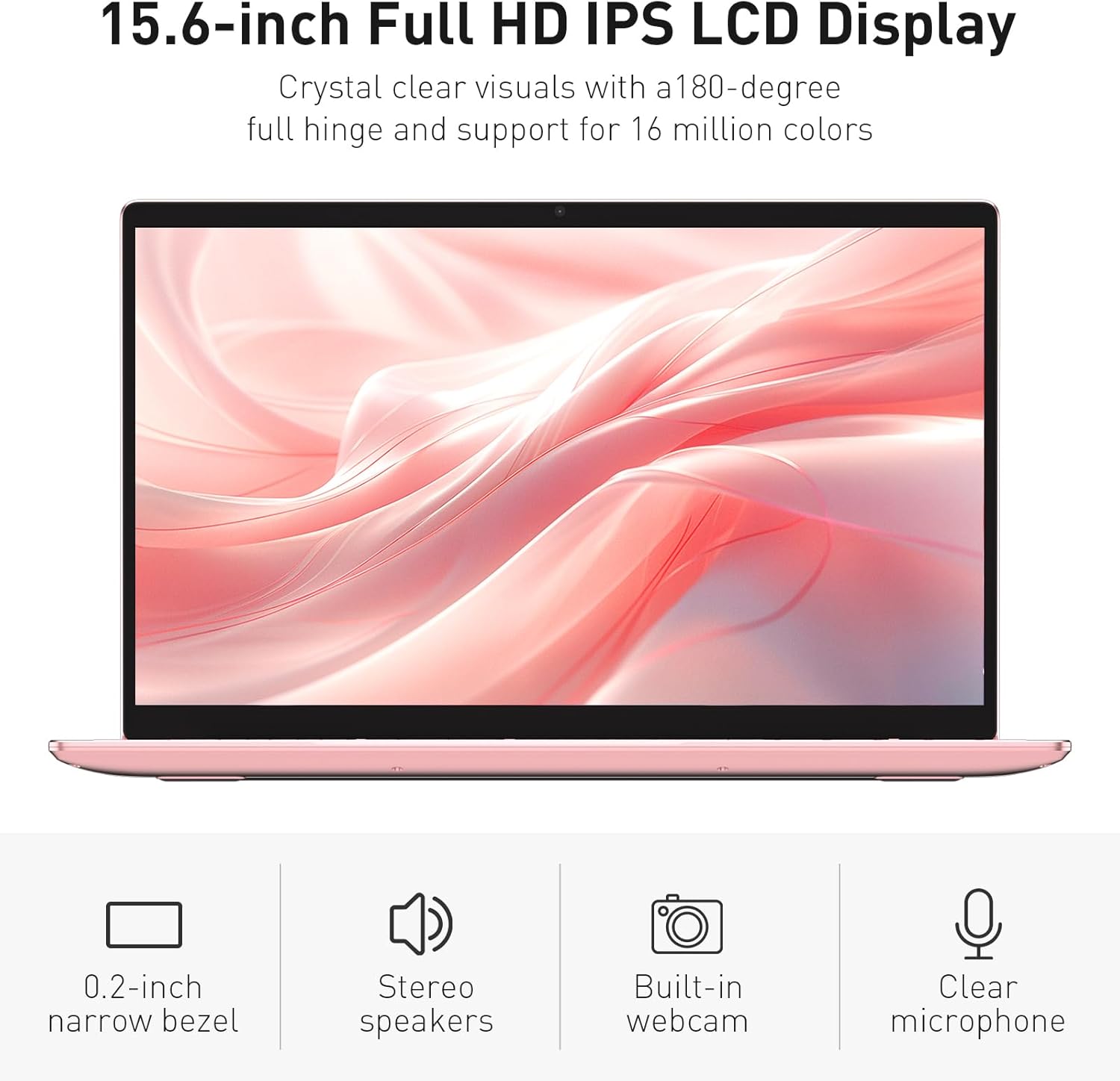
Image: The various ports available on the sides of the laptop.
4. Настройка
4.1 Першапачатковае ўключэнне і зарадка
- Дастаньце ноўтбук і адаптар харчавання з скрынкі.
- Connect the power adapter to the DC power input port on the laptop and then to a power outlet.
- Allow the laptop to charge for at least 30 minutes before initial use, or until the charging indicator light shows a full charge.
- Націсніце кнопку харчавання, каб уключыць ноўтбук.
4.2 Усталёўка Windows 11 Pro
Follow the on-screen instructions to complete the initial Windows 11 Pro setup. This will include:
- Выбар рэгіёну і раскладкі клавіятуры.
- Падключэнне да сеткі Wi-Fi.
- Прыняцце ліцэнзійнай дамовы.
- Стварэнне ўліковага запісу карыстальніка або ўваход з дапамогай уліковага запісу Microsoft.
4.3 Налада датчыка адбіткаў пальцаў
For enhanced security, set up the fingerprint sensor:
- Пасля налады Windows перайдзіце да Налады > Уліковыя запісы > Параметры ўваходу.
- У раздзеле «Адбітак пальца Windows Hello» націсніце Наладзіць.
- Follow the on-screen prompts to register your fingerprint. You will be asked to lift and place your finger multiple times on the sensor until it is fully registered.
5. Кіраванне ноўтбукам
5.1 Асноўнае выкарыстанне
- Уключэнне/выключэнне харчавання: Націсніце кнопку харчавання, размешчаную ў правым верхнім куце клавіятуры, каб уключыць або выключыць ноўтбук.
- Рэжым сну: Зачыніце вечка або коратка націсніце кнопку харчавання, каб перавесці ноўтбук у рэжым сну.
- Restart/Shut Down: Access these options from the Start Menu in Windows.
5.2 Backlit Keyboard Control
The keyboard backlight can be adjusted or turned off using the function keys. Look for the key with a keyboard icon (often F5 or F6) to cycle through brightness levels or toggle the backlight on/off.
5.3 Webcam Privacy Shutter
Інтэграваны webcam includes a physical privacy shutter. Slide the small cover located directly above the webcam lens to open or close it, ensuring your privacy when the camera is not in use.
5.4 Падключэнне знешніх прылад
Use the available ports to connect peripherals:
- USB прылады: Plug USB drives, mice, or keyboards into the USB-A ports.
- Знешні дысплей: Connect an external monitor or projector using the HDMI port.
- Аўдыё: Use the headphone jack for headphones or external speakers.
- Карта MicroSD: Insert a microSD card into the dedicated slot for additional storage or data transfer.
5.5 Гульнявая прадукцыйнасць
The Auusda T156A is capable of handling light gaming and provides a smooth experience for many popular titles. For optimal performance, ensure your drivers are updated and close unnecessary background applications.
Video: Demonstration of the Auusda T156A laptop's light gaming capabilities.
Відэа: Кароткі кліп-шоўasing the laptop's performance during racing games.
6. Тэхнічнае абслугоўванне
- Уборка: Для чысткі экрана і вонкавай паверхні выкарыстоўвайце мяккую тканіну без ворса. Для выдалення ўстойлівых плям,ampпрацярыце тканіну вадой або сродкам для ачысткі экрана. Пазбягайце агрэсіўных хімічных рэчываў.
- Сыход за батарэяй: To prolong battery life, avoid fully discharging the battery frequently. It is recommended to keep the battery charged between 20% and 80% when possible. Store the laptop in a cool, dry place.
- Абнаўленні праграмнага забеспячэння: Рэгулярна правярайце наяўнасць абнаўленняў і драйвераў Windows і ўсталёўвайце іх, каб забяспечыць аптымальную прадукцыйнасць і бяспеку.
- Вентыляцыя: Каб пазбегнуць перагрэву, пераканайцеся, што вентыляцыйныя адтуліны ноўтбука не заблакаваныя. Выкарыстоўвайце ноўтбук на цвёрдай, роўнай паверхні.
- Рэзервовае капіраванне даных: Рэгулярна рабіце рэзервовыя копіі важных дадзеных на знешні дыск або ў воблачнае сховішча, каб прадухіліць іх страту.
7. Выпраўленне непаладак
This section addresses common issues you might encounter with your Auusda T156A laptop.
| праблема | Магчымае рашэнне |
|---|---|
| Ноўтбук не ўключаецца. | Ensure the power adapter is securely connected and the outlet is working. Try charging the laptop for a while before attempting to power it on again. |
| Экран пусты або чорны. | Check if the laptop is powered on. Try pressing Fn + F1 (or the display toggle key) to ensure the display is not turned off. Connect to an external monitor to check if the issue is with the laptop's screen. |
| Праблемы з падключэннем да Wi-Fi. | Пераканайцеся, што Wi-Fi уключаны ў наладах Windows. Перазагрузіце маршрутызатар і ноўтбук. Праверце наяўнасць абноўленых драйвераў Wi-Fi. |
| Не працуе датчык адбіткаў пальцаў. | Ensure your finger is clean and dry. Re-register your fingerprint in Windows settings. Check for driver updates for the fingerprint sensor. |
| Не працуе падсветка клавіятуры. | Press the dedicated backlight function key (e.g., Fn + F5 or F6) to toggle or adjust brightness. |
| Ноўтбук працуе павольна. | Close unnecessary applications. Check Task Manager for resource-intensive processes. Ensure sufficient free space on the SSD. Run a malware scan. |
8. Тэхнічныя характарыстыкі
Detailed technical specifications for the Auusda T156A laptop:
| Асаблівасць | Дэталь |
|---|---|
| Марка | Аўсда |
| Назва мадэлі | T156A |
| Памер экрана | 15.6 цалі |
| Памер жорсткага дыска | 512 ГБ (SSD) |
| Мадэль працэсара | Intel N95 (4-Core, 1.7 GHz base, up to 3.4 GHz turbo) |
| Памер усталяванай аператыўнай памяці | 8 ГБ DDR4 |
| Аперацыйная сістэма | Windows 11 Pro |
| Асаблівасці | Падсветленая клавіятура, счытвальнік адбіткаў пальцаў |
| Графічны супрацэсар | UHD Graphics (Integrated) |
| Тэхналогія падлучэння | Bluetooth, Wi-Fi (802.11ac, 802.11ax) |
| Колькасць партоў | 2 (USB-A, HDMI, microSD, Headphone Jack) |
| Тып элемента батарэі | Літый-палімерны (6000 мАг) |
| Памеры прадмета (Д х Ш х таўшчыня) | 14"Д х 9"Ш х 0.7"Т |
| Роднае дазвол | 1920 х 1080 пікселяў |
| Частата абнаўлення | 60 Гц |
| Webcam Capability | Yes (with privacy shutter) |
9. Гарантыя і падтрымка
9.1 Гарантыя на выраб
The Auusda T156A laptop comes with a 2-гадовая гарантыя ад вытворцы. Please retain your proof of purchase for warranty claims. For detailed warranty terms and conditions, refer to the documentation provided with your product or contact Auusda customer support.
9.2 Падтрымка кліентаў
For technical assistance, troubleshooting, or service inquiries, please visit the official Auusda Store or contact their customer support channels. You can find more information and support resources at the Auusda Official Store on Amazon.
Video: A short promotional video from the Auusda Official Store, showcasing the laptop's features for college students.