
1. Уводзіны
This manual provides essential information for the safe and efficient operation of your Canon imagePROGRAF PRO-310 Professional 13-inch Wireless Inkjet Photo Printer. Please read this manual thoroughly before using the printer and keep it for future reference.

Малюнак 1: Спераду view of the Canon imagePROGRAF PRO-310 printer.
2. Інфармацыя па бяспецы
Always observe the following safety precautions to prevent injury or damage to the printer.
2.1 Агульная бяспека
- Не стаўце прынтар на няўстойлівую паверхню.
- Трымайце прынтар далей ад вады і вільгаці.
- Пазбягайце блакавання вентыляцыйных адтулін.
2.2 Электрабяспека
- Выкарыстоўвайце толькі шнур сілкавання, які пастаўляецца з прынтарам.
- Не перагружайце электрычныя разеткі.
- Unplug the printer during lightning storms or when unused for long periods.
2.3 Ink Handling
- Keep ink cartridges out of reach of children.
- Do not ingest ink. If swallowed, seek medical attention immediately.
- Avoid contact with eyes or skin. If contact occurs, rinse thoroughly with water.
3. Змесціва ўпакоўкі
Праверце, ці ёсць усе прадметы ў скрынцы:
- Canon imagePROGRAF PRO-310 Printer
- Set of Ink Cartridges (9 colors + Chroma Optimizer)
- Шнур харчавання
- Setup CD-ROM (for Windows/Mac)
- Sample Photo Paper
- Setup Guide and other documentation
For detailed information on ink cartridges, refer to the 'Replacing Ink Cartridges' section.
4. Настройка
4.1 Распакоўка і размяшчэнне
- Remove the printer from its packaging. Use the clear plastic bag with handles to safely lift the printer.
- Place the printer on a stable, flat surface with adequate space around it for operation and ventilation. The printer dimensions are approximately 28.7"D x 18.6"W x 14.04"H.
- Зніміце ўсе ахоўныя стужкі і ўпаковачныя матэрыялы з вонкавай і ўнутранай паверхняў прынтара.

Малюнак 2: Пад вуглом view of the PRO-310, showing its compact design.
4.2 Падключэнне харчавання
- Connect the power cord to the printer's power input port.
- Падключыце другі канец шнура сілкавання да заземленай электрычнай разеткі.
- Націсніце кнопку харчавання, каб уключыць прынтар.
4.3 Усталёўка чарнільнага картрыджа
- Open the top cover of the printer. The print head carriage will move to the center.
- Unpack each ink cartridge.
- Insert each ink cartridge into its corresponding slot, matching the color labels. Press down firmly until it clicks into place.
- Close the top cover. The printer will begin initial adjustments.

Figure 3: Installing ink cartridges into the PRO-310. The printer uses a 9-color plus Chroma Optimizer pigment-based ink system.
4.4 Загрузка паперы
The PRO-310 offers versatile media handling with two paper paths: the Top Feed and the Manual Feed Tray.
4.4.1 Top Feed
Use the Top Feed for standard paper types and sizes. Lift the paper support and extend the output tray.

Figure 4: The PRO-310 with its top paper feed open, ready for paper loading.
4.4.2 Manual Feed Tray
The Manual Feed Tray is ideal for thicker fine art media and custom sizes up to 13" x 129".

Figure 5: The PRO-310 with its CD/DVD printing tray extended, demonstrating versatile media handling.
4.5 Пачатковая налада і падключэнне да сеткі
- Follow the on-screen instructions on the 3.0-inch Color LCD Monitor to complete the initial setup.
- To connect to a network, navigate to the network settings on the LCD. The printer supports Wi-Fi, Ethernet, and USB connectivity.
- For Wi-Fi setup, select your network and enter the password. For Ethernet, connect a network cable to the Ethernet port.
Video 1: Official Canon USA video demonstrating the Canon imagePROGRAF PRO-310 Wireless Photo Printer's features and connectivity options.
5. Кіраванне прынтарам
5.1 Базавы друк
You can print directly from your computer using the printer driver or from compatible devices via the network connection.
5.2 Using Professional Print & Layout Software
The Canon Professional Print & Layout (PPL) software provides advanced printing options for photographers and artists. It integrates as a plug-in with popular photo editing software like Adobe Photoshop and Lightroom.
5.3 Media Handling
The PRO-310 supports a wide range of paper sizes and types, including square, panoramic, and custom sizes up to 13" x 129". Ensure correct paper settings are selected in the printer driver or LCD for optimal results.

Figure 6: The PRO-310 printing a panoramic image, showcasing its versatile media handling capabilities.
5.4 Understanding the 3.0-Inch Color LCD Monitor
The 3.0-inch Color LCD Monitor allows you to check ink levels, printer status, and adjust settings directly on the printer without a computer. Use the navigation buttons to browse menus and confirm selections.
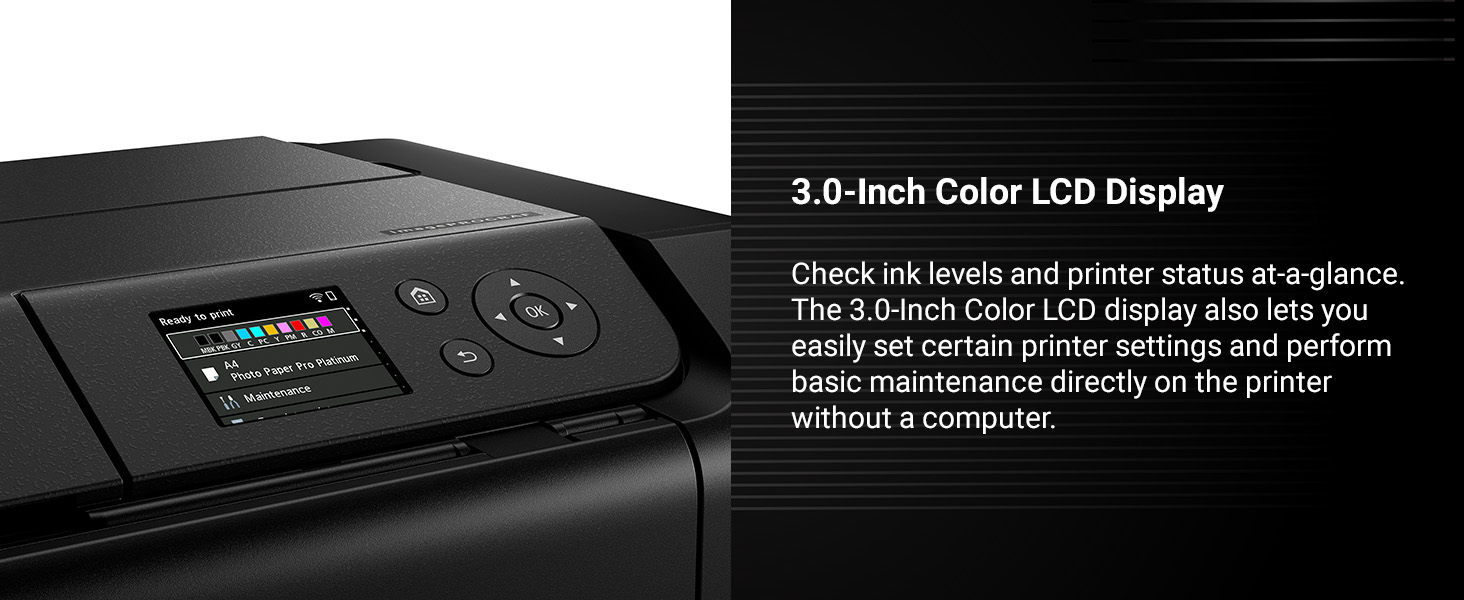
Figure 7: The 3.0-inch color LCD monitor provides easy access to printer status and settings.
6. Тэхнічнае абслугоўванне
Regular maintenance ensures optimal print quality and extends the life of your printer.
6.1 Праверка ўзроўню чарнілаў
Ink levels can be checked on the printer's LCD monitor or through the printer driver software on your computer. Replace cartridges when levels are low to avoid interruptions during printing.
6.2 Замена чарнільных картрыджаў
When an ink cartridge is empty, the printer will prompt you to replace it. Open the top cover, remove the empty cartridge by pressing the tab, and insert a new one until it clicks into place. Close the cover to resume operation.
6.3 Ачыстка друкавальнай галоўкі
If print quality declines (e.g., missing lines, streaking), perform a print head cleaning from the printer's maintenance menu or through the printer driver. This clears clogged nozzles.
6.4 Nozzle Recovery System
The PRO-310 features a Nozzle Recovery System that helps prevent print failures due to clogged nozzles, ensuring consistent print quality.
6.5 Skew Correction
The printer includes Skew Correction technology to automatically adjust paper alignment, reducing errors and wasted media.
7. Выпраўленне непаладак
У гэтым раздзеле разглядаюцца распаўсюджаныя праблемы, з якімі вы можаце сутыкнуцца.
7.1 Common Print Quality Issues
- Streaks or Fading: Check ink levels. Perform print head cleaning or deep cleaning.
- Няправільныя колеры: Ensure correct paper type is selected in print settings. Perform print head alignment.
- Grainy Prints: Use higher quality paper or adjust print quality settings to 'High' or 'Fine'.
7.2 Захрасанне паперы
If a paper jam occurs, follow the on-screen instructions on the LCD monitor. Carefully remove any jammed paper from the paper paths, ensuring no torn pieces remain inside.
7.3 Праблемы з падключэннем
- Адключэнне Wi-Fi: Check your router and printer's Wi-Fi status. Reconnect the printer to the network via the LCD menu.
- Праблемы з падключэннем USB: Пераканайцеся, што USB-кабель надзейна падключаны як да прынтара, так і да камп'ютара. Паспрабуйце іншы USB-порт або кабель.
- Ethernet Issues: Verify the Ethernet cable is properly connected and your network is active.
7.4 паведамленняў пра памылкі
Refer to the printer's LCD monitor for specific error codes and messages. Consult the online manual or Canon support website for detailed solutions corresponding to each code.
8. Тэхнічныя характарыстыкі
| Марка | Canon |
| Назва мадэлі | imagePROGRAF PRO-310 |
| Нумар мадэлі | 6858C002 |
| Тэхналогія друку | Струйны |
| Сістэма чарнілаў | 9 Color + Chroma Optimizer Pigment-Based Ink |
| Максімальны памер друку | 13" x 19" (A3+), Custom (up to 13" x 129") |
| Сувязь | Wi-Fi, Ethernet, USB |
| Дысплей | 3.0-inch Color LCD Monitor |
| Памеры (Д x Ш x В) | 28.7" Г x 18.6" Ш x 14.04" У |
| Вага | 31.6 фунта |
| Максімальны дазвол друку | 1200 x 1200 dpi |
9. Гарантыя і падтрымка
9.1 Інфармацыя аб гарантыі
The Canon imagePROGRAF PRO-310 printer comes with a 1-гадовая абмежаваная гарантыяГэтая гарантыя распаўсюджваецца на дэфекты матэрыялаў і вырабу пры нармальным выкарыстанні. Калі ласка, захавайце пацвярджэнне пакупкі для прэтэнзій па гарантыі.
9.2 Падтрымка прадукту
For further assistance, technical support, or service inquiries, please visit the official Canon support website or contact Canon customer service. Online resources include FAQs, driver downloads, and additional manuals.
Наведайце краму Canon: Афіцыйная крама Canon