
Уводзіны
Thank you for choosing the CRUA 27-inch 4K UHD 144Hz IPS Gaming Monitor. This monitor is designed to deliver an immersive visual experience with its high resolution, fast refresh rate, and vibrant color reproduction. This manual provides essential information for the proper installation, operation, and maintenance of your new monitor. Please read it thoroughly before use and retain it for future reference.
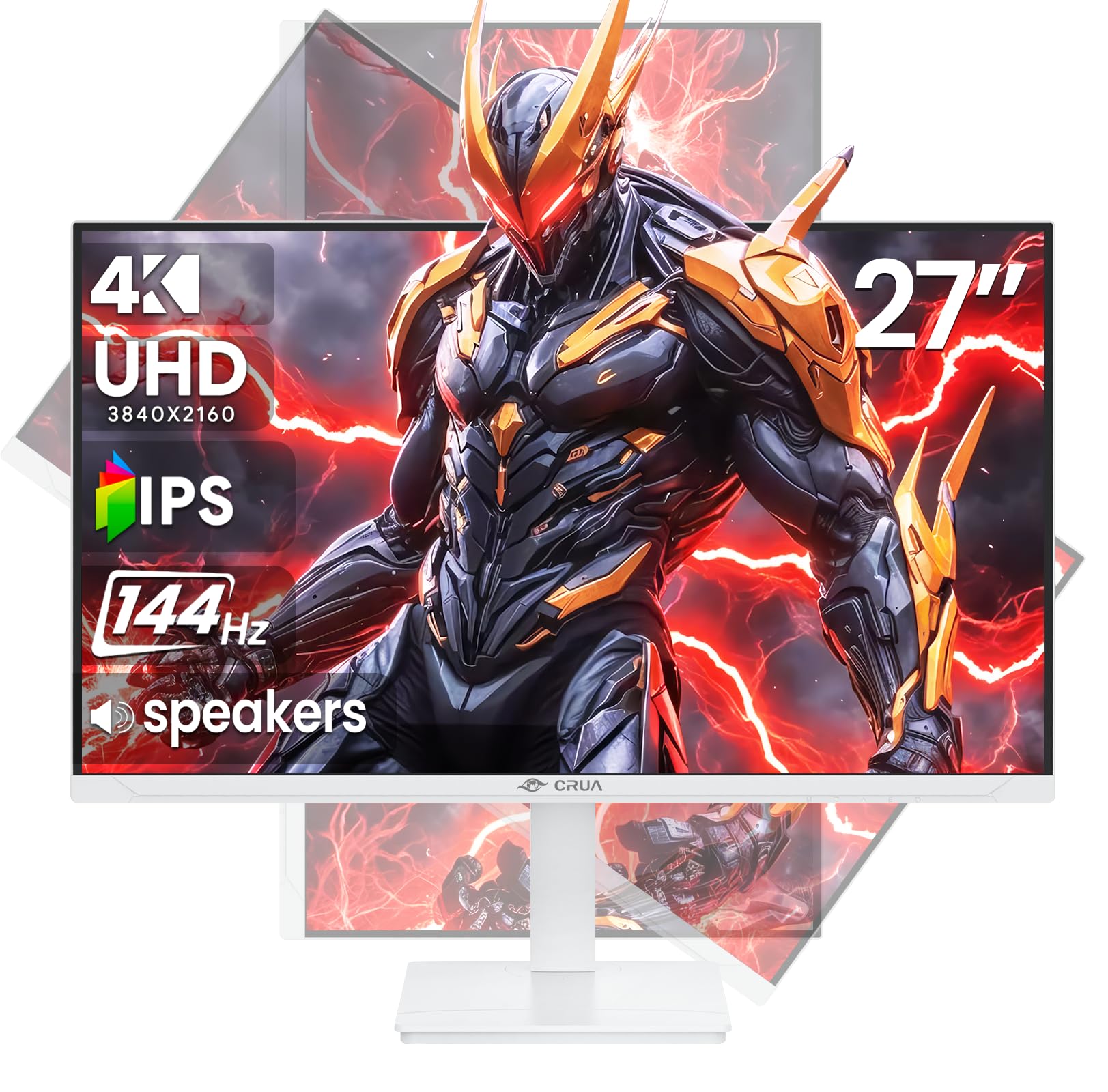
Выява: спераду view of the CRUA 27-inch 4K UHD 144Hz IPS Gaming Monitor.
Што ў скрынцы
Калі ласка, праверце змесціва ўпакоўкі. Калі якія-небудзь прадметы адсутнічаюць або пашкоджаныя, звярніцеся да прадаўца.
- 27-цалевы манітор
- Кабель DP
- Base and Support
- Кіраўніцтва карыстальніка
- Электразабеспячэнне
Асаблівасці прадукту
- 27" 4K Display with IPS Panel: Experience ultra-clear visuals with a 3840x2160P resolution.
- 144 Гц частата абнаўлення: Enjoy fluid and sharp motion, ideal for competitive gaming and fast-paced content.
- 120% дакладнасць колераперадачы sRGB: Delivers rich and accurate tones with 350cd/m² brightness and 1000:1 high-contrast.
- Убудаваныя дынамікі: Provides clear audio for daily use.
- Full Ergonomic Adjustment: Features height, pivot, tilt, and rotation adjustments for optimal viewныя вуглы.
- Некалькі варыянтаў падключэння: Equipped with 2x HDMI 2.1 and 2x DP 1.4 ports.
- Падтрымка AMD FreeSync: Сінхранізуе частату абнаўлення манітора з графічным працэсарам для гульні без разрываў.
- Насценны мантаж: Supports VESA 75mm x 75mm wall mounts for flexible installation.
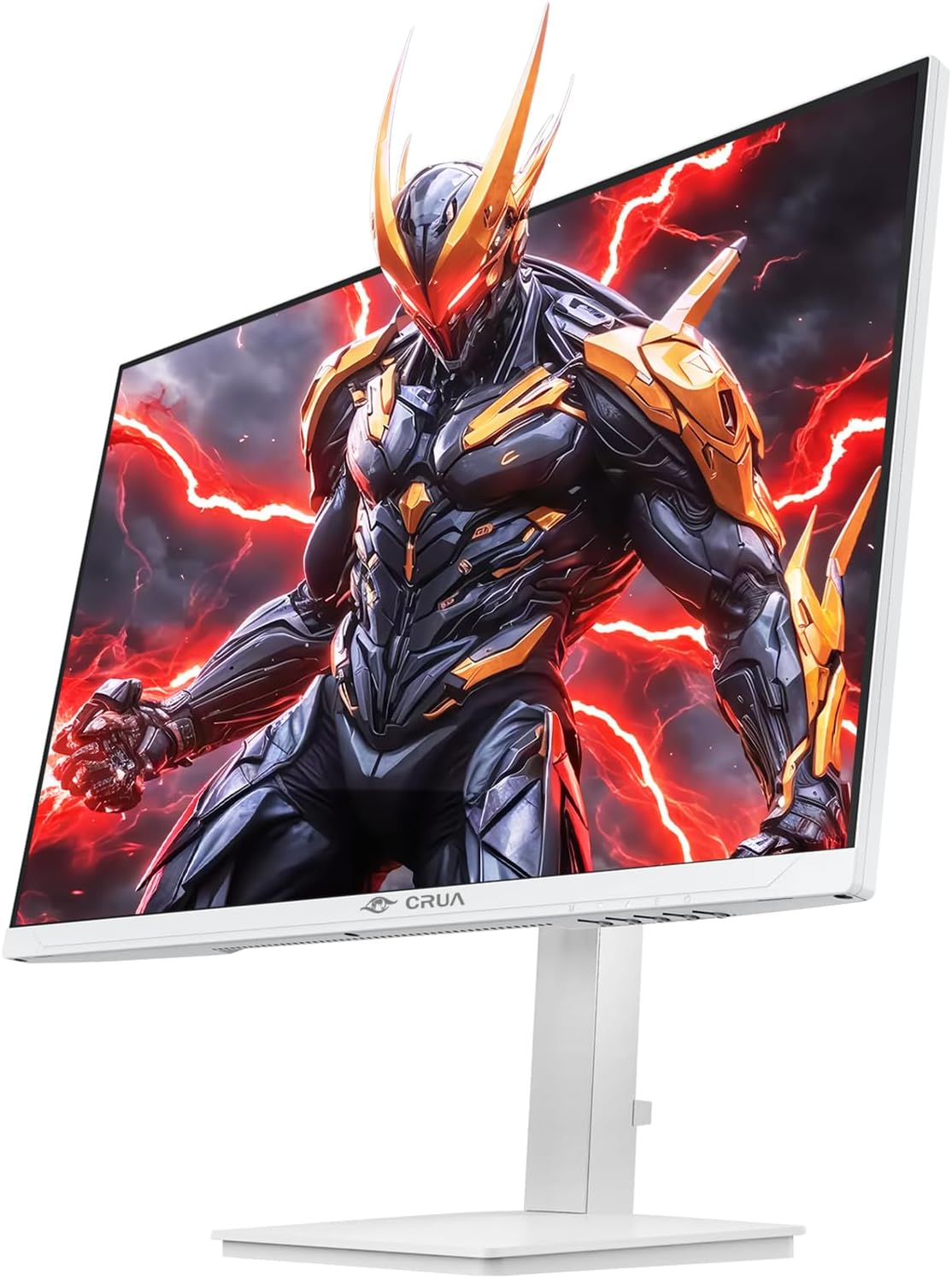
Выява: спераду view of the CRUA 27-inch 4K UHD 144Hz IPS Gaming Monitor displaying a game scene.

Выява: Задняя частка view of the CRUA 27-inch 4K UHD 144Hz IPS Gaming Monitor showing the stand and RGB lighting.

Выява: Задняя частка view of the CRUA 27-inch 4K UHD 144Hz IPS Gaming Monitor highlighting the input ports (2x DP 1.4, 2x HDMI 2.1, and 3.5mm Audio Port).

Image: Diagram illustrating the adjustable height (110mm), tilt (-5° to +15°), swivel (±30°), and pivot (90°) features of the CRUA 27-inch 4K UHD 144Hz IPS Gaming Monitor.
Інструкцыя па наладзе
1. Зборка падстаўкі
- Асцярожна выміце кампаненты манітора і падстаўкі з упакоўкі.
- Прымацуйце падстаўку да панэлі манітора. Пераканайцеся, што яна надзейна зашчапілася або замацавана шрубамі, калі яны ёсць.
- Attach the base to the stand neck, securing it with the thumb screw or other fasteners.
- Змесціце сабраны манітор на ўстойлівую, роўную паверхню.
2. Насценнае мацаванне (неабавязкова)
The monitor supports VESA 75mm x 75mm wall mounts. Remove the stand before attaching a compatible wall mount bracket (not included). Follow the instructions provided with your wall mount.
3. Злучальныя кабелі
- Магутнасць: Connect the power supply to the monitor's power input and then to a power outlet.
- Відэа ўваход: Connect one end of the provided DP cable (or an HDMI cable) to the corresponding port on your computer's graphics card and the other end to a DP 1.4 or HDMI 2.1 port on the monitor.
- Аўдыёвыхад (неабавязкова): If using external speakers or headphones, connect them to the 3.5mm audio jack on the monitor.
4. Пачатковае ўключэнне
Press the power button on the monitor. The monitor should automatically detect the input signal. If not, you may need to manually select the input source using the OSD menu.
Інструкцыя па эксплуатацыі
1. Уключэнне/выключэнне харчавання
Націсніце кнопку харчавання, размешчаную на маніторы, каб уключыць або выключыць яго.
2. Навігацыя па экранным меню
The On-Screen Display (OSD) menu allows you to adjust various monitor settings. Navigate the menu using the joystick or buttons typically located on the back or bottom of the monitor.
- Націсніце джойсцік/кнопку, каб адкрыць экраннае меню.
- Move the joystick up/down or use corresponding buttons to navigate through menu options.
- Move the joystick left/right or use corresponding buttons to adjust values or enter sub-menus.
- Press the joystick/button again to confirm selections or exit sub-menus.
3. Выбар крыніцы ўводу
If the monitor does not automatically detect the correct input, open the OSD menu, navigate to "Input Source," and select the active input (e.g., HDMI1, HDMI2, DP1, DP2).
4. Рэгуляванне налад дысплея
У экранным меню можна наладзіць такія параметры, як:
- Яркасць/кантраст: Адрэгулюйце агульны ўзровень яркасці і кантраснасці.
- Налады колеру: Дакладная налада каляровай тэмпературы, гамы і асобных значэнняў RGB.
- Якасць малюнка: Select preset modes (e.g., Standard, Game, Movie) or customize sharpness and dynamic contrast.
- Раздзяленне і частата абнаўлення: Ensure your computer's display settings match the monitor's native 4K UHD (3840x2160P) resolution and 144Hz refresh rate for optimal performance.
- AMD FreeSync: Enable FreeSync in the OSD menu and your graphics card control panel for adaptive synchronization.
5. Налады гуку
Adjust the volume of the built-in speakers or connected external audio devices through the OSD menu's audio section. You can also mute the audio if desired.
6. Эрганамічныя рэгуляванні
Адрэгулюйце манітор па сваім жаданні viewпазіцыя:
- Рост: Акуратна падштурхніце або пацягніце манітор уверх або ўніз уздоўж падстаўкі.
- Нахіл: Tilt the screen forward or backward.
- Паваротны: Павярніце манітор налева або направа на яго падставе.
- Паварот: Rotate the screen 90 degrees for vertical orientation.
Тэхнічнае абслугоўванне
Ачыстка экрана
- Заўсёды выключайце манітор і адключайце шнур сілкавання ад сеткі перад чысткай.
- Выкарыстоўвайце мяккую тканіну без ворса. dampвадой або спецыяльным сродкам для чысткі экранаў.
- Не распыляйце ачышчальнік непасрэдна на экран.
- Пазбягайце выкарыстання абразіўных ачышчальнікаў, спірту або раствораў на аснове аміяку, бо яны могуць пашкодзіць паверхню экрана.
Агульны догляд
- Трымайце манітор далей ад прамых сонечных прамянёў, крыніц цяпла і празмернай колькасці пылу.
- Забяспечце дастатковую вентыляцыю вакол манітора, каб прадухіліць перагрэў.
- Не стаўце цяжкія прадметы на манітор або яго кабелі.
- Пазбягайце дакрананняў да экрана вострымі прадметамі.
Ліквідацыю непаладак
| праблема | Магчымае рашэнне |
|---|---|
| Няма выявы на экране |
|
| З дынамікаў няма гуку |
|
| Мігценне або скажэнне выявы |
|
| Кнопкі не рэагуюць |
|
For further assistance, please refer to the CRUA support webсайт або звярніцеся ў службу падтрымкі.
Тэхнічныя характарыстыкі
| Асаблівасць | Дэталь |
|---|---|
| Нумар мадэлі | CR270E |
| Памер экрана | 27 цалі |
| дазвол | 4K UHD (3840 x 2160 пікселяў) |
| Частата абнаўлення | 144 Гц |
| Тып панэлі | IPS |
| Суадносіны бакоў | 16:9 |
| Колеравая гама | 120% sRGB |
| Яркасць | 350 кандел (кд/м²) |
| Каэфіцыент кантраснасці | 1000:1 |
| Сувязь | 2x DP 1.4, 2x HDMI 2.1, 1x 3.5mm Audio Jack |
| Адаптыўная сінхранізацыя | AMD FreeSync |
| Эрганоміка | Height, Pivot, Tilt, Rotate Adjustable |
| Насценнае мацаванне | VESA 75 мм x 75 мм |
| Убудаваныя дынамікі | так |
| Памеры прадукту | 2.5 х 24 х 14 цалі |
| Вага прадмета | 11.38 фунта |
Гарантыя і падтрымка
CRUA provides high-quality computer monitors and premium services. For warranty information, technical support, or any questions regarding your monitor, please visit the official CRUA website or contact their customer service team. Details can typically be found on the product packaging or the CRUA brand store on Amazon.
Кантактная інфармацыя: Refer to your purchase documentation or the CRUA official webсайт, каб атрымаць найбольш актуальную кантактную інфармацыю службы падтрымкі.