1. Уводзіны
This manual provides comprehensive instructions for the Womier WD75 Wood Gaming Keyboard. Please read this manual thoroughly before using the product to ensure proper operation and maintenance.
Змест пакета
- Womier WD75 Wood Gaming Keyboard
- USB-кабель C
- Здымальнік клавішнай шапкі
- Пераключальнік
- Additional Switches (if included)
- Бесправадны прыёмнік 2.4 ГГц
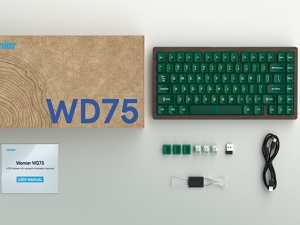
Image: Contents of the Womier WD75 keyboard package, including the keyboard, USB-C cable, keycap puller, switch puller, and 2.4GHz wireless receiver.
2. Асаблівасці
- Walnut Wood Shell: Crafted with a smooth, delicate walnut wood casing for a unique aesthetic and tactile experience.
- 75% раскладка (84 клавіш): Compact design retaining essential keys for gaming and productivity.
- Трохрэжымнае падключэнне: Supports USB-C wired, Bluetooth 3.0/5.0, and 2.4GHz wireless connections.
- Акумулятар 8000 мАг: Ёмісты акумулятар для працяглага выкарыстання бесправадной сувязі.
- QMK/VIA Programmable: Open-source software support for custom key remapping, macros, and lighting effects.
- Перамыкачы з магчымасцю гарачай замены: Compatible with both 3-pin and 5-pin mechanical switches, allowing for easy customization.
- Womier Full POM Linear Switches: Pre-installed switches optimized for gaming and typing with a 55gf drive and 2.0mm pre-travel.
- South-Facing RGB Backlighting: Customizable RGB lighting with evenly distributed light effects.
- Translucent Clear Keycaps (MDA Profile): Crafted from high-quality PC for an immersive typing experience and enhanced RGB visibility.
- Five Layers of Sound-Absorbing Fillings: Designed to provide a soft, cushioned typing feel and a pleasant sound profile.

Image: The Womier WD75 keyboard showcasing its 75% layout, green translucent keycaps, and wooden base.

Выява: Падрабязная view highlighting the keyboard's wooden shell, the hot-swappable switch socket, and the translucent clear keycaps.

Image: An exploded diagram illustrating the five layers of sound-absorbing filling materials within the keyboard, designed for improved acoustics and typing feel.
3. Настройка
3.1 Падключэнне клавіятуры
The Womier WD75 keyboard offers three connection modes: wired, 2.4GHz wireless, and Bluetooth.

Image: The Womier WD75 keyboard demonstrating its versatile tri-mode connection capabilities: wired via USB-C, 2.4GHz wireless with a dongle, and Bluetooth.
Правадное злучэнне:
- Знайдзіце порт USB-C на задняй панэлі клавіятуры.
- Connect the provided USB-C cable to the keyboard and the other end to your computer's USB port.
- Ensure the mode switch on the keyboard is set to "USB" or "Wired" mode.
- Клавіятура будзе аўтаматычна распазнана вашай сістэмай.
Бесправадное злучэнне 2.4 ГГц:
- Locate the 2.4GHz wireless receiver (USB dongle) included in the package.
- Падключыце USB-прыёмнік да вольнага порта USB на вашым кампутары.
- Set the mode switch on the keyboard to "2.4G" mode.
- The keyboard should connect automatically. If not, press Fn + R каб пачаць спалучэнне.
Злучэнне Bluetooth:
The keyboard can connect to up to three Bluetooth devices.
- Set the mode switch on the keyboard to "BT" mode.
- To enter pairing mode for a specific channel, press and hold Fn + Q (для BT1), Fn + W (для BT2), або Fn + E (for BT3) for 3-5 seconds until the corresponding key flashes rapidly.
- On your device (computer, tablet, smartphone), open Bluetooth settings and search for "Womier WD75".
- Select the keyboard to pair. The key will stop flashing once connected.
- Каб пераключыцца паміж падлучанымі прыладамі Bluetooth, коратка націсніце Fn + Q/W/E.
3.2 Зарадка акумулятара
The keyboard is equipped with an 8000mAh battery. Connect the USB-C cable to the keyboard and a power source (computer USB port or USB wall adapter) to charge. The indicator light will show charging status.
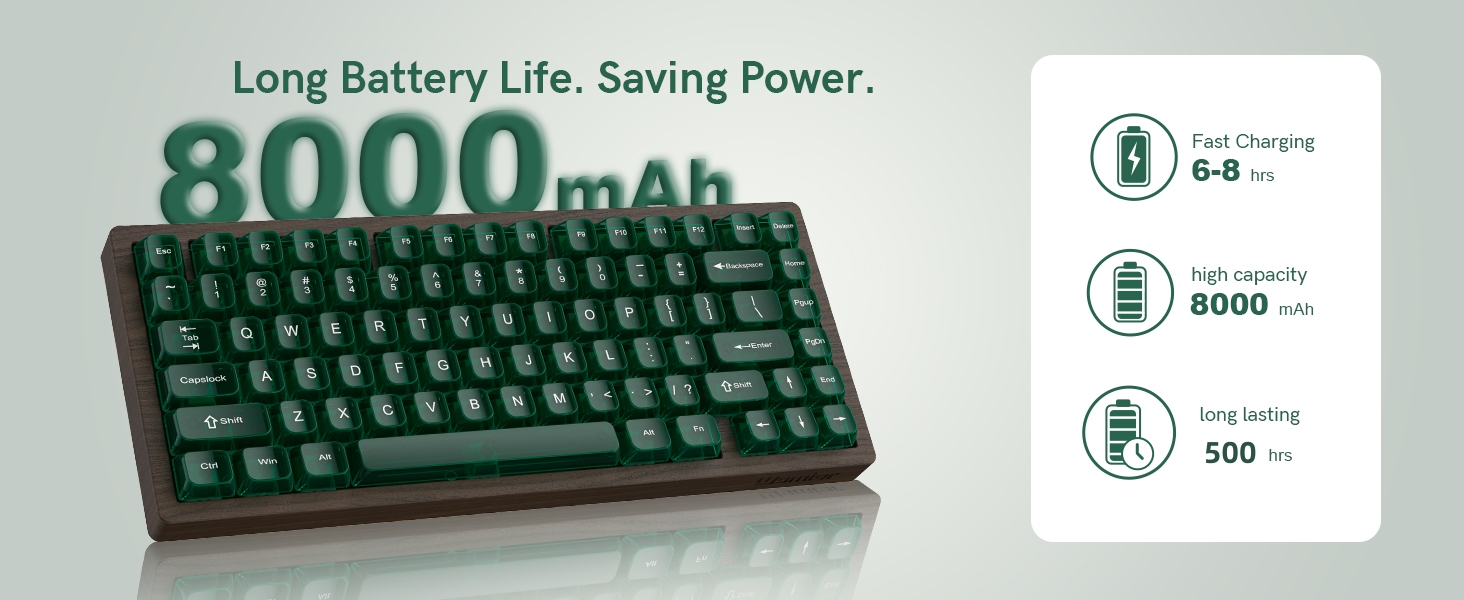
Image: Visual representation of the keyboard's 8000mAh battery, indicating fast charging (6-8 hours) and long-lasting usage (500 hours standby).
4. Аперацыя
4.1 Асноўныя функцыі клавіш
The Womier WD75 features a 75% layout. Some functions are accessed via the Fn камбінацыя клавіш.
| Функцыя | Камбінацыя клавіш | Апісанне |
|---|---|---|
| F1-F12 | Fn + 1-12 | Accesses standard F-row functions. |
| Павышэнне яркасці | Fn + ↑ | Increases RGB backlight brightness. |
| Зніжэнне яркасці | Fn + ↓ | Decreases RGB backlight brightness. |
| Lighting Mode Cycle | Fn + \ | | Цыклічна пераключае розныя эфекты RGB-падсветкі. |
| Lighting Color Cycle | Fn + Backspace | Cycles through different RGB lighting colors. |
| Windows/Mac Mode Toggle | Fn + A (Windows) / Fn + S (Mac) | Switches keyboard layout compatibility between Windows and macOS. |
4.2 QMK/VIA Programming
The Womier WD75 supports QMK/VIA, allowing for extensive customization of key mappings, macros, and lighting effects. This functionality is available in wired mode.
- Ensure the keyboard is connected via USB-C cable.
- Спампуйце праграмнае забеспячэнне VIA з афіцыйнага сайта VIA. webсайт (caniusevia.com) or the Womier support page.
- Download the specific JSON keymap file for the WD75 model from the Womier webсайт.
- Open the VIA software. If the keyboard is not automatically detected, go to the "Design" tab, enable "Load Raw Data", and load the downloaded JSON file.
- Once detected, you can remap keys, create macros, and customize RGB lighting within the VIA interface.
- Changes made in VIA are saved directly to the keyboard's firmware and will function in all connection modes (wired, 2.4GHz, Bluetooth) once programmed.

Image: The VIA software interface, demonstrating its capability to customize key mappings and other keyboard functionalities.
5. Тэхнічнае абслугоўванне
5.1 Чыстка клавіятуры
- Перад чысткай адключыце клавіятуру ад усіх крыніц харчавання.
- Выкарыстоўвайце мяккую безворсовую тканіну, злёгку dampened with water or a mild cleaning solution to wipe the keycaps and wooden case. Avoid harsh chemicals.
- Для выдалення пылу і смецця паміж клавішамі выкарыстоўвайце сціснутае паветра.
- Не апускайце клавіятуру ў ваду або любую вадкасць.
5.2 Замена перамыкачоў і клавішных каўпачкоў
The WD75 keyboard is hot-swappable, allowing for easy replacement of switches and keycaps without soldering.

Image: Illustration of the hot-swappable feature, showing how to remove and insert mechanical switches and keycaps using the provided tools.
Replacing Keycaps:
- Use the provided keycap puller to gently grip the keycap you wish to remove.
- Pull straight up with even pressure until the keycap detaches from the switch stem.
- To install a new keycap, align it with the switch stem and press down firmly until it clicks into place.
Замена выключальнікаў:
- Спачатку зніміце каўпачок клавішы з дапамогай здымніка.
- Use the provided switch puller to grasp the top and bottom clips of the switch.
- Акуратна пагойдвайце і пацягніце перамыкач уверх, пакуль ён не вызваліцца ад друкаванай платы.
- To install a new switch, ensure its pins are straight. Align the pins with the holes on the PCB and press down firmly until the switch clicks into place. Do not force the switch; bent pins can damage the socket.
6. Выпраўленне непаладак
| праблема | Магчымая прычына | Рашэнне |
|---|---|---|
| Клавіятура не рэагуе (правадная) | Loose cable connection, incorrect mode switch setting, driver issue. | Check USB-C cable connection. Ensure mode switch is set to "USB". Try a different USB port or computer. Reinstall keyboard drivers if necessary. |
| Keyboard not connecting (2.4GHz/Bluetooth) | Low battery, incorrect mode, pairing issue, interference. | Charge the keyboard. Ensure mode switch is set to "2.4G" or "BT". Re-initiate pairing process. Move closer to the receiver/device. Reduce wireless interference. |
| RGB lighting not working or dim | Brightness setting, lighting mode, software conflict. | Adjust brightness using Fn + ↑. Cycle lighting modes with Fn + \ |. Check VIA software settings. |
| Клавішы не рэгіструюцца або ўводзяцца два разы | Faulty switch, debris under keycap, software issue. | Remove keycap and check for debris. Replace the switch if it's faulty (hot-swappable). Update keyboard firmware or VIA software. |
| Keyboard feels wobbly on desk | Uneven surface, warped case (rare). | Ensure desk surface is flat. Check rubber feet on keyboard for damage or missing pieces. If the wooden case is warped, contact support. |
7. Тэхнічныя характарыстыкі
| Асаблівасць | Дэталь |
|---|---|
| мадэль | WD75 |
| Макет | 75% (84 клавіш) |
| Сувязь | Правадны USB-C, Bluetooth 3.0/5.0, бесправадны 2.4 ГГц |
| Ёмістасць батарэі | 8000mAh літый-палімер |
| Выключальнікі | Womier Full POM Linear (Hot-swappable 3/5-pin) |
| Клавішы | Translucent Clear, MDA Profile |
| Падсвятленне | Паўднёвы бок RGB |
| Праграмуемасць | QMK/VIA Support |
| Матэрыял абалонкі | Арэхавы лес |
| Сумяшчальная АС | macOS, Windows, Linux |
| Памеры (Д х Ш х У) | 14.17 х 7.01 х 2.95 цалі (прыблізна) |
| Вага | 2.46 фунта (прыблізна) |
| Краіна паходжання | Кітай |
8. Гарантыя і падтрымка
8.1 Інфармацыя аб гарантыі
Womier products are manufactured to high quality standards. For specific warranty terms and conditions, please refer to the warranty card included with your product or visit the official Womier webсайт. Гарантыя звычайна распаўсюджваецца на вытворчыя дэфекты на працягу пэўнага перыяду з даты пакупкі.
8.2 Падтрымка кліентаў
If you encounter any issues or have questions regarding your Womier WD75 keyboard, please contact Womier customer support through their official website or the retailer from whom you purchased the product. Please have your product model and purchase details ready when contacting support.
Womier Official Webсайт: www.womier.com (Заўвага: Гэта запаўняльнік URLкалі ласка, звярніцеся да дакументацыі па прадукце для атрымання правільнай інфармацыі URL.)