
1. Уводзіны
This manual provides essential information for setting up, operating, and maintaining your new CyberpowerPC Gamer Xtreme VR Gaming PC. This system is equipped with an Intel Core Ultra 5 225F processor, NVIDIA GeForce RTX 5060 graphics, 64GB DDR5 memory, and a 2TB PCIe 4.0 NVMe SSD, running Windows 11 Home. Please read this manual thoroughly before using your computer to ensure proper functionality and longevity.
2. Інфармацыя па бяспецы
- крыніца харчавання: Use only the power cord provided with the system. Ensure the power outlet is properly grounded.
- Вентыляцыя: Do not block any ventilation openings on the computer case. Maintain adequate space around the PC for airflow to prevent overheating.
- Вадкасць і вільгаць: Keep the computer away from liquids and excessive moisture. Do not operate the PC with wet hands.
- Статычная электрычнасць: Discharge static electricity from your body before touching internal components by touching a grounded metal object.
- Абслугоўванне: Do not attempt to service the computer yourself unless specifically instructed. Refer all servicing to qualified service personnel.
- Размяшчэнне: Place the computer on a stable, flat surface. Avoid placing it near heat sources or in direct sunlight.
3. Змесціва ўпакоўкі
Праверце, ці ўсе пералічаныя ніжэй прадметы ўваходзяць у вашу ўпакоўку:
- CyberpowerPC Gamer Xtreme VR Gaming PC
- Гульнявая клавіятура USB RGB
- USB гульнявая мыш
- Шнур харчавання
- Documentation (Quick Start Guide, Driver Discs if applicable)
4. Настройка
4.1 Распакоўка і першапачатковы агляд
Carefully remove the computer from its packaging. Inspect the exterior for any signs of damage. Open the side panel (if applicable, usually tempered glass) and remove any internal foam packaging designed to secure components during shipping. Ensure all cables inside are securely connected.

Выява: Унутраная view of the PC showing RGB fans, motherboard, and graphics card. Remove internal foam before operation.
4.2 Падключэнне перыферыйных прылад
Connect your monitor, keyboard, mouse, and other peripherals to the appropriate ports on the back and front of the PC.
- Манітор: Connect your monitor to the graphics card's HDMI or DisplayPort outputs. The graphics card (NVIDIA GeForce RTX 5060) has 1x HDMI and 3x DisplayPort outputs. Ensure you connect to the dedicated graphics card ports, not the motherboard's integrated graphics ports (if present).
- Клавіятура і мыш: Connect the USB gaming keyboard and mouse to any available USB ports.
- Магутнасць: Connect the power cord to the power supply unit (PSU) at the rear of the PC, then plug it into a grounded electrical outlet.
- Сетка: For a wired connection, connect an Ethernet cable to the RJ45 LAN port. For wireless, ensure the Wi-Fi antennas (if included) are attached.
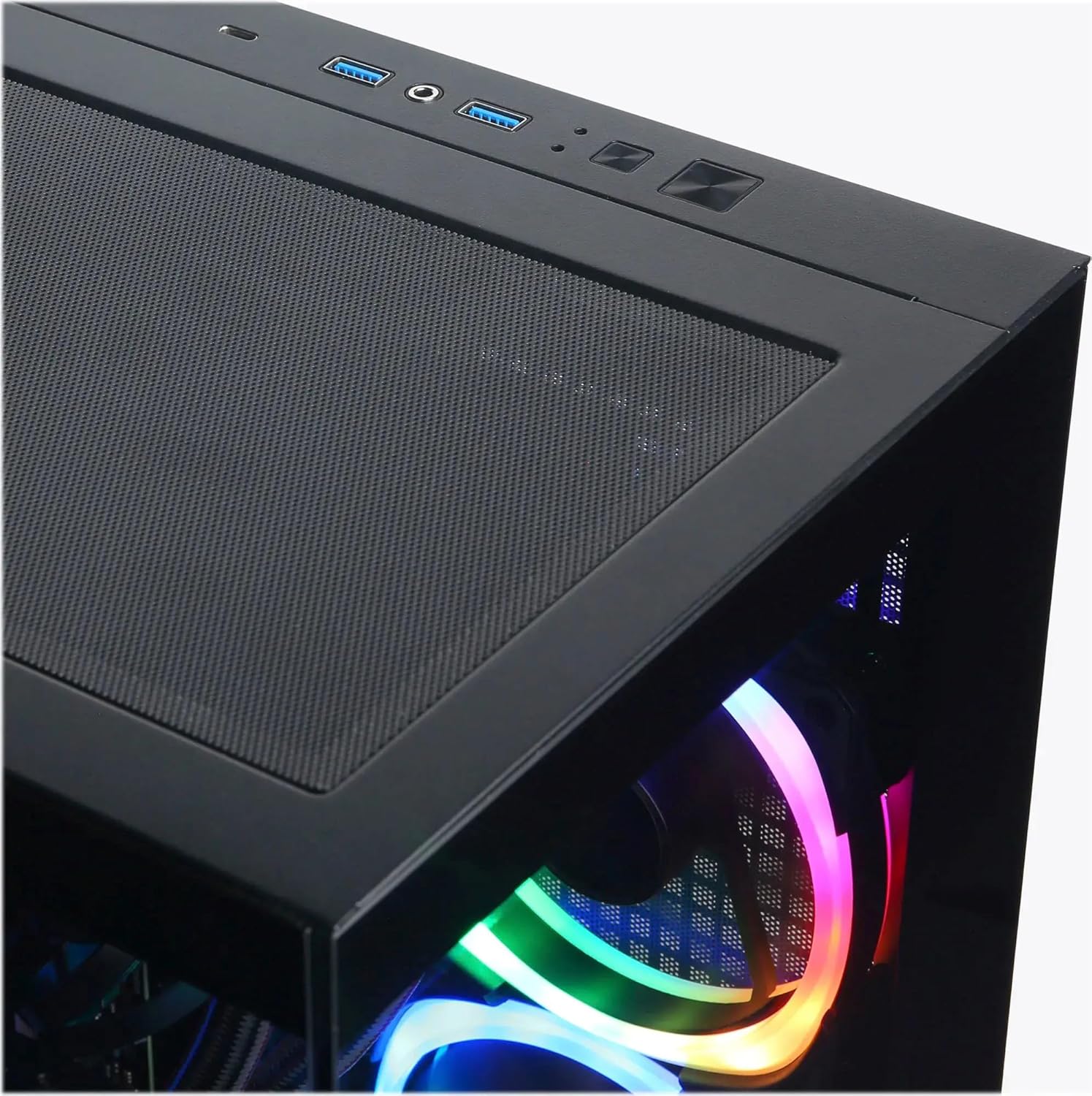
Image: Top I/O panel with USB ports, audio jacks, and power button.
4.3 Пачатковая загрузка і ўстаноўка Windows
Press the power button located on the top of the case. The system will boot into Windows 11 Home. Follow the on-screen instructions to complete the initial Windows setup, including language, region, network connection, and user account creation.
5. Аперацыйная
5.1 Уключэнне/выключэнне сілкавання
- Уключэнне: Press the power button on the top of the PC.
- Выключэнне: Click the Start button in Windows, then select Power > Shut down. Avoid directly holding the power button to shut down, as this can lead to data loss or system instability.
- Перазапуск: Націсніце кнопку «Пуск» у Windows, а затым выберыце «Харчаванне» > «Перазагрузка».
5.2 Understanding I/O Ports
Your PC is equipped with various ports for connectivity:
- USB 3.1 тыпу C: 1 (Front) - For high-speed data transfer and compatible devices.
- USB 3.1 тыпу A: 5 (2 Front, 3 Rear) - For general USB devices like keyboards, mice, and external drives.
- USB 2.0: 2 (Rear) - For older USB devices or peripherals that do not require high-speed data.
- RJ45 LAN: 1 (Rear) - For wired Ethernet network connection.
- Аўдыёпарты: 3 (Rear - Speaker / Microphone / Line In), 1 (Front - Headphone/Microphone Combo) - For audio input/output.
- HDMI 2.1: 1 (Graphics Card) - For connecting to displays.
- DisplayPort 2.1: 3 (Graphics Card) - For connecting to displays.
5.3 Кіраванне RGB-падсветкай
Your system features custom RGB lighting. Control software for the RGB lighting may be pre-installed or available for download from the CyberpowerPC website. Refer to the software's instructions for customizing lighting effects and colors.
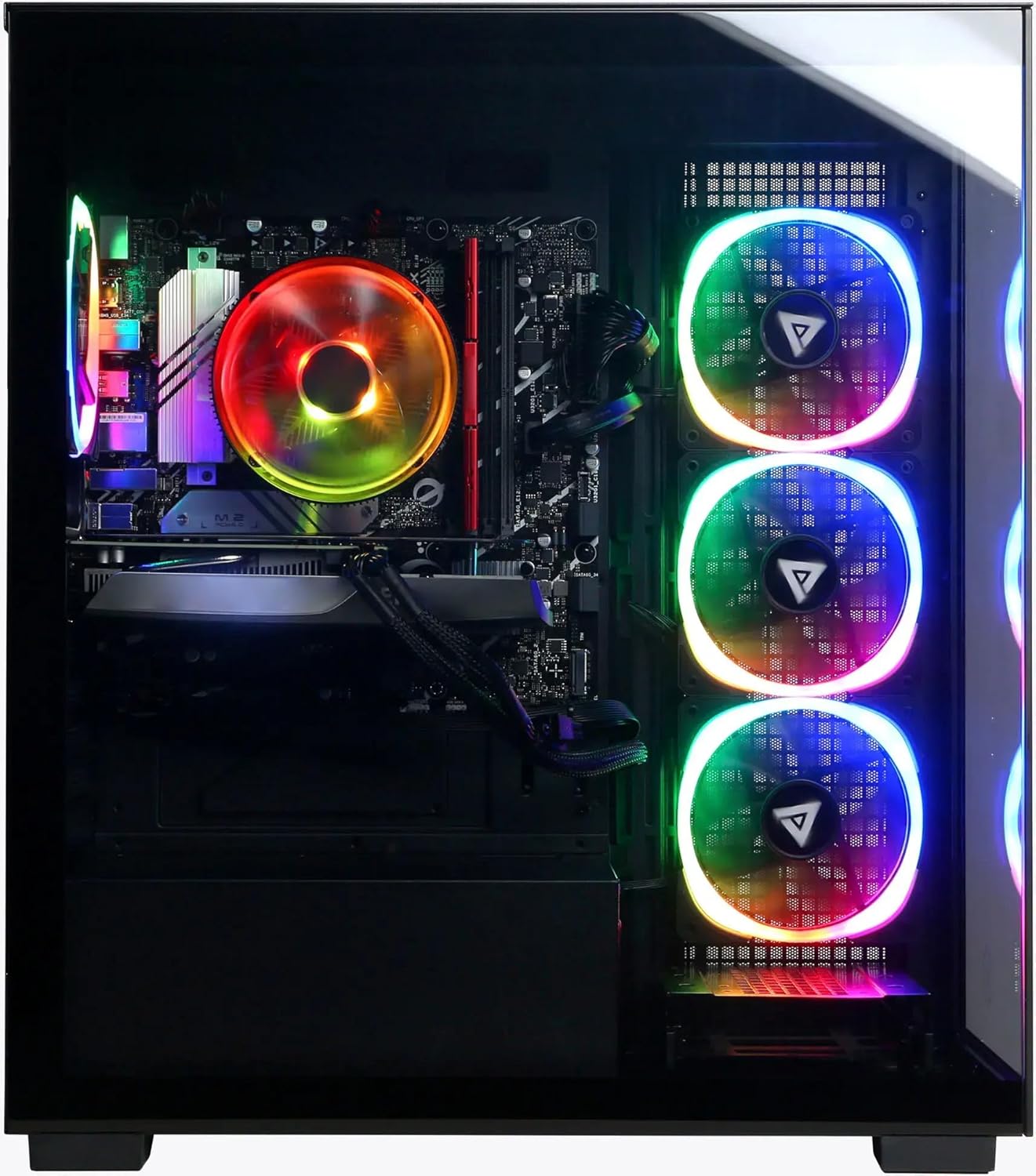
Выява: спераду і збоку view of the PC showcasinг яго наладжвальную RGB-падсветку.
6. Тэхнічнае абслугоўванне
6.1 Ачыстка
- Знешні выгляд: Выкарыстоўвайце мяккі, damp cloth to clean the exterior of the case. Avoid harsh chemicals.
- пыл: Periodically clean dust from the ventilation grilles and internal components using compressed air. Ensure the PC is powered off and unplugged before cleaning.
6.2 Абнаўленне праграмнага забеспячэння
Regularly update your operating system (Windows Update), graphics drivers (NVIDIA website), and other software to ensure optimal performance and security.
6.3 Вентыляцыя
Ensure the PC has unobstructed airflow. Do not place the computer in an enclosed space or directly against a wall. Proper ventilation is crucial for preventing overheating and maintaining component lifespan.
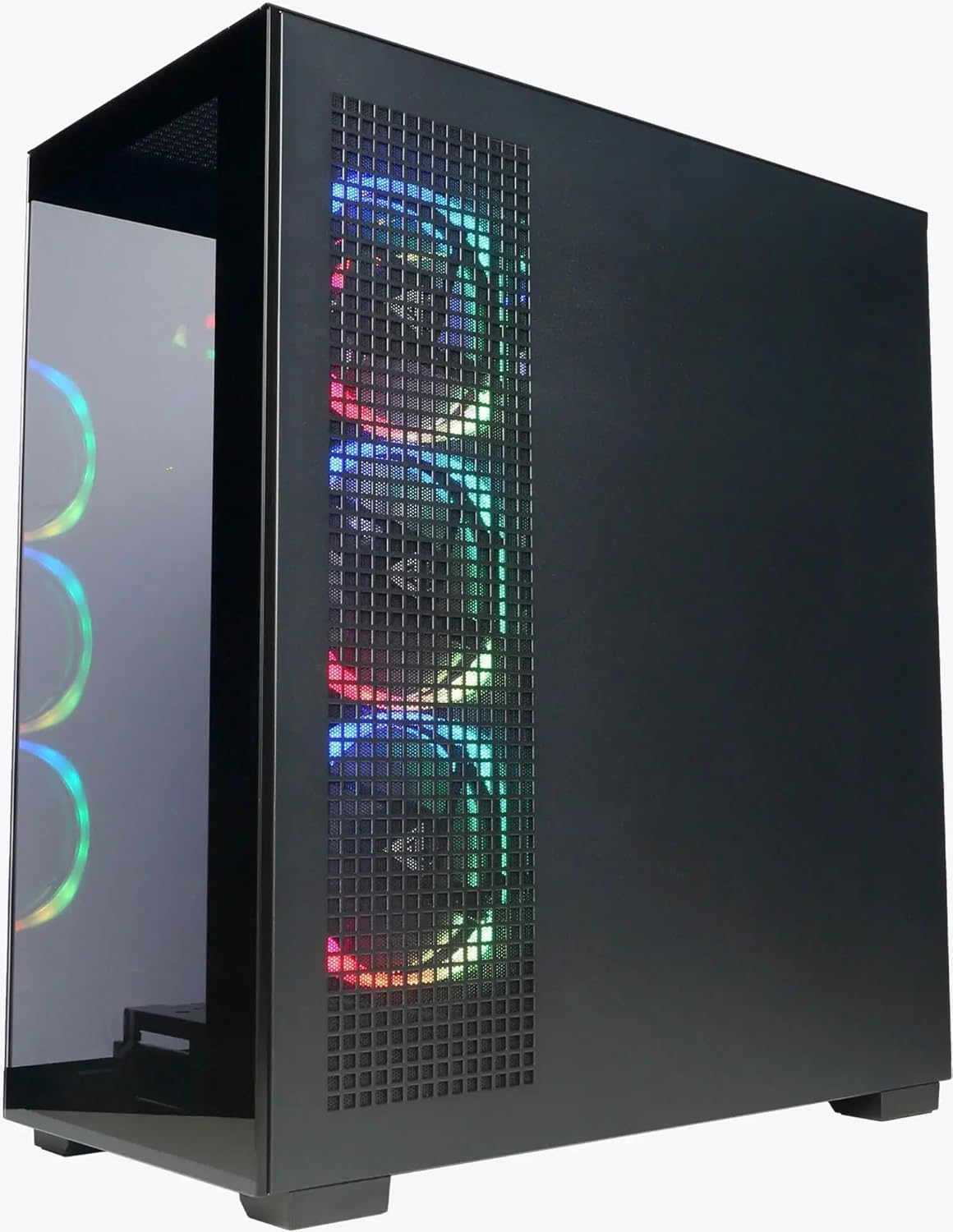
Выява: Збоку view of the PC highlighting the mesh ventilation panel for airflow.
7. Выпраўленне непаладак
If you encounter issues with your CyberpowerPC, consider the following basic troubleshooting steps:
- Няма харчавання:
- Пераканайцеся, што шнур харчавання надзейна падключаны як да ПК, так і да разеткі.
- Verify the power switch on the PSU (at the back of the PC) is in the 'On' position.
- Паспрабуйце іншую разетку.
- Няма дысплея:
- Confirm the monitor is powered on and connected to the graphics card's output (HDMI or DisplayPort), not the motherboard's video output.
- Паспрабуйце іншы відэакабель або манітор, калі такі маецца.
- Ensure the monitor input source is correctly selected.
- Няма падключэння да Інтэрнэту:
- For wired connections, check if the Ethernet cable is properly connected and your router/modem is working.
- For Wi-Fi, ensure Wi-Fi is enabled in Windows and you are connected to the correct network with the correct password.
- Check device drivers for network adapters in Device Manager.
- Запаволенне/завісанне сістэмы:
- Перазагрузіце кампутар.
- Check for background applications consuming excessive resources (Task Manager).
- Пераканайцеся, што Windows і драйверы абноўленыя.
- Запусціце праверку на вірусы/шкоднасныя праграмы.
If these steps do not resolve the issue, please contact CyberpowerPC customer support.
8. Тэхнічныя характарыстыкі
| Кампанент | Дэталь |
|---|---|
| Працэсар | Intel Core Ultra 5 225F (3.3GHz base, Max 4.9GHz) |
| Матчына плата | Набор мікрасхем Intel B860 |
| Памяць | 64 ГБ аператыўнай памяці DDR5 |
| Захоўванне | 2 ТБ PCIe 4.0 NVMe SSD |
| Графічная карта | NVIDIA GeForce RTX 5060 8 ГБ GDDR5 |
| Аперацыйная сістэма | Windows 11 хатняя |
| Сувязь | Wi-Fi 6, Bluetooth 5.3, 10/100/1000 Gigabit Ethernet LAN |
| Парты ўводу/вываду (спераду) | 1x USB 3.1 Type-C, 2x USB 3.1 Type-A, 1x Headphone/Microphone Combo |
| Парты ўводу/вываду (ззаду) | 3x USB 3.1 Type-A, 2x USB 2.0, 1x RJ45 LAN, 3x Audio Ports (Speaker/Mic/Line In) |
| Відэавыхады | 1x HDMI 2.1, 3x DisplayPort 2.1 (from Graphics Card) |
| Астуджэнне працэсара | Air Cool |
| Электразабеспячэнне | 600W 80 Plus Gold |
| Памеры (В х Ш х Г) | 19.9 цалі х 8.6 цалі х 17.7 цалі (50.5 см х 21.8 см х 44.9 см) |
| Вага | 35 фунтаў (15.88 кг) |
9. Гарантыя і падтрымка
9.1 Гарантыя на выраб
Your CyberpowerPC Gamer Xtreme VR Gaming PC comes with a standard manufacturer's warranty. The specific terms and duration of the warranty are typically outlined in the documentation included with your product or available on the official CyberpowerPC webсайт. Калі ласка, захавайце пацвярджэнне пакупкі для прэтэнзій па гарантыі.
9.2 Тэхнічная падтрымка
For technical assistance, troubleshooting beyond this manual, or warranty inquiries, please contact CyberpowerPC customer support:
- Webсайт: Visit the official CyberpowerPC website for support resources, FAQs, driver downloads, and contact information.
- Тэлефон/Электронная пошта: Refer to the contact details provided on the CyberpowerPC support page.
Additional protection plans may be available for purchase, offering extended coverage. Refer to your purchase details for information on any such plans.