
1. Уводзіны
The JeDEL WD142 is a versatile wireless mouse designed for various computing tasks. It features dual-mode connectivity, allowing connection via 2.4GHz wireless or Bluetooth, and offers adjustable DPI settings for precise control. This mouse is rechargeable, providing convenience and extended use. This manual provides instructions for setting up, operating, maintaining, and troubleshooting your WD142 mouse.
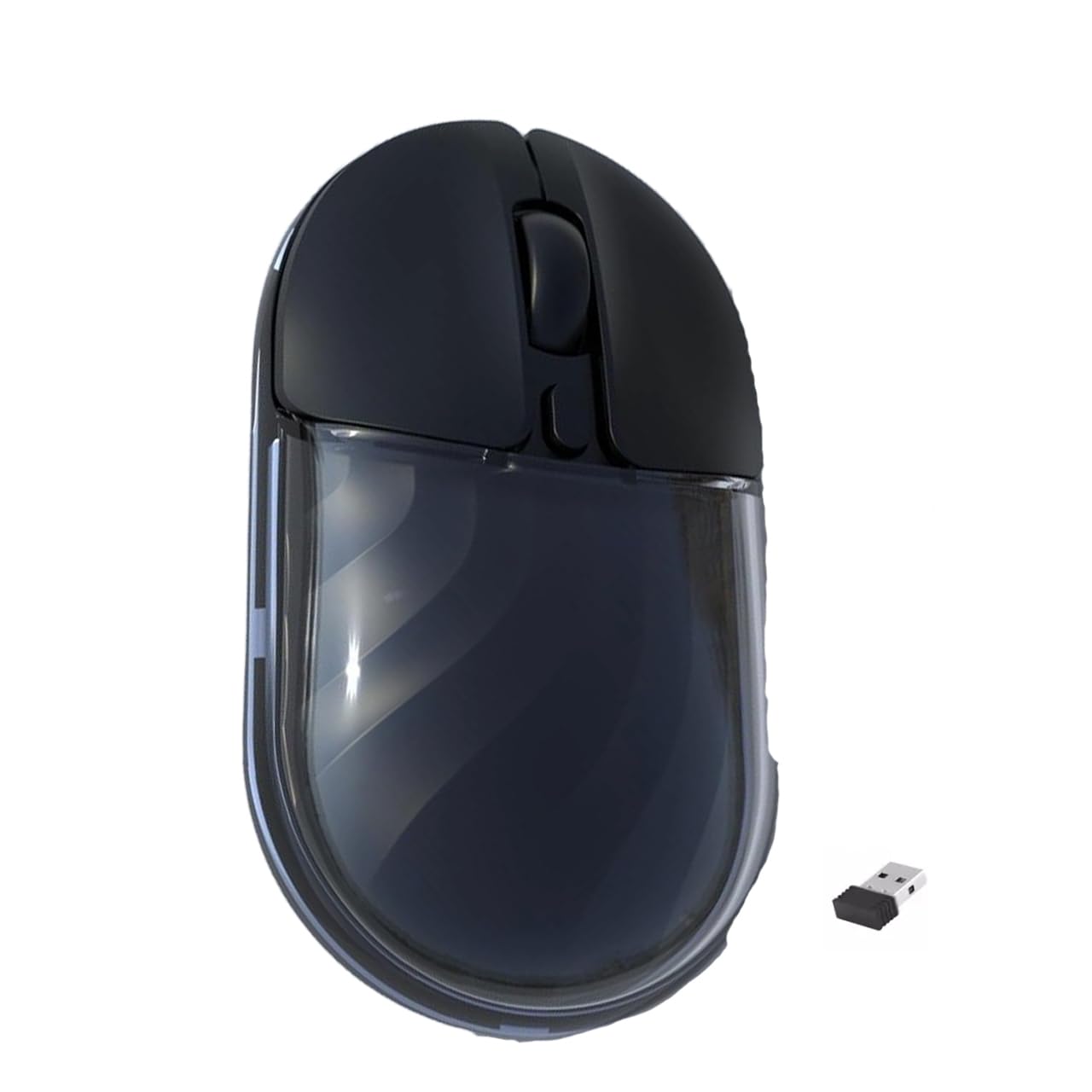
Малюнак 1: Верх view of the JeDEL WD142 Wireless Bluetooth Rechargeable Mouse.
2. Настройка
2.1 Зарадка мышы
Before first use, or when the battery is low, charge the mouse using the provided Type-C charging cable. Connect the Type-C end to the mouse's charging port and the USB-A end to a power source (e.g., computer USB port, USB wall adapter). The charging indicator light will illuminate during charging and turn off when fully charged. A full charge typically takes approximately 1.5 hours.
2.2 Бесправадное злучэнне 2.4 ГГц
- Locate the USB 2.4GHz receiver, usually stored in a compartment on the underside of the mouse.
- Устаўце USB-прыёмнік у свабодны порт USB на вашым кампутары.
- Уключыце мыш з дапамогай выключальніка харчавання, размешчанага на ніжняй баку.
- Switch the mouse to 2.4GHz mode using the mode switch button (if available, typically on the underside). The mouse should connect automatically.
2.3 Злучэнне Bluetooth
- Уключыце мыш з дапамогай выключальніка харчавання.
- Switch the mouse to Bluetooth mode using the mode switch button. The indicator light will typically blink, indicating it is in pairing mode.
- On your device (computer, smartphone, tablet), go to Bluetooth settings.
- Пошук new devices. The mouse should appear as "JeDEL WD142" or similar.
- Select the mouse to pair. Once paired, the indicator light on the mouse will stop blinking.
The JeDEL WD142 is compatible with iOS, macOS, Android, and Windows systems.
3. Інструкцыя па эксплуатацыі
3.1 Асноўныя функцыі
- Пстрычка левай кнопкай мышы: Першасны выбар і актывацыя.
- Пстрыкніце правай кнопкай мышы: Доступ да кантэкстных меню.
- Кола пракруткі: Пракручвае змесціва ўверх або ўніз. Таксама можна націснуць сярэдняй кнопкай мышы.
3.2 Рэгуляванне DPI
The mouse features adjustable DPI (Dots Per Inch) settings, allowing you to change cursor sensitivity. Press the DPI button (usually located behind the scroll wheel) to cycle through available DPI levels: 800, 1200 (default), and 1600. Each press will change the sensitivity, indicated by a brief flash of the indicator light.
3.3 Пераключэнне рэжымаў
Use the mode switch button on the underside of the mouse to toggle between 2.4GHz wireless mode and Bluetooth mode as needed for different devices.
3.4 RGB-асвятленне
The mouse features dynamic RGB lighting. Specific controls for RGB lighting (e.g., on/off, mode change) may be available via a dedicated button or software, if applicable. Refer to the product packaging or manufacturer's website for detailed RGB control instructions.
4. Тэхнічнае абслугоўванне
4.1 Ачыстка
Каб ачысціць мыш, акуратна працярыце яе паверхню мяккай губкайamp cloth. Avoid using harsh chemicals, abrasive cleaners, or excessive moisture, as these can damage the mouse. Ensure no liquid enters the mouse's internal components.
4.2 Сыход за акумулятарам
- Пазбягайце частай поўнай разрадкі акумулятара, каб падоўжыць тэрмін яго службы.
- Charge the mouse regularly, especially if it will not be used for an extended period.
- Do not expose the mouse to extreme temperatures, as this can affect battery performance.
4.3 Захоўванне
When not in use, store the mouse in a cool, dry place away from direct sunlight and extreme temperatures. If storing for a long period, ensure the mouse is partially charged.
5. Выпраўленне непаладак
- Мышка не рэагуе:
- Ensure the mouse is powered on.
- Check battery level and charge if necessary.
- Verify the correct connection mode (2.4GHz or Bluetooth) is selected.
- For 2.4GHz, ensure the USB receiver is securely plugged into the computer.
- For Bluetooth, ensure the mouse is paired correctly and your device's Bluetooth is enabled. - Рух курсора няўстойлівы або павольны:
- Clean the optical sensor on the underside of the mouse.
- Ensure you are using the mouse on a suitable surface (non-reflective, uniform color).
- Adjust the DPI setting to a higher value if movement is too slow. - Мышка не зараджаецца:
- Ensure the Type-C charging cable is properly connected to both the mouse and the power source.
- Try a different USB port or power adapter.
- Check if the charging cable is damaged. - Праблемы з спалучэннем Bluetooth:
- Ensure the mouse is in Bluetooth pairing mode (indicator light blinking).
- Remove the mouse from your device's Bluetooth list and attempt to re-pair.
- Restart your device's Bluetooth function or the device itself.
6. Тэхнічныя характарыстыкі
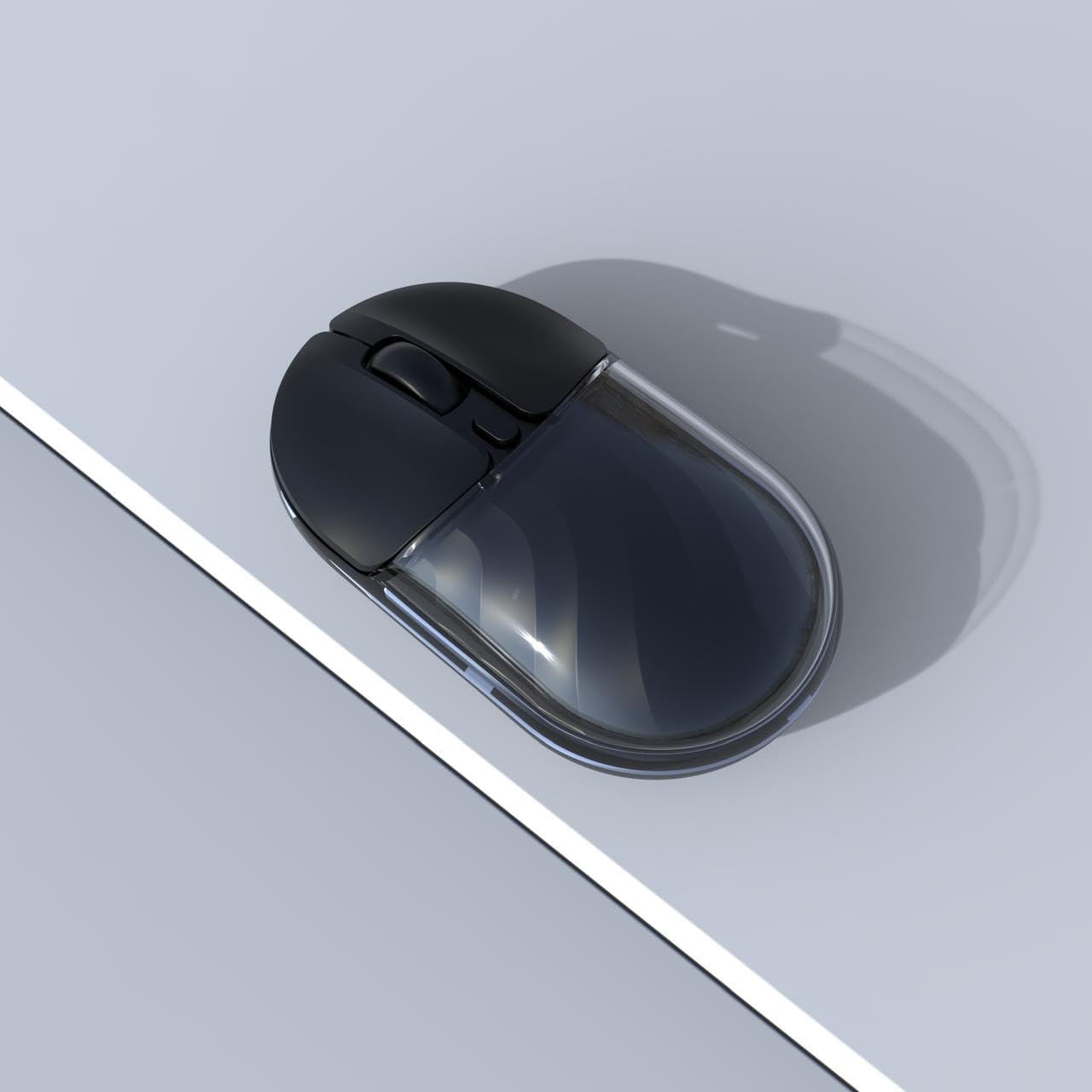
Малюнак 2: бок view of the JeDEL WD142 Wireless Bluetooth Rechargeable Mouse.
| Асаблівасць | Спецыфікацыя |
|---|---|
| Назва мадэлі | WD142 |
| Тэхналогія падлучэння | Бесправадная сетка 2.4 ГГц, Bluetooth |
| Налады DPI | 800 / 1200 (па змаўчанні) / 1600 |
| Колькасць кнопак | 4 (Left, Right, Scroll Wheel, DPI) |
| Тып батарэі | Літыевая акумулятарная батарэя |
| Ёмістасць батарэі | 3.7 В 300 мАг |
| Порт для зарадкі | Тып-C |
| Працоўная адлегласць | Да 10 метраў (33 футаў) |
| Silent Switch Life | Прыкладна 3 мільёнаў клікаў |
| Рука арыентацыі | правільна |
| Сумяшчальныя прылады | Персанальны камп'ютар, смартфон, планшэт |
| Апаратная платформа | Мак, ПК |
| Вага | 69 ± 5g (without battery) |
| Памеры (Д х Ш х У) | 109 х 60 х 32 мм |
| Тэрмін службы батарэі | Up to 180 hours (standby), 75 hours (working) |
7. Гарантыя і падтрымка
For warranty information and technical support, please refer to the documentation included with your purchase or contact the retailer/manufacturer directly. Specific warranty terms may vary by region and retailer.