1. Уводзіны
Thank you for choosing the ELISWEEN Wireless PC Gaming Controller. This controller is designed to provide a superior gaming experience across multiple platforms, including PC, Nintendo Switch, Android, and iOS devices. Featuring advanced Hall Effect joysticks, programmable back buttons, and customizable vibration, this manual will guide you through its setup, operation, and maintenance to ensure optimal performance.
2. Змесціва ўпакоўкі
- ELISWEEN Wireless PC Gaming Controller
- Зарадны кабель USB-C (1.5 м)
- 2.4 ГГц USB-ключ
- Кіраўніцтва карыстальніка
3. Прадукт скончыўсяview
Familiarize yourself with the controller's components:
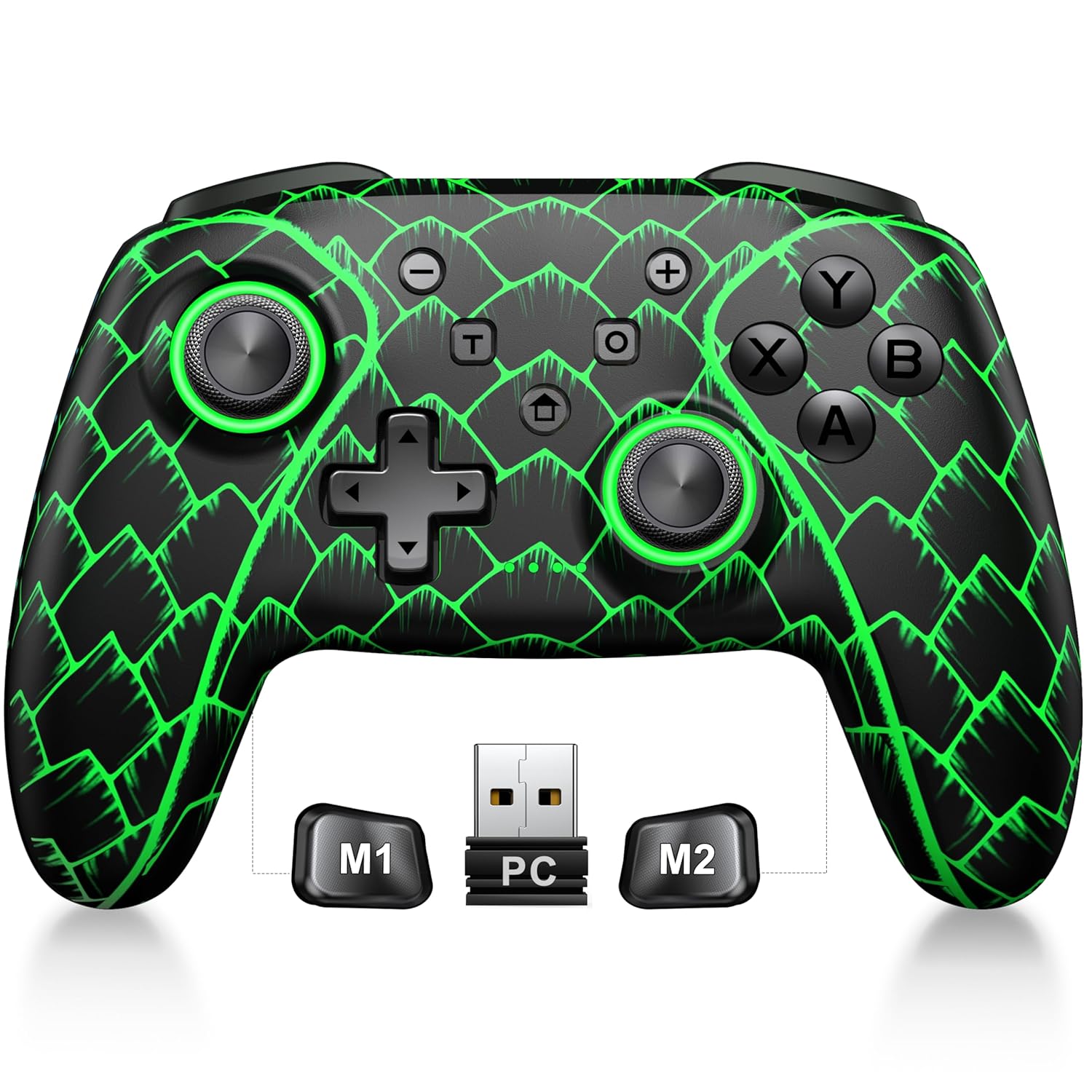
Figure 3.1: ELISWEEN Wireless PC Gaming Controller with its 2.4GHz USB dongle and highlighted M1/M2 programmable buttons.
- Левы/правы аналагавыя джойсцікі: Hall Effect joysticks for precise movement.
- D-Pad: Накіраваны ўвод.
- Action Buttons (A/B/X/Y): Стандартныя гульнявыя кнопкі ўводу.
- Shoulder Buttons (L/R): Зверху размешчаныя гузікі.
- Trigger Buttons (ZL/ZR): Hall Effect analog triggers.
- Кнопкі M1/M2: Праграмуемыя кнопкі вяртання.
- Кнопка дадому: Powers on/off and returns to system home screen.
- Кнопкі +/-: System navigation/menu buttons.
- Кнопка скрыншота: Captures screenshots.
- Кнопка Turbo: Activates/deactivates turbo function.
- Порт USB-C: Для зарадкі і праваднога падключэння.
4. Налада і падключэнне
4.1 Зарадка кантролера
Before first use, fully charge the controller. Connect the USB-C cable to the controller's USB-C port and the other end to a USB power source (e.g., PC, USB wall adapter). The charging indicator will show status and turn off when fully charged. A full charge takes approximately 3 hours.
4.2 Connecting to PC (Wireless 2.4GHz)

Figure 4.1: Multi-platform compatibility of the ELISWEEN controller, including PC, Switch, Android, and iOS.
- Insert the 2.4GHz USB dongle into an available USB port on your PC.
- Press the Home button on the controller to power it on.
- The controller will automatically connect to the dongle. The indicator lights will stabilize once connected.
4.3 Connecting to PC (Wired USB-C)
- Connect the USB-C cable to the controller and the other end to your PC.
- The controller will be recognized as a plug-and-play device.
4.4 Connecting to Nintendo Switch
- On your Nintendo Switch, go to System Settings > Controllers and Sensors > Disconnect Controllers.
- Затым перайдзіце ў раздзел «Кантролеры і датчыкі» > «Змяніць захоп/парадак».
- Press and hold the Home button on the ELISWEEN controller until the indicator lights begin to flash rapidly.
- Once paired, the indicator light(s) corresponding to the player number will remain solid.
4.5 Connecting to Android/iOS (Bluetooth)
- Пераканайцеся, што Bluetooth уключаны на вашай прыладзе Android або iOS.
- On the controller, press and hold the X + Home buttons simultaneously until the indicator lights flash rapidly, indicating pairing mode.
- On your device, search for Bluetooth devices and select "STK-7040RG" (or similar) to pair.
- Once connected, the indicator light will stabilize. Supports iOS 13+ MFi titles.
5. Інструкцыя па эксплуатацыі
5.1 Джойстыкі з эфектам Хола
The controller features precision Hall Effect joysticks and triggers, designed to prevent stick drift and provide accurate, responsive control. These magnetic, contactless sensors ensure long-term durability and precision.

Малюнак 5.1: Унутраны view of Hall Effect joystick technology, highlighting its magnetic, contactless design for enhanced accuracy and durability.
Zero Deadzone Mode: For competitive gaming, activate a temporary 0 deadzone mode by holding the T кнопка + R3 (right stick click) or L3 (left stick click). A green light confirms activation. To revert to default calibration, press the same combo (blue light indicator). The controller automatically resets to factory default settings upon restart for consistent anti-drift performance.
5.2 Праграмуемыя кнопкі «Назад» (M1/M2)
The M1 and M2 back buttons can be programmed to map up to 21 different key combinations, allowing for quick execution of complex actions.

Figure 5.2: The M1 and M2 programmable back buttons, capable of mapping up to 21 different actions for enhanced control.
Refer to the Keylinker App (search "NC300") for detailed instructions on programming and customizing these buttons.
5.3 Функцыя Турба
The controller supports Turbo fire functionality for 10 action buttons with adjustable speeds (5, 12, or 20 presses per second).
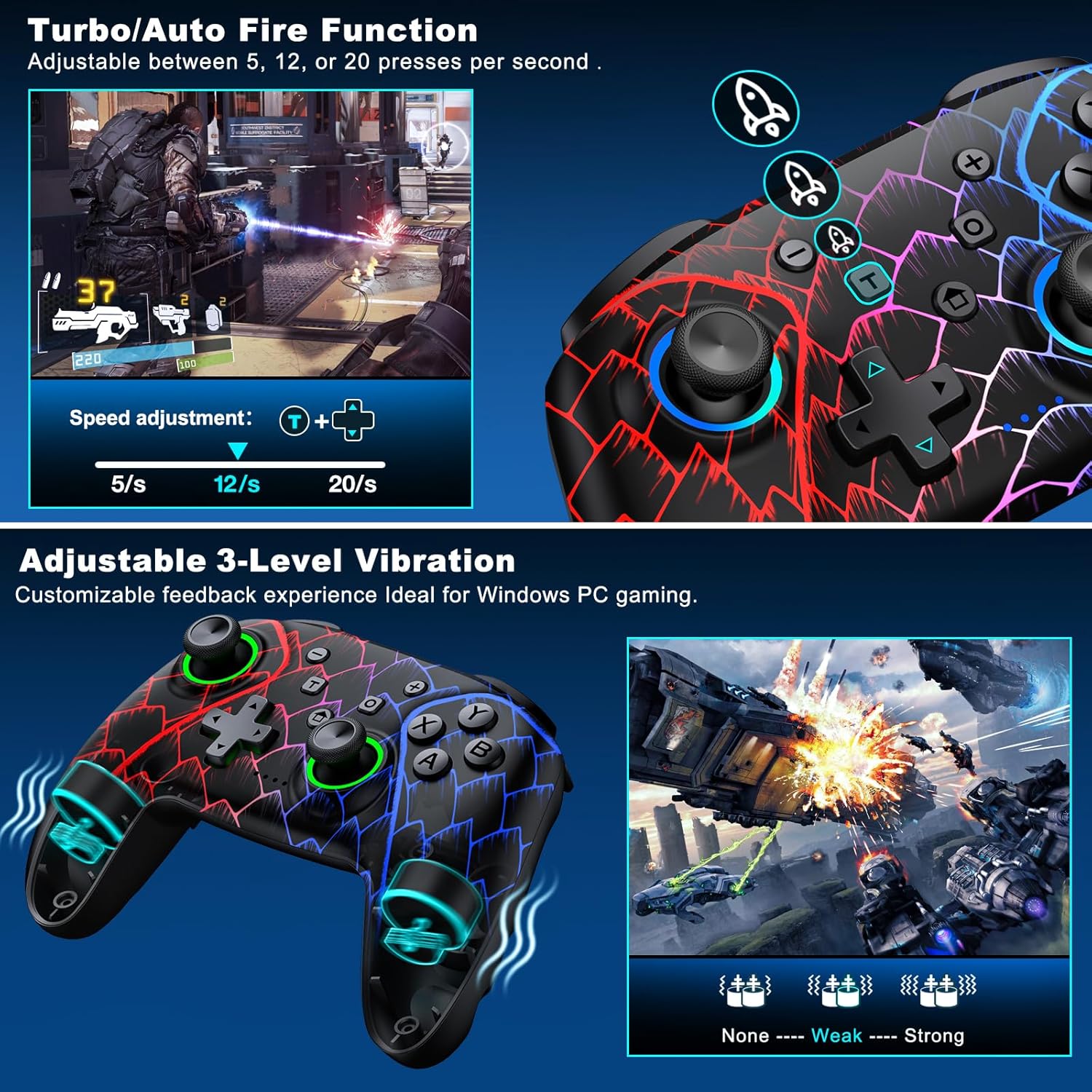
Figure 5.3: Visual representation of the Turbo/Auto Fire function and the adjustable 3-level vibration feature.
- Актываваць Турба: Націсніце Турба button + the desired action button.
- Адрэгуляваць хуткасць: Прэса Турба + Up arrow (increase) or Уніз arrow (decrease) on the D-pad.
- Ачысціць турба: Трымай Мінус кнопка + Уніз arrow on the D-pad to instantly clear all Turbo binds.
5.4 Рэгуляванне вібрацыі
Experience immersive feedback with dual vibration motors offering 3 intensity levels.
- Adjust intensity by pressing L + R + ZL + ZR simultaneously. Cycle through levels: None, Weak, Strong.
- Note: Vibration is disabled on mobile platforms. Gyro functionality works only with Nintendo systems.
5.5 Hair Trigger Locks
Shorten trigger pulls for faster response times in games requiring quick inputs, such as first-person shooters.
5.6 Кіраванне тэрмінам службы батарэі
The controller is equipped with a 1000mAh battery, providing over 20 hours of continuous gameplay on a single charge. Charging takes approximately 3 hours via USB-C.

Figure 5.4: The ELISWEEN controller's 1000mAh battery provides extended playtime with quick charging capabilities.
5.7 Дынамічныя светлавыя эфекты
Customize the controller's lighting effects via the Keylinker App (search "NC300").
5.8 Automatic Power-off
To conserve battery, the controller will automatically power off after 20 minutes of inactivity.
6. Тэхнічнае абслугоўванне
- Уборка: Use a soft, dry cloth to clean the controller. Do not use abrasive cleaners or solvents.
- захоўванне: Захоўвайце кантролер у прахалодным, сухім месцы, удалечыні ад прамых сонечных прамянёў і экстрэмальных тэмператур.
- Сыход за батарэяй: Avoid fully discharging the battery frequently. Charge it regularly to prolong its lifespan.
7. Выпраўленне непаладак
- Кантролер не падключаецца:
- Пераканайцеся, што кантролер зараджаны.
- Verify the correct connection method for your device (2.4GHz dongle for PC, Bluetooth for mobile, pairing for Switch).
- Try restarting the controller and the device you are connecting to.
- For PC, try a different USB port for the dongle or wired connection.
- Stick drift or inaccurate input:
- Activate the 0 deadzone mode (T + R3/L3) to recalibrate.
- Ensure the controller firmware is up to date via the Keylinker App.
- Кнопкі не рэагуюць:
- Праверце, ці правільна падключаны кантролер.
- Пераканайцеся, што пад кнопкамі няма смецця.
- Perform a factory reset if issues persist (refer to Keylinker App or contact support).
- Праблемы з зарадкай:
- Паспрабуйце іншы кабель USB-C і крыніцу харчавання.
- Ensure the USB-C port on the controller is clean and free of obstructions.
8. Тэхнічныя характарыстыкі
| Сувязь | Bluetooth 5.2, бесправадная сувязь 2.4 ГГц, правадны USB-C |
| Сумяшчальнасць | PC, Nintendo Switch, Android, iOS (iOS 13+ MFi) |
| Ёмістасць батарэі | 1000 мАг |
| Час гульні | 20+ гадзіны (прыблізна) |
| Час зарадкі | 3 гадзін (прыкладна) |
| Джойстыкі | Hall Effect (Drift-Proof) |
| Праграмуемыя кнопкі | 4 Back Buttons (M1/M2) |
| Вібрацыя | Dual Motors, 3 Adjustable Levels |
| Памеры | 6.38 х 4.72 х 2.64 цалі |
| Вага | 11.99 унцый (прыблізна 340 г) |
| Вытворца | Qixun Tech |
| Краіна паходжання | Кітай |
9. Гарантыя і падтрымка
The ELISWEEN Wireless PC Gaming Controller comes with a standard manufacturer's warranty. For specific warranty terms and conditions, please refer to the product packaging or contact our customer support.
For any technical assistance, troubleshooting, or inquiries, our 24/7 Expert Support team is available to help. Please refer to the contact information provided on the product packaging or our official webсайт.