
AEEZO 10.1 inch Tablet
AEEZO Android 14 10-inch Tablet User Manual
Model: 10.1 inch Tablet
1. Уводзіны
Welcome to the user manual for your new AEEZO Android 14 10-inch Tablet. This manual provides essential information on how to set up, operate, maintain, and troubleshoot your device. Please read this manual thoroughly to ensure optimal performance and longevity of your tablet.
2. Што ў скрынцы
Carefully unpack your new AEEZO tablet and ensure all items are present:
- AEEZO Android 14 10-inch Tablet
- Зарадная прылада
- Клавіятура
- Мышка
- Кабель USB
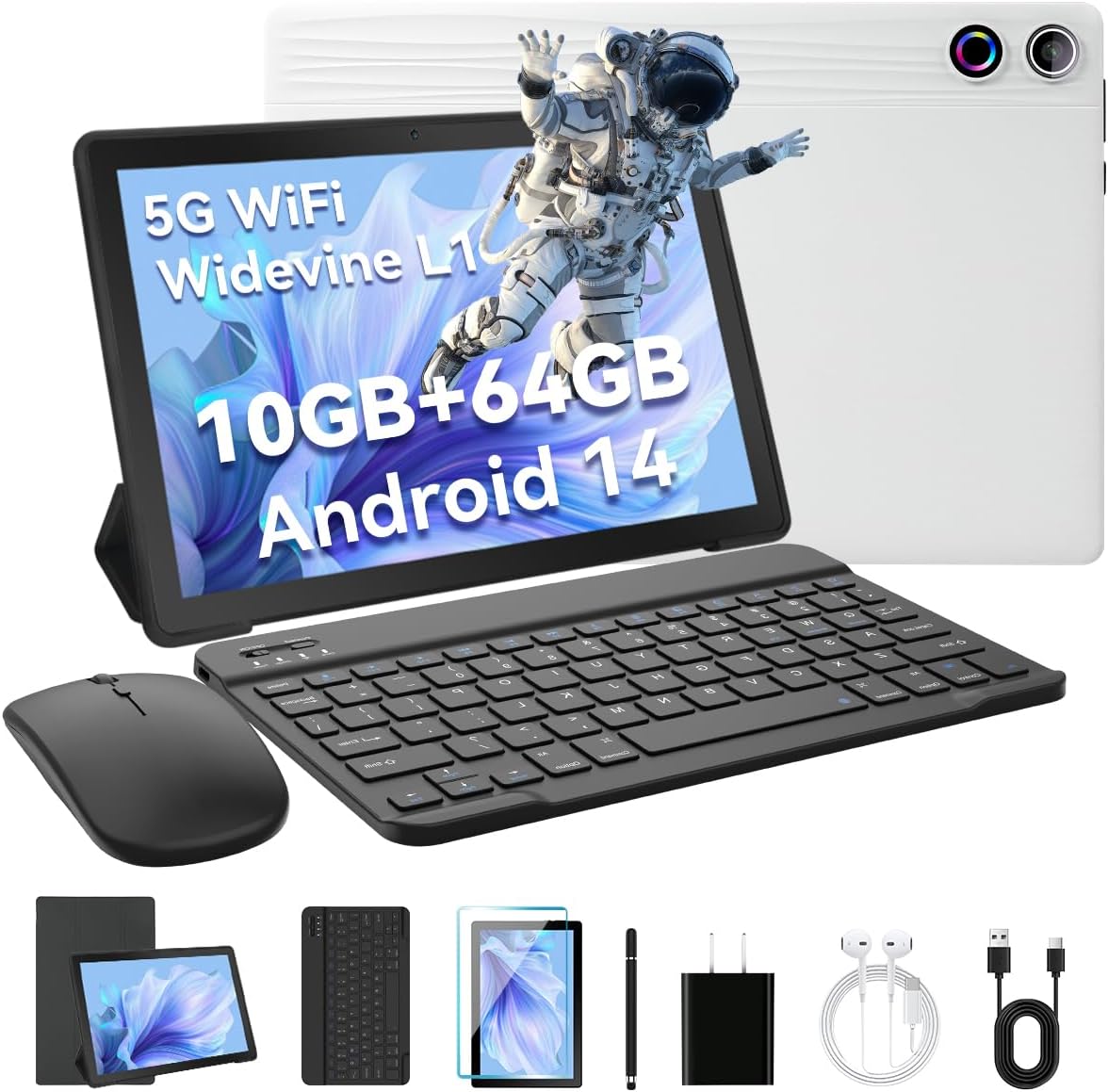
Image: The AEEZO Android 14 10-inch Tablet displayed with its full set of accessories, including the tablet itself, a detachable keyboard, a wireless mouse, a charger, and a USB cable.
3. Прадукт скончыўсяview
Familiarize yourself with the main components of your AEEZO tablet.

Выява: Пярэдняя частка view of the AEEZO Android 14 10-inch Tablet, showcasing its display with various application icons. Below the tablet, key specifications are highlighted, including the Octa-Core Processor, Android 14 operating system, 10GB RAM + 64GB ROM, 1280x800 HD resolution, WiFi 6, and Bluetooth 5.0 connectivity.
3.1. Фізічныя кампаненты
- Кнопка харчавання: Located on the side, used to power on/off or wake/sleep the screen.
- Кнопкі гучнасці: Адрэгулюйце гучнасць гуку.
- Порт USB Type-C: Для зарадкі і перадачы дадзеных.
- Гняздо для навушнікаў 3.5 мм: Для падключэння правадных навушнікаў.
- Пярэдняя камера: For video calls and selfies (5MP).
- Задняя камера: For taking photos and videos (8MP).
- Слот для карты MicroSD: Expand storage up to 1TB (TF card sold separately).
- Падвойныя дынамікі: Забяспечвае выхад стэрэагуку.

Image: The AEEZO Android 14 10-inch Tablet is shown with graphical representations highlighting its memory specifications: 10GB RAM, 64GB internal memory, and the capability for TF card expansion up to 1TB.
4. Настройка
4.1. Зарадка планшэта
Before first use, fully charge your tablet. Connect the provided charger to the USB Type-C port on the tablet and plug it into a power outlet. The battery indicator on the screen will show charging status.
4.2. Уключэнне / выключэнне харчавання
- Каб уключыць: Press and hold the Power button until the AEEZO logo appears.
- Каб выключыць: Press and hold the Power button until a power menu appears, then select "Power off".
- Каб заснуць/прачнуцца: Каротка націсніце кнопку харчавання.
4.3. Пачатковая налада
Upon first power-on, follow the on-screen prompts to configure your tablet:
- Выберыце жаданую мову.
- Падключыцеся да сеткі Wi-Fi.
- Увайдзіце ў свой уліковы запіс Google або стварыце новы. Гэта неабходна для загрузкі праграм з крамы Google Play.
- Наладзьце блакаванне экрана (PIN-код, узор, пароль або разблакіроўка па твары).
- Review і прыняць умовы.
4.4. Connecting Keyboard and Mouse
The included keyboard and mouse connect via Bluetooth. Ensure Bluetooth is enabled on your tablet (Settings > Connected devices > Bluetooth).
- Клавіятура: Turn on the keyboard. It should appear in the list of available Bluetooth devices. Tap to pair.
- Мыш: Turn on the mouse. It should appear in the list of available Bluetooth devices. Tap to pair.
4.5. Inserting a TF Card (MicroSD)
To expand storage, locate the TF card slot on the side of the tablet. Gently insert a MicroSD card (up to 1TB, sold separately) until it clicks into place. The tablet will recognize the new storage.
5. Кіраванне планшэтам
5.1. Базавая навігацыя
- Націсніце: Выберыце элемент або адкрыйце праграму.
- Націсніце і ўтрымлівайце: Доступ да кантэкстных меню або перамяшчэнне значкоў.
- Правядзіце пальцам: Пракручваць экраны або спісы.
- Звядзенне пальцамі для павелічэння: Павялічваць або памяншаць маштаб малюнкаў і web старонкі.
- 3-Finger Screenshot: Правядзіце трыма пальцамі ўніз, каб зрабіць скрыншот.
5.2. Злучэнне Wi-Fi
Перайсці да Налады > Сетка і Інтэрнэт > Інтэрнэт. Turn on Wi-Fi, select your desired network, and enter the password if required.
5.3. Злучэнне Bluetooth
Перайсці да Налады > Падлучаныя прылады > Bluetooth. Turn on Bluetooth, and the tablet will scan for nearby devices. Select a device to pair.
5.4. Выкарыстанне камер
Open the Camera app to take photos or record videos. The tablet features a 5MP front camera and an 8MP rear camera.

Выява: Падрабязны view of the AEEZO Android 14 10-inch Tablet's rear, emphasizing its 8MP rear camera and 5MP front camera. The image also illustrates the Face Unlock feature and shows examples of video calls and outdoor scenes, demonstrating the tablet's utility for communication and capturing moments.
5.5. Бацькоўскі кантроль
Android 14 offers enhanced parental control features. Navigate to Налады > Лічбавы дабрабыт і бацькоўскі кантроль to manage screen time, app access, and content filters for children's accounts.
5.6. Разблакіроўка па твары
Set up Face Unlock for convenient and secure access to your tablet. Go to Settings > Security & privacy > Device unlock > Face Unlock і выконвайце інструкцыі на экране, каб зарэгістраваць свой твар.
5.7. Multi-Window Mode
To use two apps simultaneously, open one app, then swipe up from the bottom of the screen to reveal the recent apps. Tap the app icon at the top of the window and select "Split screen". Choose another app to open in the second window.
5.8. Eye Protection Mode
Activate Eye Protection Mode (also known as Night Light or Reading Mode) to reduce blue light emission, which can help reduce eye strain. This setting is typically found in Налады > Дысплей.
5.9. Аўдыёфункцыі
The tablet features built-in dual speakers for a high-quality audio experience. For private listening, connect headphones to the 3.5mm headphone jack.
5.10. Падтрымка Widevine L1
Your tablet supports Widevine L1, enabling high-definition streaming from popular platforms like Netflix, Hulu, and Amazon Prime Video. Ensure your internet connection is stable for optimal streaming quality.
6. Тэхнічнае абслугоўванне
6.1. Чыстка планшэта
Выкарыстоўвайце мяккую тканіну без ворса для чысткі экрана і корпуса планшэта. Для выдалення ўстойлівых плям злёгкуampПрацярыце тканіну вадой або сродкам для чысткі экранаў. Пазбягайце агрэсіўных хімічных рэчываў або абразіўных матэрыялаў.
6.2. Сыход за батарэяй
- Пазбягайце экстрэмальных тэмператур.
- Не дапускайце частай поўнай разрадкі акумулятара.
- Для аптымальнай зарадкі выкарыстоўвайце зарадную прыладу, якая ўваходзіць у камплект.
6.3. Абнаўленне праграмнага забеспячэння
Перыядычна правярайце наяўнасць абнаўленняў сістэмы, каб пераканацца, што ваш планшэт мае найноўшыя функцыі і патчы бяспекі. Перайдзіце па спасылцы Налады > Сістэма > Абнаўленне сістэмы.
6.4. Кіраванне сховішчам
Рэгулярна прыбірайце непатрэбнае files, cache data, and uninstall unused apps to free up storage space and maintain performance. You can manage storage in Налады > Сховішча.
7. Выпраўленне непаладак
| праблема | Рашэнне |
|---|---|
| Планшэт не ўключаецца | Ensure the tablet is charged. Press and hold the Power button for 10-15 seconds to force restart. |
| Праблемы з падключэннем да Wi-Fi | Restart your Wi-Fi router. Forget the network on the tablet and reconnect. Ensure Wi-Fi is enabled. |
| Збоі або завісанні праграм | Clear the app's cache (Settings > Apps > [App Name] > Storage & cache > Clear cache). Update the app or reinstall it. |
| Павольнае выкананне | Close unused apps. Clear cache. Free up storage space. Restart the tablet. |
| Клавіятура/мыш не падключаецца | Ensure devices are charged and in pairing mode. Re-pair them via Bluetooth settings. |
8. Тэхнічныя характарыстыкі
Detailed technical specifications for your AEEZO Android 14 10-inch Tablet:
| Асаблівасць | Дэталь |
|---|---|
| Назва мадэлі | 10.1 inch Tablet |
| Аперацыйная сістэма | Android 14 |
| Працэсар | A523 8-core processor (up to 1.8 GHz) |
| графічны працэсар | Малі-G57 |
| АЗП | 10GB (8GB built-in + 2GB virtual) |
| Унутраная памяць | 64 ГБ ПЗУ |
| Сховішча з магчымасцю пашырэння | TF Card up to 1TB (sold separately) |
| Памер экрана | 10.1 цаляў |
| Дазвол дысплея | 1280 x 800 IPS HD |
| Падтрымка Widevine | Уайдвайн Л1 |
| Пярэдняя камера | 5 МП |
| Задняя камера | 8 МП |
| Ёмістасць батарэі | 5000 мАг |
| Wi-Fi | Dual-band Wi-Fi 6 (2.4G/5G) |
| Bluetooth | Bluetooth 5.0 |
| Порт для зарадкі | USB Type-C |
| Аўдыёраз'ём | Гняздо для навушнікаў 3.5 мм |
| Памеры (ДхШхВ) | 9.64 х 6.42 х 0.35 цалі |

Image: A visual representation of the AEEZO Android 14 10-inch Tablet's internal components, specifically highlighting the Jeazans Octa-Core Processor and its support for WiFi 6. Accompanying text emphasizes key benefits such as large memory expandability up to 1TB via TF card, low power consumption with high performance, and a 2.0GHz main frequency for improved multi-tasking capabilities.
9. Гарантыя і падтрымка
Your AEEZO tablet comes with a standard manufacturer's warranty. Please refer to the warranty card included in your packaging for specific terms and conditions. For technical support, product inquiries, or warranty claims, please contact AEEZO customer service through their official webсайт або краму, дзе вы набылі тавар.
For further assistance, you may visit the AEEZO Store online: AEEZO Official Store