
1. Уводзіны
Welcome to the user manual for your new DigiLand 10.1 Inch HD Octa-Core Android Tablet. This device is designed to provide a versatile and powerful experience for both productivity and entertainment. Featuring an Octa-Core processor, ample RAM and storage, and a vibrant HD display, your tablet is equipped for a wide range of tasks, from browsing and streaming to gaming and office work.
This manual will guide you through the initial setup, operation, maintenance, and troubleshooting of your tablet to ensure you get the most out of its capabilities.
2. Што ў скрынцы
Калі ласка, пераканайцеся, што ўсе прадметы прысутнічаюць у камплекце з вашым прадуктам:
- DigiLand 10.1 Inch Android Tablet
- Ахоўны футляр
- Зарадны кабель USB Type-C
- Адаптар сілкавання (5В/2А)
- Кароткае кіраўніцтва

Малюнак 2.1: Змест пакета
3. Прадукт скончыўсяview
The DigiLand R10 Pro+ tablet combines powerful hardware with a user-friendly Android 14 operating system. Below are the key features and components of your device.
3.1 Асноўныя магчымасці
- Працэсар: MediaTek Helio G80 Octa-Core CPU (2x A75 2.0GHz + 6x A55 1.8GHz) for robust performance.
- Дысплей: 10.1-inch HD (800x1280) In-cell touchscreen with IPS clarity and 350cd/m² brightness.
- Памяць і захоўванне: 12GB RAM and 128GB ROM, expandable up to 256GB via TF card.
- акумулятар: 6000mAh battery providing over 12 hours of runtime, with 10W fast-charging support.
- Камеры: 13MP rear camera and 8MP front camera for photography and video calls.
- Аўдыё: Dual 8Ω/1W speakers for clear sound.
- Падключэнне: Bluetooth 5.0, 802.11n Wi-Fi, Type-C port, and headphone jack.
- Аперацыйная сістэма: Android 14.
- Падтрымка Widevine L1: Enables high-definition streaming from platforms like Netflix, Hulu, and Amazon Prime Video.
3.2 Візуальны оверview
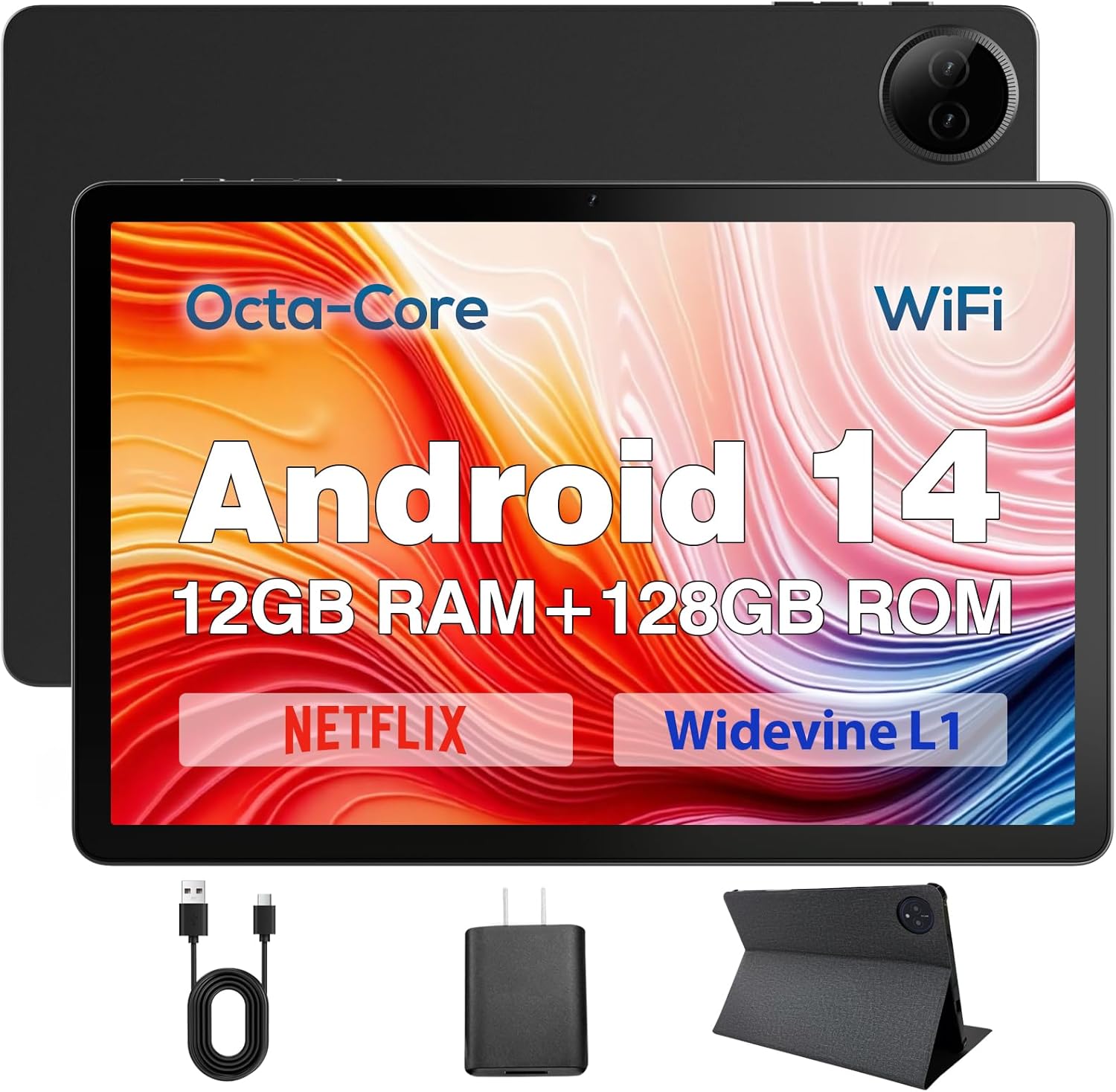
Figure 3.1: DigiLand Tablet Front and Rear View
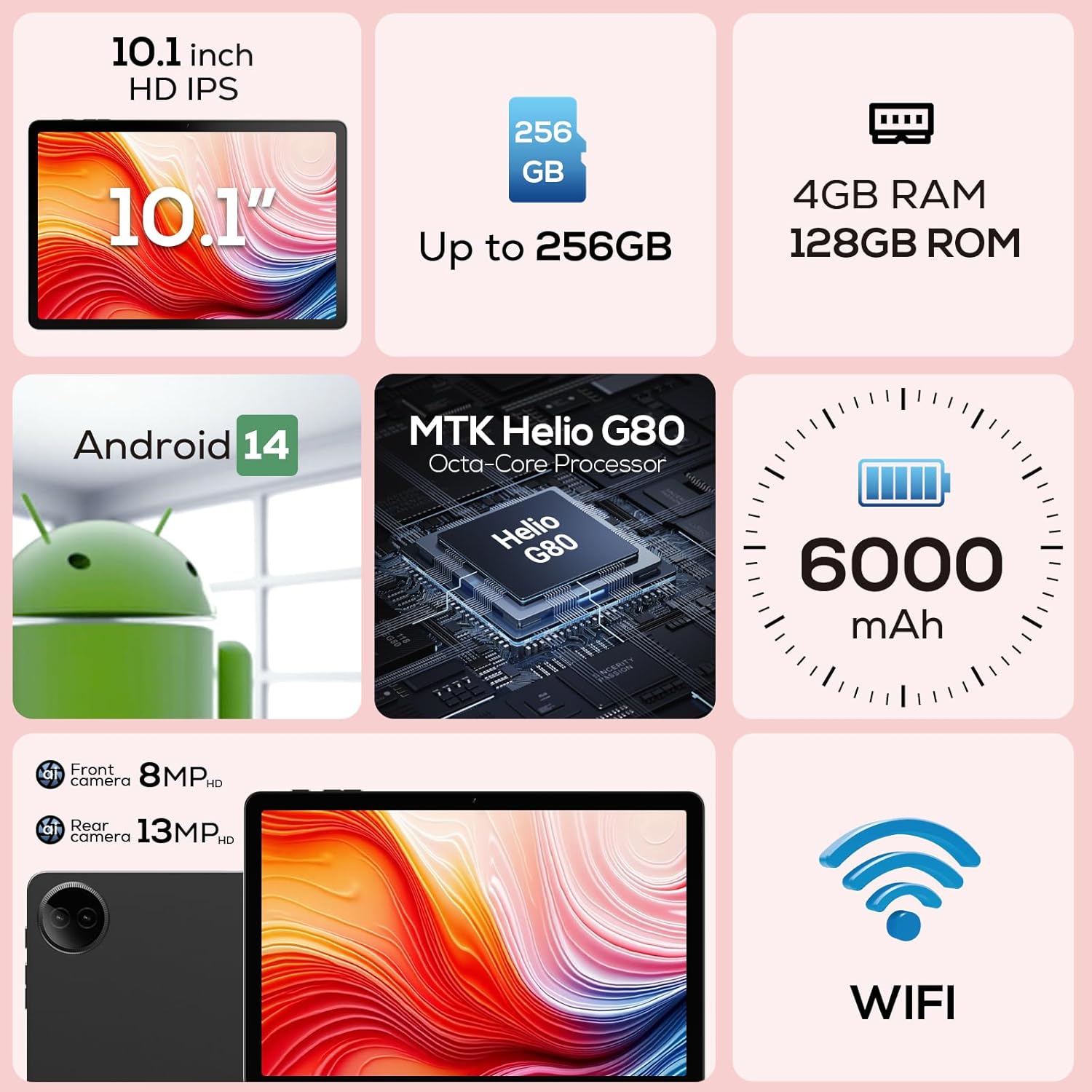
Малюнак 3.2: Дыяграма асноўных характарыстык

Figure 3.3: Widevine L1 Support for HD Streaming

Figure 3.4: Ultra-thin and Lightweight Design
4. Настройка
4.1 Першапачатковая зарадка
Before first use, fully charge your tablet. Connect the USB Type-C cable to the tablet's charging port and the power adapter to a wall outlet. The charging indicator will show the charging status. A full charge typically takes several hours.
4.2 Уключэнне/выключэнне
- Каб уключыць: Press and hold the Power button located on the side of the tablet until the DigiLand logo appears on the screen.
- Каб выключыць: Націсніце і ўтрымлівайце кнопку харчавання, пакуль не з'явіцца меню параметраў харчавання. Выберыце «Выключыць харчаванне» і пацвердзіце.
- Каб перазапусціць: У меню параметраў электрасілкавання абярыце «Перазагрузка».
4.3 Майстар першапачатковай налады
Upon first power-on, the tablet will guide you through a setup wizard. Follow the on-screen prompts to:
- Выберыце сваю мову.
- Падключыцеся да сеткі Wi-Fi.
- Увайдзіце ў свой уліковы запіс Google або стварыце новы.
- Наладзьце блакаванне экрана (PIN-код, ключ, пароль).
- Review і прыняць умовы.
5. Інструкцыя па эксплуатацыі
5.1 Навігацыя па сэнсарным экране
Your tablet features a responsive multi-touch display. Common gestures include:
- Націсніце: To select an item, open an app, or press a button.
- Дакраніцеся і ўтрымлівайце: Каб адкрыць кантэкстныя меню або перацягнуць элементы.
- Правядзіце пальцам: Каб пракручваць спісы, перамяшчацца паміж галоўнымі экранамі або адхіляць апавяшчэнні.
- Звядзенне пальцамі для павелічэння: Каб павялічыць або паменшыць маштаб малюнкаў, карт або web старонкі.
5.2 Падключэнне Wi-Fi
Каб падключыцца да сеткі Wi-Fi:
- Перайсці да Налады > Сетка і інтэрнэт > Wi-Fi.
- Уключыць/выключыць Wi-Fi On.
- Выберыце патрэбную сетку са спісу.
- Увядзіце пароль, калі будзе прапанавана, і націсніце Злучыцца.

Figure 5.1: High-Speed Wi-Fi Connectivity
5.3 Спалучэнне па Bluetooth
Каб падключыць прыладу Bluetooth (напрыклад, навушнікі, дынамікі):
- Перайсці да Налады > Падключаныя прылады > Параметры злучэння > Bluetooth.
- Пераключыць Bluetooth On.
- Пераканайцеся, што ваша прылада Bluetooth знаходзіцца ў рэжыме спалучэння.
- Select your device from the 'Available devices' list and follow any on-screen prompts to complete pairing.
5.4 Выкарыстанне камер
Your tablet is equipped with a 13MP rear camera and an 8MP front camera.
- Адкрыйце Камера праграму з галоўнага экрана або з меню праграм.
- Tap the camera switch icon to alternate between front and rear cameras.
- Tap the shutter button to take a photo or the video icon to record a video.
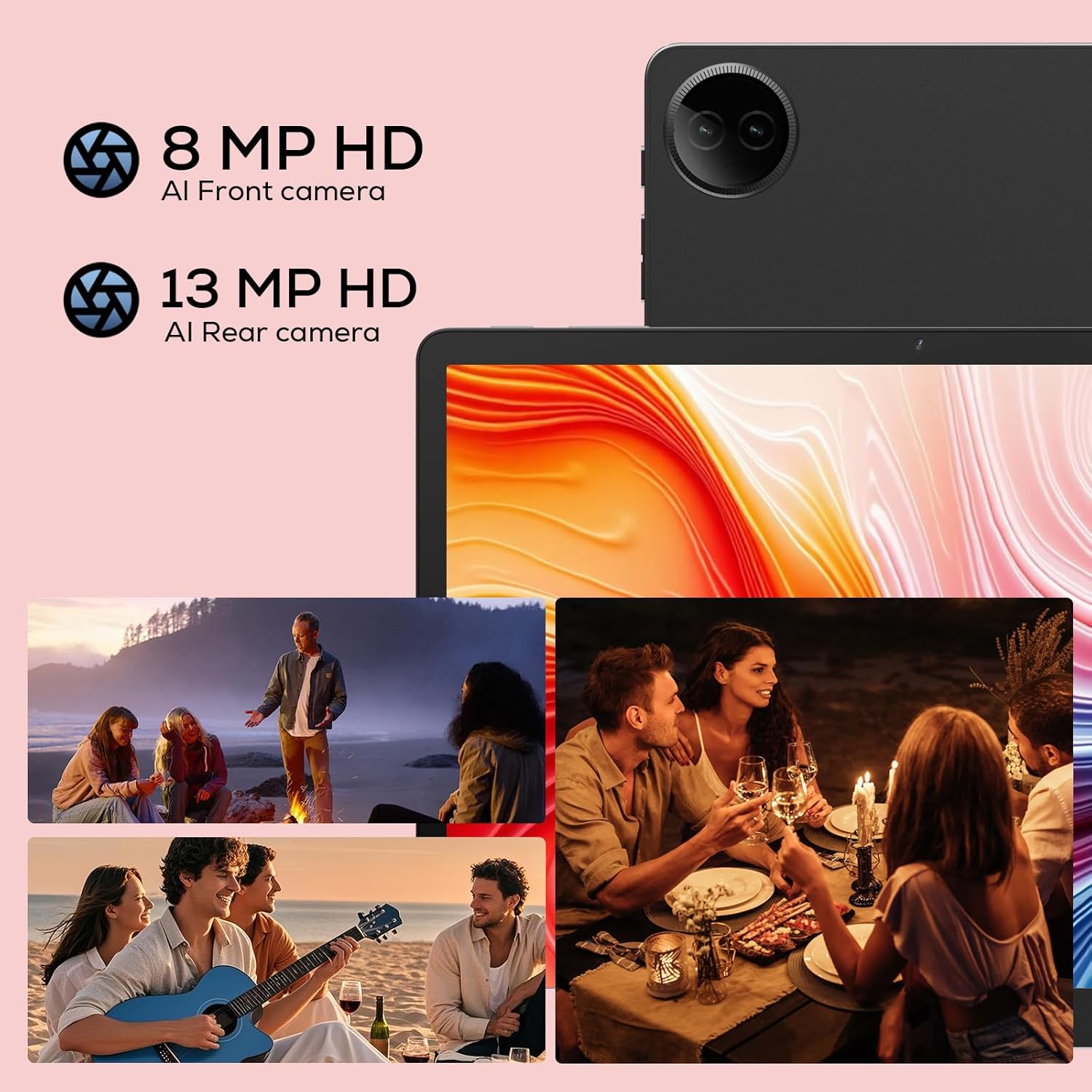
Figure 5.2: Tablet Cameras and Sample Фотаздымкі
5.5 Кіраванне праграмамі
Усталяванне праграм: Download and install apps from the Google Play Store. Open the Play Store app, search for your desired app, and tap 'Install'.
Выдаленне праграм: Touch and hold the app icon on the home screen or app drawer, then drag it to 'Uninstall' or select 'App info' and tap 'Uninstall'. Alternatively, go to Налады > Праграмы > Глядзець усе праграмы, выберыце праграму і націсніце «Выдаліць».
6. Тэхнічнае абслугоўванне
6.1 Чыстка планшэта
Выкарыстоўвайце мяккую тканіну без ворса для чысткі экрана і корпуса планшэта. Для выдалення ўстойлівых плям злёгкуampПрацярыце тканіну вадой або сродкам для чысткі экранаў, прызначаным для электронікі. Пазбягайце выкарыстання агрэсіўных хімічных рэчываў або абразіўных матэрыялаў.
6.2 Сыход за акумулятарам
Каб падоўжыць тэрмін службы батарэі:
- Пазбягайце экстрэмальных тэмператур.
- Не дапускайце частай поўнай разрадкі акумулятара.
- Выкарыстоўвайце зарадную прыладу і кабель, якія ўваходзяць у камплект.
- Adjust screen brightness and disable unused features (Wi-Fi, Bluetooth) to conserve power.

Figure 6.1: Extended Battery Life Features
6.3 Абнаўленне праграмнага забеспячэння
Рэгулярна правярайце наяўнасць абнаўленняў праграмнага забеспячэння і ўсталёўвайце іх, каб забяспечыць аптымальную прадукцыйнасць, бяспеку і доступ да новых функцый. Перайдзіце па спасылцы Налады > сістэма > Абнаўленне сістэмы.
6.4 Кіраванне сховішчам
To manage your tablet's storage:
- Перайсці да Налады > Захоўванне каб view выкарыстанне сховішча.
- Выдаліце невыкарыстоўваныя праграмы.
- Ачысціць кэш дадзеных для праграм.
- Вялікі перавод files (photos, videos) to cloud storage or an external TF card.
7. Выпраўленне непаладак
Калі ў вас узніклі праблемы з планшэтам, звярніцеся да наступных распаўсюджаных праблем і рашэнняў:
| праблема | Магчымае рашэнне |
|---|---|
| Планшэт не ўключаецца | Пераканайцеся, што акумулятар зараджаны. Падключыце зарадную прыладу не менш за 30 хвілін. Калі прылада ўсё яшчэ не рэагуе, выканайце прымусовы перазапуск, утрымліваючы кнопку харчавання на працягу 10-15 секунд. |
| Праблемы з падключэннем да Wi-Fi | Перазапусціце маршрутызатар Wi-Fi. Забудзьцеся пра сетку на планшэце і падключыцеся зноў. Пераканайцеся, што вы знаходзіцеся ў зоне дзеяння сігналу Wi-Fi. |
| Праграмы працуюць павольна або збоі | Close background apps. Clear app cache (Settings > Apps > [App Name] > Storage & cache > Clear cache). Ensure sufficient storage space. Restart the tablet. |
| Акумулятар хутка разраджаецца | Reduce screen brightness. Disable Wi-Fi/Bluetooth when not in use. Close unused apps. Check battery usage in Settings to identify power-hungry apps. |
| Экран не рэагуе | Restart the tablet. Ensure the screen is clean and dry. Remove any screen protectors that might be interfering. |
Калі праблема не знікне пасля выкарыстання гэтых рашэнняў, звярніцеся ў службу падтрымкі кліентаў.
8. Тэхнічныя характарыстыкі
Detailed technical specifications for your DigiLand R10 Pro+ Tablet:
| Асаблівасць | Спецыфікацыя |
|---|---|
| Марка | ДыгітЛэнд |
| Назва мадэлі | R10 Pro+ |
| Аперацыйная сістэма | Android 14 |
| Памер пастаяннага экрана | 10.1 цалі |
| Дазвол экрана | 1280 х 800 пікселяў |
| Марка працэсара | MediaTek |
| Мадэль працэсара | Helio G80 Octa-Core CPU |
| АЗП | 12 ГБ |
| Памер флэш-памяці (ROM) | 128 ГБ |
| Сховішча з магчымасцю пашырэння | Up to 256GB (TF card slot) |
| Бесправадны тып | 802.11н |
| Bluetooth | 5.0 |
| Сярэдні тэрмін службы батарэі | 12 гадзін |
| Вага прадмета | 1.32 фунта (прыблізна 600 г) |
| Памеры прадукту | 10.17 х 6.41 х 0.31 цалі |
| Колер | Шэры |
9. Гарантыя і падтрымка
9.1 Гарантыйная палітыка
Your DigiLand Tablet comes with a Палітыка 1-гадовай гарантыі з даты пакупкі. Гэтая гарантыя распаўсюджваецца на вытворчыя дэфекты і праблемы, якія ўзніклі ў выніку нармальнага выкарыстання. Калі ласка, захавайце пацвярджэнне пакупкі для прэтэнзій па гарантыі.
9.2 Падтрымка кліентаў
For any questions regarding the use, setup, or troubleshooting of your DigiLand Tablet, our customer service team is available to assist you.
- Інтэрнэт-падтрымка: We offer 24/7 online call support.
- Падтрымка па рамонце: 1-Year Repair Support is provided.
You can contact us directly through the channels provided on our official website or through your purchase platform. We are committed to providing prompt and helpful service.

Figure 9.1: Dedicated Customer Support
For more information and product updates, visit the official DigiLand Store: DigiLand Store on Amazon