
1. Уводзіны
This manual provides detailed instructions for the setup, operation, maintenance, and troubleshooting of your SGIN 17.3 Inch Laptop Computer (Model M17S). Please read this manual thoroughly before using your laptop to ensure proper functionality and to maximize its lifespan. Keep this manual for future reference.

Figure 1.1: SGIN 17.3 Inch Laptop Computer Overview
The SGIN M17S laptop is designed for a wide range of applications, including study, work, entertainment, and internet browsing, offering a balance of performance and portability.
2. Змесціва ўпакоўкі
Verify that all items listed below are included in your package. If any items are missing or damaged, please contact SGIN customer support.
- SGIN 17.3 Inch Laptop Computer (M17S) x 1
- Power Adapter/Charger x 1
- Кіраўніцтва карыстальніка x 1
3. Асаблівасці прадуктуview
3.1 Дысплей
The laptop features a 17.3-inch Full HD (1920x1080) IPS screen. This display technology provides sharp, clear text and vivid colors, along with wide viewныя вуглы.

Figure 3.1: High-Definition IPS Display
Працэсар 3.2
Equipped with an Intel Core i3-5005U processor, operating at 2.4GHz Turbo Boost. This dual-core, four-thread processor is designed for efficient multitasking and handling various workloads.

Малюнак 3.2: Працэсар Intel Core i3-5005U
3.3 Памяць і захоўванне
The laptop comes with 4GB DDR4 RAM and a 128GB SSD for fast boot times and application loading. Storage can be expanded with an additional SSD (up to 1TB) and a MicroSD card (up to 512GB).

Малюнак 3.3: Канфігурацыя памяці і сховішча
3.4 Акумулятар
A 8000 mWh (60Wh) lithium-ion battery provides extended usage time, with an estimated 8 hours of typical use on a single charge.

Малюнак 3.4: Акумулятар з працяглым тэрмінам службы
3.5 Парты і падключэнне
Ноўтбук прапануе мноства партоў для універсальнага падключэння:
- Парты USB 3.2 (x2)
- HDMI Port (for external monitors/projectors)
- Порт Type-C
- Гняздо для навушнікаў 3.5 мм
- Слот для карты MicroSD
- Уваход пастаяннага току
Wireless connectivity includes 5G Wi-Fi (802.11ac) and Bluetooth 4.2.

Figure 3.5: Available Ports
3.6 Аўдыё і Webкамера
The laptop includes stereo speakers and a digital microphone for audio input and output. A 0.3MP webcam is integrated for video calls and conferencing.

Малюнак 3.6: Аўдыё і Webасаблівасці камеры
4. Getting Started (Setup Guide)
4.1 Распакаванне
Carefully remove the laptop and all accessories from the packaging. Retain the packaging materials for future transport or storage.
4.2 Зарадка акумулятара
Before first use, fully charge the laptop battery. Connect the power adapter to the DC-in port on the laptop and then plug the adapter into a power outlet. The charging indicator light will illuminate.
4.3 First Power On and Initial Setup
Press the power button to turn on the laptop. The system will guide you through the initial Windows 11 setup process. This includes selecting your region, language, connecting to a Wi-Fi network, and setting up your user account.
5. Асноўная аперацыя
5.1 Power On/Off/Sleep
- Уключэнне: Націсніце кнопку харчавання, размешчаную на клавіятурнай панэлі.
- Выключэнне: Націсніце кнопку «Пуск», затым «Харчаванне» і абярыце «Выключыць сістэму».
- Рэжым сну: Click the Start button, then Power, and select 'Sleep', or close the laptop lid.
5.2 Выкарыстанне клавіятуры і сэнсарнай панэлі
The laptop features a full-size keyboard with a numeric keypad and a multi-touch touchpad. Refer to Windows 11 settings for customizing touchpad gestures and keyboard shortcuts.
5.3 Падключэнне да Wi-Fi
Каб падключыцца да бесправадной сеткі:
- Націсніце на значок Wi-Fi у сістэмным трэі (правы ніжні кут экрана).
- Выберыце патрэбную сетку са спісу.
- Увядзіце пароль сеткі, калі будзе прапанавана, а затым націсніце «Падключыцца».
5.4 Падключэнне прылад Bluetooth
Каб спалучыць прыладу Bluetooth:
- Go to 'Settings' > 'Bluetooth & devices'.
- Пераканайцеся, што Bluetooth уключаны.
- Націсніце «Дадаць прыладу» і абярыце «Bluetooth».
- Choose your device from the list and follow the on-screen pairing instructions.
5.5 Using External Displays (HDMI)
Connect an external monitor or projector to the laptop's HDMI port. Press Клавіша Windows + P to select display mode (e.g., Duplicate, Extend, Second screen only).
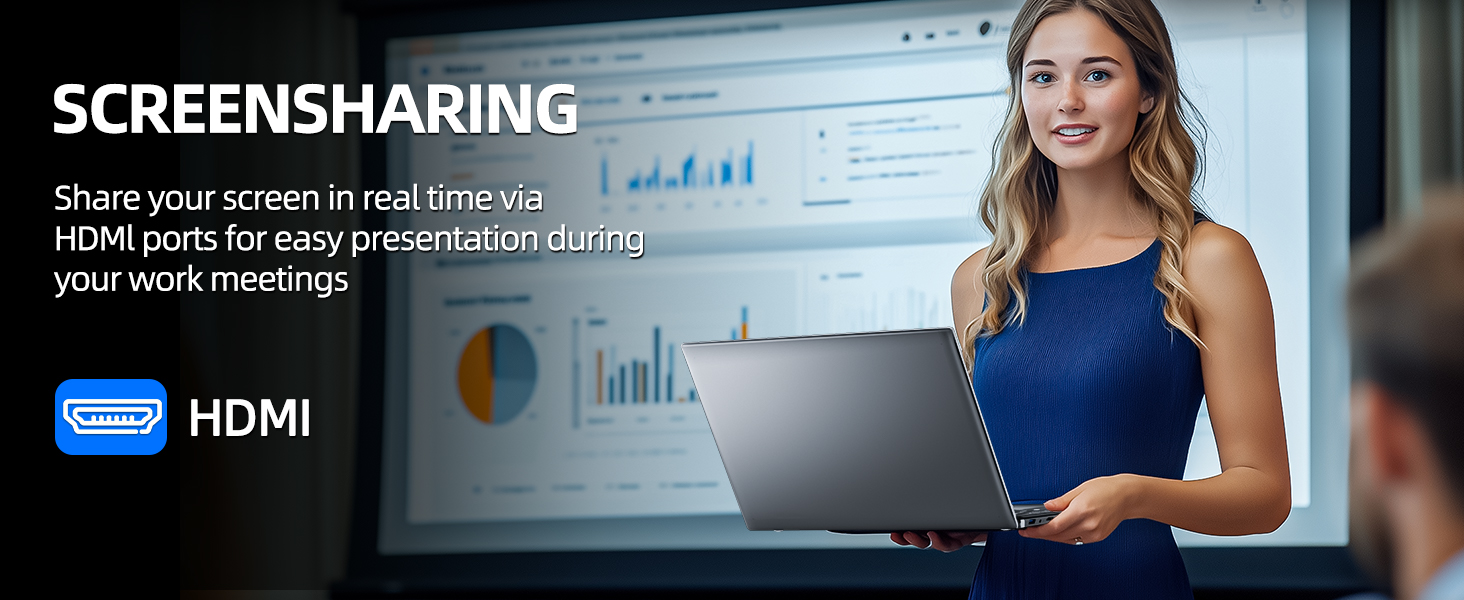
Figure 5.1: Screen Sharing via HDMI
5.6 Выкарыстанне USB-прылад
Connect USB devices such as external hard drives, keyboards, or mice to the available USB 3.2 ports. The laptop will automatically detect and install necessary drivers.
6. Storage and Memory Management
6.1 Пашырэнне сховішча
Your SGIN laptop supports storage expansion:
- Additional SSD: An extra slot is available for installing an M.2 SSD, supporting up to 1TB. Consult a qualified technician for installation.
- Карта MicroSD: Insert a MicroSD card into the dedicated slot for up to 512GB of additional storage.
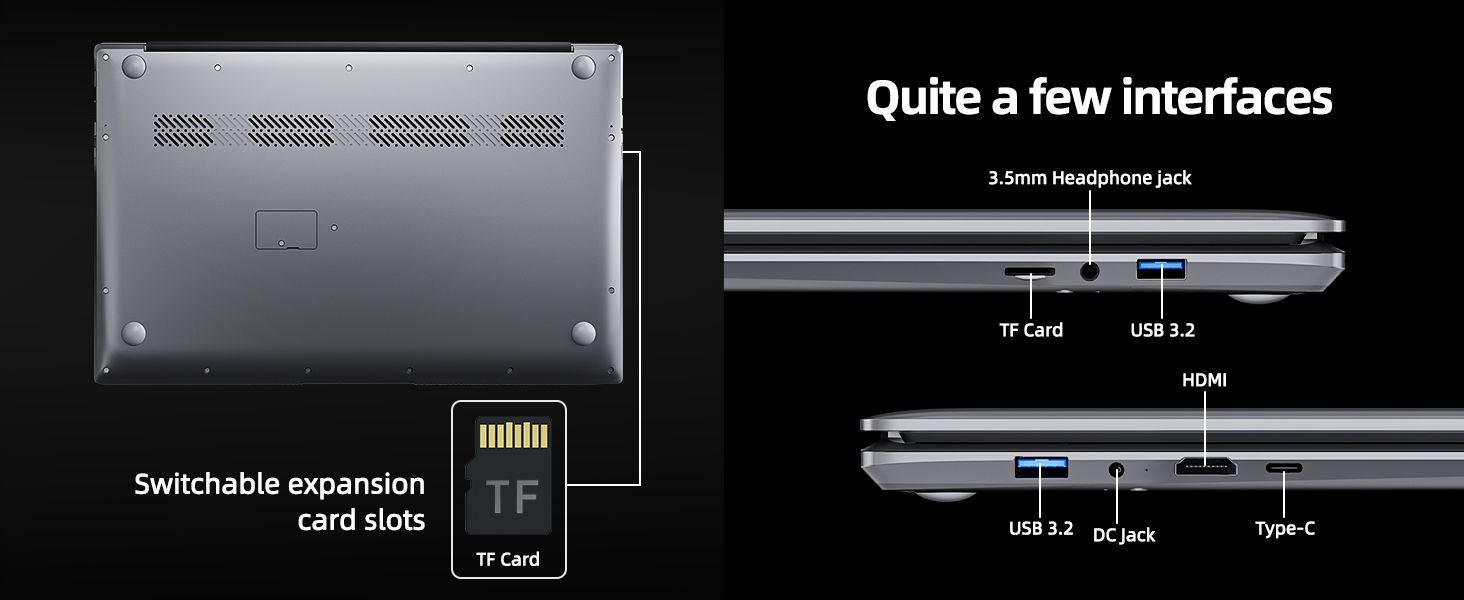
Figure 6.1: Expansion Card Slots
7. Сыход за батарэяй
7.1 Рэкамендацыі па зарадцы
Always use the original SGIN power adapter provided with your laptop. Avoid using third-party chargers that may not meet the required specifications.
7.2 Аптымізацыя тэрміну службы батарэі
Каб падоўжыць тэрмін службы батарэі:
- Адрэгулюйце яркасць экрана да камфортнага, але ніжэйшага ўзроўню.
- Зачыніце невыкарыстоўваныя праграмы і ўкладкі браўзера.
- Адключайце знешнія перыферыйныя прылады, калі яны не выкарыстоўваюцца.
- Enable Windows Battery Saver mode.
- Пазбягайце экстрэмальных тэмператур.
8. Тэхнічнае абслугоўванне і догляд
8.1 Чыстка ноўтбука
Выкарыстоўвайце мяккую безворсовую тканіну, злёгку dampПрамыйце дысплей вадой або сродкам для чысткі экрана. Для клавіятуры і корпуса выкарыстоўвайце мяккую сухую тканіну. Пазбягайце выкарыстання агрэсіўных хімічных рэчываў або абразіўных матэрыялаў.
8.2 Абнаўленне праграмнага забеспячэння
Regularly check for and install Windows updates to ensure system stability, security, and optimal performance. Go to 'Settings' > 'Windows Update'.
8.3 Агульныя палажэнні
Handle your laptop with care. Avoid dropping it or exposing it to liquids, extreme temperatures, or direct sunlight. Do not place heavy objects on the laptop.
9. Выпраўленне непаладак
У гэтым раздзеле разглядаюцца распаўсюджаныя праблемы, з якімі вы можаце сутыкнуцца пры выкарыстанні ноўтбука SGIN.
| праблема | Магчымая прычына | Рашэнне |
|---|---|---|
| Ноўтбук не ўключаецца | Low battery; Power adapter issue; Hardware malfunction | Ensure battery is charged. Check power adapter connection. Try a different outlet. If problem persists, contact support. |
| Wi-Fi не падключаецца | Wi-Fi disabled; Incorrect password; Router issue | Ensure Wi-Fi is enabled in settings. Verify password. Restart router and laptop. |
| Павольнае выкананне | Too many applications running; Low storage space; Malware | Close unnecessary programs. Free up disk space. Run a virus scan. Consider adding more RAM or upgrading SSD if frequently slow. |
| Няма гуку | Volume muted; Incorrect audio output; Driver issue | Check volume levels and mute status. Ensure correct output device is selected. Update audio drivers. |
| Webкамера не працуе | Privacy settings; Driver issue; Application access | Check Windows privacy settings for camera access. Update webcam drivers. Ensure the application has permission to use the camera. |
10. Тэхнічныя характарыстыкі
Detailed specifications for the SGIN M17S Laptop Computer:
| Асаблівасць | Спецыфікацыя |
|---|---|
| Назва мадэлі | М17С |
| Памер пастаяннага экрана | 17.3 цалі |
| Дазвол экрана | 1920 x 1080 пікселяў (Full HD IPS) |
| Працэсар | Intel Core i3-5005U (2.4 GHz, 2 Cores, 4 Threads) |
| АЗП | 4 ГБ DDR4 |
| Жорсткі дыск | 128 ГБ SSD |
| Графічны супрацэсар | Інтэграваны |
| Бесправадны тып | 802.11ac (5G WiFi) |
| Bluetooth | Bluetooth 4.2 |
| Аперацыйная сістэма | Windows 11 хатняя |
| Вага прадмета | 5.89 фунта |
| Памеры прадукту | 17.3 х 10 х 0.6 цалі |
| акумулятар | 8000 mWh Lithium Ion (60Wh) |
| Колер | Чорны |
| Асаблівасць | Memory Card Slot (MicroSD) |
11. Гарантыя і падтрымка
Your SGIN laptop includes a 1-year comprehensive after-sales warranty covering essential components. For technical assistance, warranty claims, or any product-related inquiries, please contact SGIN customer service. Our professional customer service team aims to respond within 12 hours.
For more information and support, please visit the official SGIN webсайт або звярніцеся да кантактнай інфармацыі, указанай на ўпакоўцы прадукту.