
Уводзіны
This manual provides essential information for setting up, operating, maintaining, and troubleshooting your acer Aspire Lite Laptop. Please read this manual thoroughly before using your device to ensure optimal performance and longevity.

Image: The acer Aspire Lite Laptop, highlighting its powerful AMD Ryzen 7 5700U processor for efficient multitasking.
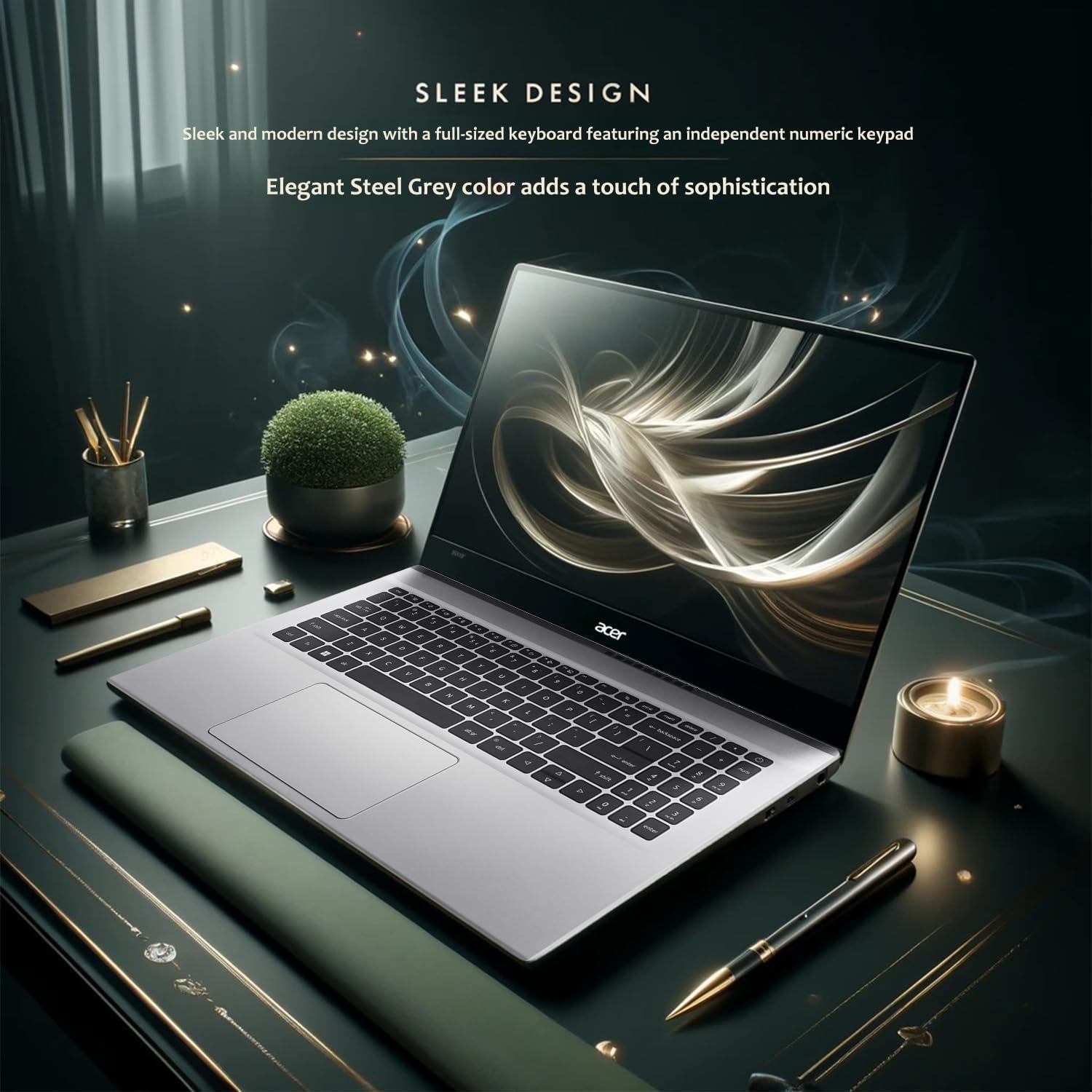
Image: The acer Aspire Lite Laptop showcasing its sleek design and elegant Steel Grey color, featuring a full-size keyboard with a numeric keypad.
Настройка
1. Распакаванне
Carefully remove the laptop and all accessories from the packaging. Ensure the following items are present:
- acer Aspire Lite Laptop
- Адаптар пераменнага току
- Шнур харчавання
- USB-дыск для аднаўлення WOWPC
- Кароткае кіраўніцтва карыстальніка (калі ўключана)
2. Пачатковае ўключэнне
- Падключыце адаптар пераменнага току да порта харчавання ноўтбука, а затым да разеткі.
- Адкрыйце крышку ноўтбука.
- Націсніце кнопку харчавання, якая звычайна знаходзіцца на клавіятурнай панэлі, каб уключыць ноўтбук.
- Follow the on-screen instructions to complete the Windows 11 Pro setup process. This includes selecting your region, language, and setting up your user account.
3. Падключэнне перыферыйных прылад
Ваш ноўтбук мае розныя парты для падключэння знешніх прылад:
- Парты USB: Connect USB devices such as mice, keyboards, external hard drives, or printers. The laptop includes 1x USB 3.2 Gen1 (Type A), 2x USB 2.0 (Type A), and 1x USB 3.2 Gen2 (Type C) ports.
- Порт HDMI: Connect an external monitor or projector using an HDMI cable for extended display options.
- Камбінаваны раз'ём для навушнікаў/мікрафона: Connect headphones, earbuds, or a headset with a 3.5mm audio jack.
- Счытвальнік карт MicroSD: Insert a MicroSD card to access stored data.

Выява: Збоку view of the acer Aspire Lite Laptop, illustrating the placement of USB ports, HDMI port, and the power input for connecting external devices and charging.
Інструкцыя па эксплуатацыі
1. Кіраванне харчаваннем
- Уключэнне: Націсніце кнопку харчавання.
- Выключэнне: Націсніце кнопку «Пуск», затым «Харчаванне», а затым «Выключыць сістэму».
- Перазапуск: Click the Start button, then Power, then Restart.
- Рэжым сну: Зачыніце вечка або націсніце кнопку «Пуск», затым «Харчаванне», а затым «Сон».
- Тэрмін службы батарэі: The laptop offers up to 11 hours of battery life under optimal conditions. To maximize battery life, adjust screen brightness, close unused applications, and enable power-saving modes in Windows settings.

Image: The acer Aspire Lite Laptop in use, with a graphic indicating extended battery life, highlighting its capability for prolonged use on a single charge.
2. Дысплей і графіка
Your laptop features a 15.6" Full HD (1920 x 1080) Acer ComfyView LED-backlit display with AMD Radeon Graphics for clear visuals. Adjust display settings via Windows Display Settings (Right-click on desktop > Display settings).

Image: The acer Aspire Lite Laptop showcasing its 15.6" Full HD display with vibrant graphics, emphasizing the visual clarity provided by AMD Radeon Graphics.
3. Audio
The laptop is equipped with dual stereo speakers for high-fidelity audio. Adjust volume using the function keys (Fn + F8/F9/F10) or through the Windows sound settings.

Image: The acer Aspire Lite Laptop with a visual representation of sound waves emanating from the screen, illustrating its high-fidelity audio experience through dual stereo speakers.
4. Сувязь
- Wi-Fi: Connect to wireless networks using Wi-Fi 6. Access Wi-Fi settings via the taskbar network icon.
- Bluetooth: Pair Bluetooth devices such as headphones, speakers, or mice using Bluetooth 5.2. Manage Bluetooth devices in Windows Settings > Bluetooth & devices.
5. Using the WOWPC Recovery USB
The included WOWPC Recovery USB is designed to assist with system recovery and troubleshooting. Insert the USB into an available port and follow the on-screen prompts or refer to the recovery tool's specific instructions for use.
Тэхнічнае абслугоўванне
1. Уборка
- экран: Выкарыстоўвайце мяккую тканіну без ворса. dampвадой або сродкам для чысткі экранаў. Не распыляйце ачышчальнік непасрэдна на экран.
- Клавіятура і корпус: Выкарыстоўвайце мяккую, сухую тканіну. Для ўстойлівага бруду злёгкуamp можна выкарыстоўваць тканіну. Пазбягайце агрэсіўных хімічных рэчываў.
- парты: Выкарыстоўвайце сціснутае паветра, каб акуратна ачысціць пыл ад партоў.
2. Абнаўленне праграмнага забеспячэння
Regularly update your Windows operating system and drivers to ensure optimal performance and security. Access Windows updates via Settings > Windows Update.
3. Кіраванне сховішчам
Перыядычна пераview and manage your 2TB PCIe NVMe M.2 Solid State Drive storage. Delete unnecessary fileвыдаліце невыкарыстоўваныя праграмы і падумайце аб выкарыстанні воблачнага сховішча для вялікіх fileдля падтрымання хуткасці сістэмы.
Ліквідацыю непаладак
| праблема | Магчымая прычына | Рашэнне |
|---|---|---|
| Ноўтбук не ўключаецца. | Няма харчавання, разраджаны акумулятар, няспраўны адаптар харчавання. | Ensure power adapter is securely connected and outlet is functional. Charge the battery for at least 30 minutes before attempting to power on. |
| Экран пусты або чорны. | Рэжым сну, налады дысплея, праблемы з абсталяваннем. | Press any key or move the mouse to wake from sleep. Check if an external monitor is connected and set as primary display. Restart the laptop. |
| Праблемы з падключэннем да Wi-Fi. | Адключаны Wi-Fi, праблема з маршрутызатарам, праблема з драйверам. | Пераканайцеся, што Wi-Fi уключаны ў наладах Windows. Перазагрузіце маршрутызатар. Абнавіце драйверы Wi-Fi. |
| Павольная прадукцыйнасць. | Too many applications running, low storage, outdated drivers. | Зачыніце непатрэбныя праграмы. Вызваліце месца на дыску. Абнавіце Windows і драйверы. |
| Аўдыё не працуе. | Muted volume, incorrect audio output device, driver issue. | Check volume levels and ensure it's not muted. Select the correct audio output device in Windows sound settings. Update audio drivers. |
For further assistance, refer to the acer support webсайт або звярніцеся ў службу падтрымкі.
Тэхнічныя характарыстыкі
| Асаблівасць | Дэталь |
|---|---|
| Назва мадэлі | Імкнуцца |
| Працэсар | AMD Ryzen 7 5700U (up to 4.3 GHz, 8 Cores, 16 Threads) |
| Графіка | Графіка AMD Radeon (інтэграваная) |
| Аперацыйная сістэма | Windows 11 Pro |
| Памяць (RAM) | 64 ГБ DDR4 SDRAM |
| Захоўванне | Цвёрдацельны назапашвальнік PCIe NVMe M.2 ёмістасцю 2 ТБ |
| Дысплей | 15.6" FHD (1920 x 1080), high-brightness Acer ComfyView Святлодыёдная падсветка |
| Сувязь | Wi-Fi 6, Bluetooth 5.2 |
| Парты | 1x USB 3.2 Gen1 (Type A), 2x USB 2.0 (Type A), 1x HDMI, 1x USB 3.2 Gen2 (Type C), 1x Headphone / Mic Combo Jack |
| Клавіятура | US English, Non-Backlit Full Size Keyboard with Numeric Keypad |
| Webкамера | HD Webcam (1280 x 720 resolution, 720p HD audio/video recording) |
| Аўдыё | 2 х стэрэадынамікі 1.5 Вт |
| Тэрмін службы батарэі | Up to 11 Hours (estimated) |
| Колер | Сталёвы шэры |
| Памеры (Д х Ш х У) | 14.19 х 9.42 х 0.78 цалі |
| Вага | 3.92 фунта |
| Асаблівасці | Anti Glare Coating, HD Audio, Memory Card Slot, Numeric Keypad, WOWPC Recovery USB |
Гарантыя і падтрымка
Інфармацыя аб гарантыі
For detailed warranty information, please refer to the warranty card included with your product or visit the official acer support webсайт. Умовы гарантыі могуць адрознівацца ў залежнасці ад рэгіёна.
Падтрымка кліентаў
If you encounter issues not covered in this manual or require further assistance, please contact acer customer support. You can find contact information and additional resources on the official acer webсайт: