
1. Уводзіны
Гэта кіраўніцтва змяшчае неабходную інфармацыю па наладзе, эксплуатацыі, абслугоўванні і ліквідацыі няспраўнасцей вашага ViewSonic IFP55G1 55-inch 4K UHD ViewBoard Interactive Display. Please read this manual thoroughly before using the product to ensure proper and safe operation.
The ViewSonic IFP55G1 is a 55-inch 4K Ultra HD (3840x2160p) interactive display designed for educational and business environments. It features multi-point touch recognition, an OPS slot for external PCs, 10W dual speakers, and versatile connectivity options including HDMI, VGA, USB Hub, and USB-C inputs. Its OS-free design allows flexibility with various computing solutions.
Асноўныя характарыстыкі:
- Ultra HD Resolution: 55 Inch 4K Ultra HD (3840x2160p) interactive display for crisp visuals.
- Advanced Multi-Touch: Allows multiple users to write and interact simultaneously with fingers and passive pens.
- Гнуткая сувязь: Equipped with a powerful quad-core processor and versatile ports including HDMI, VGA, RJ45, and USB.
- OS-Free Design: Provides enhanced security and flexibility to integrate with your preferred operating system via external PC or OPS device.
- Write-Away Technology: Enables instant writing with the stylus without extended setup.
2. Што ў скрынцы
Verify that all items listed below are included in your package. If any items are missing or damaged, please contact your dealer immediately.
- ViewSonic IFP55G1 Interactive Display
- 3m USB 2.0 touch cable x 1
- Touch pen (Passive pen) x 2 (VB-PEN-002)
- Сілавы кабель 3 м
- HDMI 2.0 cable 3m x 1
- Кароткае кіраўніцтва + заява аб адпаведнасці
- Адаптар RS232
- Screw (wall mount 4)
- Пласціна камеры
- Remote control with AAA battery (Optional)
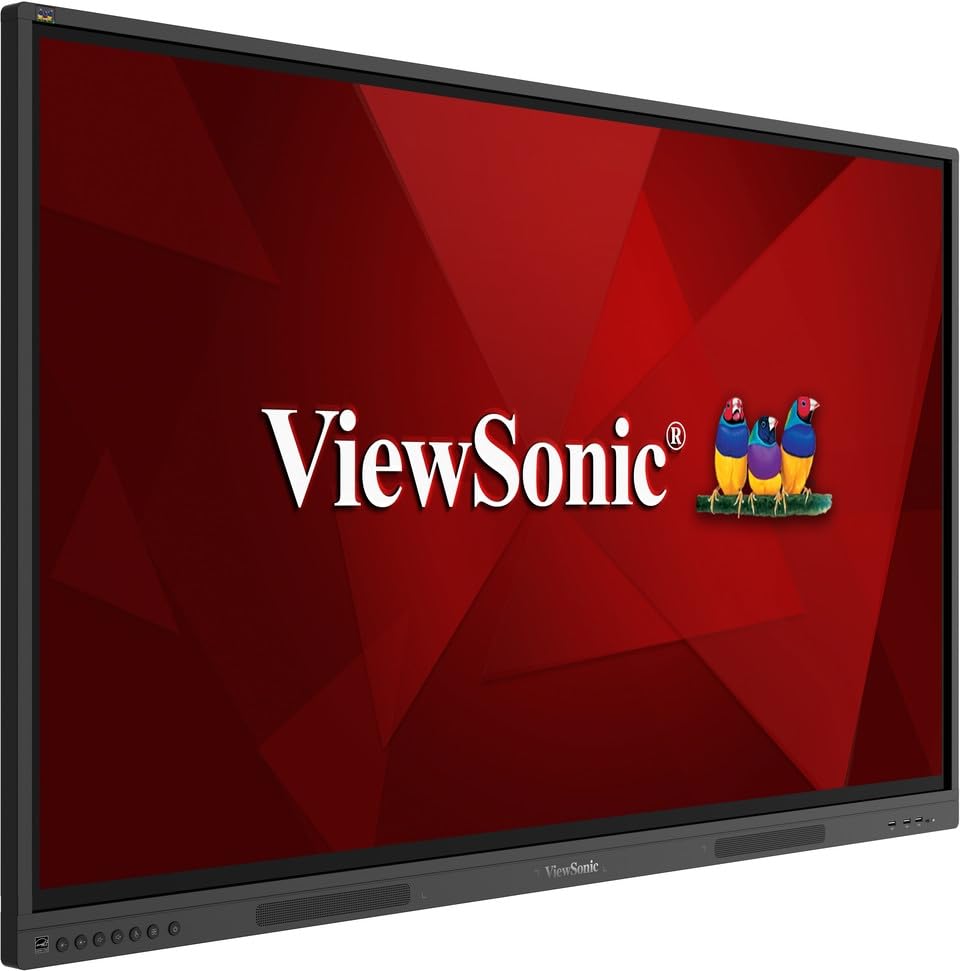
выява: ViewSonic IFP55G1 55-inch ViewBoard Interactive Display, front view.
3. Інструкцыі па ўсталёўцы
3.1 Мантаж дысплея
The IFP55G1 can be wall-mounted or installed on a compatible mobile cart (sold separately). Ensure the mounting solution supports the display's weight (approximately 59.3 lbs / 26.9 kg) and dimensions (3.37 x 49.7 x 30.3 inches).
- For wall mounting, use the provided wall mount screws and ensure the wall structure is robust enough.
- Follow the instructions provided with your specific wall mount or mobile cart.
3.2 Падключэнне перыферыйных прылад
The display offers various ports for connecting external devices. Refer to the image below for port locations.

Выява: Збоку view з ViewSonic IFP55G1 interactive display showing various input ports including HDMI, VGA, and USB.
- Падключэнне сілкавання: Connect the 3m power cable to the display and a grounded power outlet.
- Відэа ўваход: Connect your external PC or media player to the display using an HDMI 2.0 cable (provided), VGA cable, or USB-C cable. The display has 3 HDMI ports, 1 VGA port, and USB-C connectivity.
- Сэнсарныя функцыі: For interactive touch features with an external PC, connect the 3m USB 2.0 touch cable from the display's USB-B (Touch) port to a USB-A port on your PC.
- Слот OPS: If using an optional ViewSonic Slot-in PC (OPS device), insert it into the dedicated OPS slot on the rear of the display. This provides an integrated computing solution.
- Сетка: Падключыце кабель Ethernet да порта RJ45 для доступу да правадной сеткі.
- USB прылады: Use the available USB-A ports to connect USB drives, keyboards, mice, or other peripherals.

Выява: The ViewSonic IFP55G1 display demonstrating connectivity with various external devices, including laptops and mini PCs, highlighting its 'Bring Your Own Devices' capability.
4. Інструкцыя па эксплуатацыі
4.1 Уключэнне/выключэнне
- Уключэнне: Press the power button located on the display's front or side panel, or use the remote control. The display will power on and show the input source.
- Выключэнне: Press the power button again. A confirmation message may appear; select 'Power Off'. For complete power disconnection, unplug the power cable.
4.2 Выбар крыніцы ўваходнага сігналу
Use the 'Source' button on the display or remote control to cycle through available input sources (HDMI 1, HDMI 2, HDMI 3, VGA, USB-C, OPS).
4.3 Using Touch Functionality
Once the USB touch cable is connected to your external PC, the display will function as a multi-touch input device. You can use your fingers or the provided passive pens for interaction.
- Дотык пальцам: Use gestures similar to a tablet or smartphone for navigation, zooming, and drawing.
- Passive Pens: The two included passive pens (VB-PEN-002) allow for precise writing and drawing on the screen. The display's Write-Away technology enables instant use of the pens.

Image: A group of individuals collaborating around a ViewSonic IFP55G1 interactive display in a modern meeting room, demonstrating its multi-touch capabilities for instantaneous collaboration.
4.4 Кіраванне гукам
The display features integrated 10W dual speakers. Adjust volume using the remote control or the buttons on the display panel.
5. Тэхнічнае абслугоўванне
5.1 Ачыстка дысплея
- экран: Акуратна працярыце экран мяккай тканінай без ворса. Для ўстойлівых плям злёгку працярыцеampen the cloth with water or a non-abrasive, ammonia-free screen cleaner. Do not spray cleaner directly onto the screen.
- Casing: Працярыце вasinмяккай сухой тканінай. Пазбягайце выкарыстання агрэсіўных хімічных рэчываў або абразіўных матэрыялаў.
5.2 Агульны догляд
- Пазбягайце класці цяжкія прадметы на дысплей.
- Do not block ventilation openings on the rear of the display.
- Keep the display away from direct sunlight, heat sources, and excessive moisture.
6. Выпраўленне непаладак
Калі ў вас узнікнуць праблемы з вашым ViewSonic IFP55G1, refer to the following common problems and solutions.
6.1 Няма дысплея / чорны экран
- Ensure the power cable is securely connected to both the display and a working power outlet.
- Verify that the display is powered on (power indicator light should be active).
- Check that the video cable (HDMI, VGA, USB-C) is securely connected to both the display and the source device (PC, OPS).
- Select the correct input source using the 'Source' button on the display or remote control.
- Ensure the source device (PC, OPS) is powered on and outputting a video signal.
6.2 Сэнсарная функцыянальнасць не працуе
- Confirm the USB touch cable is securely connected from the display's USB-B (Touch) port to a USB-A port on your external PC.
- Ensure your external PC's operating system has the necessary drivers installed for touch input.
- Restart both the display and the connected PC.
6.3 Няма гуку
- Check the volume level on the display and the connected source device.
- Ensure the audio output from your source device is routed correctly to the display (e.g., via HDMI).
- If using an external audio system, ensure it is properly connected and powered on.
7. Тэхнічныя характарыстыкі
Ніжэй прыведзены тэхнічныя характарыстыкі для ViewSonic IFP55G1 interactive display.
| Асаблівасць | Спецыфікацыя |
|---|---|
| Марка | ViewСонік |
| Назва мадэлі | IFP55G1 |
| Памер экрана | 55 цалі |
| Максімальнае дазвол дысплея | 3840x2160 Pixels (4K UHD) |
| Роднае дазвол | 3840 х 2160 |
| Тып дысплея | ВК |
| Суадносіны бакоў | 16:9 |
| Увод праз чалавечы інтэрфейс | Сэнсарны экран |
| Тэхналогія падлучэння | Ethernet, HDMI, USB Type C, VGA |
| Total Number of HDMI Ports | 3 |
| Усяго партоў USB | 9 |
| Інтэрфейс вываду відэа | DisplayPort |
| Аўдыёвыхад | Integrated 10W Dual Speakers |
| Памеры прадмета (ДxШxВ) | 3.37 х 49.7 х 30.3 цалі |
| Вага прадмета | 59.3 фунта |
| Колер | Чорны |
| Асаблівасці | All-in-one USB port, Anti Glare Display, Light Sensor, Speakers, Touchscreen |
| Сумяшчальныя прылады | Настольны кампутар, ноўтбук |
| UPC | 766907024654 |
8. Гарантыя і падтрымка
8.1 Інфармацыя аб гарантыі
The ViewSonic IFP55G1 interactive display comes with an industry-leading 3-гадовая абмежаваная гарантыя on parts, labor, and backlight. Onsite warranty service may also be available. Please refer to the warranty card included in your package or visit the official ViewСонік website for detailed terms and conditions, and information on optional warranty extensions.
8.2 Падтрымка кліентаў
Па пытаннях тэхнічнай дапамогі, запытаў па прадукце або гарантыйных прэтэнзій звяртайцеся ViewSonic's award-winning customer service team. Contact information can be found on the official ViewСонік webна сайце або ў кіраўніцтве па хуткім запуску, якое пастаўляецца з вашым прадуктам.