
TABWEE T80
TABWEE T80 10-inch Android Tablet User Manual
Мадэль: T80
1. Уводзіны
Thank you for choosing the TABWEE T80 10-inch Android Tablet. This manual provides essential information for setting up, operating, and maintaining your device. Please read it thoroughly before use to ensure optimal performance and safety.
The TABWEE T80 is a versatile Wi-Fi tablet featuring the latest Android 15 operating system with integrated AI capabilities. It boasts a vibrant 10.5-inch Incell IPS display, ample storage with 12GB RAM and 64GB ROM (expandable up to 2TB), and a long-lasting 6000mAh battery. With GMS certification, dual-band Wi-Fi, Bluetooth 5.0, and GPS, it is designed for both productivity and entertainment.
2. Інфармацыя па бяспецы
- Не падвяргайце прыладу ўздзеянню экстрэмальных тэмператур, прамых сонечных прамянёў або высокай вільготнасці.
- Пазбягайце падзення планшэта і моцных удараў.
- Выкарыстоўвайце толькі зарадную прыладу і аксэсуары, якія ўваходзяць у камплект.
- Не спрабуйце самастойна разабраць або адрамантаваць прыладу. Звярніцеся ў службу падтрымкі па дапамогу.
- Keep the tablet away from children and pets to prevent damage or injury.
3. Змесціва ўпакоўкі
Калі ласка, праверце ўпакоўку на наяўнасць наступных прадметаў:
- TABWEE T80 Tablet
- Адаптар пераменнага току
- USB-кабель Type-C
- Кіраўніцтва карыстальніка
4. Прадукт скончыўсяview
Familiarize yourself with the components of your TABWEE T80 tablet.

Малюнак 4.1: Пярэдняя і задняя часткі view of the TABWEE T80 tablet, highlighting its sleek design and rear camera module.
Фізічныя кампаненты:
- 10.5-inch Incell IPS Display: High-definition screen for vivid visuals.
- Пярэдняя камера (2 Мп): Located on the top bezel for video calls and selfies.
- Задняя камера (5 МП): Located on the back for capturing photos and videos.
- Кнопка харчавання: On the side, used to turn the tablet on/off or wake/sleep the screen.
- Кнопкі гучнасці: On the side, to adjust audio volume.
- Порт USB Type-C: Для зарадкі і перадачы дадзеных.
- Гняздо для навушнікаў 3.5 мм: For connecting wired headphones or external speakers.
- Слот для карты MicroSD: For storage expansion up to 2TB.
- Падвойныя дынамікі: Located on the bottom edge for enhanced audio experience.
5. Настройка
5.1 Першапачатковая зарадка
Before first use, fully charge your tablet. Connect the USB Type-C cable to the tablet's charging port and the AC adapter to a power outlet. The battery indicator on the screen will show charging status.
5.2 Уключэнне/выключэнне сілкавання
- Каб уключыць: Press and hold the Power button until the TABWEE logo appears.
- Каб выключыць: Націсніце і ўтрымлівайце кнопку харчавання, пакуль не з'явіцца меню параметраў харчавання, затым абярыце «Выключыць харчаванне».
- Каб заснуць/прачнуцца: Каротка націсніце кнопку харчавання.
5.3 Падключэнне Wi-Fi
Каб падключыцца да Інтэрнэту:
- Перайсці да Налады > Сетка і інтэрнэт > Wi-Fi.
- Уключыце Wi-Fi. Планшэт пачне пошук даступных сетак.
- Выберыце патрэбную сетку са спісу.
- Увядзіце пароль, калі будзе прапанавана, а затым націсніце Злучыцца.
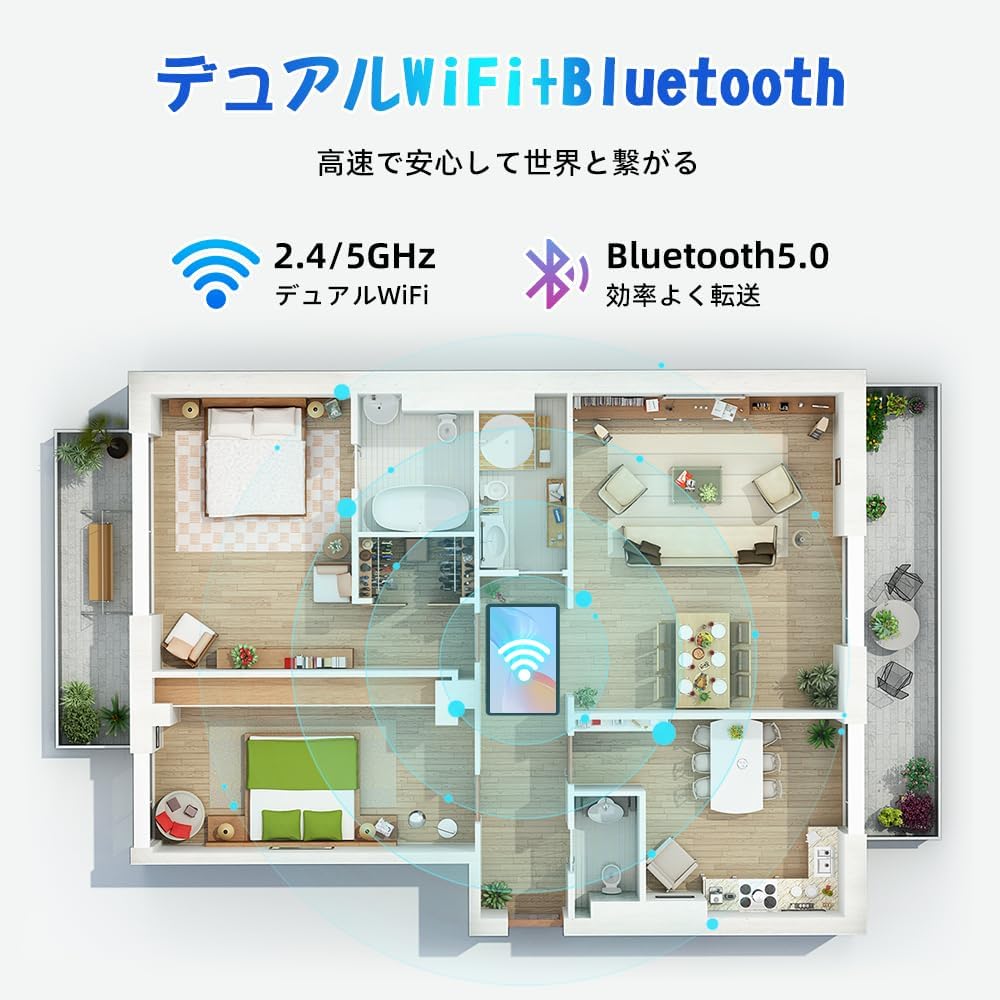
Figure 5.1: Diagram illustrating the tablet's dual-band 2.4G/5G Wi-Fi and Bluetooth 5.0 connectivity, ensuring fast and reliable connections throughout your home or office.
5.4 Налада ўліковага запісу Google
As a GMS certified device, you can access Google Play Store and other Google services. During initial setup, you will be prompted to sign in with your Google account or create a new one. This is essential for downloading apps and syncing data.
5.5 Усталёўка карты MicroSD
To expand storage up to 2TB:
- Знайдзіце слот для карты MicroSD на бакавой панэлі планшэта.
- Устаўце карту MicroSD у слот залацістымі кантактамі ўніз, пакуль яна не зафіксуецца са шчоўкам.
- You may be prompted to format the card for use with the tablet.

Figure 5.2: Visual representation of the tablet's 12GB RAM and 64GB ROM, with support for up to 2TB MicroSD card expansion, allowing for vast storage of photos, videos, and music.
6. Інструкцыя па эксплуатацыі
6.1 Функцыі Android 15
Your tablet runs on Android 15, offering an intuitive and enhanced user experience with improved security, customization, and AI capabilities.

Малюнак 6.1: Закончанаview of Android 15 features, including enhanced security and privacy, expanded customization options, improved AI functions, and new gesture controls for a smoother operation.
6.2 Дысплей і Viewрэжымы
The 10.5-inch Incell IPS display provides vibrant colors and wide viewing angles. Optimize your viewing experience and reduce eye strain with various display modes:

Figure 6.2: The 10.5-inch Incell IPS display offers a 1280x800 resolution and a 16:10 aspect ratio for a wide and efficient viewвопыту.

Figure 6.3: The tablet supports 1080P Full HD content, providing an immersive visual experience for movies and dramas from platforms like YouTube, Prime Video, Hulu, and HBO.

Малюнак 6.4: Візуальны прыкладamples of different screen modes: Night mode for reduced blue light, Dark mode for eye comfort in low light, and Reader mode for a black-and-white paper-like display.
- Начны рэжым: Reduces blue light emissions for comfortable viewing in low light conditions. Access via Quick Settings or Display settings.
- Цёмны рэжым: Changes the system UI and supported apps to a dark theme, reducing eye strain and saving battery on OLED screens. Access via Display settings.
- Рэжым чытання: Optimizes the display for reading, often by converting to grayscale and adjusting contrast. Access via Display settings or specific reading apps.
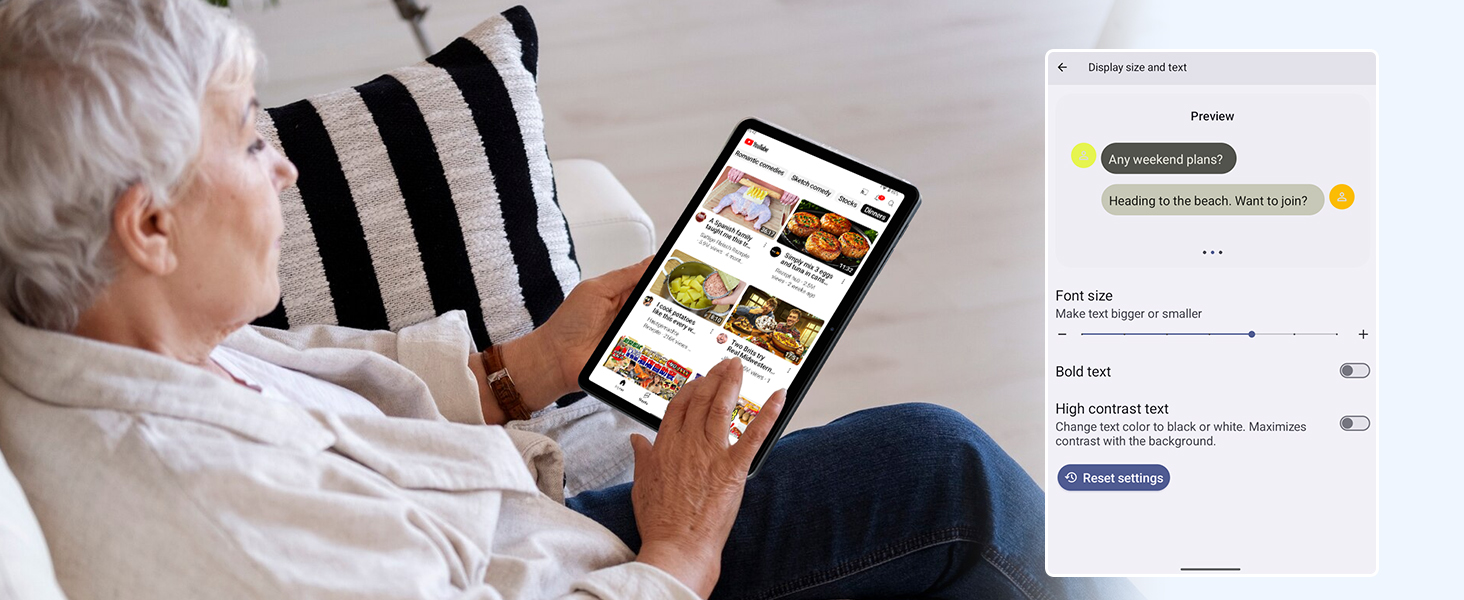
Figure 6.5: Screenshot showing display settings for adjusting text size and bold text, allowing users to customize readability.
6.3 Прадукцыйнасць
The TABWEE T80 is powered by a Unisoc T310 processor, ensuring smooth operation for daily tasks and multimedia consumption.
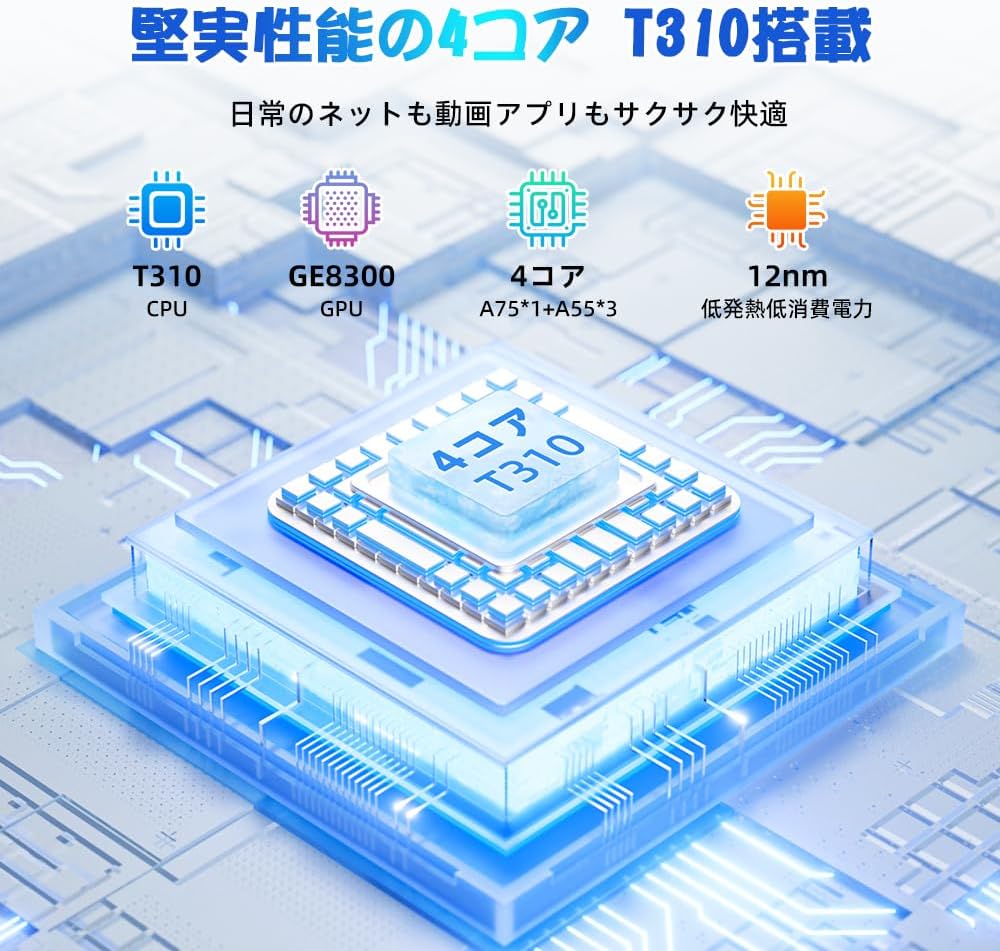
Figure 6.6: Diagram illustrating the T310 quad-core CPU architecture, featuring A75 and A55 cores, designed for efficient performance and low power consumption.

Figure 6.7: Comparison showing the Unisoc T310 processor's improved speed (up to 2.0 GHz) and lower power consumption compared to previous generation products.
6.4 Multitasking and Split Screen
For enhanced productivity, the tablet supports split-screen mode, allowing you to run two applications side-by-side.

Figure 6.8: Demonstration of the split-screen feature, allowing users to comfortably multitask by viewing two applications simultaneously, such as reading an e-book while checking messages.
- To activate split screen: Open an app, then swipe up slightly from the bottom and hold to reveal recent apps. Drag one app to the top or bottom of the screen, then select another app for the remaining space.
6.5 AI Features (Gemini AI)
Leverage the power of Gemini AI for enhanced productivity and convenience.

Figure 6.9: Visuals demonstrating Gemini AI 2.0 capabilities, including AI text-to-image generation, AI voice response, AI smart control, AI real-time conversation, and AI full-screen smart assistance.
Gemini AI can assist with real-time translation, smart text suggestions, and optimizing performance based on your usage habits. Explore AI-enhanced multi-tasking for learning, office work, and entertainment.
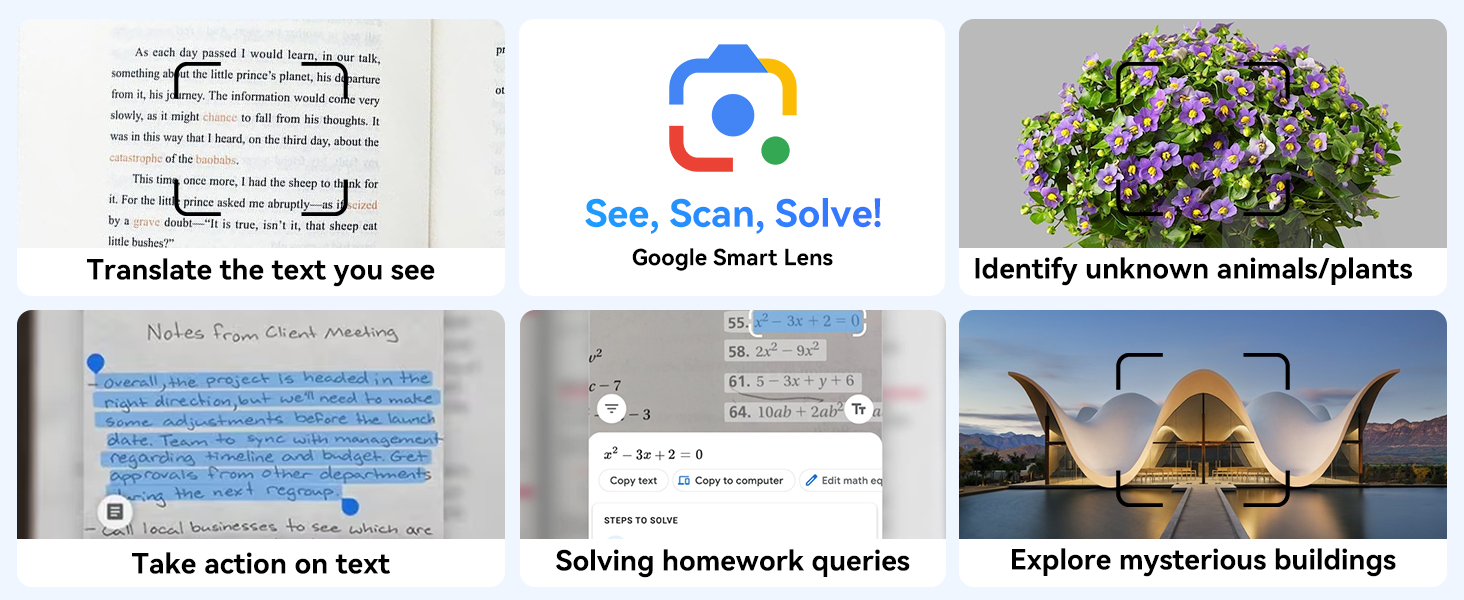
Малюнак 6.10: Выпamples of Google Smart Lens functions: translating text, identifying unknown objects/plants, taking action on text, solving homework queries, and exploring mysterious buildings.
6.6 Parental Controls (Kids Mode)
The tablet includes parental control features to ensure a safe environment for children.

Figure 6.11: Icons representing parental control features: usage time limits, break time settings, app usage restrictions, and content restrictions, all designed to protect children.
You can set time limits, restrict app access, and filter content. Navigate to Налады > Лічбавае дабрабыт і бацькоўскі кантроль to configure these features.
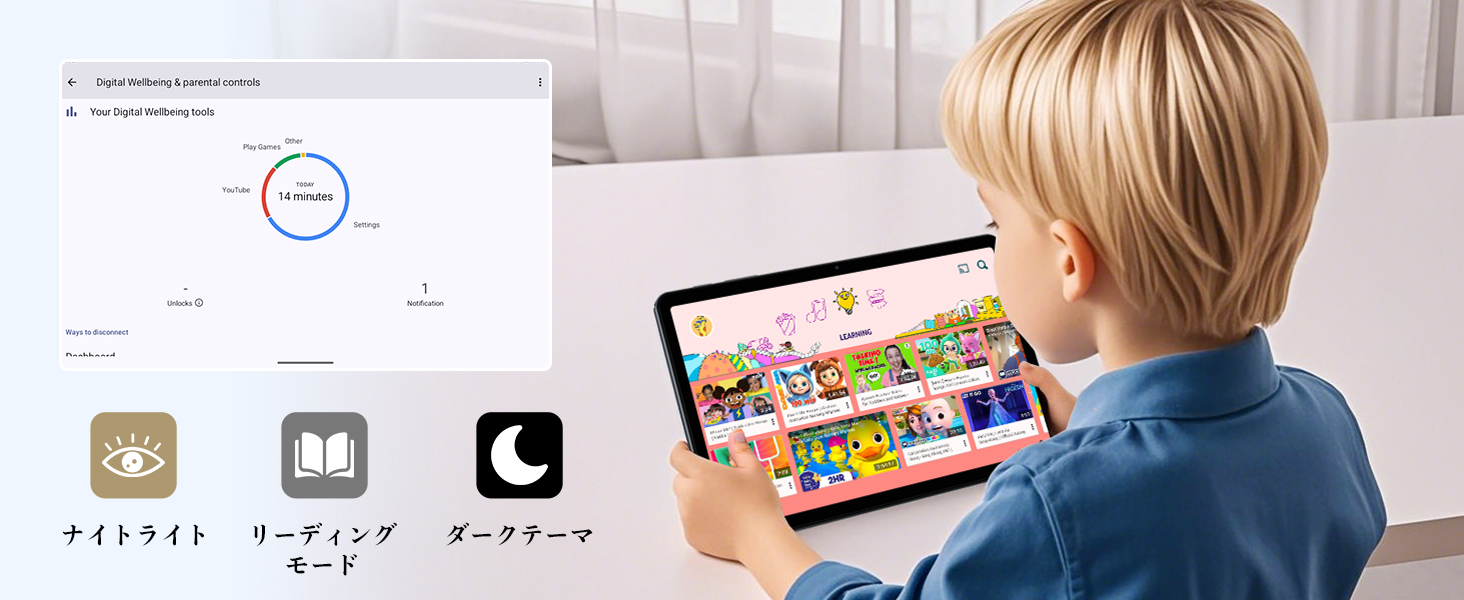
Figure 6.12: Screenshot of the Digital Wellbeing and parental controls interface, showing usage statistics and options for managing screen time and app access for children.
6.7 Бесправадная праекцыя
Mirror your tablet's screen to a compatible TV or monitor wirelessly.
- Ensure your TV/monitor supports wireless display (e.g., Miracast, Chromecast built-in).
- На планшэце перайдзіце па спасылцы Налады > Падключаныя прылады > Параметры злучэння > У ролях.
- Select your display device from the list to begin mirroring.
6.8 Выкарыстанне камеры
The tablet is equipped with a 2MP front camera and a 5MP rear camera.

Figure 6.13: Illustration of the tablet's 2-megapixel front camera and 5-megapixel rear camera, capable of autofocus for clear photos and video calls.
Open the Camera app to take photos or record videos. Tap the shutter button to capture an image or the record button to start/stop video recording. You can switch between front and rear cameras using the camera switch icon.
6.9 Аўдыё
The tablet features dual speakers for an immersive audio experience and a 3.5mm headphone jack for private listening.

Figure 6.14: Diagram showing the location of the two powerful speakers on the TABWEE T80, providing a deep and immersive audio experience.
Адрэгулюйце гучнасць з дапамогай фізічных кнопак гучнасці на баку планшэта або з дапамогай паўзунка гучнасці на экране.
6.10 GPS-навігацыя
The integrated GPS system allows for accurate location tracking and navigation. Use pre-installed map applications or download your preferred navigation app from the Google Play Store.
7. Тэхнічнае абслугоўванне
7.1 Ачыстка
Use a soft, lint-free cloth to clean the screen and body of the tablet. Do not use abrasive cleaners or solvents, as they may damage the surface.
7.2 Абнаўленне праграмнага забеспячэння
Regularly check for system updates to ensure your tablet has the latest features and security patches. Go to Налады > сістэма > Абнаўленне сістэмы.
7.3 Сыход за акумулятарам
Каб падоўжыць тэрмін службы батарэі:
- Пазбягайце частай поўнай разрадкі акумулятара.
- Не пакідайце планшэт зараджацца на працяглы час пасля таго, як ён цалкам зарадзіўся.
- Store the tablet in a cool, dry place when not in use for long periods.

Figure 7.1: Battery life estimates for the 6000mAh battery: 5 hours of web browsing, 4 hours of video playback, 4 hours of gaming, 21 hours of music, and 648 hours of standby time, supported by AI power-saving algorithms.
8. Выпраўленне непаладак
| праблема | Магчымая прычына | Рашэнне |
|---|---|---|
| Планшэт не ўключаецца. | Нізкі зарад батарэі; збой сістэмы. | Зараджайце планшэт не менш за 30 хвілін. Націсніце і ўтрымлівайце кнопку харчавання на працягу 10-15 секунд, каб прымусова перазагрузіць яго. |
| Немагчыма падключыцца да Wi-Fi. | Няправільны пароль; праблема з маршрутызатарам; па-за зонай дзеяння. | Verify Wi-Fi password. Restart your router. Move closer to the Wi-Fi router. |
| Праграмы працуюць павольна або выходзяць з ладу. | Too many apps running; low storage. | Close background apps. Clear app cache. Free up storage space. |
| Экран не рэагуе. | Часовы збой праграмнага забеспячэння. | Прымусова перазагрузіце планшэт, утрымліваючы кнопку харчавання. |
9. Тэхнічныя характарыстыкі
| Асаблівасць | Дэталь |
|---|---|
| Марка | TABWEE |
| Назва мадэлі | T80 Tablet Tabwee |
| Аперацыйная сістэма | Android 15 (сертыфікавана GMS) |
| Памер дысплея | 10.5 inches Incell IPS |
| Дазвол дысплея | 1280x800 пікселяў |
| Марка працэсара | Унісоц |
| Хуткасць працэсара | 2 ГГц |
| Брэнд відэакарты | ARM Mali, G57 |
| АЗП | 12GB (4GB+8GB expansion) |
| Унутраная памяць | 64 ГБ |
| Сховішча з магчымасцю пашырэння | Да 2 ТБ праз карту MicroSD |
| Ёмістасць батарэі | 6000mAh Lithium-ion Polymer |
| Пярэдняя камера | 2 МП |
| Задняя камера | 5 МП |
| Сувязь | 2.4G/5G Wi-Fi (802.11ac), Bluetooth 5.0, GPS |
| Парты | USB тыпу C, раз'ём для навушнікаў 3.5 мм |
| Памеры | 32.79 х 19.9 х 4.1 см |
| Вага | 910 г |
10. Гарантыя і падтрымка
Your TABWEE T80 tablet comes with a 2-гадовая гарантыя вытворцы.
If you encounter any issues with your product, please contact us via email. We strive to respond promptly to ensure your satisfaction.
Як звязацца са службай падтрымкі:
- Through your Amazon account: Go to Гісторыя заказаў > Select the relevant order > Click Звязацца з прадаўцом.
- Through the product page: On the product page, click on the seller's name (TABWEE Official Store) below the "Add to Cart" button, then click "Ask a question" on the top right.
Support hours: 9:00 AM - 6:00 PM (excluding holidays). We will reply as soon as possible.

Figure 10.1: Image representing customer support availability for assistance.