
ATTACK SHARK G6
ATTACK SHARK×Magic-Refiner G6 Wireless Gaming Mouse User Manual
Model: G6 | Brand: ATTACK SHARK
1. Уводзіны
Thank you for choosing the ATTACK SHARK×Magic-Refiner G6 Wireless Gaming Mouse. This manual provides detailed instructions on how to set up, operate, and maintain your new gaming mouse. The G6 mouse features tri-mode connectivity, a high-precision PixArt PAW3311 sensor, and a lightweight ergonomic design, making it ideal for various computing tasks and gaming scenarios.
2. Змесціва ўпакоўкі
Калі ласка, пастаўце галачку для наступных пунктаў:
- ATTACK SHARK×Magic-Refiner G6 Wireless Gaming Mouse
- USB-прыёмнік 2.4G
- Зарадны кабель USB-C
- Anti-Slip Grip Tape Set

Image: The ATTACK SHARK G6 Wireless Gaming Mouse in white, shown with its accompanying USB receiver.
3. Прадукт скончыўсяview
The G6 gaming mouse is designed for versatility and performance. Familiarize yourself with its key components and features.

Image: Detailed diagram of the G6 mouse, highlighting its buttons and features including the Left Button, Scroll Wheel + Middle Button, Right Button, Back Button, Forward Button, Power Toggle Switch (2.4G-OFF-Bluetooth), DPI Cycle Button, Atmosphere Light Switch & Wireless Mode Frequency Binding Button, Battery & DPI Indicator Light, Atmosphere Light, and USB Receiver storage.
3.1. Асноўныя магчымасці
- Трохрэжымнае падключэнне: Seamlessly switch between USB-C wired, 2.4GHz wireless, and Bluetooth 5.0 connections. The 2.4GHz mode offers a polling rate of 125-1000Hz, while Bluetooth operates at 125Hz. This allows for flexible use across various devices and scenarios.
- Высокадакладны датчык: Equipped with the PixArt PAW3311 optical sensor, offering six adjustable DPI levels from 800 to 24000. Features a 1000Hz polling rate, 1ms response time, 300 IPS tracking, and 35G acceleration for precise control.
- Lightweight Design & Long Battery Life: Weighs approximately 72±3g, minimizing hand fatigue during extended use. The built-in 750mAh battery provides over 150 hours of wireless usage on a single charge.
- Durable Switches & Customization: Features 10M micro switches with a 10 million click lifespan. Includes a 1.5m braided USB-C cable. Customize rear RGB lighting via a bottom button for various effects.
- Anti-Slip Grips: Comes with a set of 6 DIY anti-slip grip tapes for enhanced control and sweat resistance.

Image: The G6 mouse illustrating its 2.4GHz Wireless, USB-C Wired, and Bluetooth connection modes.
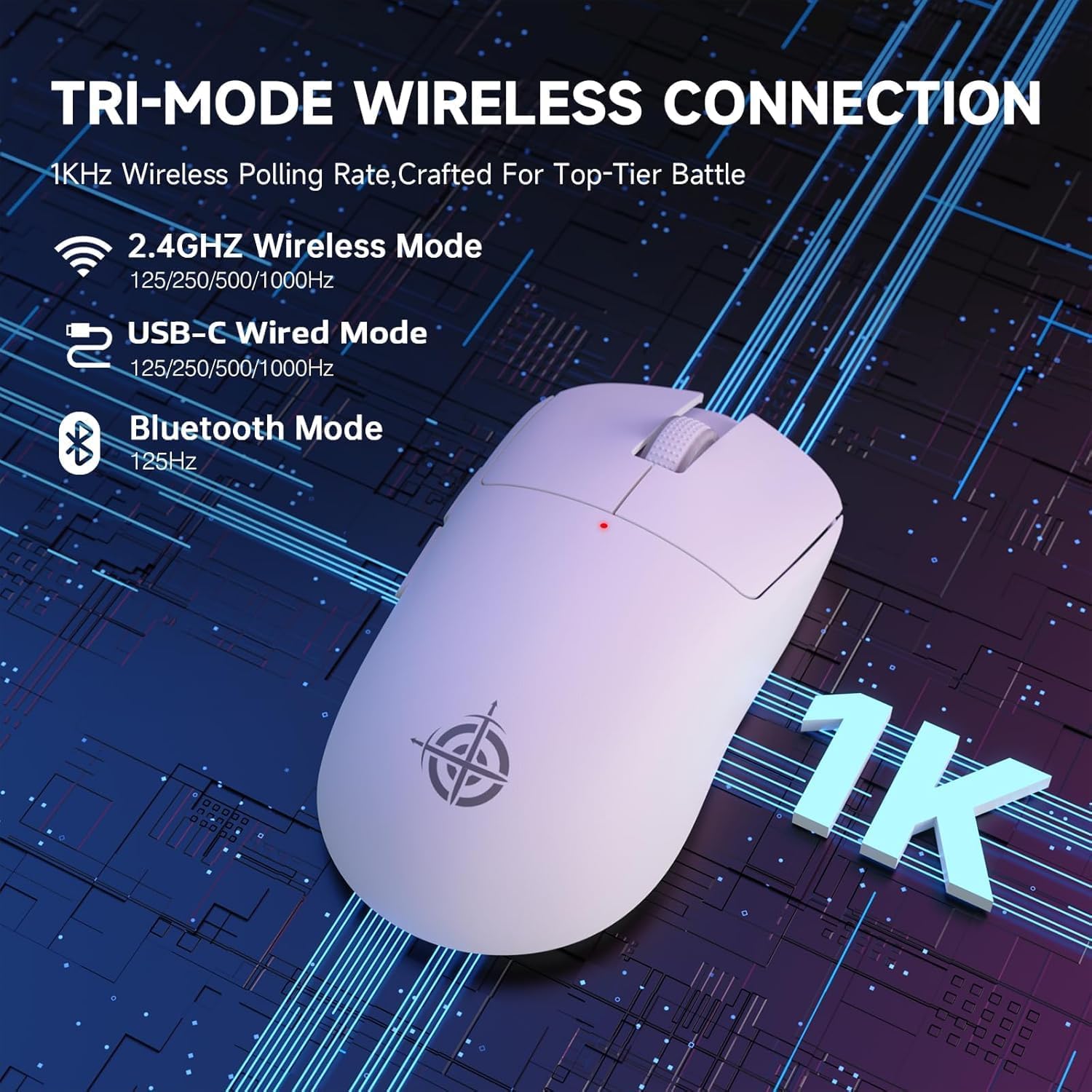
Image: The G6 mouse with an overlay indicating DPI levels (800-24000) and their associated indicator light colors (Red, Green, Blue, Yellow, Cyan, Purple).

Image: The G6 mouse displaying its customizable RGB lighting effects, including rainbow and single color options.

Image: The G6 mouse with its practical non-slip stickers applied, showing the textured surface for improved grip.
4. Кіраўніцтва па наладцы
The G6 mouse offers three connection methods. Choose the one that best suits your needs.
4.1. Бесправадны рэжым 2.4 ГГц
- Locate the 2.4G USB receiver stored in the compartment on the bottom of the mouse.
- Падключыце USB-прыёмнік да вольнага порта USB на вашым кампутары.
- Slide the power toggle switch on the bottom of the mouse to the '2.4G' position.
- The mouse should automatically connect. If not, press the 'Atmosphere light switch & wireless mode frequency binding button' on the bottom of the mouse to initiate pairing.
4.2. Рэжым Bluetooth
- Slide the power toggle switch on the bottom of the mouse to the 'Bluetooth' position.
- Індыкатар мышы пачне міргаць, паказваючы, што яна знаходзіцца ў рэжыме спалучэння.
- На вашым камп'ютары або прыладзе перайдзіце ў налады Bluetooth і знайдзіце новыя прылады.
- Select 'ATTACK SHARK G6' (or similar name) from the list of available devices to pair.
4.3. Правадны рэжым USB-C
- Падключыце кабель USB-C з камплекта да пярэдняга порта мышы.
- Падключыце другі канец кабеля USB-C да даступнага порта USB на вашым кампутары.
- Мыш аўтаматычна пераключыцца ў правадны рэжым і пачне зараджацца.
5. Інструкцыя па эксплуатацыі
5.1. Рэгуляванне DPI
The G6 mouse has a dedicated DPI cycle button on the bottom. Press this button to cycle through the preset DPI levels (800, 1600, 2400, 3200, 6400, 24000). The indicator light will change color to reflect the current DPI setting (Red, Green, Blue, Yellow, Cyan, Purple respectively).
5.2. Функцыі кнопак
The G6 mouse features 5 programmable buttons:
- Левая кнопка: Standard left click.
- Правая кнопка: Standard right click.
- Scroll Wheel + Middle Button: Пракрутка ўверх/уніз, клік сярэдняй кнопкай мышы.
- Кнопка "Наперад": Перамяшчаецца наперад web браўзэры або file даследчыкі.
- Кнопка "Назад": Пераходзіць назад у web браўзэры або file даследчыкі.
For advanced customization of button functions and macros, please download the official driver software from the ATTACK SHARK webсайт.
5.3. Кіраванне RGB-падсветкай
The G6 mouse features customizable RGB lighting. Use the 'Atmosphere light switch' button on the bottom of the mouse to cycle through different lighting effects (e.g., Rainbow Lighting, Single Lighting) or to turn the lighting off.
6. Тэхнічнае абслугоўванне
To ensure the longevity and optimal performance of your G6 gaming mouse, follow these maintenance guidelines:
- Уборка: Выкарыстоўвайце мяккую сухую тканіну для працірання паверхні мышы. Для ўстойлівага бруду злёгкуampПрацярыце тканіну вадой або мяккім ачышчальным растворам. Пазбягайце агрэсіўных хімічных рэчываў або абразіўных матэрыялаў.
- Сыход за датчыкам: Трымайце аптычны датчык на ніжняй частцы мышы чыстым і без пылу або смецця. Пры неабходнасці выкарыстоўвайце ватовы тампон або сціснутае паветра.
- захоўванне: Калі мыш не выкарыстоўваецца працяглы час, захоўвайце яе ў прахалодным, сухім месцы, удалечыні ад прамых сонечных прамянёў і экстрэмальных тэмператур.
- акумулятар: Пазбягайце частай поўнай разрадкі акумулятара. Рэгулярна зараджайце мыш, каб падтрымліваць яго ў працоўным стане.
7. Выпраўленне непаладак
If you encounter any issues with your G6 gaming mouse, please refer to the following common solutions:
- Мышка не рэагуе:
- Ensure the mouse is charged. Connect it via USB-C cable to charge.
- Check the power toggle switch on the bottom of the mouse is in the correct position (2.4G, BT, or OFF for wired).
- For 2.4GHz mode, ensure the USB receiver is securely plugged into a working USB port. Try a different USB port.
- For Bluetooth mode, ensure Bluetooth is enabled on your device and the mouse is paired. Try unpairing and re-pairing.
- Рух курсора няўстойлівы або недакладны:
- Ачысціце аптычны датчык у ніжняй частцы мышы.
- Ensure you are using the mouse on a suitable surface. Some surfaces (e.g., plain black neoprene pads, highly reflective surfaces) may interfere with optical tracking. Try a different mouse pad or surface.
- Adjust the DPI setting using the DPI cycle button.
- 2.4GHz dongle not working:
- Ensure the mouse is switched to 2.4G mode.
- Try plugging the dongle into a different USB port on your computer.
- If issues persist, try re-pairing the mouse with the dongle by pressing the binding button on the mouse while the dongle is connected.
- Праблемы з падключэннем Bluetooth:
- Ensure the mouse is in Bluetooth pairing mode (indicator light blinking).
- Remove the mouse from your device's Bluetooth list and attempt to pair again.
- Пераканайцеся, што драйверы Bluetooth вашай прылады абноўлены.
8. Тэхнічныя характарыстыкі
| Асаблівасць | Спецыфікацыя |
|---|---|
| Нумар мадэлі | G6 |
| Тэхналогія падлучэння | 2.4Ghz / Bluetooth / USB-C Wired |
| Тэхналогія выяўлення руху | Optical (PixArt PAW3311) |
| Ўзроўні DPI | 800-24000 (6 adjustable levels) |
| Стаўка апытання | 125-1000Hz (2.4Ghz), 125Hz (Bluetooth) |
| Ёмістасць батарэі | 750 мАг |
| Вага прадмета | 72±3g (2.54 ounces) |
| Памеры | 116.2 x 62.2 x 37.3 мм (прыблізна) |
| Тэрмін службы пераключальніка | 10 мільёнаў клікаў |
| Даўжыня кабеля | 1.5m (Braided USB-C) |
| Сумяшчальнасць | Windows, macOS, Linux, Chrome OS, Consoles, Tablets, Smartphones |
9. Гарантыя і падтрымка
The ATTACK SHARK×Magic-Refiner G6 Wireless Gaming Mouse comes with a standard manufacturer's warranty. Please refer to the product packaging or the official ATTACK SHARK webсайт для атрымання канкрэтных гарантыйных умоў.
For technical support, troubleshooting assistance, or warranty claims, please contact ATTACK SHARK customer service through their official webсайт або краму, дзе вы набылі тавар.
Заўвага: Афіцыйных відэа прадукту ад прадаўца для ўбудавання ў гэта кіраўніцтва не было.