
1. Прадукт скончыўсяview
The INFIYA Z1 Solar Camera is a wireless outdoor security camera designed for home surveillance. It features a built-in 5200 mAh battery, solar charging capabilities, PIR motion detection, siren alarm, and 2K color night vision. It supports SD and optional cloud storage and is compatible with Alexa.
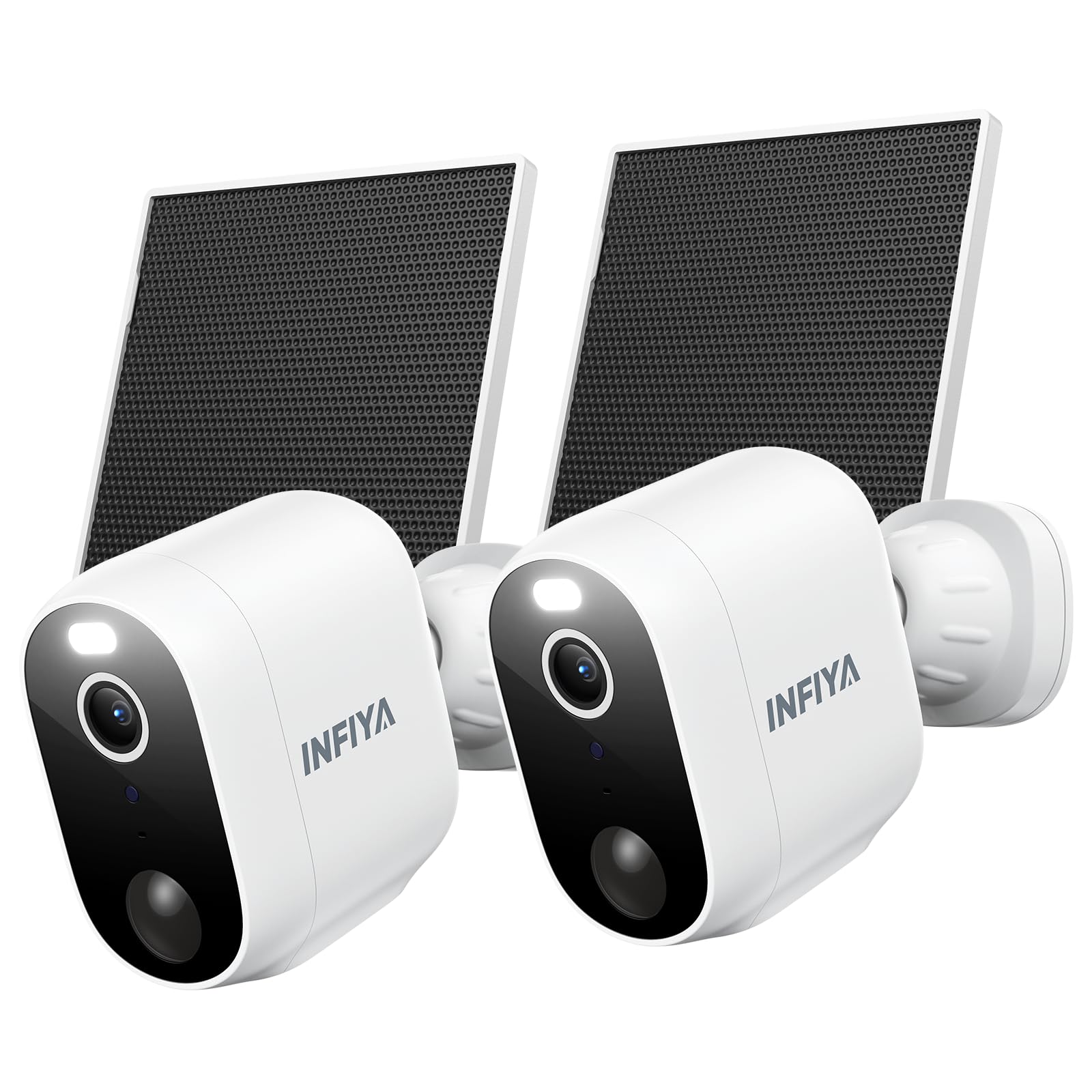
Image 1.1: INFIYA Z1 Solar Camera highlighting key features.
- Больш працяглы час чакання: Built-in 5200 mAh battery with included solar panel for continuous power.
- AI-Enhanced PIR Human Detection: Reduces false alerts by detecting important events up to 32ft.
- Dual Defense: Light and siren alarm to deter intruders, with 2-way audio for communication.
- 2K FHD Live Feed: Crystal-clear video resolution for detailed surveillance.
- Каляровы начны бачанне: White light enables color vision at night; infrared for black & white mode.
- Truly Wireless: IP65 weather resistance and 2.4GHz WiFi connectivity (5GHz not supported).
- Гнуткае захоўванне: Supports App Motion Alerts, Local TF Card Storage (up to 128GB, not included), and Optional Cloud Storage.
2. Што ў скрынцы

Image 2.1: Package contents for the INFIYA Z1 Solar Camera.
- Solar Camera (x2)
- Кранштэйн (x2)
- Кіраўніцтва па ўстаноўцы
- Крапежныя шрубы
- Mounting Template Stickers
- Type-C Power Cord (x2)
- Сонечная панэль (x2)
3. Усталёўка і налада
Follow these steps to set up and install your INFIYA Z1 Solar Camera.
3.1 App Download & Account Creation
- Scan the QR code on the product packaging or in the Installation Guide to download the Wansview Cloud app from Google Play or the App Store.
- Адкрыйце праграму і стварыце новы ўліковы запіс або ўвайдзіце, калі ён у вас ужо ёсць.
3.2 Падключэнне камеры
Ensure your phone is connected to a 2.4GHz Wi-Fi network. 5GHz Wi-Fi is not supported.
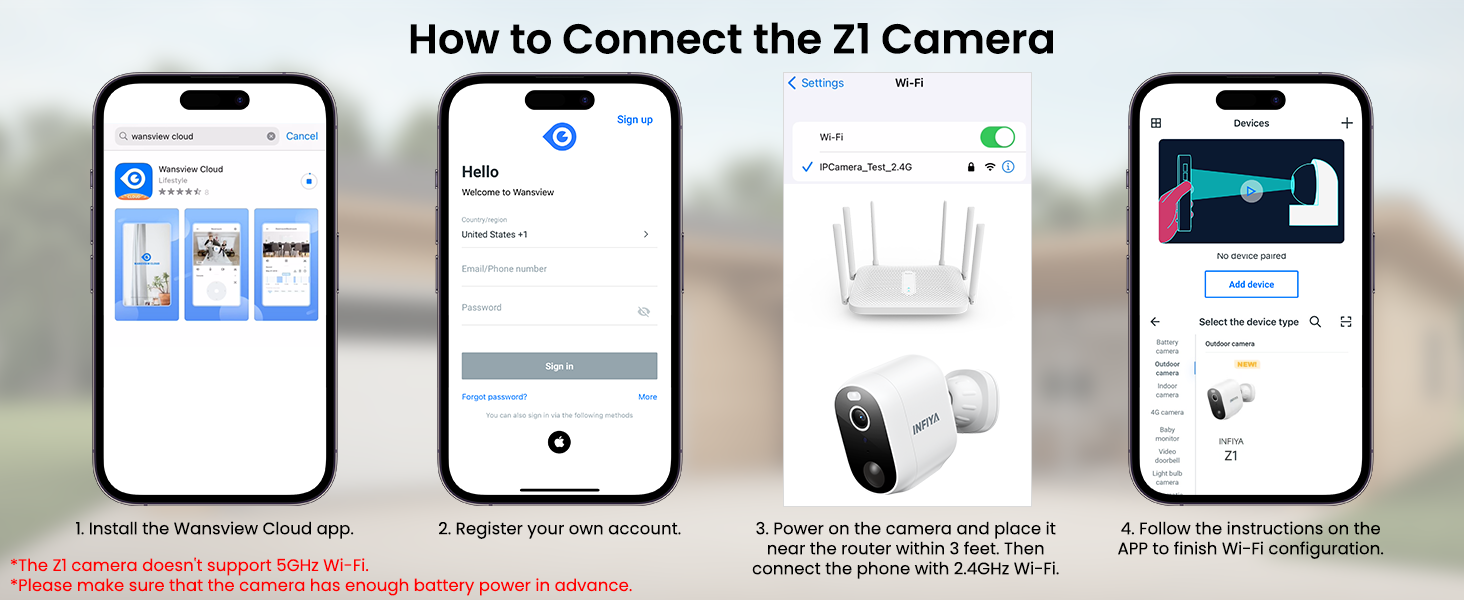
Image 3.1: Visual guide for connecting the Z1 camera to the Wansview Воблачнае прыкладанне.
- In the Wansview Cloud app, tap the '+' icon to add a new device.
- Select the 'INFIYA Z1' camera model.
- Choose 'Wi-Fi connection by QR code' or 'Wi-Fi connection by Soft-AP' as per the app's instructions.
- Power on the camera. Ensure it has sufficient battery or charge it for about 30 minutes in advance.
- If using QR code connection, scan the QR code displayed on your phone with the camera lens.
- Follow any remaining in-app prompts to complete the connection.
3.3 Фізічная ўстаноўка
The camera and solar panel can be wall-mounted or ceiling-mounted. It is recommended to install the solar panel in an area with direct sunlight.
- Use the provided mounting template stickers to mark drill holes on your desired installation surface.
- Drill holes and insert expansion bolts.
- Affix the camera bracket base and solar panel bracket using the provided screws.
- Attach the camera to its bracket and connect the solar panel cable to the camera's Type-C port.
4. Кіраванне камерай
Ваныview Cloud app provides full control over your INFIYA Z1 camera's features.
4.1 У прамым эфіры View & Двухбаковая аўдыёсувязь
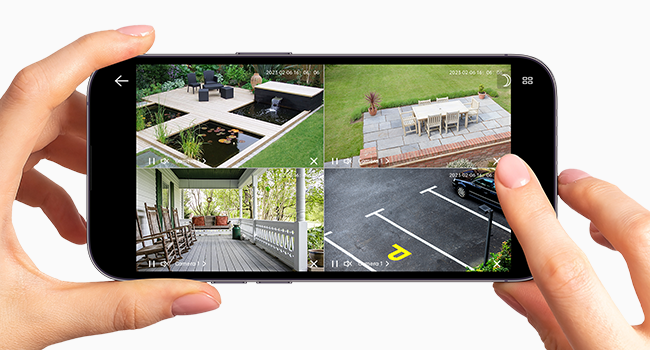
Image 4.1: Multiple camera views within the Wansview Воблачнае прыкладанне.
- Access live 2K FHD video streams from your camera(s) via the app.
- Use the microphone icon to enable two-way audio, allowing you to speak through the camera.
- Switch between 2K and standard definition video quality as needed.
- Record video directly to your smartphone or capture still images.
4.2 Выяўленне руху і абвесткі
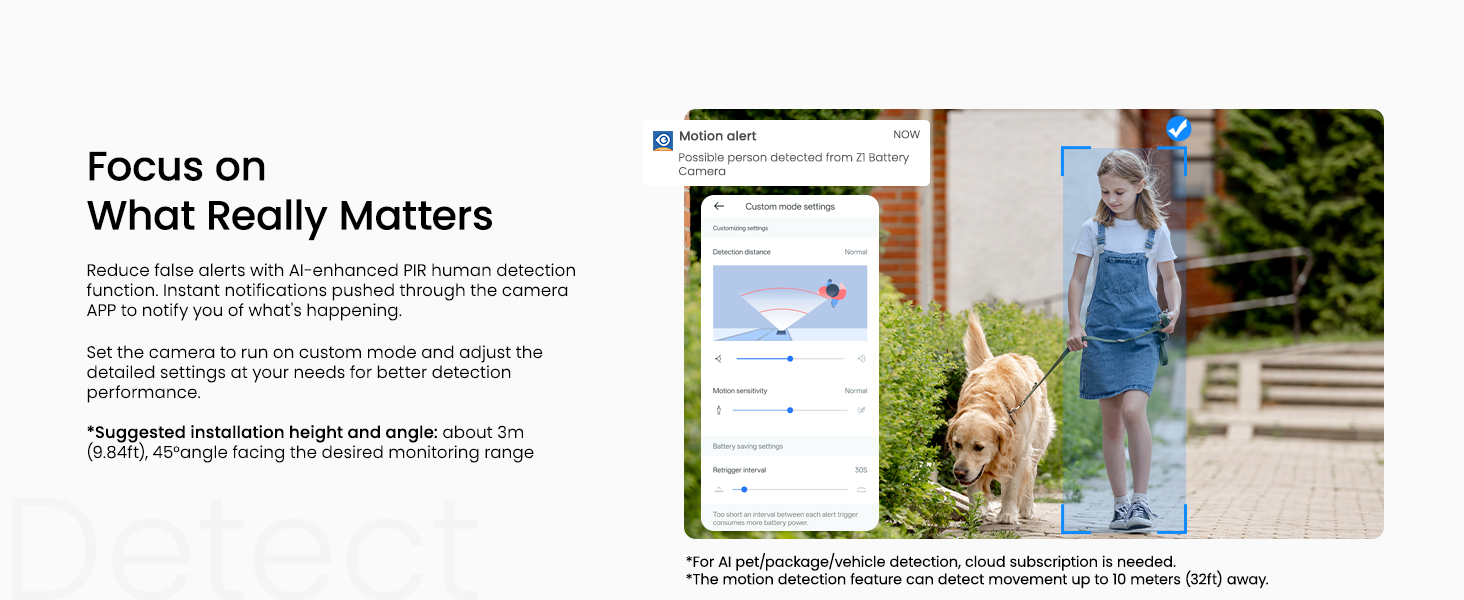
Image 4.2: Customizing motion detection settings and receiving alerts.
- Configure motion detection settings (Power-save, Standard, Performance, Custom modes) to balance battery life and detection sensitivity.
- Enable motion alerts to receive real-time notifications on your smartphone when activity is detected.
- Customize detection types (e.g., human, pet, vehicle) and notification preferences.
4.3 Night Vision & Lighting
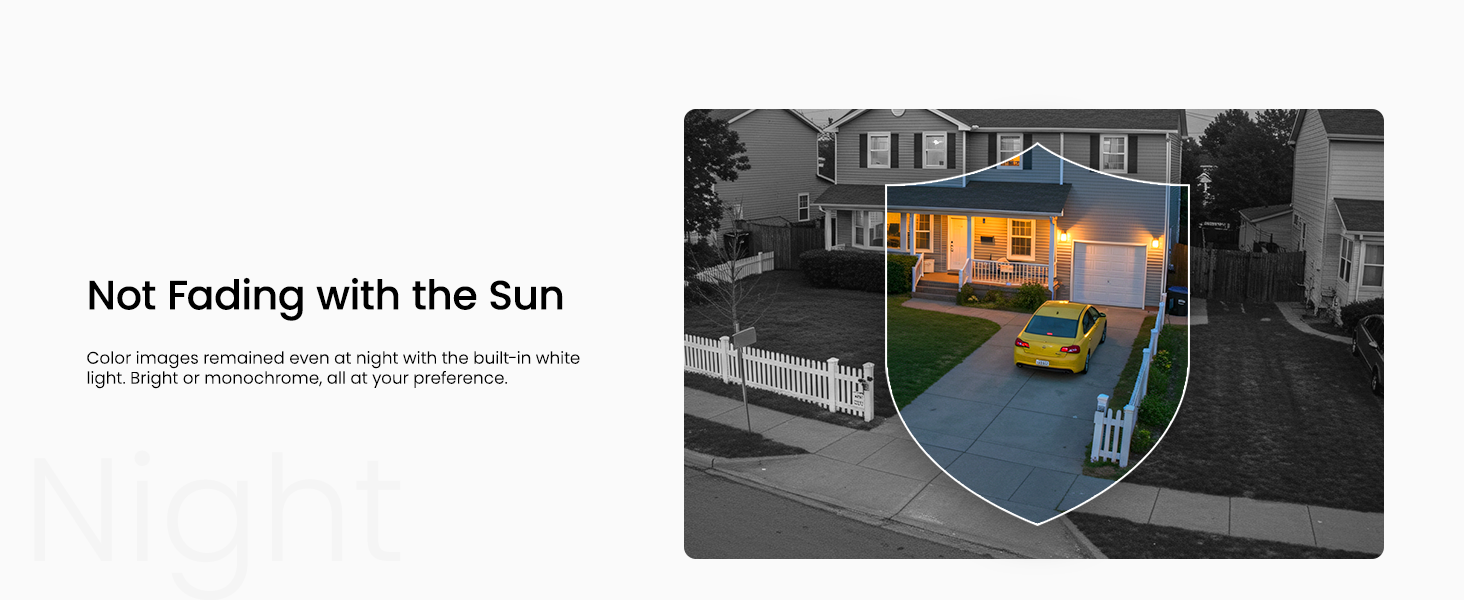
Image 4.3: The camera offers both infrared and full-color night vision options.
- Choose between Auto Infrared mode (black & white), Intelligent Light mode (color night vision with white lights on motion), or Full Color Night mode (always color with ambient light).
- Manually turn on/off the camera's integrated light for enhanced visibility or deterrence.
4.4 Siren Alarm

Image 4.4: The camera's siren can be manually activated or triggered by motion.
- Manually activate the siren from the app to deter unwanted visitors.
- Set the siren to be triggered automatically by motion detection for an immediate response.
5. Параметры захоўвання

Выява 5.1: Канецview of the three available storage modes.
- App Motion Alerts: Receive real-time snapshots/clips (no permanent save) at no cost.
- Local TF Card Storage: Supports up to 128GB (FAT32 format only) for loop recording. TF card not included.
- Optional Cloud Storage: Subscription required for secure off-site backup, multi-device access, and advanced AI recognition features (human, pet, vehicle, package).
6. Агульны доступ да прылады
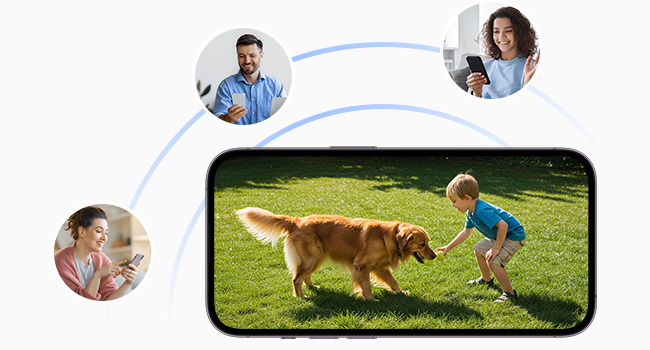
Image 6.1: Share camera access with family members or other users.
You can share access to your camera with other users (family, friends) through the Wansview Cloud app. Navigate to 'Settings' > 'Device Sharing' and invite new members. You can select specific permissions for shared users, such as live view, motion alerts, cloud storage replay, two-way audio, light control, and siren control.
7. Тэхнічныя характарыстыкі
| Выкарыстанне ў памяшканні/на вуліцы | У памяшканні, на адкрытым паветры |
| Сумяшчальныя прылады | Alexa Assistant |
| Крыніца харчавання | Батарэйнае харчаванне, сонечная энергія |
| Пратакол злучэння | Wi-Fi (толькі 2.4 ГГц) |
| Тып кантролера | Android, iOS |
| Тып мацавання | Насценнае мацаванне, мацаванне на столі |
| Дазвол відэазахопу | 1296p (2K) |
| Колер | Белы |
| Міжнародны рэйтынг абароны | IP65 |
| Магутнасць батарэі | 5200 Міліamp Гадзіны |
| Дыяпазон начнога бачання | 26 футаў |
| Viewing кут | 98.9 градусаў |
8. Тэхнічнае абслугоўванне
To ensure optimal performance and longevity of your INFIYA Z1 Solar Camera, follow these maintenance guidelines:
- Рэгулярная ўборка: Periodically clean the camera lens and solar panel surface with a soft, damp cloth to remove dust, dirt, or debris that may obstruct vision or reduce charging efficiency.
- Маніторынг батарэі: While solar-powered, monitor the battery level in the app, especially during prolonged periods of low sunlight or heavy usage.
- Абнаўленні прашыўкі: Check the Wansview Cloud app regularly for firmware updates to ensure your camera has the latest features and security enhancements.
- Абарона ад надвор'я: Although IP65 rated, ensure the camera is installed securely to withstand strong winds or heavy precipitation. Avoid direct high-pressure water jets.
9. Выпраўленне непаладак
If you encounter issues with your INFIYA Z1 Solar Camera, refer to these common troubleshooting tips:
- Праблемы з падключэннем: Ensure your Wi-Fi network is 2.4GHz. Verify the Wi-Fi signal strength at the camera's location using the app. Try resetting the camera by holding the reset button for 5 seconds until the red and blue LEDs flash alternately.
- Акумулятар не зараджаецца: Confirm the solar panel is receiving direct sunlight. Check the connection cable between the solar panel and the camera. Ensure the solar panel surface is clean.
- Абвесткі аб ілжывым руху: Adjust the motion detection sensitivity settings in the app. Utilize custom detection zones to exclude areas with frequent irrelevant movement (e.g., swaying trees).
- Дрэннае начное бачанне: Ensure the camera lens is clean. Check night vision settings in the app (Auto Infrared, Intelligent Light, Full Color Night) to match your preference and ambient light conditions.
- Праблемы з двухбаковай аўдыёсувяззю: Verify microphone and speaker settings in the app. Ensure there are no obstructions blocking the camera's microphone or speaker.
10. Гарантыя і падтрымка
For warranty information, technical support, or further assistance, please refer to the official INFIYA website or contact their customer service directly. The Wansview Cloud app also provides a 'Support Center' and 'Diagnose' section for in-app assistance.